Once you’ve organized your templates into folders, you can filter the templates view to show only the templates in a specific folder, giving you a focused workspace for the task at hand. To apply a folder filter, click on any folder in the menu or in the templates Grid or List view.
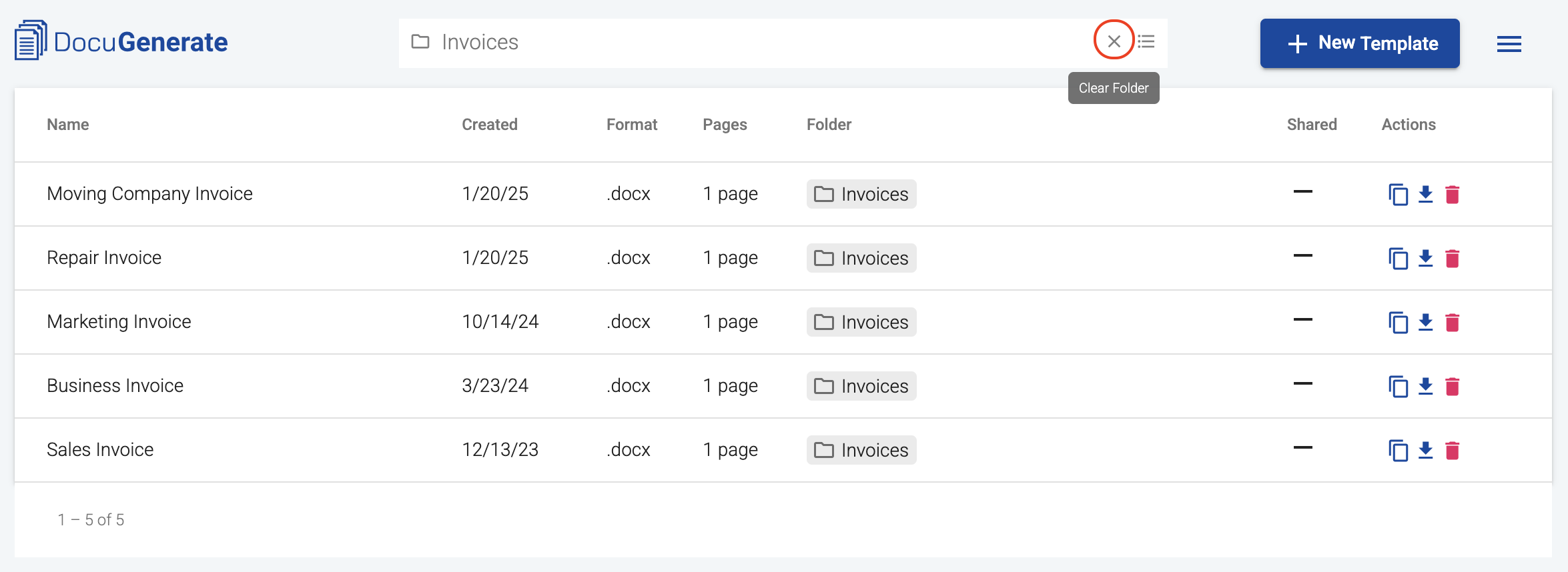
When applying a filter, the templates view immediately updates to show only the templates assigned to that folder. The folder breadcrumb appears in the navbar, showing the full path of the selected folder.
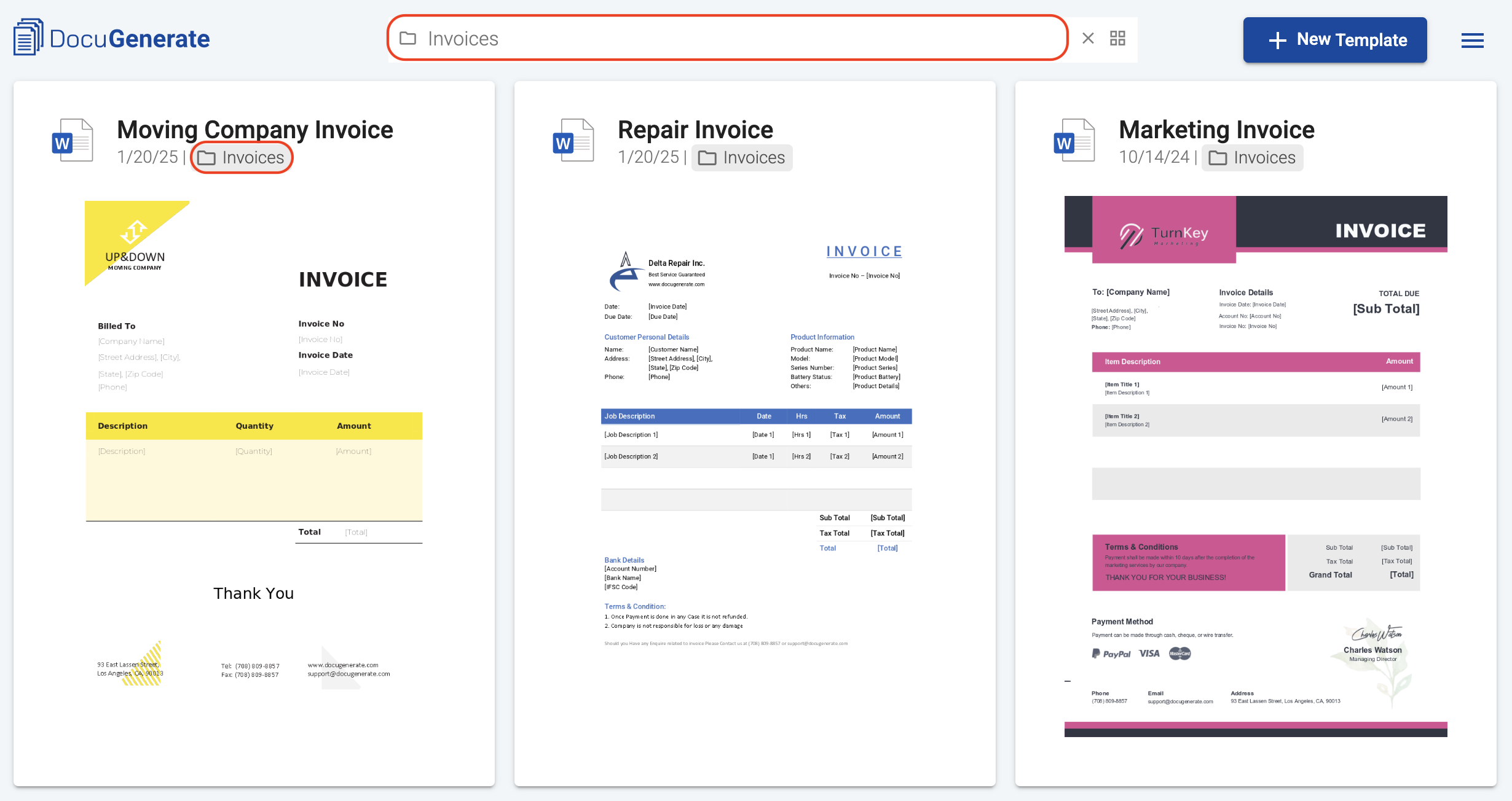
To return to the default view with all your templates, click the Clear Folder icon next to the breadcrumb or select All Templates in the folder menu.
Folder filtering scope
When you filter by a folder, only the templates directly assigned to that folder are shown. Templates in subfolders are not included in the parent folder’s filtered view. To see templates from a subfolder, select that subfolder specifically in the folder menu.
Team collaboration
If you’re part of a team, your team owner’s folders appear in a dedicated Shared section in the folder menu, separated from your own folders by a visual divider. You can filter by any folder in either section, and the filtered views can be bookmarked or shared via URL just like your personal folders.