DocuGenerate supports nested folders, allowing you to build a hierarchical structure that matches the way your organization thinks about templates. There are two ways to create a folder inside an existing one.
When you create a new folder, the new folder dialog includes a Parent folder dropdown listing all available folders in your account. Select the folder you want to be the parent, and the new folder is created inside it.
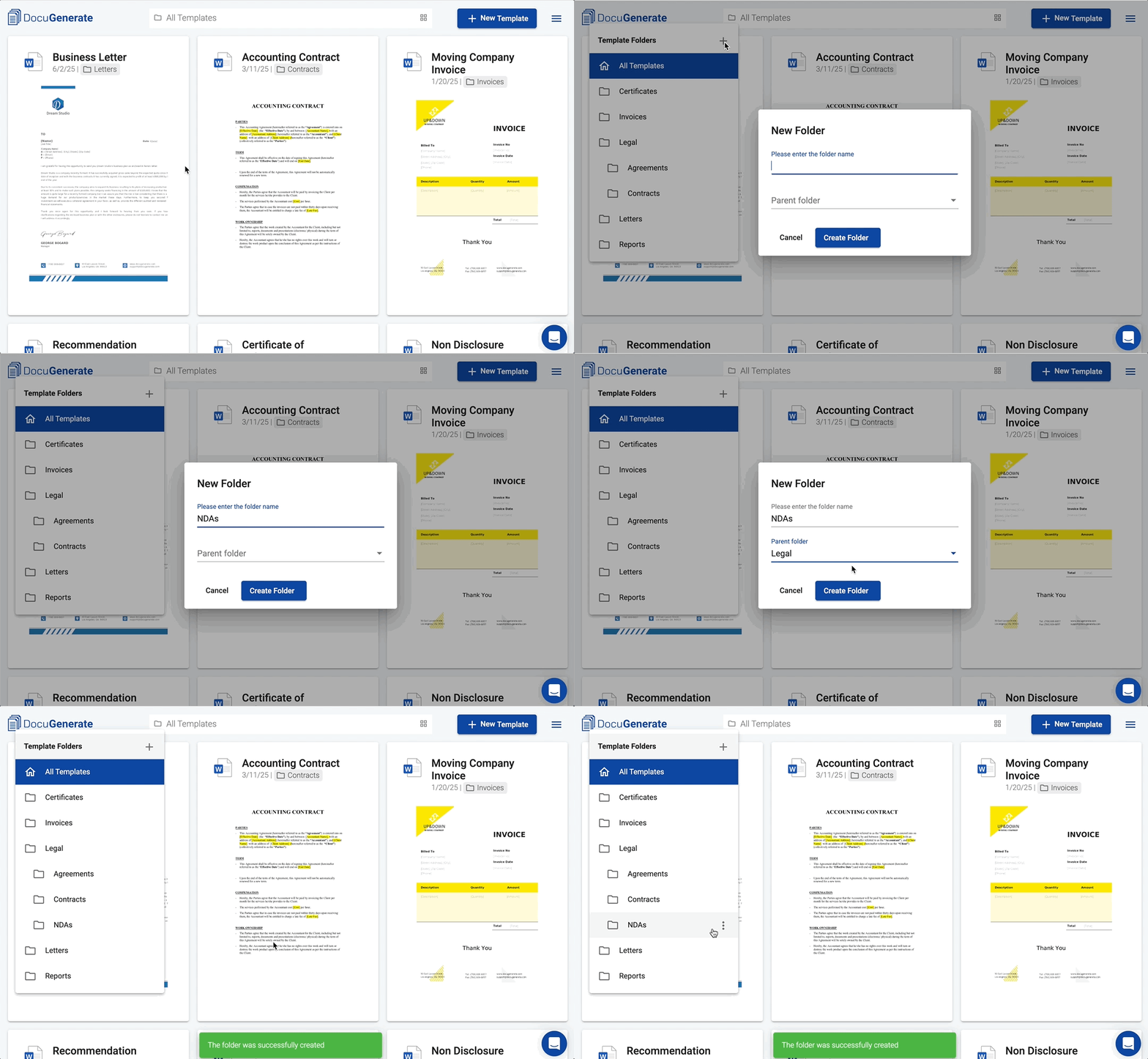
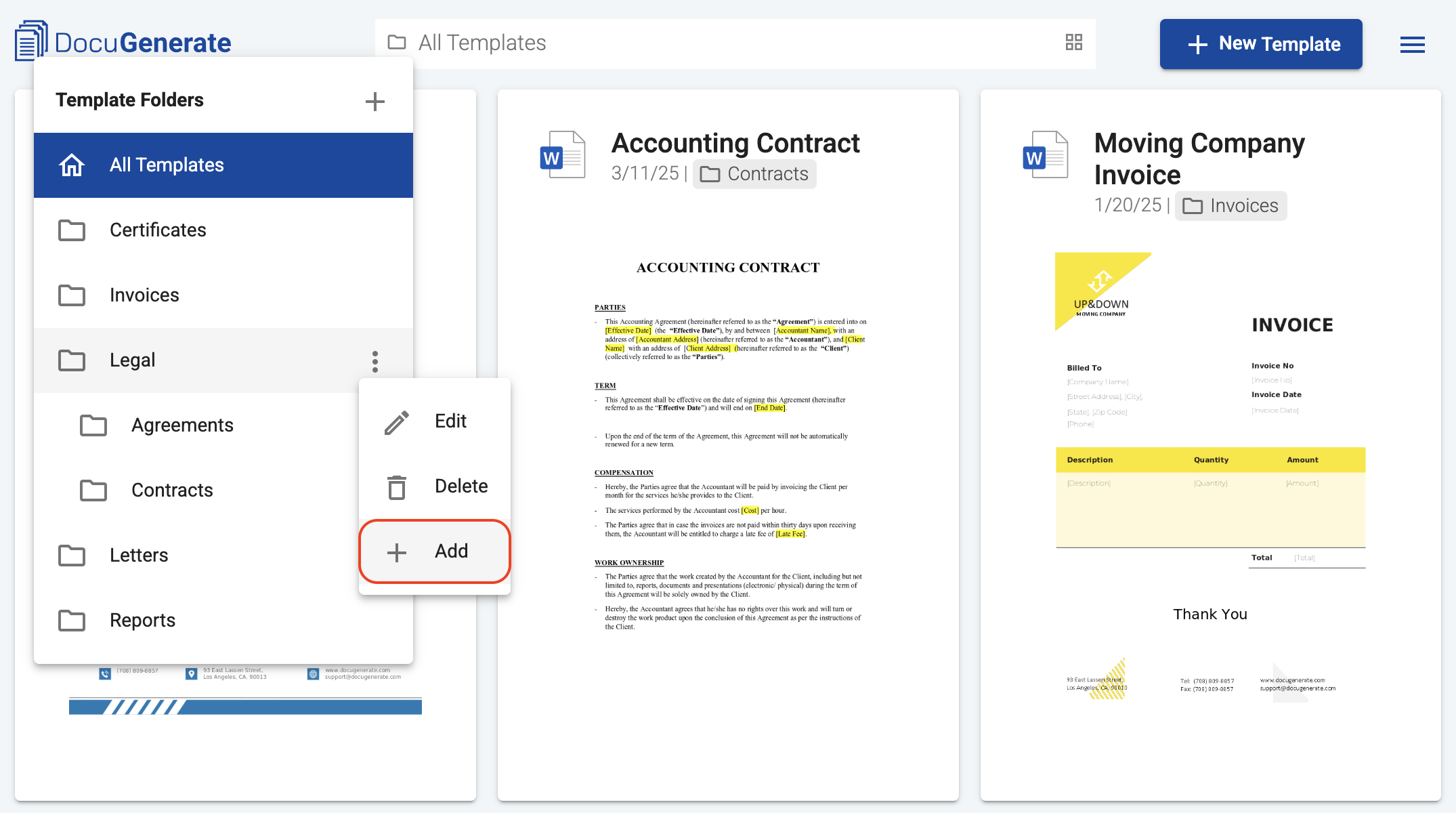
For a faster workflow, you can also create a subfolder directly from an existing folder. In the folder menu, click the context menu icon next to the folder you want to nest under, then select the Add action.
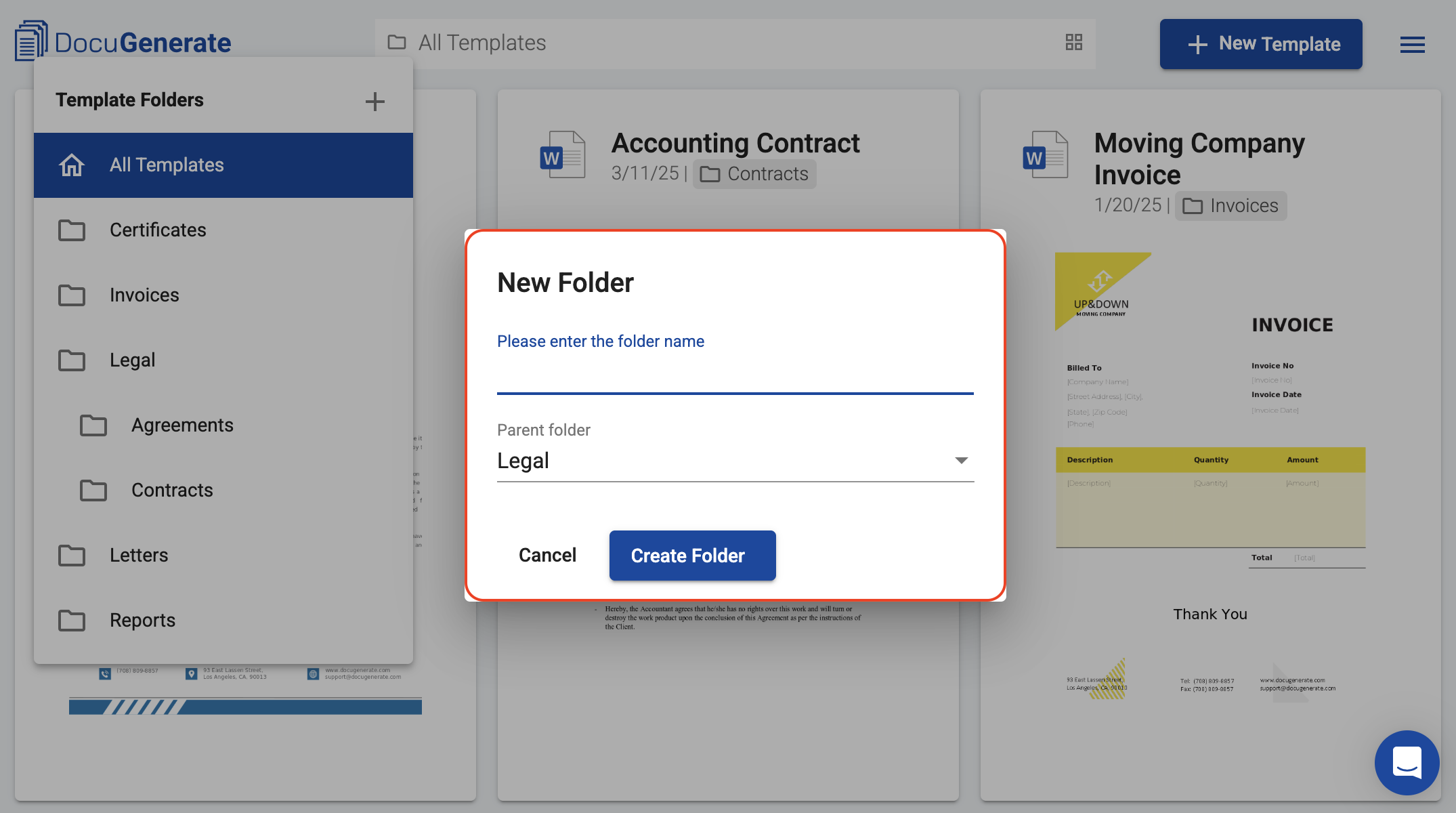
The new folder dialog opens with the parent folder pre-selected, so all you need to do is enter the name of the subfolder and click Create Folder. In the folder menu, indentation reflects the parent-child relationships, making it easy to see at a glance how your folders are organized.
Team collaboration
If you’re part of a team, you can create nested folders in your own account, but you cannot add subfolders to your team owner’s folders. The folder hierarchy in the Shared section is managed exclusively by the team owner.