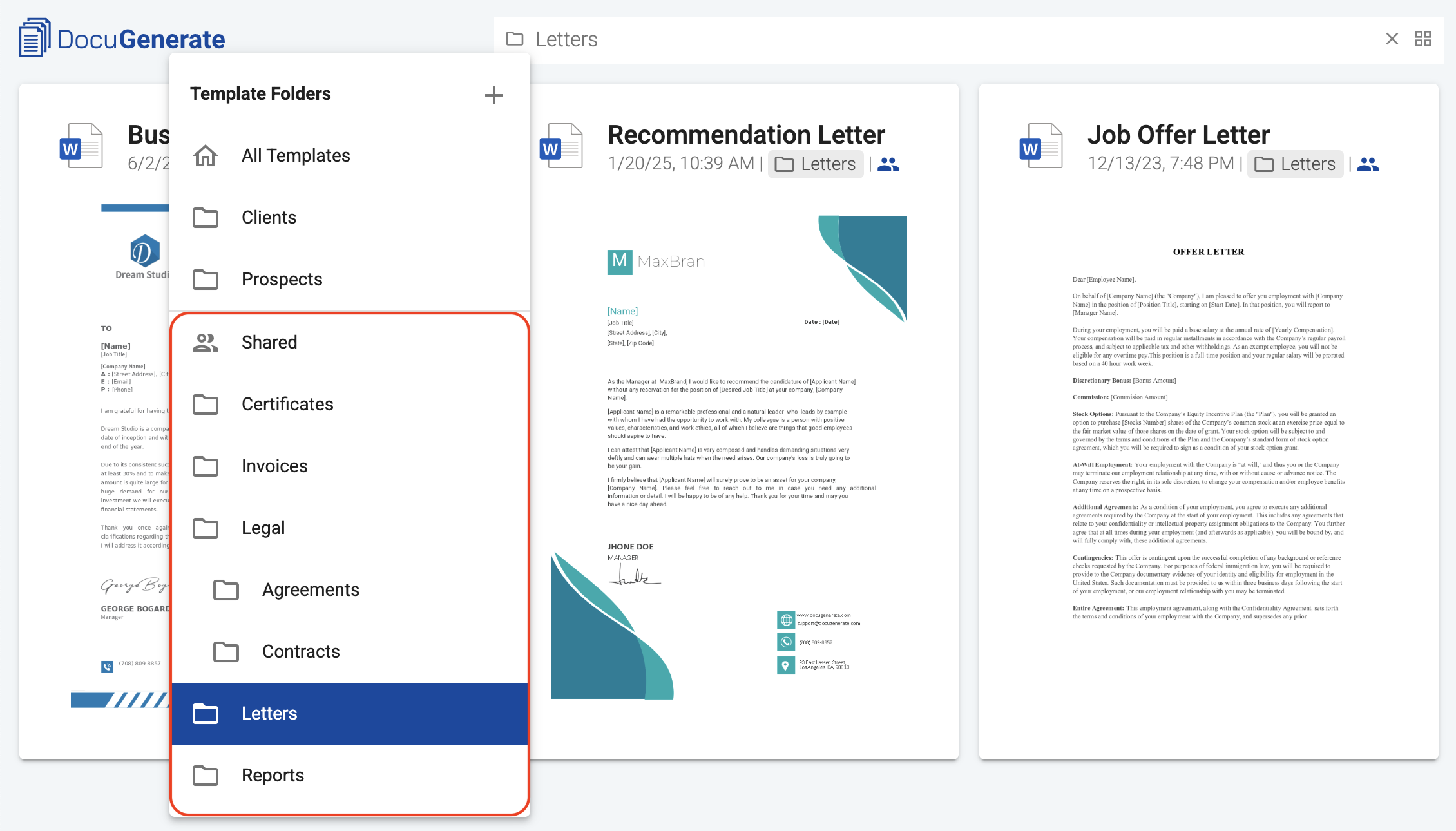
Folders in DocuGenerate help you organize your templates into a hierarchical structure that matches the way your team thinks about documents. Once you have folders set up, you can assign templates to them and filter your templates view by folder.
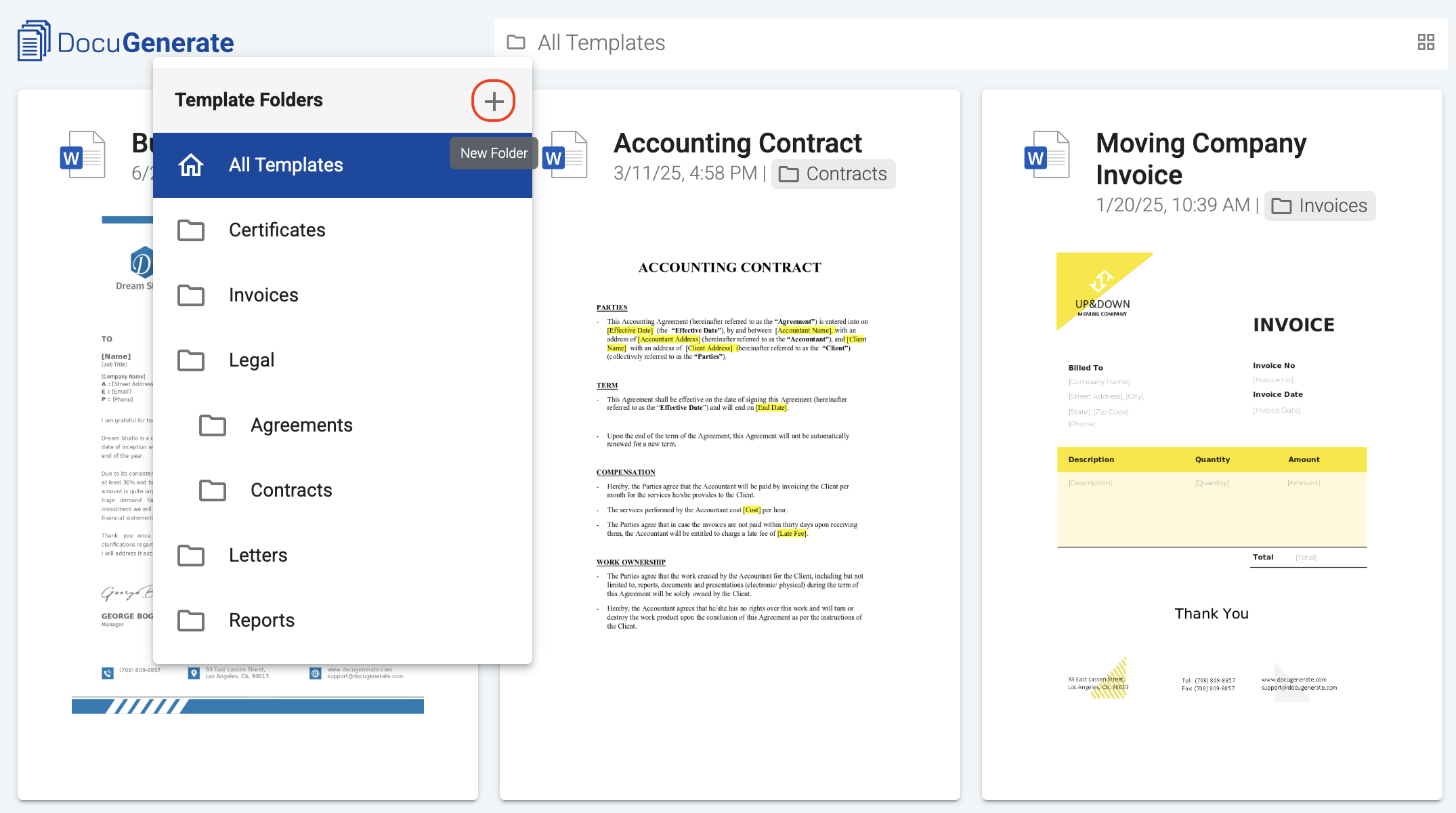
To create a new folder, click the folder icon in the navbar to open the folder menu, then click the New Folder icon next to the Template Folders header.
A dialog opens where you can enter a name for your folder. Folder names support letters, numbers, and spaces.
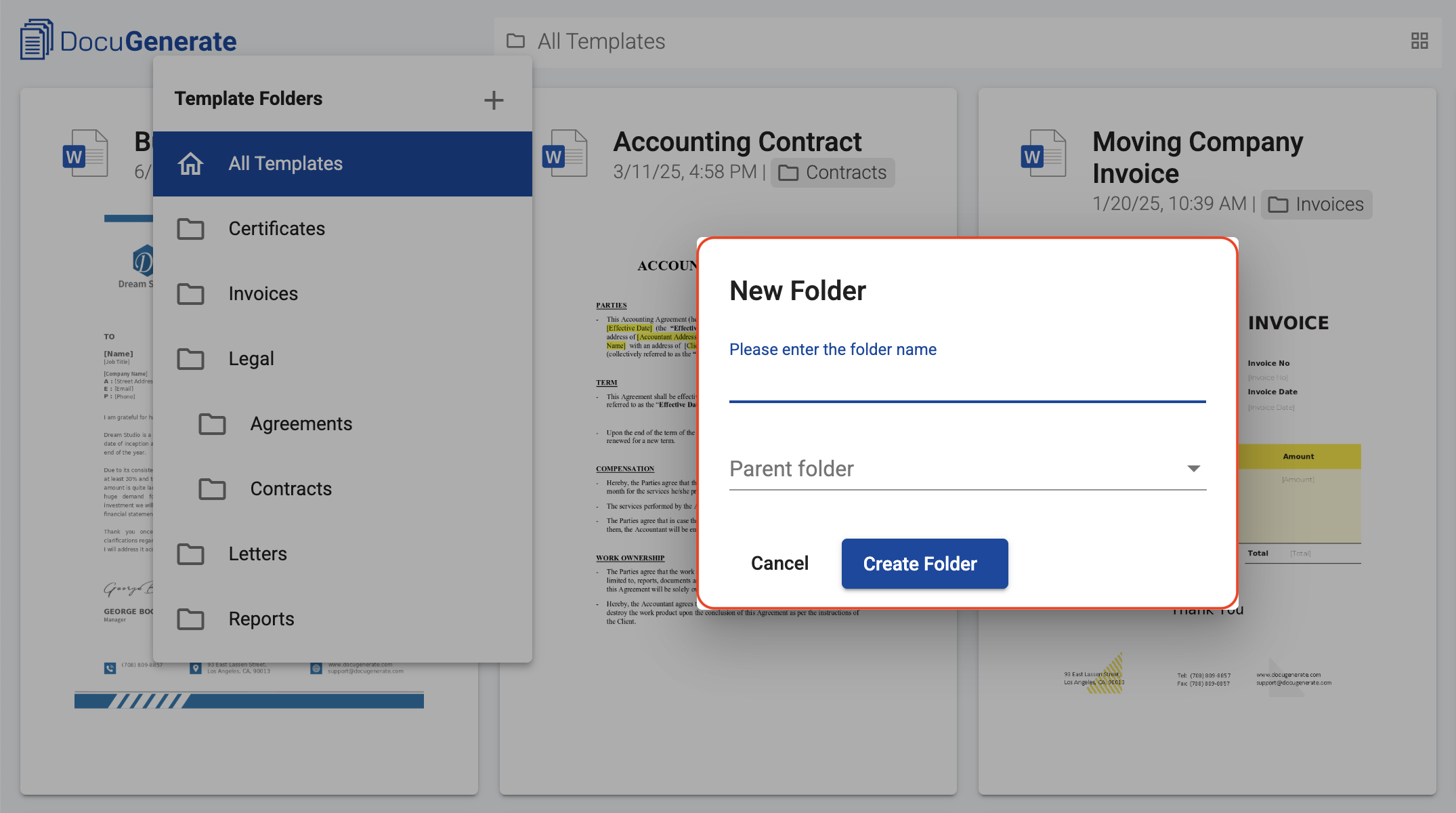
If you want to create the folder inside an existing one, select a parent from the Parent folder dropdown. To create a top-level folder, leave the parent set to None. Once you’ve entered the name and chosen the parent, click Create Folder to save it. The new folder appears immediately in the folder menu, ready for you to start assigning templates to it.
Team collaboration
If you’re part of a team, you can create folders in your own account, but you cannot create folders in your team owner’s hierarchy. The folders shared by the team owner appear in a separate Shared section of the folder menu, and only the team owner can add, rename, or remove folders from that section.