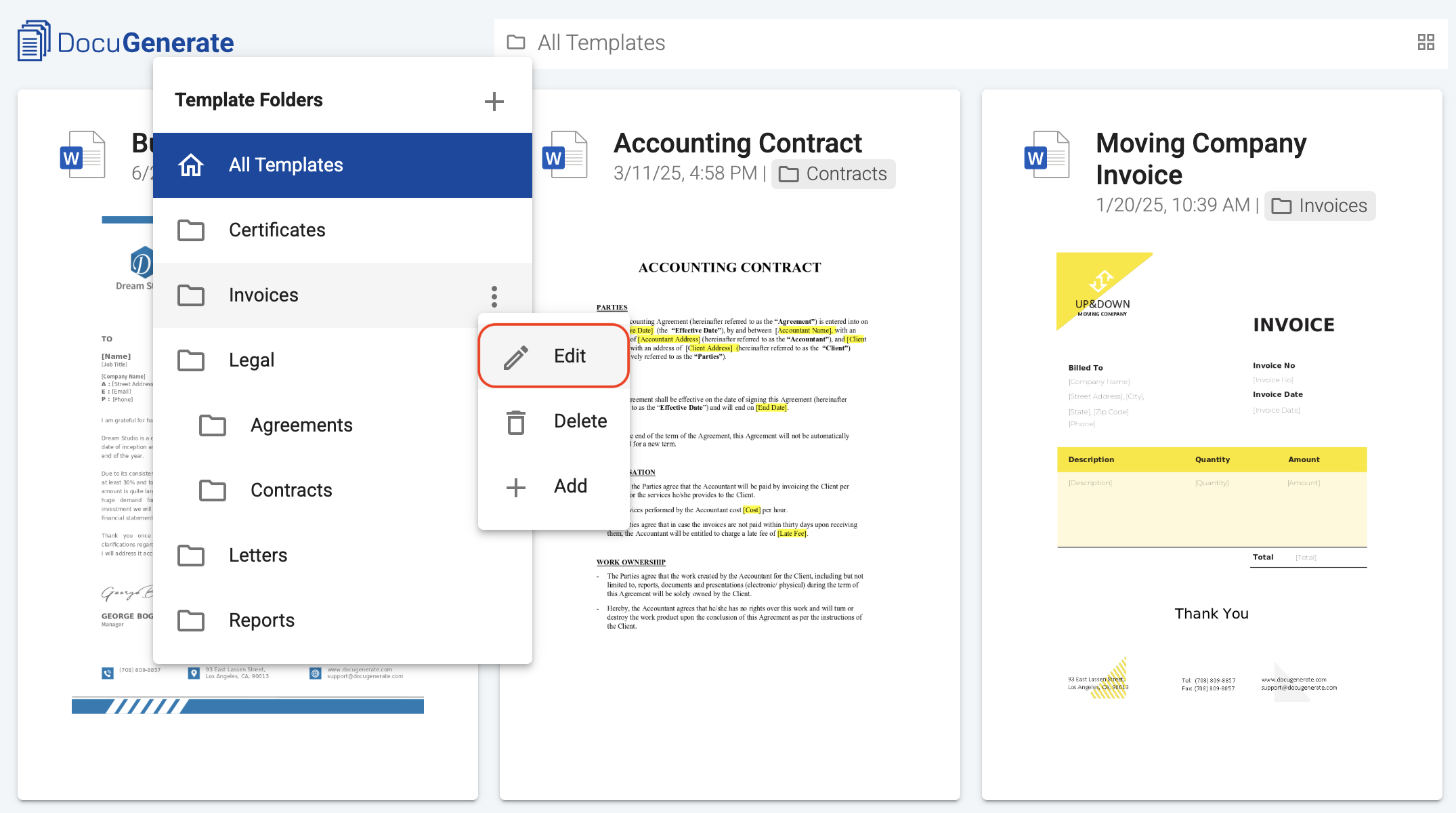
You can edit a folder at any time to rename it or move it under a different parent folder. To get started, click the folder icon in the navbar to open the folder menu, then click the context menu icon next to the folder you want to edit and select the Edit action.
The edit folder dialog opens with the current name and parent pre-filled. From here you can change either the name or the parent folder, and then click Update Folder to apply your changes.
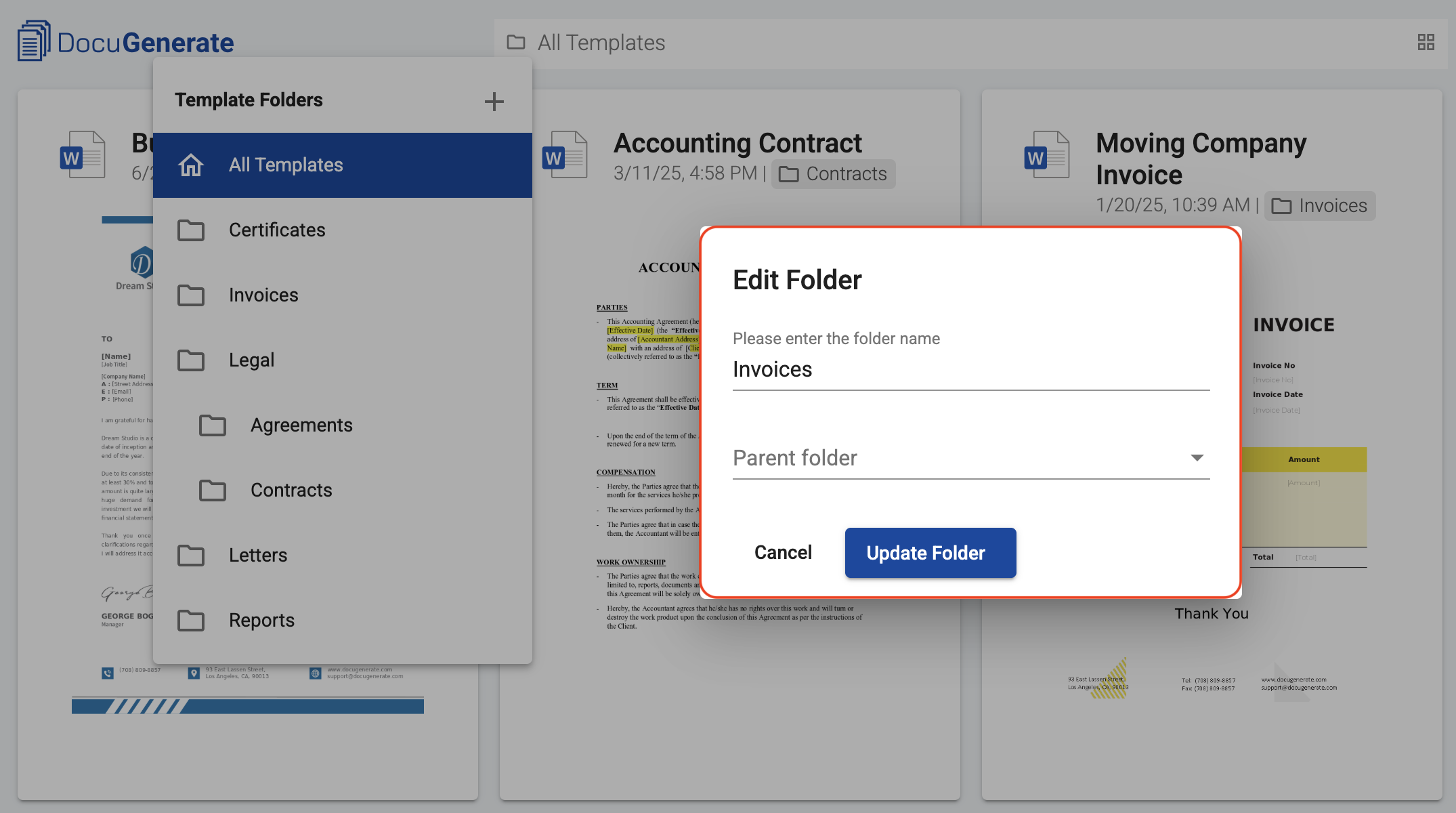
When changing the parent of a folder, you cannot move a folder into itself or into any of its own subfolders. The dialog automatically disables these options in the Parent folder dropdown, so the constraint is enforced before you can save an invalid configuration.
Effect on templates and subfolders
Renaming a folder does not affect the templates inside it. They continue to belong to the same folder, and the new name is reflected throughout the app immediately. Similarly, moving a folder under a different parent moves all of its subfolders and the templates they contain along with it, preserving the relative structure within the folder.
Team collaboration
If you’re part of a team, you can edit folders in your own account, but you cannot edit folders in your team owner’s hierarchy. Only the team owner can rename or reparent folders in the Shared section, and any changes the owner makes are reflected immediately for every team member.