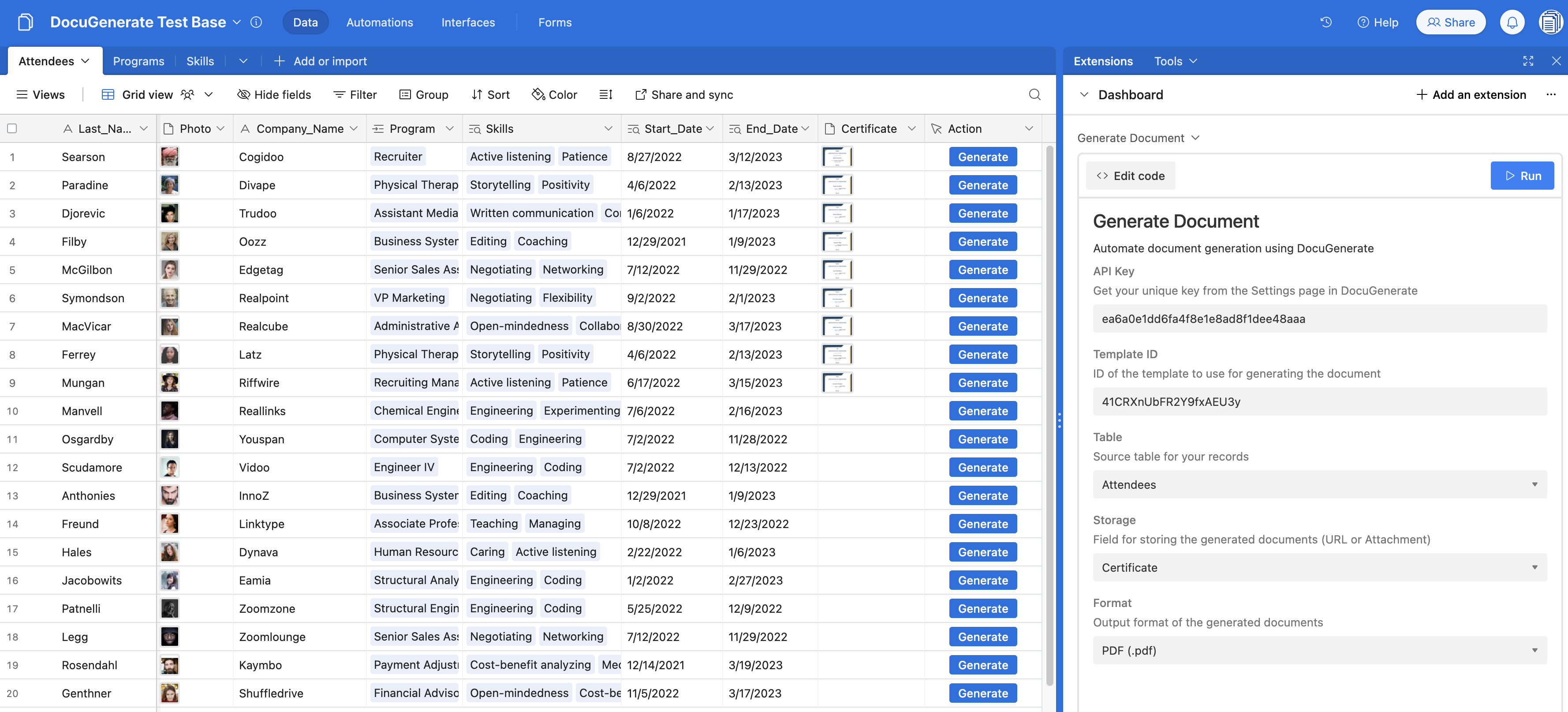
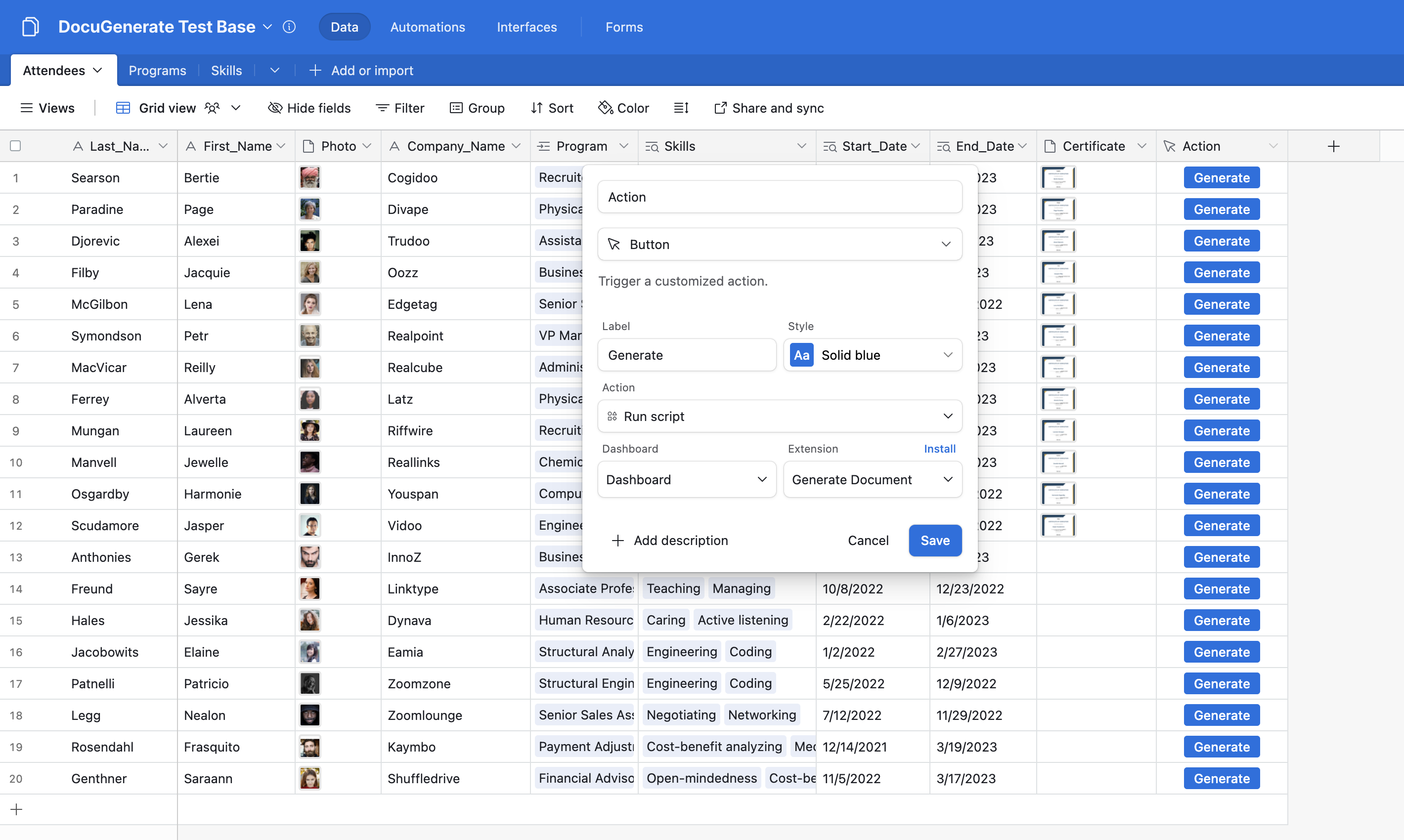
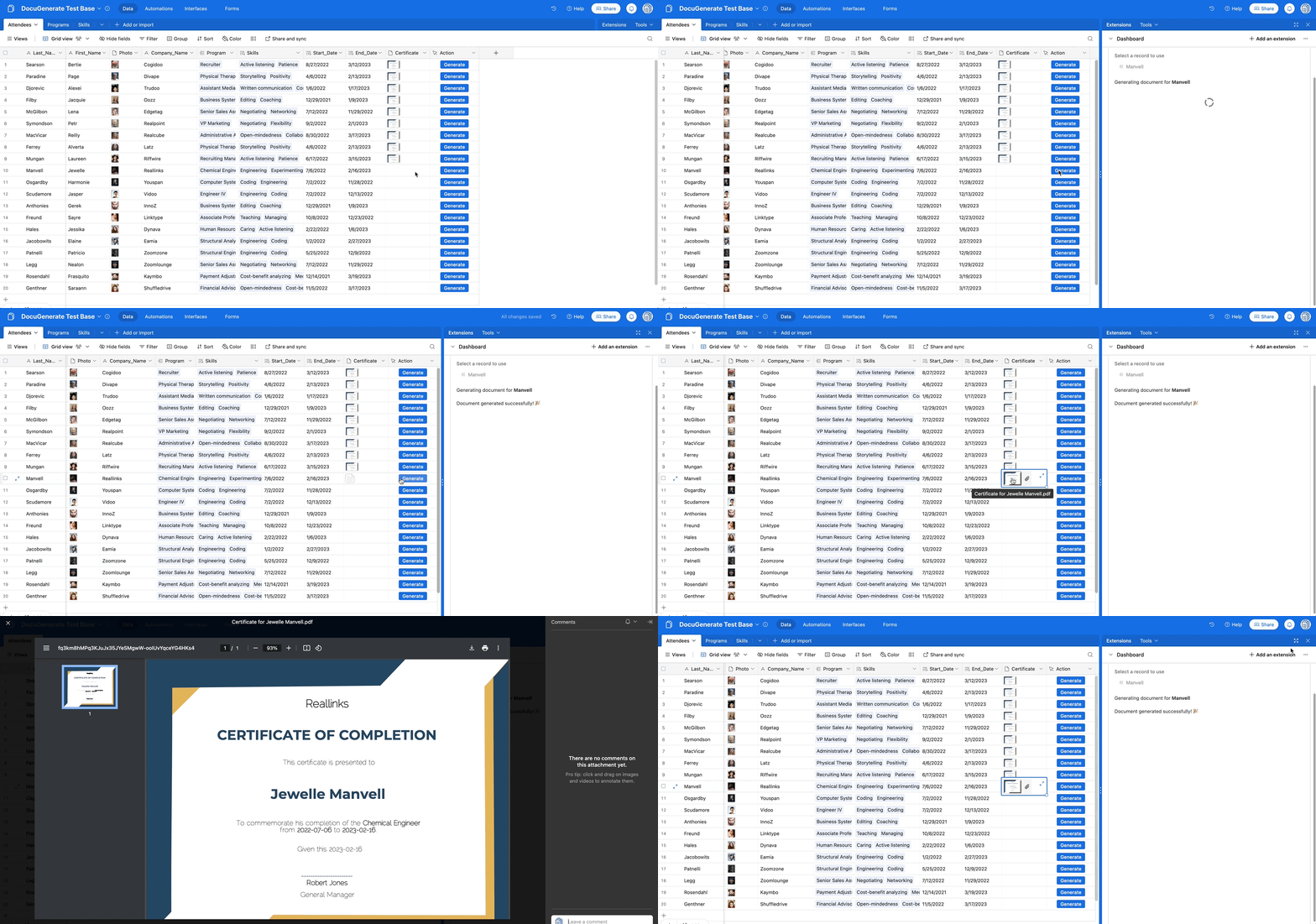
<?xml version="1.0" encoding="utf-8"?><feed xmlns="http://www.w3.org/2005/Atom"><generator uri="https://jekyllrb.com/" version="4.3.3">Jekyll</generator><link href="https://www.docugenerate.com/feed.xml" rel="self" type="application/atom+xml"/><link href="https://www.docugenerate.com/" rel="alternate" type="text/html"/><updated>2026-04-13T06:39:26+00:00</updated><id>https://www.docugenerate.com/feed.xml</id><title type="html">DocuGenerate</title><subtitle>Generate PDF documents from Word templates and JSON data. DocuGenerate helps you generate PDF documents like invoices, letters, contracts, agreements, certificates and more with our API and web app. Start Generating for Free. </subtitle><author><name>DocuGenerate</name><email>support@docugenerate.com</email></author><entry><title type="html">Generate Property Listings with n8n and DocuGenerate</title><link href="https://www.docugenerate.com/blog/generate-property-listings-with-n8n-and-docugenerate/" rel="alternate" type="text/html" title="Generate Property Listings with n8n and DocuGenerate"/><published>2026-03-13T00:00:00+00:00</published><updated>2026-03-13T00:00:00+00:00</updated><id>https://www.docugenerate.com/blog/generate-property-listings-with-n8n-and-docugenerate</id><content type="html" xml:base="https://www.docugenerate.com/blog/generate-property-listings-with-n8n-and-docugenerate/"><![CDATA[<h2 id="introduction">Introduction</h2> <p>Real estate agencies and property management companies regularly produce listing documents for new properties, whether for print, email campaigns, or client portals. Assembling these documents manually, from gathering agent details and writing descriptions to sourcing photos and formatting everything consistently, takes time that could be spent elsewhere. In this tutorial, we’ll build an automated workflow using <a href="https://n8n.io/" target="_blank" rel="nofollow noopener">n8n</a>, <a href="https://www.anthropic.com/claude" target="_blank" rel="nofollow noopener">Claude</a>, and <a href="https://www.docugenerate.com/">DocuGenerate</a> that produces a polished, ready-to-share property listing PDF in a matter of seconds.</p> <p>The workflow uses the Anthropic node in n8n, which calls Claude to generate realistic listing data on demand, and merges it into a professionally designed Word template via DocuGenerate. The finished PDF is then downloaded and saved directly to a Dropbox folder. While this tutorial uses Claude to simulate data input, the same workflow can be connected to any real data source: a web form, a CRM, a property database, or a spreadsheet. The document generation and delivery steps remain identical regardless of where the data comes from, making this a solid foundation for real-world automation. By the end of this guide, you’ll have a fully functional n8n workflow that you can import and adapt to your own use case.</p> <h2 id="template-setup">Setting Up the Property Listing Template</h2> <p>Before building the n8n workflow, we need a document template in DocuGenerate. For this tutorial, we’ll use the <a href="/assets/posts/031-n8n-property-listings/Property Listing.docx">Property Listing</a> Word template, which features a clean real estate layout with a large hero image at the top, a row of three interior photos, key property details, a QR code linking to the listing page, and an agent card at the bottom.</p> <p><img src="/assets/posts/031-n8n-property-listings/property-listing-template.png" alt="Property Listing template with merge tags"/></p> <p>The template uses the following <a href="https://www.docugenerate.com/help/articles/what-are-merge-tags/">merge tags</a>:</p> <ul> <li><code class="language-plaintext highlighter-rouge">agent_photo</code>, <code class="language-plaintext highlighter-rouge">agent_name</code>, <code class="language-plaintext highlighter-rouge">agent_email</code>, <code class="language-plaintext highlighter-rouge">agent_phone</code>, <code class="language-plaintext highlighter-rouge">agent_address</code>: Agent contact details displayed in the footer card.</li> <li><code class="language-plaintext highlighter-rouge">price</code>: Displayed prominently next to the heading.</li> <li><code class="language-plaintext highlighter-rouge">surface</code>, <code class="language-plaintext highlighter-rouge">bedrooms</code>, <code class="language-plaintext highlighter-rouge">bathrooms</code>, <code class="language-plaintext highlighter-rouge">kitchens</code>: Key property stats shown in the details row.</li> <li><code class="language-plaintext highlighter-rouge">description</code>: A short paragraph describing the property, displayed below the headline section.</li> <li><code class="language-plaintext highlighter-rouge">main_image</code>, <code class="language-plaintext highlighter-rouge">image1</code>, <code class="language-plaintext highlighter-rouge">image2</code>, <code class="language-plaintext highlighter-rouge">image3</code>: Property photos embedded in the layout.</li> <li><code class="language-plaintext highlighter-rouge">url</code>: Converted into a QR code displayed in the top-right corner of the document.</li> </ul> <p>Several features of this template are worth highlighting in more detail:</p> <ul> <li> <p><strong>Image sizing.</strong> The hero image uses the <code class="language-plaintext highlighter-rouge">[%main_image | size:'auto':600]</code> <a href="https://www.docugenerate.com/help/articles/how-to-add-images-to-a-template/#resizing-images">size syntax</a> to constrain its height to 600 pixels while preserving the aspect ratio. The three interior photos use <code class="language-plaintext highlighter-rouge">[%image1 | size:240:'auto']</code> to fix their width at 240 pixels, keeping all three images the same size and aligned in a row. Images can be passed as either a public URL or a base64-encoded data URI.</p> </li> <li> <p><strong>QR code.</strong> The <code class="language-plaintext highlighter-rouge">url</code> field is not displayed as plain text. Instead, the template uses the <code class="language-plaintext highlighter-rouge">[%url | qrcode:60:60 | set:'barcolor':'#2f7498']</code> syntax to render the value as a <a href="https://www.docugenerate.com/help/articles/how-to-add-qr-codes-and-barcodes/#adding-qr-codes">QR code</a> with custom dimensions and a brand color matching the document theme. Scanning the code in the generated PDF takes the reader directly to the property listing page online.</p> </li> <li> <p><strong>Pluralization.</strong> The stats row uses <a href="https://www.docugenerate.com/help/articles/power-up-with-enhanced-syntax/#logical-and-mathematical-expressions">conditional syntax</a> to handle pluralization automatically. For example, the bedroom count is written as <code class="language-plaintext highlighter-rouge">[bedrooms] Bedroom[#bedrooms &gt; 1]s[/]</code> in the template, which outputs “1 Bedroom” or “3 Bedrooms” depending on the value of the <code class="language-plaintext highlighter-rouge">bedrooms</code> field. The same pattern applies to <code class="language-plaintext highlighter-rouge">bathrooms</code> and <code class="language-plaintext highlighter-rouge">kitchens</code>.</p> </li> </ul> <p>All three of these features rely on DocuGenerate’s <a href="https://www.docugenerate.com/help/articles/how-do-i-enable-the-enhanced-syntax/">enhanced syntax</a>, which must be enabled for the template before generating documents. You can turn it on in the template settings in the web app.</p> <h2 id="workflow-overview">The n8n Workflow Overview</h2> <p>In this workflow, we’ll use Claude to generate dummy listing data so the process can be demonstrated end-to-end without requiring a live database or external system. In a real deployment, the manual trigger and <strong>Message a model</strong> node would be replaced by a trigger and <a href="#real-world-data-sources">data source</a> that reflects your actual process.</p> <p>The complete workflow consists of several nodes connected in a linear sequence:</p> <p><img src="/assets/posts/031-n8n-property-listings/complete-workflow-v2.png" alt="The complete n8n workflow"/></p> <p>You can download the <a href="/assets/posts/031-n8n-property-listings/Property Listing Workflow.json" target="_blank">workflow JSON file</a> and import it directly into your n8n instance. You’ll need to update the DocuGenerate template ID, your API credentials, and the Dropbox destination path to match your own setup. Let’s go through each node in detail.</p> <h2 id="claude-node">Generating Listing Data with Claude</h2> <p>The first functional node is the <strong>Message a model</strong> node from the Anthropic integration, configured to use the <code class="language-plaintext highlighter-rouge">claude-sonnet-4-6</code> model. Its role in this workflow is to produce a realistic set of property listing values that can be passed to DocuGenerate. To use this node, you’ll need an Anthropic account and an API Key generated from the <a href="https://console.anthropic.com/" target="_blank" rel="nofollow noopener">Anthropic Console</a>, which you add as a credential in n8n when setting up the node for the first time.</p> <p><img src="/assets/posts/031-n8n-property-listings/anthropic-api-key.png" alt="API Key configuration for the Anthropic node" class="desktop-width-75"/></p> <p>The prompt includes the full JSON structure that the template expects, with most fields left empty for Claude to fill in. The <code class="language-plaintext highlighter-rouge">agent_photo</code> field is pre-filled with a URL pattern from <a href="https://randomuser.me/" target="_blank" rel="nofollow noopener">randomuser.me</a>, a free service that returns a realistic portrait photo for a given numeric ID. Claude is instructed to replace <code class="language-plaintext highlighter-rouge">&lt;AGENT_ID&gt;</code> with a random integer between 1 and 50, producing a different agent photo on each run.</p> <p><img src="/assets/posts/031-n8n-property-listings/message-a-model-node.png" alt="Message a model node configuration"/></p> <p>Here is the full prompt used in the node:</p> <div class="language-text highlighter-rouge"><div class="highlight"><pre class="highlight"><code>Can you generate dummy values for the following JSON? The &lt;AGENT_ID&gt; needs to be an integer from 1 to 50.
The description needs to be around 400 characters. The output needs to be just the updated JSON.

{
  "agent_photo": "https://randomuser.me/api/portraits/women/&lt;AGENT_ID&gt;.jpg",
  "agent_address": "",
  "agent_phone": "",
  "agent_email": "",
  "agent_name": "",
  "description": "",
  "kitchens": "",
  "bathrooms": "",
  "bedrooms": "",
  "surface": "",
  "price": "",
  "url": "https://www.docugenerate.com/blog/generate-property-listings-with-n8n-and-docugenerate/",
  "main_image": "https://images.pexels.com/photos/1571459/pexels-photo-1571459.jpeg",
  "image1": "https://images.pexels.com/photos/2062431/pexels-photo-2062431.jpeg?w=400",
  "image2": "https://images.pexels.com/photos/2089698/pexels-photo-2089698.jpeg?w=400",
  "image3": "https://images.pexels.com/photos/164595/pexels-photo-164595.jpeg?w=400"
}
</code></pre></div></div> <p>The four image fields are left as static <a href="https://www.pexels.com/" target="_blank" rel="nofollow noopener">Pexels</a> URLs for simplicity. In a real-world scenario, these would be actual photos of the property fetched from a media library, a CRM attachment, or a cloud storage bucket. The <code class="language-plaintext highlighter-rouge">url</code> field points to this blog post and will be rendered as a QR code in the final document.</p> <p>Claude returns the completed JSON wrapped in a markdown code block. The response from the <strong>Message a model</strong> node has the following structure:</p> <div class="language-json highlighter-rouge"><div class="highlight"><pre class="highlight"><code><span class="p">[</span><span class="w">
  </span><span class="p">{</span><span class="w">
    </span><span class="nl">"content"</span><span class="p">:</span><span class="w"> </span><span class="p">[</span><span class="w">
      </span><span class="p">{</span><span class="w">
        </span><span class="nl">"type"</span><span class="p">:</span><span class="w"> </span><span class="s2">"text"</span><span class="p">,</span><span class="w">
        </span><span class="nl">"text"</span><span class="p">:</span><span class="w"> </span><span class="s2">"```json</span><span class="se">\n</span><span class="s2">{</span><span class="se">\n</span><span class="s2">  </span><span class="se">\"</span><span class="s2">agent_name</span><span class="se">\"</span><span class="s2">: </span><span class="se">\"</span><span class="s2">Sarah Mitchell</span><span class="se">\"</span><span class="s2">,</span><span class="se">\n</span><span class="s2">  </span><span class="se">\"</span><span class="s2">price</span><span class="se">\"</span><span class="s2">: </span><span class="se">\"</span><span class="s2">$485,000</span><span class="se">\"</span><span class="s2">,</span><span class="se">\n</span><span class="s2">  ...</span><span class="se">\n</span><span class="s2">}</span><span class="se">\n</span><span class="s2">```"</span><span class="w">
      </span><span class="p">}</span><span class="w">
    </span><span class="p">]</span><span class="w">
  </span><span class="p">}</span><span class="w">
</span><span class="p">]</span><span class="w">
</span></code></pre></div></div> <p>The actual listing data is nested inside <code class="language-plaintext highlighter-rouge">content[0].text</code> and wrapped in markdown fences, which means it cannot be used directly by the next node. That is what the Code node in the <a href="#code-node">following step</a> handles.</p> <h2 id="code-node">Parsing the Claude Response</h2> <p>The <strong>Code in JavaScript</strong> node extracts the JSON object from Claude’s response and exposes it as clean, structured data for the rest of the workflow. This step is necessary for two reasons: the <strong>Message a model</strong> node returns the full API response object rather than just the text content, and Claude tends to wrap its JSON output in markdown code fences even when instructed not to. Rather than relying on prompt engineering to fix this inconsistency, the Code node handles it reliably every time.</p> <p><img src="/assets/posts/031-n8n-property-listings/code-node.png" alt="Code in JavaScript node configuration"/></p> <div class="language-javascript highlighter-rouge"><div class="highlight"><pre class="highlight"><code><span class="kd">const</span> <span class="nx">text</span> <span class="o">=</span> <span class="nx">$input</span><span class="p">.</span><span class="nf">first</span><span class="p">().</span><span class="nx">json</span><span class="p">.</span><span class="nx">content</span><span class="p">[</span><span class="mi">0</span><span class="p">].</span><span class="nx">text</span><span class="p">;</span>
<span class="kd">const</span> <span class="nx">json</span> <span class="o">=</span> <span class="nx">text</span><span class="p">.</span><span class="nf">replace</span><span class="p">(</span><span class="sr">/```json</span><span class="se">\n?</span><span class="sr">/</span><span class="p">,</span> <span class="dl">''</span><span class="p">).</span><span class="nf">replace</span><span class="p">(</span><span class="sr">/</span><span class="se">\n?</span><span class="sr">```/</span><span class="p">,</span> <span class="dl">''</span><span class="p">).</span><span class="nf">trim</span><span class="p">();</span>
<span class="k">return</span> <span class="p">{</span> <span class="na">json</span><span class="p">:</span> <span class="nx">JSON</span><span class="p">.</span><span class="nf">parse</span><span class="p">(</span><span class="nx">json</span><span class="p">)</span> <span class="p">};</span>
</code></pre></div></div> <p>The first line reads the text value from Claude’s response. The second line strips the markdown code fences using two regular expressions. The third line parses the cleaned string into a JavaScript object and returns it as the node output. After this step, all the listing fields (<code class="language-plaintext highlighter-rouge">agent_name</code>, <code class="language-plaintext highlighter-rouge">price</code>, <code class="language-plaintext highlighter-rouge">bedrooms</code>, etc.) are available as top-level keys in the item’s JSON, ready to be passed directly to DocuGenerate.</p> <h2 id="generate-document">Generating the Document</h2> <p>The <strong>Generate document</strong> node uses the <a href="https://n8n.io/integrations/docugenerate/" target="_blank" rel="noopener">DocuGenerate integration</a> for n8n to merge the listing data with the Word template and produce a PDF. To use this node, install DocuGenerate in your n8n instance and <a href="https://www.docugenerate.com/help/articles/automate-document-generation-with-n8n/#install-docugenerate">configure it</a> with your <a href="https://www.docugenerate.com/help/articles/where-can-i-find-my-api-key/">API Key</a>.</p> <p><img src="/assets/posts/031-n8n-property-listings/generate-document-node.png" alt="Generate document node configuration"/></p> <p>The node is configured with the following parameters:</p> <ul> <li><strong>Template Name or ID</strong>: The <strong>Property Listing</strong> template uploaded in the <a href="#template-setup">template setup</a> step.</li> <li><strong>Name</strong>: An n8n expression that generates a dynamic document name: <code class="language-plaintext highlighter-rouge">Property Listing for {{ $json.price }} ({{ $json.surface }})</code>. This produces a filename like <code class="language-plaintext highlighter-rouge">Property Listing for $485,000 (1,850 sq ft)</code> that makes each document easy to identify.</li> <li><strong>Format</strong>: Set to <code class="language-plaintext highlighter-rouge">PDF (.pdf)</code>.</li> <li><strong>Data</strong>: Set to <code class="language-plaintext highlighter-rouge">{{ $json }}</code>, which passes the entire output of the Code node as the data payload. Since the Code node already produces a flat JSON object with all the template fields at the top level, no additional mapping is needed.</li> </ul> <p>When the node runs successfully, the response contains, among others, a <code class="language-plaintext highlighter-rouge">document_uri</code> field with a URL pointing to the generated PDF, and a <code class="language-plaintext highlighter-rouge">filename</code> field with the document’s filename.</p> <h2 id="http-request">Downloading the Generated PDF</h2> <p>DocuGenerate returns a URL to the generated document rather than the binary file content directly. To upload the PDF to Dropbox in the next step, we first need to fetch the file from that URL. The <strong>HTTP Request</strong> node handles this by making a GET request to the <code class="language-plaintext highlighter-rouge">document_uri</code> returned by the <a href="#generate-document">Generate document</a> node.</p> <p><img src="/assets/posts/031-n8n-property-listings/http-request-node.png" alt="HTTP Request node configuration"/></p> <p>The <strong>URL</strong> parameter is set to <code class="language-plaintext highlighter-rouge">{{ $json.document_uri }}</code>, referencing the document URL from the previous step. The binary file data is then available to the Dropbox node for upload.</p> <h2 id="dropbox-upload">Saving the PDF to Dropbox</h2> <p>The final node uploads the generated PDF to a designated Dropbox folder using the <a href="https://docs.n8n.io/integrations/builtin/app-nodes/n8n-nodes-base.dropbox/" target="_blank" rel="nofollow noopener">Dropbox node</a> in n8n, giving the team immediate access to the new listing document.</p> <p><img src="/assets/posts/031-n8n-property-listings/dropbox-node.png" alt="Upload a file node configuration"/></p> <p>The node uses OAuth2 authentication connected to your Dropbox account. The <strong>File Path</strong> parameter is set to <code class="language-plaintext highlighter-rouge">/n8n/Property Listings/{{ $json.filename }}</code>, saving each document in the <code class="language-plaintext highlighter-rouge">/n8n/Property Listings/</code> folder using the filename returned by DocuGenerate. The <strong>Binary File</strong> option is enabled so the node reads the file content from the HTTP Request node’s output rather than a static path.</p> <p>Once the workflow completes, the generated PDF is available in Dropbox and looks like this. You can also download a <a href="/assets/posts/031-n8n-property-listings/Property Listing for $875,000 (2,450 sq ft).pdf" target="_blank">sample PDF</a> to see the final result.</p> <p><img src="/assets/posts/031-n8n-property-listings/sample-property-listing.png" alt="Sample generated property listing PDF"/></p> <h2 id="real-world-data-sources">Real-World Data Sources</h2> <p>The current workflow uses Claude as a convenient stand-in for a real data source, but in practice, property listing data rarely comes from an AI model. It typically lives in a form submission, a CRM record, a database row, or a spreadsheet. Since the document generation and delivery steps stay the same regardless of where the data originates, swapping out the Anthropic node for a different trigger and data source is all it takes to turn this tutorial workflow into a production-ready automation. Below are some common scenarios this workflow is well-suited for.</p> <h3 id="data-source-forms">Web Forms</h3> <p>Many agencies use online forms to collect property details from listing agents before preparing marketing materials. A form tool like Jotform, Typeform, or Tally can capture fields such as address, price, number of rooms, surface area, and a description directly from the agent. When a new submission arrives, the form platform can trigger the n8n workflow via a webhook, passing all collected data straight into the document generation step. This makes property listing creation a natural follow-up to the intake process, with no manual data transfer required.</p> <h3 id="data-source-crm">CRM Systems</h3> <p>Real estate businesses that manage their inventory in a CRM such as Salesforce, HubSpot, or Pipedrive can trigger document generation whenever a property record reaches a certain pipeline stage, for example when it is marked as “Ready to publish” or “New listing”. The workflow would pull the relevant fields from the CRM record, merge them into the template, and either save the PDF back to the record or deliver it to the assigned agent by email. This keeps the listing document in sync with the CRM data and eliminates duplicate data entry.</p> <h3 id="data-source-databases">Databases and Spreadsheets</h3> <p>Teams that manage their property inventory in a database such as PostgreSQL, Airtable, or Notion, or in a spreadsheet like Google Sheets or Excel, can query new or updated records on a schedule or in response to a row being added. n8n has native nodes for all of these platforms, making it straightforward to read a row, map the columns to the template fields, and generate a PDF for each property. This approach works particularly well for agencies that add multiple listings at once and want to generate all documents in a single automated run.</p> <h2 id="conclusion">Conclusion</h2> <p>In this tutorial, we built an n8n workflow that generates a property listing PDF automatically. The workflow uses Claude to simulate a realistic data input, parses the response into structured JSON, merges the data with a professionally designed Word template, and saves the resulting PDF to Dropbox. The template demonstrates several advanced DocuGenerate features including image sizing with filters, QR code generation, and automatic pluralization via conditional syntax.</p> <p>In a real deployment, the Anthropic node would be replaced by a connection to your actual data source, whether that is a web form, a CRM, a database, or a spreadsheet. The document generation and delivery steps remain the same, making this workflow straightforward to adapt to almost any property management setup.</p> <h3 id="resources">Resources</h3> <ul> <li>The <a href="/assets/posts/031-n8n-property-listings/Property Listing.docx">Property Listing</a> Word template.</li> <li>The <a href="/assets/posts/031-n8n-property-listings/Property Listing Workflow.json" target="_blank">workflow JSON file</a> that you can import into your n8n instance.</li> <li>A <a href="/assets/posts/031-n8n-property-listings/Property Listing for $875,000 (2,450 sq ft).pdf" target="_blank">sample generated PDF</a> showing the final output.</li> <li>The DocuGenerate <a href="https://www.docugenerate.com/help/articles/automate-document-generation-with-n8n/">integration guide</a> for n8n.</li> <li>Photos provided by <a href="https://www.pexels.com/" target="_blank" rel="nofollow noopener">Pexels</a> for the property images.</li> </ul>]]></content><author><name>DocuGenerate</name><email>support@docugenerate.com</email></author><category term="Property Listings"/><category term="n8n"/><category term="No-Code"/><summary type="html"><![CDATA[Learn how to build an automated property listing workflow with n8n, Claude, and DocuGenerate. Use Claude to generate realistic listing data on demand, merge it into a professionally designed Word template, and save the resulting PDF directly to Dropbox.]]></summary><media:thumbnail xmlns:media="http://search.yahoo.com/mrss/" url="https://www.docugenerate.com/assets/posts/031-n8n-property-listings/cover-image.png"/><media:content medium="image" url="https://www.docugenerate.com/assets/posts/031-n8n-property-listings/cover-image.png" xmlns:media="http://search.yahoo.com/mrss/"/></entry><entry><title type="html">How to Generate Business Letters in Coda with DocuGenerate</title><link href="https://www.docugenerate.com/blog/how-to-generate-business-letters-in-coda-with-docugenerate/" rel="alternate" type="text/html" title="How to Generate Business Letters in Coda with DocuGenerate"/><published>2026-02-25T00:00:00+00:00</published><updated>2026-02-25T00:00:00+00:00</updated><id>https://www.docugenerate.com/blog/how-to-generate-business-letters-in-coda-with-docugenerate</id><content type="html" xml:base="https://www.docugenerate.com/blog/how-to-generate-business-letters-in-coda-with-docugenerate/"><![CDATA[<h2 id="introduction">Introduction</h2> <p>Business letters are a staple of professional communication, whether you’re sending client proposals, formal notifications, or outreach campaigns. Writing each letter individually is repetitive and error-prone, and the problem compounds quickly when you have a long list of recipients. In this tutorial, we’ll show how to use <a href="https://coda.io/" target="_blank" rel="nofollow noopener">Coda</a> and <a href="https://www.docugenerate.com/">DocuGenerate</a> together to generate personalized PDF business letters directly from a table, with a single button click per row.</p> <p>Coda is a flexible workspace that combines documents and spreadsheets into a single platform, making it easy to build interactive tools with tables, buttons, and custom formulas. The <a href="https://www.docugenerate.com/integrations/coda/#pack">DocuGenerate Pack</a> extends Coda with document generation capabilities, letting you produce professional PDFs from Word templates without writing any code. Each row in a Coda table becomes a personalized document, populated with the values from that row’s columns.</p> <p>By the end of this guide, you’ll have a Coda document with a table of recipients and a <strong>Generate</strong> button that produces a personalized PDF business letter for each person. The generated files are saved directly into a <strong>PDF</strong> column in the table, ready to be downloaded or shared.</p> <h2 id="template-setup">Setting Up the Business Letter Template</h2> <p>Before working in Coda, we need a document template in DocuGenerate. We’ll use the <a href="/assets/posts/030-coda-business-letters/Business Letter.docx">Business Letter</a> Word file from our <a href="https://www.docugenerate.com/templates/">Template Library</a>, which is a professionally formatted letter ready for immediate use.</p> <p>The template contains <a href="https://www.docugenerate.com/help/articles/what-are-merge-tags/">merge tags</a> for <code class="language-plaintext highlighter-rouge">Date</code>, <code class="language-plaintext highlighter-rouge">Name</code>, <code class="language-plaintext highlighter-rouge">Job Title</code>, <code class="language-plaintext highlighter-rouge">Company Name</code>, <code class="language-plaintext highlighter-rouge">Street Address</code>, <code class="language-plaintext highlighter-rouge">City</code>, <code class="language-plaintext highlighter-rouge">State</code>, <code class="language-plaintext highlighter-rouge">Zip Code</code>, <code class="language-plaintext highlighter-rouge">Email</code>, and <code class="language-plaintext highlighter-rouge">Phone</code>. These tags act as placeholders that get replaced with actual data when a document is generated.</p> <p><img src="/assets/posts/030-coda-business-letters/business-letter-template.png" alt="Business Letter template with merge tags"/></p> <p>Once you’ve downloaded the Word file, <a href="https://www.docugenerate.com/help/articles/how-do-i-create-a-new-template/">upload it</a> to your DocuGenerate account to create a new template. The merge tags will be detected automatically, and you can preview the result on the template page before moving on.</p> <h2 id="import-data">Importing the Data into Coda</h2> <p>The Business Letter template in the Template Library comes with a matching <a href="/assets/posts/030-coda-business-letters/Business Letter.xlsx">Excel dataset</a> that contains sample recipient data aligned with all the template’s merge tags. Each row represents one recipient, and each column maps directly to one of the merge tags in the letter.</p> <p>To bring this data into Coda, open the <code class="language-plaintext highlighter-rouge">Business Letter.xlsx</code> file in Excel or any spreadsheet application, select the entire table including the header row, and copy it. Then open your Coda document, click in an empty area of the page, and paste. Coda will recognize the tabular structure and create a new table from the clipboard data automatically, preserving all column names and values.</p> <p><img src="/assets/posts/030-coda-business-letters/business-letter-table-import.png" alt="Pasting the Business Letter dataset into a Coda table"/></p> <h2 id="add-columns">Adding the Generate and PDF Columns</h2> <p>With the data in place, we need to add two columns to the table: one for the generate button and one for storing the output file. Click the <strong>+</strong> icon at the end of the table header row to add the first new column.</p> <p>Select <strong>Button</strong> as the column type, then choose <strong>New</strong> to create a blank button configuration. Once the column appears, rename it to <strong>Generate</strong>.</p> <p><img src="/assets/posts/030-coda-business-letters/new-column-generate-button-v2.png" alt="Adding a Button column to the table"/></p> <p>Repeat the same process to add a second column. This time, select <strong>File</strong> as the column type and rename the column to <strong>PDF</strong>. This column will hold the generated PDF file for each row after the button is clicked.</p> <p><img src="/assets/posts/030-coda-business-letters/new-column-pdf-file-v2.png" alt="Adding a File column to the table"/></p> <p>The table should now display all the original data columns along with the two new ones at the end.</p> <p><img src="/assets/posts/030-coda-business-letters/business-letter-table-new-columns-v2.png" alt="Business Letter table with the Generate and PDF columns added"/></p> <h2 id="install-pack">Installing the DocuGenerate Pack</h2> <p>To connect the table to DocuGenerate, we need to add the <a href="https://coda.io/packs/docugenerate-47041" target="_blank" rel="noopener">DocuGenerate Pack</a> to the Coda document. Click <strong>Insert</strong> in the top-right corner of the Coda editor and search for <strong>DocuGenerate</strong> in the Packs search box.</p> <p><img src="/assets/posts/030-coda-business-letters/install-docugenerate-pack.png" alt="Searching for the DocuGenerate Pack in the Insert panel"/></p> <p>Select <strong>DocuGenerate</strong> from the results and click <strong>Add to doc for free</strong> to install the Pack.</p> <p><img src="/assets/posts/030-coda-business-letters/add-to-doc-for-free-button.png" alt="Adding the DocuGenerate Pack to the Coda document"/></p> <p>Once installed, the Pack’s building blocks will become available in your document: the <strong>Templates</strong> table, the <strong>Documents</strong> table, the <strong>Generate Document</strong> button action, and the <strong>DataStructure</strong> formula.</p> <p><img src="/assets/posts/030-coda-business-letters/docugenerate-pack-installed.png" alt="DocuGenerate Pack building blocks available in Coda"/></p> <p>To complete the setup, open the <strong>Settings</strong> tab next to <strong>Building blocks</strong>, click <strong>Select an account</strong>, and then <strong>Add a new account</strong>. Enter your <a href="https://www.docugenerate.com/help/articles/where-can-i-find-my-api-key">API Key</a> from your DocuGenerate account in the <strong>API token</strong> field and click <strong>Continue</strong>. Your DocuGenerate account is now connected and the Pack is ready to use.</p> <p><img src="/assets/posts/030-coda-business-letters/docugenerate-select-account.png" alt="Connecting a DocuGenerate account in Coda Pack settings"/></p> <h2 id="configure-button">Configuring the Generate Document Button</h2> <p>With the Pack installed, we can configure the <strong>Generate</strong> column to call DocuGenerate when clicked. Click the column header menu for the <strong>Generate</strong> column and select <strong>Edit column</strong>.</p> <p><img src="/assets/posts/030-coda-business-letters/edit-column-generate-v2.png" alt="Opening the Edit column panel for the Generate column"/></p> <p>In the <strong>On click</strong> action section, scroll down to the <strong>Packs</strong> category at the bottom of the action list, find <strong>DocuGenerate</strong>, and select the <strong>Generate Document</strong> action.</p> <p><img src="/assets/posts/030-coda-business-letters/add-generate-document-action-v2.png" alt="Selecting the Generate Document action from the DocuGenerate Pack"/></p> <p>Click <strong>+ Connect an account</strong> and select the DocuGenerate account you configured in the <a href="#install-pack">previous section</a>. With the account connected, you can now fill in the action parameters.</p> <h3 id="template-selection">Template Selection</h3> <p>From the <strong>Template</strong> dropdown, select the <strong>Business Letter</strong> template you uploaded to DocuGenerate in the <a href="#template-setup">template setup</a> step.</p> <p><img src="/assets/posts/030-coda-business-letters/select-business-letter-template-v2.png" alt="Selecting the Business Letter template in the Generate Document action"/></p> <h3 id="document-name-and-format">Document Name and Format</h3> <p>For the <strong>Name</strong> field, you can leave it empty to use a default name, or set a dynamic value to make it easier to identify each file. Coda’s <a href="https://coda.io/formulas#Format" target="_blank" rel="nofollow noopener">Format formula</a> is a good fit here. For example, <code class="language-plaintext highlighter-rouge">=Format("Letter for {1}", thisRow.Name)</code> names each document after the recipient.</p> <p><img src="/assets/posts/030-coda-business-letters/generate-button-name-formula.gif" alt="Using the Format formula to set a dynamic document name"/></p> <p>Leave <strong>Format</strong> set to <code class="language-plaintext highlighter-rouge">.pdf</code> to produce PDF files, which is the most commonly used format for sharing documents.</p> <h3 id="dynamic-data">Dynamic Data Values</h3> <p>For the <strong>Data</strong> field, we need to provide a JSON object that maps the merge tag names in the template to the corresponding column values in the current row. Coda’s <a href="https://coda.io/resources/guides/intro-to-codas-formula-syntax" target="_blank" rel="nofollow noopener">Object formula</a> is the most direct way to build this mapping:</p> <div class="language-text highlighter-rouge"><div class="highlight"><pre class="highlight"><code>Object(
  "Name", thisRow.Name,
  "Job Title", thisRow.[Job Title],
  "Company Name", thisRow.[Company Name],
  "Street Address", thisRow.[Street Address],
  "City", thisRow.City,
  "State", thisRow.State,
  "Zip Code", thisRow.[Zip Code],
  "Email", thisRow.Email,
  "Phone", thisRow.Phone,
  "Date", thisRow.Date
)
</code></pre></div></div> <p>Each key in the <code class="language-plaintext highlighter-rouge">Object</code> call is a merge tag name from the template, and each value references the matching column in the current row using <code class="language-plaintext highlighter-rouge">thisRow</code>. Column names that contain spaces must be wrapped in square brackets, as shown with <code class="language-plaintext highlighter-rouge">thisRow.[Job Title]</code> and <code class="language-plaintext highlighter-rouge">thisRow.[Company Name]</code>.</p> <p><img src="/assets/posts/030-coda-business-letters/data-object-formula.png" alt="Configuring the Data parameter with the Object formula"/></p> <p>For templates with more complex or nested data, the <a href="https://www.docugenerate.com/help/articles/automate-document-generation-with-coda/#data-structure-formula">DataStructure formula</a> included with the DocuGenerate Pack is a useful alternative. It generates the expected JSON structure for any template automatically, with numbered placeholders that you can fill in using the <code class="language-plaintext highlighter-rouge">Format</code> formula.</p> <h3 id="result-pdf-column">Result PDF Column</h3> <p>Finally, set the <strong>Results column</strong> to the <strong>PDF</strong> column added earlier. This instructs Coda to store the generated file in that column after the button is clicked. You can also customize the button’s appearance in the <strong>Style</strong> section by setting a label, choosing a color, and picking an icon.</p> <p><img src="/assets/posts/030-coda-business-letters/configure-visual-ui-button.gif" alt="Customizing the button label, color, and icon"/></p> <h2 id="generate-documents">Generating the Documents</h2> <p>With the configuration complete, click the <strong>Generate</strong> button in any row to trigger document generation for that recipient. DocuGenerate will use the row’s data to fill in the merge tags in the template and return a PDF file. Coda then imports the file into its storage and displays it in the <strong>PDF</strong> column for that row. The entire process takes a few seconds, so expect a brief delay before the file appears.</p> <p>You can click <strong>Generate</strong> for multiple rows in quick succession without waiting for each document to finish. DocuGenerate processes the requests concurrently, so all documents are generated in parallel. The number of documents you can process at the same time depends on your plan’s <a href="https://www.docugenerate.com/help/articles/is-there-a-concurrent-documents-limit">concurrent documents limit</a>.</p> <p><img src="/assets/posts/030-coda-business-letters/generate-multiple-documents-v3.gif" alt="Generating multiple business letters from the Coda table"/></p> <h2 id="conclusion">Conclusion</h2> <p>In this tutorial, we built a Coda document that generates personalized PDF business letters from a table of recipient data using the DocuGenerate Pack. The workflow covers uploading a Word template to DocuGenerate, importing the recipient data into Coda, adding the <strong>Generate</strong> button and <strong>PDF</strong> columns, and wiring up the <strong>Generate Document</strong> action to map data from each row to the template’s merge tags. Once the setup is in place, generating a letter for any recipient takes a single button click.</p> <p>The same pattern applies to any document type you want to produce from tabular Coda data. Invoices, contracts, offer letters, and certificates all follow the same structure: a Word template with merge tags, a table with the corresponding data, and a button to trigger the process. You can extend this further by combining it with other Coda automations, such as generating documents automatically when a new row is added, or sending the generated files to recipients via email.</p> <h3 id="resources">Resources</h3> <ul> <li>The <a href="/assets/posts/030-coda-business-letters/Business Letter.docx">Business Letter</a> Word template and <a href="/assets/posts/030-coda-business-letters/Business Letter.xlsx">Excel dataset</a> used in this tutorial.</li> <li>The <a href="https://coda.io/packs/docugenerate-47041" target="_blank" rel="nofollow noopener">DocuGenerate Pack on Coda</a> for adding document generation to your Coda docs.</li> <li>The <a href="https://www.docugenerate.com/help/articles/automate-document-generation-with-coda/">Coda integration guide</a> in the Help Center, including setup instructions and formula references.</li> <li>Official <a href="https://coda.io/formulas" target="_blank" rel="nofollow noopener">Coda formula reference</a> for formulas used in this tutorial.</li> </ul>]]></content><author><name>DocuGenerate</name><email>support@docugenerate.com</email></author><category term="Letters"/><category term="Coda"/><category term="No-Code"/><summary type="html"><![CDATA[Generate personalized PDF business letters directly from a Coda table using the DocuGenerate Pack. This tutorial walks through importing table data, setting up a button to create documents, and saving generated files into a column with a single click per row.]]></summary><media:thumbnail xmlns:media="http://search.yahoo.com/mrss/" url="https://www.docugenerate.com/assets/posts/030-coda-business-letters/cover-image.png"/><media:content medium="image" url="https://www.docugenerate.com/assets/posts/030-coda-business-letters/cover-image.png" xmlns:media="http://search.yahoo.com/mrss/"/></entry><entry><title type="html">Automate PDF Certificate Generation with FlowRunner</title><link href="https://www.docugenerate.com/blog/automate-pdf-certificate-generation-with-flowrunner/" rel="alternate" type="text/html" title="Automate PDF Certificate Generation with FlowRunner"/><published>2026-01-21T00:00:00+00:00</published><updated>2026-01-21T00:00:00+00:00</updated><id>https://www.docugenerate.com/blog/automate-pdf-certificate-generation-with-flowrunner</id><content type="html" xml:base="https://www.docugenerate.com/blog/automate-pdf-certificate-generation-with-flowrunner/"><![CDATA[<h2 id="introduction">Introduction</h2> <p>Certificates are a common output in many business processes, from training completion records to achievement awards and event participation confirmations. Manually creating individual certificates for each recipient is tedious and error-prone, especially when dealing with dozens or hundreds of records. In this tutorial, we’ll build an automated workflow using <a href="https://flowrunner.ai/" target="_blank" rel="nofollow noopener">FlowRunner</a> and <a href="https://www.docugenerate.com/">DocuGenerate</a> that generates PDF certificates every time a new record is added to a database table.</p> <p><a href="https://docs.flowrunner.ai/" target="_blank" rel="nofollow noopener">FlowRunner</a> is part of the <a href="https://backendless.com/" target="_blank" rel="nofollow noopener">Backendless</a> platform and makes it easy to create intelligent workflows with just a few clicks. It orchestrates automated workflows that combine AI agents, human decision-making, and system integrations. Both technical and non-technical users can build workflows. Non-technical users work through the visual interface while technical users can leverage custom code and advanced integrations.</p> <p>The workflow we’ll create listens for new records in a Backendless database table, generates a personalized PDF certificate using DocuGenerate, saves the generated file in the Backendless File Service, and updates the original database record with a link to the PDF file. By the end of this guide, you’ll have a fully functional certificate automation pipeline that you can adapt for any document type.</p> <h2 id="certificate-template">Setting Up the Certificate Template</h2> <p>Before building the FlowRunner workflow, we need to prepare the certificate template in DocuGenerate. To keep things simple, we’ll use the ready-made <a href="/assets/posts/029-flowrunner-certificates/Certificate of Achievement.doc">Certificate of Achievement</a> from our <a href="https://www.docugenerate.com/templates/">Template Library</a>. This is a standard certificate layout with merge tags for <code class="language-plaintext highlighter-rouge">Company Name</code>, <code class="language-plaintext highlighter-rouge">Name</code>, <code class="language-plaintext highlighter-rouge">Course Name</code>, <code class="language-plaintext highlighter-rouge">Diploma Title</code>, and <code class="language-plaintext highlighter-rouge">Certificate Date</code>. You can customize the template by modifying the design, adjusting the layout, or adding other <a href="https://www.docugenerate.com/help/articles/what-are-merge-tags/">merge tags</a> to match your organization’s branding and requirements.</p> <p><img src="/assets/posts/029-flowrunner-certificates/certificate-template.png" alt="Certificate of Achievement template with merge tags"/></p> <p>Once you’ve downloaded the template file, <a href="https://www.docugenerate.com/help/articles/how-do-i-create-a-new-template/">upload it</a> to your DocuGenerate account. After the upload is complete, take note of the <a href="https://www.docugenerate.com/help/articles/how-do-i-get-the-template-id/">template ID</a> displayed on the template page, as you’ll need it when configuring the document generation step in the workflow.</p> <h2 id="create-table">Creating the Participants Table</h2> <p>Next, we need a database table in Backendless to store the data used for generating certificates. Navigate to the <strong>Database</strong> section of your Backendless app and create a new table called <code class="language-plaintext highlighter-rouge">Participants</code>.</p> <p><img src="/assets/posts/029-flowrunner-certificates/create-table-participants.png" alt="Creating the Participants table in Backendless" class="desktop-width-75"/></p> <p>Add the following columns to the table:</p> <ul> <li><code class="language-plaintext highlighter-rouge">Certificate Date</code> (DATETIME): The date to be printed on the certificate.</li> <li><code class="language-plaintext highlighter-rouge">Certificate URL</code> (STRING): Stores the URL of the generated certificate file. This column will be populated automatically by the workflow.</li> <li><code class="language-plaintext highlighter-rouge">Company Name</code> (STRING): The name of the company or organization issuing the certificate.</li> <li><code class="language-plaintext highlighter-rouge">Course Name</code> (STRING): The name of the course or program the participant completed.</li> <li><code class="language-plaintext highlighter-rouge">Diploma Title</code> (STRING): The title of the diploma or achievement being awarded.</li> <li><code class="language-plaintext highlighter-rouge">Name</code> (STRING): The participant’s full name.</li> </ul> <p><img src="/assets/posts/029-flowrunner-certificates/database-table-schema-v2.png" alt="Database table schema for the Participants table"/></p> <p>The <code class="language-plaintext highlighter-rouge">Certificate URL</code> column starts empty for each new record. The workflow will fill it in automatically with the URL of the generated PDF after the entire flow completes, providing a direct link back to the certificate from the database.</p> <h2 id="database-trigger">Configuring the Database Trigger</h2> <p>With the table in place, head over to the <strong>FlowRunner Designer</strong> page and create a new flow called “Certificate of Achievement Flow”. The first element we need is a trigger that starts the flow whenever a new participant record is created. In the <strong>Triggers</strong> panel, select the <strong>Record Created in Database</strong> trigger from the <strong>Data Service</strong> category.</p> <p><img src="/assets/posts/029-flowrunner-certificates/record-created-in-database.png" alt="Adding the Record Created in Database trigger"/></p> <p>The trigger configuration is straightforward. Select the <code class="language-plaintext highlighter-rouge">Participants</code> table in the <strong>Table or View</strong> dropdown and set <strong>Reference Trigger Data As</strong> to <code class="language-plaintext highlighter-rouge">Participant</code>. You can leave all other fields at their default values.</p> <p><img src="/assets/posts/029-flowrunner-certificates/configure-record-created.png" alt="Configuring the Record Created in Database trigger"/></p> <p>This means that every time a new row is inserted into the <code class="language-plaintext highlighter-rouge">Participants</code> table, the flow will execute and the record data will be accessible as the <code class="language-plaintext highlighter-rouge">Participant</code> object throughout the remaining steps.</p> <h2 id="generate-document">Generating the Document</h2> <p>With the trigger in place, we can add the document generation step. Find the <a href="https://www.flowrunner.ai/integrations/docugenerate-20f91" target="_blank" rel="nofollow noopener">DocuGenerate extension</a> and select the <strong>Generate Document</strong> action. This action will execute every time the trigger fires, generating a new certificate based on the participant’s data.</p> <p><img src="/assets/posts/029-flowrunner-certificates/generate-document-action.png" alt="Adding the Generate Document action from DocuGenerate"/></p> <p>Configure the action with the following parameters:</p> <ul> <li><strong>Template ID</strong>: The ID of the template you uploaded to DocuGenerate in the <a href="#certificate-template">earlier step</a>.</li> <li><strong>Name</strong>: Use the Expression input to create a dynamic name by concatenating the text <code class="language-plaintext highlighter-rouge">Certificate for </code> with the <code class="language-plaintext highlighter-rouge">Participant -&gt; Name</code> value.</li> <li><strong>Output Name</strong>: Leave empty, the generated file will use the document name.</li> <li><strong>Output Format</strong>: Set to <code class="language-plaintext highlighter-rouge">.pdf</code> to produce a PDF file.</li> <li><strong>Data</strong>: Use the Expression input to construct the JSON data object (explained below).</li> </ul> <p>Finally, set <strong>Reference Result Data As</strong> to <code class="language-plaintext highlighter-rouge">Document</code> and leave the remaining parameters unchanged.</p> <p><img src="/assets/posts/029-flowrunner-certificates/generate-document-config.png" alt="Generate Document action configuration"/></p> <p>The <strong>Data</strong> parameter requires a JSON array that maps each merge tag in the template to the corresponding value from the <code class="language-plaintext highlighter-rouge">Participant</code> record. FlowRunner’s Expression input lets you combine static text with dynamic block results to construct this JSON at runtime. You alternate between Text Inputs (for the JSON structure and key names) and Block Results (to reference the <code class="language-plaintext highlighter-rouge">Participant</code> object’s properties). The resulting expression produces a value equivalent to:</p> <div class="language-json highlighter-rouge"><div class="highlight"><pre class="highlight"><code><span class="p">[{</span><span class="w">
  </span><span class="nl">"Company Name"</span><span class="p">:</span><span class="w"> </span><span class="s2">"Participant -&gt; Company Name"</span><span class="p">,</span><span class="w">
  </span><span class="nl">"Name"</span><span class="p">:</span><span class="w"> </span><span class="s2">"Participant -&gt; Name"</span><span class="p">,</span><span class="w">
  </span><span class="nl">"Course Name"</span><span class="p">:</span><span class="w"> </span><span class="s2">"Participant -&gt; Course Name"</span><span class="p">,</span><span class="w">
  </span><span class="nl">"Diploma Title"</span><span class="p">:</span><span class="w"> </span><span class="s2">"Participant -&gt; Diploma Title"</span><span class="p">,</span><span class="w">
  </span><span class="nl">"Certificate Date"</span><span class="p">:</span><span class="w"> </span><span class="s2">"Participant -&gt; Certificate Date"</span><span class="w">
</span><span class="p">}]</span><span class="w">
</span></code></pre></div></div> <p>The screenshot below shows the Expression input with all the text and reference blocks assembled. Each key in the JSON object corresponds to a merge tag in the certificate template, and each value is dynamically pulled from the participant’s database record.</p> <p><img src="/assets/posts/029-flowrunner-certificates/data-expression-input.png" alt="Expression input for constructing the Data parameter"/></p> <h2 id="save-file">Saving the File to Backendless</h2> <p>Now that the document generation step is configured, we can continue building the workflow by saving the generated PDF certificate to the Backendless File Service. In the <strong>Extensions</strong> panel, go to <strong>Backendless File Services</strong> and select the <strong>Add To File</strong> action. This action appends content to an existing file, and can also create a new file from a remote URL using the <strong>Content From URL</strong> field.</p> <p><img src="/assets/posts/029-flowrunner-certificates/add-to-file-action.png" alt="Adding the Add To File action"/></p> <p>Configure the action with the following body parameters:</p> <ul> <li><strong>Directory Path</strong>: Set to <code class="language-plaintext highlighter-rouge">certificates</code> to save all generated files in a dedicated folder.</li> <li><strong>File Name</strong>: Use the expression <code class="language-plaintext highlighter-rouge">Document -&gt; filename</code> to name the file based on the document generated in the <a href="#generate-document">previous step</a>.</li> <li><strong>Content From URL</strong>: Use <code class="language-plaintext highlighter-rouge">Document -&gt; document_uri</code> to download the generated PDF from DocuGenerate.</li> </ul> <p><img src="/assets/posts/029-flowrunner-certificates/add-to-file-config-v2.png" alt="Add To File action configuration"/></p> <p>Don’t forget to set <strong>Reference Result Data As</strong> to <code class="language-plaintext highlighter-rouge">File</code>. The <code class="language-plaintext highlighter-rouge">File</code> object will contain a <code class="language-plaintext highlighter-rouge">fileURL</code> property that we’ll use in the next step to store the file’s location back in the database.</p> <h2 id="update-record">Updating the Database Record</h2> <p>For the final step of the workflow, we need to update the original <code class="language-plaintext highlighter-rouge">Participants</code> record with the URL of the saved certificate. This creates a direct link between each participant’s database entry and their generated certificate, making it easy to retrieve or display the file later, whether from a web application, a report, or directly from the database table.</p> <p>In the <strong>Actions</strong> panel, go to <strong>Data Service</strong> and select the <a href="https://docs.flowrunner.ai/reference/save-record-action.html" target="_blank" rel="nofollow noopener">Save Record In Database</a> action. This action stores or updates data in your Backendless database when executed and can be placed at any point in the workflow to ensure timely data updates in response to specific events or actions.</p> <p><img src="/assets/posts/029-flowrunner-certificates/save-record-in-database-action.png" alt="Adding the Save Record In Database action"/></p> <p>To configure the action, select the <strong>Update record from flow</strong> option and choose <strong>Use data from</strong> the <code class="language-plaintext highlighter-rouge">Participant</code> object. In the <strong>Perform Changes</strong> section, select the <code class="language-plaintext highlighter-rouge">Certificate URL</code> property and enter the <code class="language-plaintext highlighter-rouge">File -&gt; fileURL</code> value. This writes the URL of the file we saved in the <a href="#save-file">previous step</a> back into the participant’s record. Optionally, you can set the <strong>Reference Result Data As</strong> to <code class="language-plaintext highlighter-rouge">Record</code>.</p> <p><img src="/assets/posts/029-flowrunner-certificates/save-record-in-database-config-v2.png" alt="Save Record In Database action configuration"/></p> <h2 id="testing">Testing the Workflow</h2> <p>With all four steps in place, the workflow is complete and ready for an end-to-end test. The flow follows a clear sequence: a new database record triggers document generation, the generated PDF is saved to Backendless file storage, and the record is updated with the file URL.</p> <p>To <a href="https://docs.flowrunner.ai/flow-execution/overview.html" target="_blank" rel="nofollow noopener">start the flow</a>, click the <strong>Play</strong> button in the FlowRunner Designer. Note that once a flow is running, you cannot make changes to it, but you can stop it at any time and update the configuration if needed.</p> <p>There are multiple ways to test the workflow, and one of the easiest ways is to use the <strong>REST Console</strong> in the <code class="language-plaintext highlighter-rouge">Participants</code> table. For example, we can run a <strong>POST</strong> request with the following request body:</p> <div class="language-json highlighter-rouge"><div class="highlight"><pre class="highlight"><code><span class="p">{</span><span class="w">
  </span><span class="nl">"Company Name"</span><span class="p">:</span><span class="w"> </span><span class="s2">"Wikivu"</span><span class="p">,</span><span class="w">
  </span><span class="nl">"Name"</span><span class="p">:</span><span class="w"> </span><span class="s2">"Brandtr Lusk"</span><span class="p">,</span><span class="w">
  </span><span class="nl">"Course Name"</span><span class="p">:</span><span class="w"> </span><span class="s2">"Property-Casualty Insurers"</span><span class="p">,</span><span class="w">
  </span><span class="nl">"Diploma Title"</span><span class="p">:</span><span class="w"> </span><span class="s2">"Food Chemist"</span><span class="p">,</span><span class="w">
  </span><span class="nl">"Certificate Date"</span><span class="p">:</span><span class="w"> </span><span class="s2">"7/12/2024"</span><span class="w">
</span><span class="p">}</span><span class="w">
</span></code></pre></div></div> <p>The response body confirms that a new record has been created in the database. Within moments, the workflow executes and generates the certificate.</p> <p><img src="/assets/posts/029-flowrunner-certificates/test-rest-console.png" alt="Testing the flow with the REST Console"/></p> <p>As expected, the generated <a href="/assets/posts/029-flowrunner-certificates/Certificate for Brandtr Lusk.pdf" target="_blank">PDF certificate</a> appears in the <code class="language-plaintext highlighter-rouge">certificates</code> folder in the <strong>File Service</strong>. As a future improvement, you could also delete the document from DocuGenerate after saving it to Backendless, keeping your DocuGenerate account tidy.</p> <p><img src="/assets/posts/029-flowrunner-certificates/file-service-certificates.png" alt="Certificate PDF saved in the Backendless File Service"/></p> <p>In the <code class="language-plaintext highlighter-rouge">Participants</code> table, the <code class="language-plaintext highlighter-rouge">Certificate URL</code> column now contains a link to the file stored in the Backendless file storage, confirming that the entire flow works correctly from trigger to completion.</p> <p><img src="/assets/posts/029-flowrunner-certificates/database-table-updated.png" alt="Database table updated with the certificate URL"/></p> <p>If you’d like to try this workflow yourself, you can download the complete <a href="/assets/posts/029-flowrunner-certificates/Certificate of Achievement Flow.json" target="_blank">flow definition</a> and import it into your FlowRunner instance. You’ll need to update the template ID and table references to match your own Backendless app configuration.</p> <h2 id="conclusion">Conclusion</h2> <p>In this tutorial, we built a complete certificate automation workflow using FlowRunner and DocuGenerate. The flow listens for new records in a Backendless database, generates a personalized PDF certificate for each participant, saves the file to the Backendless File Service, and updates the database record with a link to the generated document. The entire process runs automatically without any manual intervention once the flow is started.</p> <p>This workflow demonstrates one practical example of what you can build with FlowRunner and DocuGenerate. The same pattern applies to any scenario where you need to generate documents from database records, such as invoices, contracts, reports, or any other templated document. You could also extend this workflow by adding email notifications, conditional branching based on record data, or integrations with other services available in the Backendless ecosystem.</p> <h3 id="resources">Resources</h3> <ul> <li>The <a href="/assets/posts/029-flowrunner-certificates/Certificate of Achievement.doc">Certificate of Achievement</a> template used in this tutorial.</li> <li>The DocuGenerate <a href="https://www.docugenerate.com/help/articles/automate-document-generation-with-backendless/">integration guide</a> for Backendless.</li> <li>The complete <a href="/assets/posts/029-flowrunner-certificates/Certificate of Achievement Flow.json" target="_blank">flow definition</a> that you can import and use.</li> <li>The <a href="https://www.flowrunner.ai/integrations/docugenerate-20f91" target="_blank" rel="nofollow noopener">DocuGenerate extension</a> on FlowRunner.</li> <li>Official <a href="https://docs.flowrunner.ai/" target="_blank" rel="nofollow noopener">FlowRunner documentation</a>.</li> </ul>]]></content><author><name>DocuGenerate</name><email>support@docugenerate.com</email></author><category term="Certificates"/><category term="Backendless"/><category term="No-Code"/><summary type="html"><![CDATA[Learn how to build an automated certificate generation workflow with FlowRunner and DocuGenerate. Create a flow that generates PDF certificates from database records, saves them to file storage, and updates each record with a link to the generated file.]]></summary><media:thumbnail xmlns:media="http://search.yahoo.com/mrss/" url="https://www.docugenerate.com/assets/posts/029-flowrunner-certificates/cover-image-v2.png"/><media:content medium="image" url="https://www.docugenerate.com/assets/posts/029-flowrunner-certificates/cover-image-v2.png" xmlns:media="http://search.yahoo.com/mrss/"/></entry><entry><title type="html">Generate Health Plan Proposals in Power Apps with DocuGenerate</title><link href="https://www.docugenerate.com/blog/generate-health-plan-proposals-in-power-apps-with-docugenerate/" rel="alternate" type="text/html" title="Generate Health Plan Proposals in Power Apps with DocuGenerate"/><published>2025-12-22T00:00:00+00:00</published><updated>2025-12-22T00:00:00+00:00</updated><id>https://www.docugenerate.com/blog/generate-health-plan-proposals-in-power-apps-with-docugenerate</id><content type="html" xml:base="https://www.docugenerate.com/blog/generate-health-plan-proposals-in-power-apps-with-docugenerate/"><![CDATA[<h2 id="introduction">Introduction</h2> <p>Employee onboarding often involves helping new hires navigate complex benefit options, particularly when it comes to selecting health insurance plans. Companies typically offer multiple health plans with varying coverage levels, premiums, and out-of-pocket costs, which can overwhelm new employees trying to make the best decision for their families. In this tutorial, we’ll take an existing <a href="https://www.microsoft.com/en-us/power-platform/products/power-apps" target="_blank" rel="nofollow noopener">Power Apps</a> Health Plan Selector app and enhance it with automated document generation capabilities using <a href="https://www.docugenerate.com/">DocuGenerate</a> and <a href="https://www.microsoft.com/en-us/power-platform/products/power-automate" target="_blank" rel="nofollow noopener">Power Automate</a>.</p> <p>The Health Plan Selector is a sample application that helps new employees explore company health plans through a series of guided questions. Based on the answers, the app recommends the most suitable plan. However, the original app simply sends the plan details via the user’s default email client. We’ll replace this basic functionality with an automated workflow that generates a professional PDF proposal and delivers it directly to the employee’s inbox without requiring any manual email composition.</p> <p>This approach creates a better experience for both HR teams and new employees. The automated workflow ensures consistency in how plan information is presented, creates a formal document that employees can review at their leisure and discuss with family members, and eliminates the manual steps involved in composing and sending these communications. Throughout this guide, we’ll walk through each step of the integration, from understanding the existing app structure to creating a complete document generation workflow.</p> <h2 id="template-app">Starting with the Health Plan Selector Template</h2> <p>Power Apps provides a variety of ready-to-use templates that serve as excellent starting points for building business applications. For this tutorial, we’ll use the Health Plan Selector template, which demonstrates many key Power Apps concepts including user input validation, conditional logic, multi-screen navigation, and data collection.</p> <p>To get started, open Power Apps and click on <strong>Start with an app template</strong>. This option allows you to select from a list of fully functional business app templates that you can use as-is or customize to suit your specific needs. Browse through the available templates until you find the Health Plan Selector app. This sample app is designed specifically for new employee onboarding scenarios, helping users explore company health plans and discover which option will work best for them and their families.</p> <p><img src="/assets/posts/028-power-apps-health-plan/start-with-a-template.png" alt="Starting with the Health Plan Selector template"/></p> <p>Once you select this template, Power Apps will create a new app in your environment based on the template structure. The app includes all the screens, controls, data collections, and logic needed for the health plan selection workflow. You’ll be able to explore and modify any aspect of the app to fit your organization’s specific health plan offerings and branding guidelines.</p> <h2 id="understanding-app">Understanding the Sample App</h2> <p>The Health Plan Selector app guides users through a multi-step questionnaire to determine the most appropriate health insurance plan. The app asks about coverage needs (individual, family, etc.), desired services (primary care, dental, vision, specialists), budget preferences (basic or premium), and other factors that influence plan selection. Based on these inputs, the app recommends specific plans and displays detailed information including monthly premiums, coverage limits, and out-of-pocket costs.</p> <p><img src="/assets/posts/028-power-apps-health-plan/health-plan-app-demo.gif" alt="Demo of the Health Plan Selector app workflow"/></p> <p>The app is built with multiple screens that represent different stages of the selection process. After creating the app from the template, you can view all screens in the <strong>Tree view</strong> panel, which shows screens like <code class="language-plaintext highlighter-rouge">HomeScreen</code>, <code class="language-plaintext highlighter-rouge">Step1_Screen</code>, <code class="language-plaintext highlighter-rouge">Step2_Screen</code>, <code class="language-plaintext highlighter-rouge">Step3_Screen</code>, <code class="language-plaintext highlighter-rouge">Step4_Screen</code>, <code class="language-plaintext highlighter-rouge">Recommendation_Screen</code>, <code class="language-plaintext highlighter-rouge">ViewOptions_Screen</code>, and <code class="language-plaintext highlighter-rouge">Share_Screen</code>.</p> <p><img src="/assets/posts/028-power-apps-health-plan/health-plan-app-screens-v2.png" alt="App screens in the Tree view"/></p> <p>Each screen contains various controls such as text inputs, radio buttons, checkboxes, galleries, and buttons that work together to collect user preferences and display recommendations.</p> <h2 id="send-button-logic">Examining the Send Button Logic</h2> <p>For this tutorial, we’ll focus specifically on the <code class="language-plaintext highlighter-rouge">Share_Screen</code>, which is where users see their final plan recommendation and have the option to send the details to their email address. This is the screen we’ll modify to integrate document generation capabilities instead of the basic email functionality that currently exists.</p> <p>The <code class="language-plaintext highlighter-rouge">Share_Screen</code> includes a <strong>SEND</strong> button that currently triggers a <code class="language-plaintext highlighter-rouge">mailto</code> link to compose an email with the plan details. To understand what we need to replace, let’s examine the existing button logic. When you select the <strong>SEND</strong> button in the app designer, you can view its associated code in the formula bar.</p> <p><img src="/assets/posts/028-power-apps-health-plan/share-screen-send-button-v2.png" alt="Send button code in the Share_Screen"/></p> <p>The code uses the <code class="language-plaintext highlighter-rouge">Launch</code> function to open the user’s default email client with pre-populated subject and body content. This approach has several limitations. It requires the user to have a default email client configured, it opens the email in draft form requiring the user to manually click send, and the formatting is limited to plain text with URL-encoded line breaks.</p> <p>The code also performs data collection operations to store the user’s responses in a collection called <code class="language-plaintext highlighter-rouge">ResponsesCollect</code>. Here’s the complete code from the original <strong>SEND</strong> button:</p> <div class="language-javascript highlighter-rouge"><div class="highlight"><pre class="highlight"><code><span class="nc">If</span><span class="p">(</span><span class="o">!</span><span class="nc">IsBlank</span><span class="p">(</span><span class="nx">TextInput1_1</span><span class="p">.</span><span class="nx">Text</span><span class="p">);</span><span class="nc">Collect</span><span class="p">(</span><span class="nx">ResponsesCollect</span><span class="p">;{</span><span class="na">QuestionId</span><span class="p">:</span><span class="dl">"</span><span class="s2">1</span><span class="dl">"</span><span class="p">;</span><span class="nl">ResponseId</span><span class="p">:</span><span class="nc">Text</span><span class="p">(</span><span class="nc">CountRows</span><span class="p">(</span><span class="nx">ResponsesCollect</span><span class="p">)</span><span class="o">+</span><span class="mi">1</span><span class="p">);</span><span class="nl">Response</span><span class="p">:</span><span class="nx">Radio1</span><span class="p">.</span><span class="nx">SelectedText</span><span class="p">.</span><span class="nx">OptionText</span><span class="p">});;</span>

<span class="nc">If</span><span class="p">(</span><span class="nc">CountRows</span><span class="p">(</span><span class="nx">BasicCollect</span><span class="p">)</span><span class="o">&gt;=</span><span class="mi">1</span><span class="p">;</span><span class="nc">Collect</span><span class="p">(</span><span class="nx">ResponsesCollect</span><span class="p">;{</span><span class="na">QuestionId</span><span class="p">:</span><span class="dl">"</span><span class="s2">2</span><span class="dl">"</span><span class="p">;</span><span class="nl">ResponseId</span><span class="p">:</span><span class="nc">Text</span><span class="p">(</span><span class="nc">CountRows</span><span class="p">(</span><span class="nx">ResponsesCollect</span><span class="p">)</span><span class="o">+</span><span class="mi">1</span><span class="p">);</span><span class="nl">Response</span><span class="p">:</span><span class="nc">Text</span><span class="p">(</span><span class="nc">Last</span><span class="p">(</span><span class="nc">FirstN</span><span class="p">(</span><span class="nx">BasicCollect</span><span class="p">;</span><span class="mi">1</span><span class="p">)).</span><span class="nx">OptionText</span><span class="p">)}));;</span>

<span class="nc">If</span><span class="p">(</span><span class="nc">CountRows</span><span class="p">(</span><span class="nx">BasicCollect</span><span class="p">)</span><span class="o">&gt;=</span><span class="mi">2</span><span class="p">;</span><span class="nc">Collect</span><span class="p">(</span><span class="nx">ResponsesCollect</span><span class="p">;{</span><span class="na">QuestionId</span><span class="p">:</span><span class="dl">"</span><span class="s2">2</span><span class="dl">"</span><span class="p">;</span><span class="nl">ResponseId</span><span class="p">:</span><span class="nc">Text</span><span class="p">(</span><span class="nc">CountRows</span><span class="p">(</span><span class="nx">ResponsesCollect</span><span class="p">)</span><span class="o">+</span><span class="mi">1</span><span class="p">);</span><span class="nl">Response</span><span class="p">:</span><span class="nc">Text</span><span class="p">(</span><span class="nc">Last</span><span class="p">(</span><span class="nc">FirstN</span><span class="p">(</span><span class="nx">BasicCollect</span><span class="p">;</span><span class="mi">2</span><span class="p">)).</span><span class="nx">OptionText</span><span class="p">)}));;</span>

<span class="nc">If</span><span class="p">(</span><span class="nc">CountRows</span><span class="p">(</span><span class="nx">BasicCollect</span><span class="p">)</span><span class="o">&gt;=</span><span class="mi">3</span><span class="p">;</span><span class="nc">Collect</span><span class="p">(</span><span class="nx">ResponsesCollect</span><span class="p">;{</span><span class="na">QuestionId</span><span class="p">:</span><span class="dl">"</span><span class="s2">3</span><span class="dl">"</span><span class="p">;</span><span class="nl">ResponseId</span><span class="p">:</span><span class="nc">Text</span><span class="p">(</span><span class="nc">CountRows</span><span class="p">(</span><span class="nx">ResponsesCollect</span><span class="p">)</span><span class="o">+</span><span class="mi">1</span><span class="p">);</span><span class="nl">Response</span><span class="p">:</span><span class="nc">Text</span><span class="p">(</span><span class="nc">Last</span><span class="p">(</span><span class="nc">FirstN</span><span class="p">(</span><span class="nx">BasicCollect</span><span class="p">;</span><span class="mi">3</span><span class="p">)).</span><span class="nx">OptionText</span><span class="p">)}));;</span><span class="nc">If</span><span class="p">(</span><span class="nc">CountRows</span><span class="p">(</span><span class="nx">BasicCollect</span><span class="p">)</span><span class="o">&gt;=</span><span class="mi">4</span><span class="p">;</span><span class="nc">Collect</span><span class="p">(</span><span class="nx">ResponsesCollect</span><span class="p">;{</span><span class="na">QuestionId</span><span class="p">:</span><span class="dl">"</span><span class="s2">4</span><span class="dl">"</span><span class="p">;</span><span class="nl">ResponseId</span><span class="p">:</span><span class="nc">Text</span><span class="p">(</span><span class="nc">CountRows</span><span class="p">(</span><span class="nx">ResponsesCollect</span><span class="p">)</span><span class="o">+</span><span class="mi">1</span><span class="p">);</span><span class="nl">Response</span><span class="p">:</span><span class="nc">Text</span><span class="p">(</span><span class="nc">Last</span><span class="p">(</span><span class="nc">FirstN</span><span class="p">(</span><span class="nx">BasicCollect</span><span class="p">;</span><span class="mi">4</span><span class="p">)).</span><span class="nx">OptionText</span><span class="p">)}));;</span>

<span class="nc">If</span><span class="p">(</span><span class="nc">CountRows</span><span class="p">(</span><span class="nx">BasicCollect</span><span class="p">)</span><span class="o">&gt;=</span><span class="mi">5</span><span class="p">;</span><span class="nc">Collect</span><span class="p">(</span><span class="nx">ResponsesCollect</span><span class="p">;{</span><span class="na">QuestionId</span><span class="p">:</span><span class="dl">"</span><span class="s2">2</span><span class="dl">"</span><span class="p">;</span><span class="nl">ResponseId</span><span class="p">:</span><span class="nc">Text</span><span class="p">(</span><span class="nc">CountRows</span><span class="p">(</span><span class="nx">ResponsesCollect</span><span class="p">)</span><span class="o">+</span><span class="mi">1</span><span class="p">);</span><span class="nl">Response</span><span class="p">:</span><span class="nc">Text</span><span class="p">(</span><span class="nc">Last</span><span class="p">(</span><span class="nc">FirstN</span><span class="p">(</span><span class="nx">BasicCollect</span><span class="p">;</span><span class="mi">5</span><span class="p">)).</span><span class="nx">OptionText</span><span class="p">)}));;</span>

<span class="nc">If</span><span class="p">(</span><span class="nc">CountRows</span><span class="p">(</span><span class="nx">AddONCollect</span><span class="p">)</span><span class="o">&gt;=</span><span class="mi">1</span><span class="p">;</span><span class="nc">Collect</span><span class="p">(</span><span class="nx">ResponsesCollect</span><span class="p">;{</span><span class="na">QuestionId</span><span class="p">:</span><span class="dl">"</span><span class="s2">2</span><span class="dl">"</span><span class="p">;</span><span class="nl">ResponseId</span><span class="p">:</span><span class="nc">Text</span><span class="p">(</span><span class="nc">CountRows</span><span class="p">(</span><span class="nx">ResponsesCollect</span><span class="p">)</span><span class="o">+</span><span class="mi">1</span><span class="p">);</span><span class="nl">Response</span><span class="p">:</span><span class="nc">Text</span><span class="p">(</span><span class="nc">Last</span><span class="p">(</span><span class="nc">FirstN</span><span class="p">(</span><span class="nx">AddONCollect</span><span class="p">;</span><span class="mi">1</span><span class="p">)).</span><span class="nx">OptionText</span><span class="p">)}));;</span><span class="nc">If</span><span class="p">(</span><span class="nc">CountRows</span><span class="p">(</span><span class="nx">AddONCollect</span><span class="p">)</span><span class="o">&gt;=</span><span class="mi">2</span><span class="p">;</span><span class="nc">Collect</span><span class="p">(</span><span class="nx">ResponsesCollect</span><span class="p">;{</span><span class="na">QuestionId</span><span class="p">:</span><span class="dl">"</span><span class="s2">2</span><span class="dl">"</span><span class="p">;</span><span class="nl">ResponseId</span><span class="p">:</span><span class="nc">Text</span><span class="p">(</span><span class="nc">CountRows</span><span class="p">(</span><span class="nx">ResponsesCollect</span><span class="p">)</span><span class="o">+</span><span class="mi">1</span><span class="p">);</span><span class="nl">Response</span><span class="p">:</span><span class="nc">Text</span><span class="p">(</span><span class="nc">Last</span><span class="p">(</span><span class="nc">FirstN</span><span class="p">(</span><span class="nx">AddONCollect</span><span class="p">;</span><span class="mi">2</span><span class="p">)).</span><span class="nx">OptionText</span><span class="p">)}));;</span>

<span class="nc">If</span><span class="p">(</span><span class="nc">CountRows</span><span class="p">(</span><span class="nx">AddONCollect</span><span class="p">)</span><span class="o">&gt;=</span><span class="mi">3</span><span class="p">;</span><span class="nc">Collect</span><span class="p">(</span><span class="nx">ResponsesCollect</span><span class="p">;{</span><span class="na">QuestionId</span><span class="p">:</span><span class="dl">"</span><span class="s2">2</span><span class="dl">"</span><span class="p">;</span><span class="nl">ResponseId</span><span class="p">:</span><span class="nc">Text</span><span class="p">(</span><span class="nc">CountRows</span><span class="p">(</span><span class="nx">ResponsesCollect</span><span class="p">)</span><span class="o">+</span><span class="mi">1</span><span class="p">);</span><span class="nl">Response</span><span class="p">:</span><span class="nc">Text</span><span class="p">(</span><span class="nc">Last</span><span class="p">(</span><span class="nc">FirstN</span><span class="p">(</span><span class="nx">AddONCollect</span><span class="p">;</span><span class="mi">3</span><span class="p">)).</span><span class="nx">OptionText</span><span class="p">)}));;</span>

<span class="nc">If</span><span class="p">(</span><span class="nc">CountRows</span><span class="p">(</span><span class="nx">AddONCollect</span><span class="p">)</span><span class="o">&gt;=</span><span class="mi">4</span><span class="p">;</span><span class="nc">Collect</span><span class="p">(</span><span class="nx">ResponsesCollect</span><span class="p">;{</span><span class="na">QuestionId</span><span class="p">:</span><span class="dl">"</span><span class="s2">2</span><span class="dl">"</span><span class="p">;</span><span class="nl">ResponseId</span><span class="p">:</span><span class="nc">Text</span><span class="p">(</span><span class="nc">CountRows</span><span class="p">(</span><span class="nx">ResponsesCollect</span><span class="p">)</span><span class="o">+</span><span class="mi">1</span><span class="p">);</span><span class="nl">Response</span><span class="p">:</span><span class="nc">Text</span><span class="p">(</span><span class="nc">Last</span><span class="p">(</span><span class="nc">FirstN</span><span class="p">(</span><span class="nx">AddONCollect</span><span class="p">;</span><span class="mi">4</span><span class="p">)).</span><span class="nx">OptionText</span><span class="p">)}));;</span>

<span class="nc">If</span><span class="p">(</span><span class="nc">CountRows</span><span class="p">(</span><span class="nx">AddONCollect</span><span class="p">)</span><span class="o">&gt;=</span><span class="mi">5</span><span class="p">;</span><span class="nc">Collect</span><span class="p">(</span><span class="nx">ResponsesCollect</span><span class="p">;{</span><span class="na">QuestionId</span><span class="p">:</span><span class="dl">"</span><span class="s2">2</span><span class="dl">"</span><span class="p">;</span><span class="nl">ResponseId</span><span class="p">:</span><span class="nc">Text</span><span class="p">(</span><span class="nc">CountRows</span><span class="p">(</span><span class="nx">ResponsesCollect</span><span class="p">)</span><span class="o">+</span><span class="mi">1</span><span class="p">);</span><span class="nl">Response</span><span class="p">:</span><span class="nc">Text</span><span class="p">(</span><span class="nc">Last</span><span class="p">(</span><span class="nc">FirstN</span><span class="p">(</span><span class="nx">AddONCollect</span><span class="p">;</span><span class="mi">5</span><span class="p">)).</span><span class="nx">OptionText</span><span class="p">)}));;</span>

<span class="nc">If</span><span class="p">(</span><span class="nc">CountRows</span><span class="p">(</span><span class="nx">AddONCollect</span><span class="p">)</span><span class="o">&gt;=</span><span class="mi">6</span><span class="p">;</span><span class="nc">Collect</span><span class="p">(</span><span class="nx">ResponsesCollect</span><span class="p">;{</span><span class="na">QuestionId</span><span class="p">:</span><span class="dl">"</span><span class="s2">2</span><span class="dl">"</span><span class="p">;</span><span class="nl">ResponseId</span><span class="p">:</span><span class="nc">Text</span><span class="p">(</span><span class="nc">CountRows</span><span class="p">(</span><span class="nx">ResponsesCollect</span><span class="p">)</span><span class="o">+</span><span class="mi">1</span><span class="p">);</span><span class="nl">Response</span><span class="p">:</span><span class="nc">Text</span><span class="p">(</span><span class="nc">Last</span><span class="p">(</span><span class="nc">FirstN</span><span class="p">(</span><span class="nx">AddONCollect</span><span class="p">;</span><span class="mi">6</span><span class="p">)).</span><span class="nx">OptionText</span><span class="p">)}));;</span>

<span class="nc">Collect</span><span class="p">(</span><span class="nx">ResponsesCollect</span><span class="p">;{</span><span class="na">QuestionId</span><span class="p">:</span><span class="dl">"</span><span class="s2">3</span><span class="dl">"</span><span class="p">;</span><span class="nl">ResponseId</span><span class="p">:</span><span class="nc">Text</span><span class="p">(</span><span class="nc">CountRows</span><span class="p">(</span><span class="nx">ResponsesCollect</span><span class="p">)</span><span class="o">+</span><span class="mi">1</span><span class="p">);</span><span class="nl">Response</span><span class="p">:</span><span class="nx">Radio1_2</span><span class="p">.</span><span class="nx">SelectedText</span><span class="p">.</span><span class="nx">OptionText</span><span class="p">});;</span>

<span class="nc">Collect</span><span class="p">(</span><span class="nx">ResponsesCollect</span><span class="p">;{</span><span class="na">QuestionId</span><span class="p">:</span><span class="dl">"</span><span class="s2">4</span><span class="dl">"</span><span class="p">;</span><span class="nl">ResponseId</span><span class="p">:</span><span class="nc">Text</span><span class="p">(</span><span class="nc">CountRows</span><span class="p">(</span><span class="nx">ResponsesCollect</span><span class="p">)</span><span class="o">+</span><span class="mi">1</span><span class="p">);</span><span class="nl">Response</span><span class="p">:</span><span class="nx">Radio1_3</span><span class="p">.</span><span class="nx">SelectedText</span><span class="p">.</span><span class="nx">OptionText</span><span class="p">});;</span>

<span class="nc">Launch</span><span class="p">(</span><span class="dl">"</span><span class="s2">mailto:</span><span class="dl">"</span><span class="o">&amp;</span><span class="nx">TextInput1_1</span><span class="p">.</span><span class="nx">Text</span><span class="o">&amp;</span><span class="dl">"</span><span class="s2">?subject=</span><span class="dl">"</span><span class="o">&amp;</span><span class="nx">TextBox1_16</span><span class="p">.</span><span class="nx">Text</span><span class="o">&amp;</span><span class="dl">"</span><span class="s2"> &amp;body=Plan Details:</span><span class="dl">"</span> <span class="o">&amp;</span><span class="nx">TextBox1_16</span><span class="p">.</span><span class="nx">Text</span><span class="o">&amp;</span> <span class="dl">"</span><span class="s2">%0D%0A</span><span class="dl">"</span> <span class="o">&amp;</span> <span class="nx">TextBox3_5</span><span class="p">.</span><span class="nx">Text</span> <span class="o">&amp;</span> <span class="dl">"</span><span class="s2">%0D%0A</span><span class="dl">"</span> <span class="o">&amp;</span><span class="nx">TextBox3_6</span><span class="p">.</span><span class="nx">Text</span> <span class="o">&amp;</span> <span class="dl">"</span><span class="s2">%0D%0A</span><span class="dl">"</span> <span class="o">&amp;</span> <span class="nx">TextBox3_7</span><span class="p">.</span><span class="nx">Text</span> <span class="o">&amp;</span> <span class="dl">"</span><span class="s2">%0D%0A</span><span class="dl">"</span> <span class="o">&amp;</span><span class="nx">TextBox3_8</span><span class="p">.</span><span class="nx">Text</span><span class="o">&amp;</span> <span class="dl">"</span><span class="s2">%0D%0A</span><span class="dl">"</span> <span class="o">&amp;</span> <span class="nc">EncodeUrl</span><span class="p">(</span><span class="nx">TextBox3_9</span><span class="p">.</span><span class="nx">Text</span><span class="p">)</span> <span class="o">&amp;</span> <span class="dl">"</span><span class="s2">%0D%0A</span><span class="dl">"</span> <span class="o">&amp;</span> <span class="nc">EncodeUrl</span><span class="p">(</span><span class="nx">TextBox3_11</span><span class="p">.</span><span class="nx">Text</span><span class="p">));;</span>

<span class="nc">Navigate</span><span class="p">(</span><span class="nx">Screen1</span><span class="p">;</span><span class="nx">ScreenTransition</span><span class="p">.</span><span class="nx">Fade</span><span class="p">);</span><span class="nc">UpdateContext</span><span class="p">({</span><span class="na">emailreset</span><span class="p">:</span><span class="kc">true</span><span class="p">}));;</span>
</code></pre></div></div> <p>This code collects response data from various form controls and collections, then constructs a <code class="language-plaintext highlighter-rouge">mailto</code> URL with the email address from <code class="language-plaintext highlighter-rouge">TextInput1_1.Text</code>, the plan name from <code class="language-plaintext highlighter-rouge">TextBox1_16.Text</code> as the subject, and several other text box values concatenated into the body. We’ll replace the <code class="language-plaintext highlighter-rouge">Launch</code> function call with a call to a Power Automate flow that handles document generation and email delivery.</p> <h2 id="modify-button">Modifying the Button to Call Power Automate</h2> <p>Instead of launching the email client, we’ll modify the <strong>SEND</strong> button to trigger a Power Automate flow. This flow will receive the plan details, generate a professional PDF document using DocuGenerate, and send it via email. Replace the entire <code class="language-plaintext highlighter-rouge">Launch</code> function call with the following code:</p> <div class="language-javascript highlighter-rouge"><div class="highlight"><pre class="highlight"><code>
<span class="nx">SendEmailWithDocument</span><span class="p">.</span><span class="nc">Run</span><span class="p">(</span><span class="nx">TextInput1_1</span><span class="p">.</span><span class="nx">Text</span><span class="p">;</span> <span class="nx">TextBox1_16</span><span class="p">.</span><span class="nx">Text</span><span class="p">;</span> <span class="nx">TextBox3_5</span><span class="p">.</span><span class="nx">Text</span><span class="p">;</span> <span class="nx">TextBox3_6</span><span class="p">.</span><span class="nx">Text</span><span class="p">;</span> <span class="nx">TextBox3_7</span><span class="p">.</span><span class="nx">Text</span><span class="p">;</span> <span class="nx">TextBox3_8</span><span class="p">.</span><span class="nx">Text</span><span class="p">;</span> <span class="nx">TextBox3_9</span><span class="p">.</span><span class="nx">Text</span><span class="p">;</span> <span class="nx">TextBox3_11</span><span class="p">.</span><span class="nx">Text</span><span class="p">;</span> <span class="nc">User</span><span class="p">().</span><span class="nx">FullName</span><span class="p">);;</span>

</code></pre></div></div> <p><img src="/assets/posts/028-power-apps-health-plan/share-screen-send-button-call-flow.png" alt="Updated button code calling SendEmailWithDocument flow"/></p> <p>This modified code calls a Power Automate flow named <code class="language-plaintext highlighter-rouge">SendEmailWithDocument</code> and passes nine parameters: the email address, plan name, coverage details, price per month, price per individual, out-of-pocket limit, coinsurance percentage, additional services, and the current user’s full name.</p> <p>The <code class="language-plaintext highlighter-rouge">User().FullName</code> function retrieves the authenticated user’s name from Azure Active Directory, which we can include in the personalized document. These parameters correspond to the data displayed on the <code class="language-plaintext highlighter-rouge">Share_Screen</code> and represent the information we want to include in the generated proposal document.</p> <p>You’ll notice that Power Apps shows this flow reference in red initially because the flow doesn’t exist yet. We’ll create the flow in the <a href="#create-flow">next section</a>, and once it’s connected to the app, the reference will resolve correctly.</p> <h2 id="create-flow">Creating the Power Automate Flow</h2> <p>Now we’ll create the Power Automate flow that handles document generation and email delivery. In Power Apps, navigate to the <strong>Power Automate</strong> section from the left menu and click <strong>Create a new flow</strong>. Select <strong>Create from blank</strong> to start with an empty flow canvas.</p> <p><img src="/assets/posts/028-power-apps-health-plan/create-flow-from-blank-v2.png" alt="Creating a new flow from blank" class="desktop-width-75"/></p> <p>Name your flow <code class="language-plaintext highlighter-rouge">SendEmailWithDocument</code> to match the flow name we referenced in the button code. The first step in any Power Apps-triggered flow is the <strong>Power Apps (V2)</strong> trigger, which defines the parameters that the app will pass to the flow.</p> <p><img src="/assets/posts/028-power-apps-health-plan/power-apps-input-parameters.png" alt="Power Automate input parameters configuration"/></p> <p>Click <strong>Add an input</strong> for each parameter you need to receive from Power Apps. The parameter types should match the data being passed (all text in this case). The table below shows how each flow parameter maps to the corresponding UI element:</p> <table class="table table-bordered"> <thead> <tr> <th>Flow Parameter</th> <th>UI Element</th> <th>Description</th> </tr> </thead> <tbody> <tr> <td><code class="language-plaintext highlighter-rouge">Email</code></td> <td><code class="language-plaintext highlighter-rouge">TextInput1_1.Text</code></td> <td>Recipient email address</td> </tr> <tr> <td><code class="language-plaintext highlighter-rouge">Plan_Name</code></td> <td><code class="language-plaintext highlighter-rouge">TextBox1_16.Text</code></td> <td>Name of the recommended health plan</td> </tr> <tr> <td><code class="language-plaintext highlighter-rouge">Coverage</code></td> <td><code class="language-plaintext highlighter-rouge">TextBox3_5.Text</code></td> <td>Coverage level description</td> </tr> <tr> <td><code class="language-plaintext highlighter-rouge">Price_Per_Month</code></td> <td><code class="language-plaintext highlighter-rouge">TextBox3_6.Text</code></td> <td>Monthly premium amount</td> </tr> <tr> <td><code class="language-plaintext highlighter-rouge">Price_Per_Individual</code></td> <td><code class="language-plaintext highlighter-rouge">TextBox3_7.Text</code></td> <td>Individual coverage cost</td> </tr> <tr> <td><code class="language-plaintext highlighter-rouge">Out_Of_Pocket_Limit</code></td> <td><code class="language-plaintext highlighter-rouge">TextBox3_8.Text</code></td> <td>Maximum out-of-pocket expenses</td> </tr> <tr> <td><code class="language-plaintext highlighter-rouge">Coinsurance_Percentage</code></td> <td><code class="language-plaintext highlighter-rouge">TextBox3_9.Text</code></td> <td>Coinsurance percentage</td> </tr> <tr> <td><code class="language-plaintext highlighter-rouge">Additional_Services</code></td> <td><code class="language-plaintext highlighter-rouge">TextBox3_11.Text</code></td> <td>List of additional covered services</td> </tr> <tr> <td><code class="language-plaintext highlighter-rouge">Name</code></td> <td><code class="language-plaintext highlighter-rouge">User().FullName</code></td> <td>Employee name from Azure Active Directory</td> </tr> </tbody> </table> <p><br/></p> <h2 id="docugenerate-template">Preparing the DocuGenerate Template</h2> <p>Before adding the document generation step to our flow, we need to create a Word template in DocuGenerate that defines the structure and formatting of our health plan proposal. The template uses <a href="https://www.docugenerate.com/help/articles/what-are-merge-tags/">merge tags</a> that correspond to the parameter names we defined in Power Automate, which will be replaced with the actual values from the flow.</p> <p>The Word document includes company branding, a clear header, sections for plan details, and additional information that should appear on every proposal. It has merge tags for all nine parameters: <code class="language-plaintext highlighter-rouge">[Name]</code>, <code class="language-plaintext highlighter-rouge">[Email]</code>, <code class="language-plaintext highlighter-rouge">[Plan_Name]</code>, <code class="language-plaintext highlighter-rouge">[Coverage]</code>, <code class="language-plaintext highlighter-rouge">[Price_Per_Month]</code>, <code class="language-plaintext highlighter-rouge">[Price_Per_Individual]</code>, <code class="language-plaintext highlighter-rouge">[Out_Of_Pocket_Limit]</code>, <code class="language-plaintext highlighter-rouge">[Coinsurance_Percentage]</code>, and <code class="language-plaintext highlighter-rouge">[Additional_Services]</code>.</p> <p><img src="/assets/posts/028-power-apps-health-plan/docugenerate-template.png" alt="Health Plan Proposal template with merge tags"/></p> <p>Once your template is ready, <a href="https://www.docugenerate.com/help/articles/how-do-i-create-a-new-template/">upload it</a> to your DocuGenerate account and name it <strong>Health Plan Proposal</strong>. You can download a copy of the template used in this tutorial <a href="/assets/posts/028-power-apps-health-plan/Health Plan Proposal.docx">here</a>.</p> <h2 id="generate-document-step">Adding the Document Generation Step</h2> <p>To use DocuGenerate from Power Automate, you need to install the <a href="https://www.docugenerate.com/help/articles/automate-document-generation-with-power-apps/#add-the-custom-connector">custom connector</a> in your Power Platform environment. The first time you use it, you’ll need to authenticate with your DocuGenerate <a href="https://www.docugenerate.com/help/articles/where-can-i-find-my-api-key/">API Key</a>, which you can find in your DocuGenerate account settings. This creates a connection that can be reused across multiple flows in your environment.</p> <p>With the template created and the connector available, we can now add the document generation step to our flow. Click <strong>New step</strong> in your flow and search for “DocuGenerate”. Select the <strong>Generate Document</strong> action from the list of available operations.</p> <p><img src="/assets/posts/028-power-apps-health-plan/search-docugenerate-app.png" alt="Searching for the DocuGenerate connector"/></p> <p>To configure the action, select your template from the <strong>Template</strong> dropdown. If you uploaded your template with the name “Health Plan Proposal,” you should see it in the list. Next, set the <strong>Name</strong> parameter to specify what the generated document should be called. Select <code class="language-plaintext highlighter-rouge">.pdf</code> as the <strong>Format</strong> so that the generated document is delivered as a professional PDF rather than an editable Word file.</p> <p><img src="/assets/posts/028-power-apps-health-plan/generate-document-step.png" alt="Generate Document step configuration"/></p> <p>For the <strong>Data</strong> parameter, you need to provide a JSON object that contains all the values for the merge tags in your template. Replace each empty string with the appropriate dynamic content from the trigger step. Power Automate will display these as tokens in the expression rather than literal strings.</p> <div class="language-json highlighter-rouge"><div class="highlight"><pre class="highlight"><code><span class="p">{</span><span class="w">
  </span><span class="nl">"Name"</span><span class="p">:</span><span class="w"> </span><span class="s2">""</span><span class="p">,</span><span class="w">
  </span><span class="nl">"Email"</span><span class="p">:</span><span class="w"> </span><span class="s2">""</span><span class="p">,</span><span class="w">
  </span><span class="nl">"Plan_Name"</span><span class="p">:</span><span class="w"> </span><span class="s2">""</span><span class="p">,</span><span class="w">
  </span><span class="nl">"Coverage"</span><span class="p">:</span><span class="w"> </span><span class="s2">""</span><span class="p">,</span><span class="w">
  </span><span class="nl">"Price_Per_Month"</span><span class="p">:</span><span class="w"> </span><span class="s2">""</span><span class="p">,</span><span class="w">
  </span><span class="nl">"Price_Per_Individual"</span><span class="p">:</span><span class="w"> </span><span class="s2">""</span><span class="p">,</span><span class="w">
  </span><span class="nl">"Out_Of_Pocket_Limit"</span><span class="p">:</span><span class="w"> </span><span class="s2">""</span><span class="p">,</span><span class="w">
  </span><span class="nl">"Coinsurance_Percentage"</span><span class="p">:</span><span class="w"> </span><span class="s2">""</span><span class="p">,</span><span class="w">
  </span><span class="nl">"Additional_Services"</span><span class="p">:</span><span class="w"> </span><span class="s2">""</span><span class="w">
</span><span class="p">}</span><span class="w">
</span></code></pre></div></div> <h2 id="send-email-step">Sending the Email with the Document</h2> <p>The final step in our flow sends an email to the employee with the generated PDF proposal attached. Add a new step and search for the <strong>Send an email notification (V3)</strong> action.</p> <p><img src="/assets/posts/028-power-apps-health-plan/send-an-email-notification-step.png" alt="Send an email notification step configuration"/></p> <p>Configure the email parameters as follows. Set the <strong>To</strong> field to the <strong>Email</strong> value from the Power Apps trigger, which is the address the employee entered in the app. For the <strong>Subject</strong>, use something descriptive like <code class="language-plaintext highlighter-rouge">Your Personalized Healthcare Plan Proposal</code>. In the <strong>Body</strong> field, compose a friendly message that explains what the attachment contains and provides any next steps the employee should take.</p> <p>The most important configuration is the attachments section. This is where you connect the generated PDF to the email. For the <strong>Attachment</strong> parameter, select the <code class="language-plaintext highlighter-rouge">document_uri</code> output from the <strong>Generate Document</strong> step. For the <strong>Attachment File Name</strong> parameter, select the <code class="language-plaintext highlighter-rouge">filename</code> output from the same step. This ensures that the email includes the actual PDF document with the correct filename.</p> <p>With this final step configured, save your flow and test it to ensure everything works correctly.</p> <h2 id="testing">Testing the Complete Integration</h2> <p>Now that both the Power Apps app and the Power Automate flow are configured, it’s time to test the complete integration. Run the app in preview mode and go through the health plan selection process. Answer the questions about coverage needs, desired services, and budget preferences. When you reach the confirmation screen, enter your email address and click the <strong>SEND</strong> button. If everything is configured correctly, the button will trigger the Power Automate flow, which generates the PDF and sends the email.</p> <p>The document contains all the plan details with the merge tags replaced by actual values from the app, and the formatting matches the professional template design.</p> <object data="/assets/posts/028-power-apps-health-plan/Health Plan Proposal.pdf" type="application/pdf" class="inline-pdf-blog"></object> <p>If you encounter any issues, check the flow run history in Power Automate to see where the process might have failed. Common issues include incorrect parameter mappings, or authentication problems with any of the connectors. The flow run history provides detailed information about each step, including the data that was passed and any error messages that occurred.</p> <h2 id="benefits">Benefits of This Approach</h2> <p>Replacing the basic email sending functionality with automated document generation and email delivery offers several advantages for both HR teams and employees. The automated workflow ensures consistency in how health plan information is presented to all employees, eliminating variations that can occur when individuals compose emails manually. The generated PDF serves as a formal document that employees can save, print, and reference throughout the enrollment period, making it easier to compare options or discuss plans with family members.</p> <p>From an operational perspective, this integration reduces the manual effort required from HR staff. Instead of having to help employees compose emails or prepare plan summaries individually, the system handles this automatically based on the recommendations generated by the app. This frees up HR time for more valuable activities like answering specific questions or helping employees with complex situations.</p> <p>The approach also creates better documentation for compliance purposes. Each generated proposal is a record of what information was provided to the employee, which can be important for regulatory compliance or if questions arise later about what was communicated during the enrollment process. You could extend the workflow further by adding a step that saves each generated proposal to SharePoint or another document management system for centralized record-keeping.</p> <h2 id="conclusion">Conclusion</h2> <p>Enhancing Power Apps applications with automated document generation capabilities demonstrates the power of the Microsoft Power Platform ecosystem when combined with specialized services like DocuGenerate. The integration we’ve built transforms a simple health plan selector app into a complete onboarding solution that guides employees through plan selection and automatically delivers professional proposal documents.</p> <p>This tutorial focused on health plan proposals, but the same integration pattern can be applied to many other Power Apps scenarios. Any time your app collects data that needs to be formatted as a formal document and delivered to users or stored for records, this approach of using Power Automate to orchestrate document generation and distribution can add significant value. Whether you’re generating employment contracts, offer letters, training certificates, or custom reports, the combination of Power Apps for data collection, Power Automate for workflow orchestration, and DocuGenerate for document generation provides a powerful and flexible solution.</p> <p>The no-code nature of this integration makes it accessible to business analysts and power users who may not have traditional development skills. By leveraging pre-built connectors and visual workflow designers, you can create sophisticated document automation solutions without writing custom code or managing complex infrastructure.</p> <h2 id="resources">Resources</h2> <ul> <li>The <a href="/assets/posts/028-power-apps-health-plan/Health Plan Proposal.docx">Health Plan Proposal</a> template used in this tutorial.</li> <li>The <a href="https://www.docugenerate.com/help/articles/automate-document-generation-with-power-apps/">DocuGenerate Guide</a> for integrating with Power Apps.</li> <li>Official <a href="https://learn.microsoft.com/en-us/power-automate/" target="_blank" rel="nofollow noopener">Power Automate documentation</a> from Microsoft.</li> <li>Official <a href="https://learn.microsoft.com/en-us/power-apps/" target="_blank" rel="nofollow noopener">Power Apps documentation</a> from Microsoft.</li> </ul>]]></content><author><name>DocuGenerate</name><email>support@docugenerate.com</email></author><category term="Proposals"/><category term="Power Apps"/><category term="No-Code"/><summary type="html"><![CDATA[This in-depth tutorial shows how to enhance the Health Plan Selector app in Power Apps with automated document generation using DocuGenerate to create professional PDF proposals that summarize personalized health plan recommendations.]]></summary><media:thumbnail xmlns:media="http://search.yahoo.com/mrss/" url="https://www.docugenerate.com/assets/posts/028-power-apps-health-plan/cover-image.png"/><media:content medium="image" url="https://www.docugenerate.com/assets/posts/028-power-apps-health-plan/cover-image.png" xmlns:media="http://search.yahoo.com/mrss/"/></entry><entry><title type="html">Build a Resume Analyzer with Pipedream and DocuGenerate</title><link href="https://www.docugenerate.com/blog/build-a-resume-analyzer-with-pipedream-and-docugenerate/" rel="alternate" type="text/html" title="Build a Resume Analyzer with Pipedream and DocuGenerate"/><published>2025-11-19T00:00:00+00:00</published><updated>2025-11-19T00:00:00+00:00</updated><id>https://www.docugenerate.com/blog/build-a-resume-analyzer-with-pipedream-and-docugenerate</id><content type="html" xml:base="https://www.docugenerate.com/blog/build-a-resume-analyzer-with-pipedream-and-docugenerate/"><![CDATA[<h2 id="introduction">Introduction</h2> <p>Resume screening is one of the most time-consuming aspects of the hiring process. HR teams often spend hours reviewing resumes to extract key information, evaluate candidates, and prepare summaries for hiring managers. In this tutorial, we’ll build an automated resume analyzer that handles this work for you, combining the power of <a href="https://pipedream.com/" target="_blank" rel="nofollow noopener">Pipedream</a> workflow automation, <a href="https://www.anthropic.com/claude" target="_blank" rel="nofollow noopener">Claude AI</a> for intelligent analysis, and <a href="https://www.docugenerate.com/">DocuGenerate</a> for professional PDF generation.</p> <p>The workflow operates automatically whenever a new resume is added to a Dropbox folder. It extracts the text from the resume, uses Claude to analyze the candidate’s experience and qualifications, generates a structured summary with key insights, and creates a professional PDF report that your hiring team can review immediately. The entire process takes just seconds and requires no manual intervention.</p> <p>This approach is particularly valuable for organizations that need to process multiple resumes quickly while maintaining consistency in candidate evaluation. By standardizing the analysis format and leveraging AI to extract insights, you can focus your time on interviewing the most promising candidates rather than spending hours on initial screening.</p> <h2 id="workflow-overview">Understanding the Workflow</h2> <p>The complete workflow consists of seven connected steps that work together to transform a raw resume into a structured analysis report. Here’s how the process flows from start to finish:</p> <p><img src="/assets/posts/027-pipedream-resume-analyzer/complete-workflow-diagram.png" alt="Complete workflow diagram showing all steps"/></p> <p>The workflow begins when you upload a resume to a monitored Dropbox folder. Pipedream detects the new file, downloads it, and extracts the text content from the PDF. This text is then sent to Claude AI with specific instructions to analyze the resume and extract key information like work experience, skills, education, and notable achievements. Claude returns a structured JSON response containing all the extracted data.</p> <p>The JSON data is then passed to DocuGenerate along with a pre-designed template to generate a professional PDF summary. Once the document is created, it’s automatically uploaded back to Dropbox in a designated folder where your hiring team can access it. The entire process completes in under a minute, and you can process multiple resumes simultaneously simply by uploading them to the trigger folder.</p> <h2 id="setting-up-template">Setting Up the Document Template</h2> <p>Before building the Pipedream workflow, we need to create a template that will format our resume analysis reports. The template uses DocuGenerate’s <a href="https://www.docugenerate.com/help/articles/what-are-merge-tags/">merge tags</a> syntax to define where data from Claude’s analysis should appear in the final document. This ensures every candidate summary follows a consistent, professional format.</p> <p><img src="/assets/posts/027-pipedream-resume-analyzer/docugenerate-template.png" alt="Screenshot of the resume summary template in DocuGenerate"/></p> <p>The template includes sections for candidate information (name, email, phone, location), a professional summary, experience overview, key skills, education, strengths, interview recommendations, and an overall assessment with a fit score. Some sections like skills, strengths, and recommendations use <a href="https://www.docugenerate.com/help/articles/how-to-add-lists-to-a-template/">list syntax</a> to display multiple items from arrays in the data. For example, the skills section uses <code class="language-plaintext highlighter-rouge">[#skills]</code> to begin the loop, <code class="language-plaintext highlighter-rouge">[.]</code> to display each skill as a bullet point, and <code class="language-plaintext highlighter-rouge">[/skills]</code> to end the loop.</p> <p>You can <a href="/assets/posts/027-pipedream-resume-analyzer/Resume Analysis Summary.docx" target="_blank">download the complete template</a> and upload it to your DocuGenerate account. Once uploaded, take note of the template name or ID, as you’ll need this information when configuring the document generation step in the workflow. With the template ready, we can now build the Pipedream workflow that will automate the entire analysis process.</p> <h2 id="dropbox-trigger">Configuring the Dropbox Trigger</h2> <p>The workflow starts with a <a href="https://pipedream.com/apps/dropbox/triggers/new-file" target="_blank" rel="nofollow noopener">Dropbox trigger</a> that monitors a specific folder for new files. This trigger is the entry point that activates the entire automation whenever a resume is uploaded. To configure this trigger, you’ll need to connect your Dropbox account to Pipedream and specify which folder to monitor.</p> <p><img src="/assets/posts/027-pipedream-resume-analyzer/dropbox-trigger-config.png" alt="Screenshot of Dropbox trigger configuration"/></p> <p>For this tutorial, we’re monitoring a folder called <code class="language-plaintext highlighter-rouge">/Pipedream/Resumes</code>. When you test the trigger with a sample resume, you’ll see that it returns metadata about the file including the filename, path, size, and modification dates. However, it’s important to note that the trigger only provides this metadata and not the actual file content. This is why we need a separate step to download the file, which we’ll configure in the <a href="#download-file">next section</a>.</p> <p>The trigger activates immediately when a new file is detected, making the workflow responsive to your hiring needs. You can upload resumes throughout the day, and each one will be processed automatically without any manual intervention. This real-time processing ensures that candidate summaries are available to your team as quickly as possible.</p> <h2 id="download-file">Downloading the Resume File</h2> <p>After the trigger detects a new file, we need to actually download the file content before we can extract text from it. The <a href="https://pipedream.com/apps/dropbox/actions/download-file-to-tmp" target="_blank" rel="nofollow noopener">Download File to TMP</a> action retrieves the resume from Dropbox and saves it to Pipedream’s temporary storage, where subsequent steps can access it.</p> <p><img src="/assets/posts/027-pipedream-resume-analyzer/download-file-to-tmp-config.png" alt="Screenshot of download file configuration"/></p> <p>The configuration is straightforward. The <strong>Path</strong> parameter uses <code class="language-plaintext highlighter-rouge">{{steps.trigger.event.path_display}}</code> to reference the file path captured by the trigger. This action downloads the file and returns an object containing the temporary file path in the <code class="language-plaintext highlighter-rouge">tmpPath</code> property. The file remains in temporary storage throughout the workflow execution, which is perfect for processing and then discarding after the workflow completes.</p> <p>The downloaded file is now ready for text extraction. The temporary file path will be used in the next step to read the PDF content and convert it into text that Claude can analyze.</p> <h2 id="extract-text">Extracting Text from the PDF</h2> <p>With the resume downloaded to temporary storage, we now need to extract the text content from the PDF file. This step uses a Node.js code block with the <a href="https://www.npmjs.com/package/pdf-parse" target="_blank" rel="nofollow noopener">pdf-parse</a> library to read the PDF and convert it into plain text that Claude can analyze.</p> <p><img src="/assets/posts/027-pipedream-resume-analyzer/node-code-config.png" alt="Screenshot of text extraction code"/></p> <p>The code reads the file from the temporary path using Node.js’s built-in <code class="language-plaintext highlighter-rouge">fs</code> module, then passes the file buffer to <code class="language-plaintext highlighter-rouge">pdf-parse</code> for processing. The library handles the complexities of PDF parsing and returns the extracted text as a string.</p> <div class="language-javascript highlighter-rouge"><div class="highlight"><pre class="highlight"><code><span class="k">import</span> <span class="p">{</span> <span class="nx">PDFParse</span> <span class="p">}</span> <span class="k">from</span> <span class="dl">"</span><span class="s2">pdf-parse</span><span class="dl">"</span><span class="p">;</span>
<span class="k">import</span> <span class="o">*</span> <span class="k">as</span> <span class="nx">fs</span> <span class="k">from</span> <span class="dl">"</span><span class="s2">fs</span><span class="dl">"</span><span class="p">;</span>

<span class="k">export</span> <span class="k">default</span> <span class="nf">defineComponent</span><span class="p">({</span>
  <span class="k">async</span> <span class="nf">run</span><span class="p">({</span> <span class="nx">steps</span><span class="p">,</span> <span class="nx">$</span> <span class="p">})</span> <span class="p">{</span>
    <span class="c1">// Get the tmp file path</span>
    <span class="kd">const</span> <span class="nx">filePath</span> <span class="o">=</span> <span class="nx">steps</span><span class="p">.</span><span class="nx">download_file_to_tmp</span><span class="p">.</span><span class="nx">$return_value</span><span class="p">.</span><span class="nx">tmpPath</span><span class="p">;</span>

    <span class="c1">// Read the file from /tmp</span>
    <span class="kd">const</span> <span class="nx">dataBuffer</span> <span class="o">=</span> <span class="nx">fs</span><span class="p">.</span><span class="nf">readFileSync</span><span class="p">(</span><span class="nx">filePath</span><span class="p">);</span>

    <span class="c1">// Parse the PDF</span>
    <span class="kd">const</span> <span class="nx">parser</span> <span class="o">=</span> <span class="k">new</span> <span class="nc">PDFParse</span><span class="p">({</span> <span class="na">data</span><span class="p">:</span> <span class="nx">dataBuffer</span> <span class="p">});</span>
    <span class="kd">const</span> <span class="nx">resumeText</span> <span class="o">=</span> <span class="k">await</span> <span class="nx">parser</span><span class="p">.</span><span class="nf">getText</span><span class="p">();</span>

    <span class="c1">// Return the PDF content</span>
    <span class="k">return</span> <span class="nx">resumeText</span><span class="p">;</span>
  <span class="p">},</span>
<span class="p">})</span>
</code></pre></div></div> <p>The extracted text is now available in <code class="language-plaintext highlighter-rouge">resumeText</code> and ready to be analyzed by Claude in the next step.</p> <h2 id="claude-analysis">Analyzing the Resume with Claude</h2> <p>This is where the intelligence happens. The Claude API step sends the extracted resume text to <a href="https://docs.anthropic.com/en/api/getting-started" target="_blank" rel="nofollow noopener">Anthropic’s Claude AI</a> with detailed instructions to analyze the content and return structured data in JSON format. Claude examines the resume and extracts key information including work experience, skills, education, and provides insights that would typically require manual review.</p> <p><img src="/assets/posts/027-pipedream-resume-analyzer/claude-chat-config.png" alt="Screenshot of Claude API configuration"/></p> <p>The configuration of the <a href="https://pipedream.com/apps/anthropic/actions/chat" target="_blank" rel="nofollow noopener">Chat with Anthropic (Claude)</a> action requires your Anthropic API key, which you can obtain from your Anthropic account. The request uses the <code class="language-plaintext highlighter-rouge">claude-sonnet-4-5-20250929</code> model, which provides an excellent balance of speed, cost, and analytical capability for this task. The <strong>Maximum Tokens to Sample</strong> parameter is set to <code class="language-plaintext highlighter-rouge">4096</code>, which gives Claude enough space to return a comprehensive analysis with all the fields we need.</p> <p>The prompt is carefully structured to guide Claude in extracting specific information and formatting it as valid JSON. Here’s the complete prompt that instructs Claude on what to analyze and how to structure the response:</p> <div class="language-plaintext highlighter-rouge"><div class="highlight"><pre class="highlight"><code>You are an expert HR analyst. Analyze the following resume and extract key information into a structured JSON format.

Resume content:
{{steps.code.$return_value.text}}

Please analyze this resume and provide a comprehensive summary in the following JSON structure. Be thorough but concise:

{
  "date": "YYYY-MM-DD (today's date)",
  "candidateName": "Full name from resume",
  "email": "Email address",
  "phone": "Phone number",
  "location": "City, State/Country",
  "summary": "2-3 sentence professional summary highlighting key qualifications, experience, and strengths",
  "yearsOfExperience": "X years (calculate total)",
  "currentPosition": "Most recent job title",
  "currentCompany": "Most recent company name",
  "skills": [
    "List 6-10 key technical and professional skills with proficiency levels where relevant"
  ],
  "highestDegree": "Degree name (e.g., Bachelor of Science in Computer Science)",
  "institution": "University/College name",
  "fieldOfStudy": "Major/Field",
  "strengths": [
    "List 4-6 key strengths based on achievements, projects, and experience"
  ],
  "recommendations": [
    "List 4-5 specific interview questions or topics to explore based on their unique experience"
  ],
  "fitScore": "Rate 1-10 based on overall qualifications and experience",
  "finalNotes": "2-3 sentence overall assessment and hiring recommendation"
}

IMPORTANT INSTRUCTIONS:
- Extract all information directly from the resume
- If any field is not available in the resume, use "Not specified" or an empty array []
- For skills, include proficiency levels when they can be inferred from years of experience or explicit mentions
- Make the summary compelling but accurate
- Base the fitScore on years of experience, skill diversity, education, and career progression
- Ensure all JSON is properly formatted with no syntax errors
- Return ONLY the JSON object, no additional text or markdown formatting

CRITICAL OUTPUT REQUIREMENTS:
- Return ONLY the raw JSON object
- Do NOT wrap the JSON in markdown code blocks
- Do NOT include ```json or ``` markers
- Do NOT add any explanatory text before or after the JSON
- The response must start with { and end with }
- The entire response must be valid, parseable JSON
</code></pre></div></div> <p>Claude processes the resume text and returns a JSON object containing all the extracted information. The response includes everything from basic contact details to insightful recommendations for interview questions based on the candidate’s unique experience. This structured format makes it easy to pass the data to DocuGenerate for document generation in the next step.</p> <h2 id="parse-json">Parsing the JSON Response</h2> <p>Claude returns its analysis as a JSON string, but we need to convert this into a structured object that we can work with in subsequent steps. Pipedream’s built-in <a href="https://pipedream.com/apps/formatting/actions/parse-json" target="_blank" rel="nofollow noopener">Parse JSON</a> action found under <a href="https://pipedream.com/apps/formatting" target="_blank" rel="nofollow noopener">Formatting → Data</a> handles this conversion automatically.</p> <p><img src="/assets/posts/027-pipedream-resume-analyzer/parse-json-config.png" alt="Screenshot of Parse JSON configuration"/></p> <p>The configuration simply takes the Claude response from <code class="language-plaintext highlighter-rouge">{{steps.chat.$return_value.content[0].text}}</code> and parses it into a structured object. This parsed data becomes available to all subsequent steps in the workflow, allowing us to reference specific fields like <code class="language-plaintext highlighter-rouge">{{steps.parse_json.$return_value.candidateName}}</code> when we need them.</p> <p>Having the data parsed into individual fields is particularly useful for dynamic file naming and for passing the complete dataset to DocuGenerate. The parsed object contains all the fields defined in our template: candidate information, summary, skills array, strengths array, recommendations array, and the overall assessment.</p> <h2 id="generate-document">Generating the Summary Document</h2> <p>With the analyzed data now available as a structured object, we’re ready to generate the professional PDF summary. This step uses the <a href="https://pipedream.com/apps/docugenerate" target="_blank" rel="noopener">DocuGenerate App</a> on Pipedream to merge the data with our template and create a formatted document.</p> <p><img src="/assets/posts/027-pipedream-resume-analyzer/generate-document-config.png" alt="Screenshot of DocuGenerate API configuration"/></p> <p>You’ll need your DocuGenerate API Key to set up a connection, which you can find in your account settings. The action configuration includes several important parameters:</p> <ul> <li><strong>Template</strong> specifies the <strong>Resume Analysis Summary</strong> template from the setup section</li> <li><strong>Name</strong> uses <code class="language-plaintext highlighter-rouge">Resume Analysis for {{steps.parse_json.$return_value.candidateName}}</code> to create a dynamic filename based on the candidate’s name</li> <li><strong>Format</strong> is set to <code class="language-plaintext highlighter-rouge">PDF (.pdf)</code> to generate a PDF document</li> <li><strong>Data</strong> contains the complete parsed JSON object <code class="language-plaintext highlighter-rouge">{{steps.parse_json.$return_value}}</code> from Claude with all the candidate information</li> </ul> <p>The API processes this request and returns a response containing a <code class="language-plaintext highlighter-rouge">document_uri</code> field, which is a URL pointing to the generated PDF document.</p> <h2 id="upload-to-dropbox">Uploading the Analysis to Dropbox</h2> <p>The final step completes the workflow by uploading the generated PDF analysis back to Dropbox where your hiring team can access it. The <a href="https://pipedream.com/apps/dropbox/actions/upload-file" target="_blank" rel="nofollow noopener">Upload a File</a> action saves the document to a designated folder, organizing all candidate analyses in one location.</p> <p><img src="/assets/posts/027-pipedream-resume-analyzer/upload-file-to-dropbox.png" alt="Screenshot of upload to Dropbox configuration"/></p> <p>The configuration requires specifying the destination path and the file content to upload:</p> <ul> <li><strong>Path</strong> specifies the <code class="language-plaintext highlighter-rouge">/Pipedream/Analysis</code> destination folder</li> <li><strong>File Name</strong> is set to <code class="language-plaintext highlighter-rouge">{{steps.generate_document.$return_value.filename}}</code> as the generated document’s file name</li> <li><strong>File Path or URL</strong> references the <code class="language-plaintext highlighter-rouge">{{steps.generate_document.$return_value.document_uri}}</code> value from the previous step</li> <li><strong>Mode</strong> is set to <code class="language-plaintext highlighter-rouge">overwrite</code> to define what to do if the file already exists</li> </ul> <p>Once uploaded, the analysis is immediately available to your team, and you can optionally add an email notification step to alert hiring managers when a new candidate summary is ready for review.</p> <h2 id="workflow-execution">Testing the Complete Workflow</h2> <p>With all steps configured, the workflow is ready to process resumes automatically. To test it, simply upload a resume PDF to the <code class="language-plaintext highlighter-rouge">/Pipedream/Resumes</code> folder in your Dropbox. The workflow will detect the new file within seconds and begin processing it through each step.</p> <p>You can monitor the execution in real-time through Pipedream’s interface, which shows the data flowing through each step. Once finished, you’ll find the generated analysis PDF in your <code class="language-plaintext highlighter-rouge">/Pipedream/Analysis</code> folder in Dropbox, ready for your hiring team to review.</p> <p><img src="/assets/posts/027-pipedream-resume-analyzer/pdf-analysis-in-dropbox.png" alt="Example of the generated PDF analysis saved to Dropbox"/></p> <h2 id="extending-workflow">Extending the Workflow</h2> <p>The resume analyzer we’ve built provides a solid foundation, but there are many ways you can extend it to better fit your hiring process. Here are some practical enhancements you might consider adding to make the workflow even more valuable for your organization.</p> <p>You could add an email notification step that alerts hiring managers immediately when a new candidate analysis is ready. This notification could include key highlights from Claude’s analysis, such as the fit score and professional summary, along with a direct link to the full PDF report in Dropbox. This eliminates the need for hiring managers to constantly check the folder for new analyses.</p> <p>Another useful extension is storing the structured JSON data in a database or spreadsheet. By adding a step that sends the parsed data to <a href="https://pipedream.com/apps/airtable" target="_blank" rel="nofollow noopener">Airtable</a>, <a href="https://pipedream.com/apps/google-sheets" target="_blank" rel="nofollow noopener">Google Sheets</a>, or your applicant tracking system, you can build a searchable database of all candidates. This makes it easy to filter candidates by skills, experience level, or fit score when you’re looking for specific qualifications.</p> <p>You might also want to customize the analysis based on the position you’re hiring for. You could create different templates for different roles and use the filename or a designated folder structure to determine which template to use. For example, resumes in <code class="language-plaintext highlighter-rouge">/Resumes/Engineering</code> could use a template that emphasizes technical skills, while those in <code class="language-plaintext highlighter-rouge">/Resumes/Sales</code> could focus more on communication abilities and deal experience.</p> <h2 id="conclusion">Conclusion</h2> <p>Building an automated resume analyzer with Pipedream, Claude, and DocuGenerate demonstrates how AI and workflow automation can transform time-consuming manual processes into efficient, consistent operations. The workflow we’ve created processes resumes in seconds, extracts meaningful insights that would take humans much longer to identify, and generates reports that make hiring decisions easier.</p> <p>This approach is particularly valuable because it maintains consistency in candidate evaluation. Every resume is analyzed using the same criteria, reducing unconscious bias and ensuring that all candidates are assessed fairly. The structured format of the analysis reports also makes it easier to compare candidates side-by-side and identify the most promising applicants for your open positions.</p> <p>The workflow pattern we’ve demonstrated here extends beyond resume analysis. The same approach of extracting text from documents, using AI to analyze and structure the content, and generating formatted reports can be applied to many other document processing scenarios. Whether you’re analyzing contracts, processing customer feedback, or extracting data from research papers, the core workflow remains similar with adjustments to the analysis prompt and output template.</p> <h3 id="resources">Resources</h3> <ul> <li>The <a href="/assets/posts/027-pipedream-resume-analyzer/Resume Analysis Summary.docx" target="_blank">Resume Analysis Summary</a> template for DocuGenerate.</li> <li>The official <a href="https://pipedream.com/apps/docugenerate" target="_blank" rel="noopener">DocuGenerate App</a> for Pipedream.</li> <li>The <a href="https://pipedream.com/apps/anthropic" target="_blank" rel="nofollow noopener">Anthropic (Claude) App</a> on Pipedream.</li> <li>The <a href="https://pipedream.com/apps/dropbox" target="_blank" rel="nofollow noopener">Dropbox App</a> on Pipedream.</li> </ul>]]></content><author><name>DocuGenerate</name><email>support@docugenerate.com</email></author><category term="AI"/><category term="Pipedream"/><category term="No-Code"/><summary type="html"><![CDATA[Find out how to build an intelligent resume analyzer that automatically processes candidate applications using Pipedream, Claude AI, and DocuGenerate. This step-by-step tutorial shows how to extract key data from resumes and use it to create PDF reports.]]></summary><media:thumbnail xmlns:media="http://search.yahoo.com/mrss/" url="https://www.docugenerate.com/assets/posts/027-pipedream-resume-analyzer/cover-image-v2.png"/><media:content medium="image" url="https://www.docugenerate.com/assets/posts/027-pipedream-resume-analyzer/cover-image-v2.png" xmlns:media="http://search.yahoo.com/mrss/"/></entry><entry><title type="html">Automate PDF Invoice Generation with n8n and DocuGenerate</title><link href="https://www.docugenerate.com/blog/automate-pdf-invoice-generation-with-n8n-and-docugenerate/" rel="alternate" type="text/html" title="Automate PDF Invoice Generation with n8n and DocuGenerate"/><published>2025-10-24T00:00:00+00:00</published><updated>2025-10-24T00:00:00+00:00</updated><id>https://www.docugenerate.com/blog/automate-pdf-invoice-generation-with-n8n-and-docugenerate</id><content type="html" xml:base="https://www.docugenerate.com/blog/automate-pdf-invoice-generation-with-n8n-and-docugenerate/"><![CDATA[<h2 id="introduction">Introduction</h2> <p>Document automation doesn’t always require cloud-based solutions, sometimes the most effective workflows are the ones that run locally on your machine. In this tutorial, we’ll explore how to build an automated invoice generation system using <a href="https://n8n.io/" target="_blank" rel="nofollow noopener">n8n</a>, a powerful workflow automation tool, combined with <a href="https://www.docugenerate.com/">DocuGenerate</a> to create professional PDF invoices.</p> <p>The workflow we’ll build is straightforward yet powerful. It monitors a designated folder on your local machine for new Excel files containing invoice data. When a file appears, the workflow automatically reads the data, generates a separate invoice for each row, and saves the completed PDF documents to an output folder. This approach is particularly useful for businesses that need to process invoices locally and maintain full control over their data.</p> <p>Throughout this guide, we’ll walk through each node in the n8n workflow, explaining its purpose and configuration. By the end of this tutorial, you’ll have a fully functional local invoice generation system that you can adapt to your specific needs.</p> <h2 id="setting-up-template">Setting Up the Template</h2> <p>Before building the n8n workflow, we need to prepare our invoice template. DocuGenerate’s <a href="/templates/">Template Library</a> includes a ready-to-use <a href="/assets/templates/invoices/repair/Repair Invoice.zip">Repair Invoice</a> template that’s perfect for this tutorial. You can learn more about using templates from the library in our <a href="/blog/how-to-use-the-templates-from-the-template-library/">previous guide</a>.</p> <p>The template contains merge tags like <code class="language-plaintext highlighter-rouge">Invoice No</code>, <code class="language-plaintext highlighter-rouge">Customer Name</code>, <code class="language-plaintext highlighter-rouge">Product Name</code>, and other common invoice fields. These <a href="https://www.docugenerate.com/help/articles/what-are-merge-tags/">merge tags</a> will be automatically replaced with actual data from the Excel file during the document generation process. The template also includes a sample Excel file with ten rows of invoice data, which we’ll use to demonstrate the workflow.</p> <p><img src="/assets/posts/026-n8n-generate-invoices/repair-invoice-template.png" alt="The Repair Invoice template in DocuGenerate"/></p> <p>Once you’ve downloaded the template from the library, upload the file <a href="/assets/posts/026-n8n-generate-invoices/Repair Invoice.docx">Repair Invoice.docx</a> to your DocuGenerate account. With the template ready, we can now turn our attention to building the n8n workflow that will automate the entire invoice generation process.</p> <h2 id="workflow-overview">The Complete Workflow Overview</h2> <p>The workflow we’re building consists of several interconnected nodes that work together to monitor for files, process data, generate documents, and save the results on the disk. Here’s what the complete workflow looks like in n8n:</p> <p><img src="/assets/posts/026-n8n-generate-invoices/complete-workflow.png" alt="The complete n8n workflow"/></p> <p>The workflow begins with a trigger that watches a local folder for new files. When an Excel file is added, the workflow validates the file extension, reads the file content, extracts the data into structured rows, and then loops through each row to generate an individual invoice. Each generated invoice is downloaded and saved to a designated output folder on your local machine. This entire process runs automatically, requiring no manual intervention once configured.</p> <p>If you’d like to import this workflow directly into your n8n instance, you can download the <a href="/assets/posts/026-n8n-generate-invoices/n8n-workflow.json" target="_blank">workflow JSON file</a> and import it. This can save you time and ensure all the nodes are configured correctly. Now let’s examine each node in detail to understand how the workflow operates.</p> <h2 id="local-file-trigger">Configuring the Local File Trigger</h2> <p>The workflow starts with the <a href="https://docs.n8n.io/integrations/builtin/core-nodes/n8n-nodes-base.localfiletrigger/" target="_blank" rel="nofollow noopener">Local File Trigger</a> node, which monitors a specific folder on your computer for new files. This trigger is the entry point for the entire automation process. For this tutorial, we’re watching the <code class="language-plaintext highlighter-rouge">/Users/docugenerate/n8n/Data</code> folder, but you can configure this to any directory on your system where you plan to add Excel files.</p> <p><img src="/assets/posts/026-n8n-generate-invoices/local-file-trigger-v3.png" alt="Local File Trigger configuration" class="desktop-width-50"/></p> <p>The trigger is configured to detect the <code class="language-plaintext highlighter-rouge">File Added</code> event, meaning it activates whenever a new file appears in the monitored folder. This is ideal for batch processing scenarios where you might drop multiple Excel files into a folder throughout the day and want them processed automatically. The trigger captures the file path and passes it to the next node in the workflow.</p> <p>For this example, we’ll be using the <strong>Repair Invoice.xlsx</strong> file from the sample template, which contains ten rows of invoice data. Each row represents a separate invoice with details like invoice number, customer information, service descriptions, and amounts.</p> <h2 id="check-file-extension">Validating the File Extension</h2> <p>After the trigger detects a new file, we need to verify that it’s actually an Excel file before attempting to process it. The <a href="https://docs.n8n.io/integrations/builtin/core-nodes/n8n-nodes-base.if/" target="_blank" rel="nofollow noopener">If</a> node serves this purpose by checking whether the file path ends with the <code class="language-plaintext highlighter-rouge">.xlsx</code> extension. This validation step prevents errors that could occur if someone accidentally drops a different file type into the monitored folder.</p> <p><img src="/assets/posts/026-n8n-generate-invoices/if-condition.png" alt="Checking if file is an Excel file" class="desktop-width-75"/></p> <p>If the condition evaluates to true, the workflow continues to the next step. If false, the workflow stops, preventing unnecessary processing of incompatible files. This simple check adds robustness to the workflow and ensures that only valid Excel files are processed.</p> <h2 id="read-file-from-disk">Reading the File from Disk</h2> <p>Once we’ve confirmed that the file is an Excel spreadsheet, the <a href="https://docs.n8n.io/integrations/builtin/core-nodes/n8n-nodes-base.readwritefile/#read-files-from-disk" target="_blank" rel="nofollow noopener">Read File from Disk</a> node retrieves the actual file content from your local machine. This node uses the file path provided by the trigger to locate and read the binary data of the Excel file.</p> <p><img src="/assets/posts/026-n8n-generate-invoices/read-file-from-disk-v2.png" alt="Reading the file from disk"/></p> <p>The configuration is straightforward. The <strong>File(s) Selector</strong> parameter is set to <code class="language-plaintext highlighter-rouge">{{ $json.path }}</code>, which references the path captured by the <a href="#local-file-trigger">trigger</a>. In the options section, we specify <code class="language-plaintext highlighter-rouge">data</code> as the name of the output binary field where the file content will be stored. This field name will be used in subsequent nodes to access the file data.</p> <p>It’s important to note that this node works with files on the same computer running n8n. If you need to handle files between different computers, you would need to use alternative nodes such as FTP, HTTP Request, or AWS S3 nodes. For local processing scenarios like ours, this node provides a simple and efficient solution.</p> <h2 id="extract-from-file">Extracting Data from the Excel File</h2> <p>With the file content now available as binary data, we need to convert it into a structured format that can be processed by the workflow. The <a href="https://docs.n8n.io/integrations/builtin/core-nodes/n8n-nodes-base.extractfromfile/" target="_blank" rel="nofollow noopener">Extract from File</a> node handles this transformation by parsing the Excel file and converting each row into a separate data item.</p> <p><img src="/assets/posts/026-n8n-generate-invoices/extract-from-file.png" alt="Extracting data from the Excel file"/></p> <p>The node is configured with the <strong>Extract from XLSX</strong> operation, and the <strong>Input Binary Field</strong> is set to <code class="language-plaintext highlighter-rouge">data</code>, which matches the field name we specified in the <a href="#read-file-from-disk">previous node</a>. This step is essential because it transforms the raw binary file data into structured JSON objects that contain the invoice information from each row. These structured data items can now be processed individually to generate invoices.</p> <h2 id="loop-over-items">Looping Through Each Invoice Record</h2> <p>Now that we have the structured data items from the Excel file, we need to process each one individually to generate a separate invoice. The <a href="https://docs.n8n.io/integrations/builtin/core-nodes/n8n-nodes-base.splitinbatches/" target="_blank" rel="nofollow noopener">Loop Over Items</a> node enables this by iterating through the items in batches. For this workflow, we’re using a batch size of one, meaning each invoice is generated and saved before moving to the next one.</p> <p><img src="/assets/posts/026-n8n-generate-invoices/loop-over-items.png" alt="Looping over items with batch size of 1"/></p> <p>This batching approach is particularly useful for document generation because it ensures that each invoice is completely processed before starting the next one. It also helps manage system resources when dealing with larger datasets. The loop continues until all items have been processed, with the workflow executing the same sequence of nodes for each invoice record.</p> <h2 id="generate-document">Generating the Invoice Document</h2> <p>The <a href="/help/articles/automate-document-generation-with-n8n/#generate-document">Generate Document</a> node that takes the data from each row and merges it with the template to create a PDF invoice. To use this node, you’ll need to install the <a href="/help/articles/automate-document-generation-with-n8n/#install-docugenerate">DocuGenerate node</a> in your n8n instance.</p> <p><img src="/assets/posts/026-n8n-generate-invoices/generate-document-v2.png" alt="Generating the invoice document"/></p> <p>The node configuration requires several parameters:</p> <ul> <li><strong>Template Name or ID</strong> is set to <code class="language-plaintext highlighter-rouge">Repair Invoice</code>, which matches the template we <a href="#setting-up-template">uploaded earlier</a>.</li> <li><strong>Name</strong> uses an expression <code class="language-plaintext highlighter-rouge">Invoice no {{ $json['Invoice No'] }}</code> to dynamically name each document based on the invoice number from the data.</li> <li><strong>Format</strong> is set to <code class="language-plaintext highlighter-rouge">PDF (.pdf)</code> to generate PDF documents.</li> <li><strong>Data</strong> is configured with <code class="language-plaintext highlighter-rouge">{{ $json }}</code>, which passes the entire current data item to the document generation API. This means all the fields from the Excel row are available for merge tags in the template.</li> </ul> <p>The API processes this request and returns a response that includes a <code class="language-plaintext highlighter-rouge">document_uri</code> field pointing to the generated document.</p> <h2 id="get-file-from-url">Downloading the Generated Document</h2> <p>After DocuGenerate creates the invoice, <strong>Get File from URL</strong> uses the built-in <a href="https://docs.n8n.io/integrations/builtin/core-nodes/n8n-nodes-base.httprequest/" target="_blank" rel="nofollow noopener">HTTP Request</a> node to retrieve the generated PDF from the URL provided in the previous step’s response.</p> <p><img src="/assets/posts/026-n8n-generate-invoices/get-file-from-url.png" alt="Getting the file from URL"/></p> <p>The <strong>URL</strong> parameter is set to <code class="language-plaintext highlighter-rouge">{{ $json.document_uri }}</code>, which references the document URL returned by the <a href="#generate-document">Generate Document</a> node. In the options section, the <strong>Response Format</strong> is configured as <code class="language-plaintext highlighter-rouge">File</code> to ensure the data is treated as binary content rather than text. The <strong>Put Output in Field</strong> option is set to <code class="language-plaintext highlighter-rouge">data</code>, storing the PDF content in a field that can be accessed by the next node.</p> <p>For this example, the generated document has the filename <code class="language-plaintext highlighter-rouge">Invoice no 58-223-0655.pdf</code>, which was dynamically created based on the invoice number in the first row of our sample data. Each subsequent invoice will have its own unique filename following the same pattern.</p> <h2 id="write-file-to-disk">Saving the Invoice to Disk</h2> <p>The final step in the workflow saves the generated invoice PDF to a designated folder on your local machine. The <a href="https://docs.n8n.io/integrations/builtin/core-nodes/n8n-nodes-base.readwritefile/#write-file-to-disk" target="_blank" rel="nofollow noopener">Write File to Disk</a> node handles this operation, storing each completed invoice where you can easily access it.</p> <p><img src="/assets/posts/026-n8n-generate-invoices/write-file-to-disk.png" alt="Writing the file to disk"/></p> <p>The <strong>File Path and Name</strong> parameter is configured with <code class="language-plaintext highlighter-rouge">/Users/docugenerate/n8n/Invoices/{{ $data.filename }}</code>, which combines a base directory path with the dynamic filename from the generated document. The <strong>Input Binary Field</strong> is set to <code class="language-plaintext highlighter-rouge">data</code>, which contains the PDF content retrieved in the <a href="#get-file-from-url">previous step</a>.</p> <p>This configuration saves all invoices to the same folder, but you could customize this further. For example, you might organize invoices by date, or group them by customer name. The flexibility of n8n expressions allows you to create any folder structure that suits your business needs. Just keep in mind that this node is designed for working with files on the same computer running n8n.</p> <h2 id="workflow-execution">Running the Workflow</h2> <p>With all the nodes configured, the workflow is ready to process invoices automatically. To test it, simply add the <strong>Repair Invoice.xlsx</strong> file to the <code class="language-plaintext highlighter-rouge">Data</code> folder that the trigger is monitoring. The workflow will immediately detect the new file and begin processing.</p> <p><img src="/assets/posts/026-n8n-generate-invoices/execute-workflow-v2.gif" alt="Executing the workflow"/></p> <p>The animation above shows the <a href="#loop-over-items">Loop Over Items</a> segment in action, iterating through all ten data items from the Excel file. For each item, the workflow generates an invoice using the template and data, downloads the PDF, and saves it to the destination folder. You can watch the progress in real-time through n8n’s visual interface, which provides excellent visibility into each step of the process.</p> <p><img src="/assets/posts/026-n8n-generate-invoices/invoices-folder.png" alt="Generated invoices in the output folder"/></p> <p>Once the workflow completes, all ten invoices have been generated and saved in the <code class="language-plaintext highlighter-rouge">Invoices</code> folder. This automated approach eliminates the need for manual document creation, saving significant time and reducing the potential for errors that can occur with manual data entry.</p> <h2 id="conclusion">Conclusion</h2> <p>Building local automation workflows with n8n and DocuGenerate offers a powerful solution for businesses that need to process documents efficiently while maintaining full control over their data. The workflow we’ve built demonstrates how easy it is to monitor folders, validate files, extract data, and generate professional documents without relying on cloud services or complex integrations.</p> <p>This approach is particularly valuable for scenarios where data privacy is paramount, internet connectivity is limited, or you simply prefer to keep your document processing pipeline local. The flexibility of n8n allows you to extend this workflow in numerous ways. You could add email notifications when invoices are generated, create backup copies, or integrate with your existing business systems with other solutions.</p> <p>The workflow we’ve created processes repair invoices, but the same pattern can be applied to any document type supported by DocuGenerate. Whether you need to generate contracts, letters, certificates, or reports, the core workflow remains the same. You simply need to adjust the template and ensure your Excel data matches the merge tags in your chosen template.</p> <h3 id="resources">Resources</h3> <ul> <li>The <a href="/assets/posts/026-n8n-generate-invoices/n8n-workflow.json" target="_blank">n8n workflow JSON file</a> that you can import into your n8n instance.</li> <li>The <a href="/assets/templates/invoices/repair/Repair Invoice.zip">Repair Invoice </a> template from DocuGenerate’s Template Library.</li> <li>The official <a href="https://docs.n8n.io/" target="_blank" rel="nofollow noopener">n8n documentation</a> page.</li> <li>The complete DocuGenerate <a href="/help/articles/automate-document-generation-with-n8n/">integration guide</a> for n8n.</li> </ul>]]></content><author><name>DocuGenerate</name><email>support@docugenerate.com</email></author><category term="Invoices"/><category term="n8n"/><category term="No-Code"/><summary type="html"><![CDATA[Learn how to build an automated invoice generation workflow with n8n and DocuGenerate that monitors a folder for Excel files, extracts the data, and generates professional PDF invoices. Ideal for local processing without relying on multiple cloud-based solutions.]]></summary><media:thumbnail xmlns:media="http://search.yahoo.com/mrss/" url="https://www.docugenerate.com/assets/posts/026-n8n-generate-invoices/cover-image-v2.png"/><media:content medium="image" url="https://www.docugenerate.com/assets/posts/026-n8n-generate-invoices/cover-image-v2.png" xmlns:media="http://search.yahoo.com/mrss/"/></entry><entry><title type="html">Sync Templates from Google Docs to DocuGenerate with Apps Script</title><link href="https://www.docugenerate.com/blog/sync-templates-from-google-docs-to-docugenerate-with-apps-script/" rel="alternate" type="text/html" title="Sync Templates from Google Docs to DocuGenerate with Apps Script"/><published>2025-09-25T00:00:00+00:00</published><updated>2025-09-25T00:00:00+00:00</updated><id>https://www.docugenerate.com/blog/sync-templates-from-google-docs-to-docugenerate-with-apps-script</id><content type="html" xml:base="https://www.docugenerate.com/blog/sync-templates-from-google-docs-to-docugenerate-with-apps-script/"><![CDATA[<h2 id="introduction">Introduction</h2> <p>While DocuGenerate primarily works with Word documents, many teams prefer creating and editing their templates in Google Docs due to its superior collaboration features, real-time editing capabilities, and intuitive interface. However, using Google Docs templates in DocuGenerate traditionally requires a manual process: download the Google Doc as a Word file, then upload it to DocuGenerate. While this approach works, it creates friction in your workflow and makes template maintenance cumbersome, especially when templates change frequently.</p> <p>What if you could eliminate this manual step entirely? What if your Google Docs could automatically sync with DocuGenerate, creating new templates when documents are added and updating existing ones when changes are made? This automation would allow your team to continue working in Google Docs while ensuring your DocuGenerate templates stay current without any manual intervention.</p> <p>In this comprehensive tutorial, we’ll build a complete synchronization solution using <a href="https://developers.google.com/apps-script" target="_blank" rel="nofollow noopener">Google Apps Script</a> that monitors a specific Google Drive folder and automatically syncs any changes with your DocuGenerate account. The system handles both initial template creation and ongoing updates, making it perfect for teams that want to maintain their Google Docs workflow while leveraging DocuGenerate’s powerful document generation capabilities.</p> <h2 id="how-sync-works">How the Sync System Works</h2> <p>Our synchronization script monitors a designated Google Drive folder for changes and automatically processes any modified documents, ensuring that your DocuGenerate templates always reflect the latest version of your Google Docs. The sync workflow follows this logical sequence:</p> <ul> <li> <p><strong>Document Detection</strong>: The <a href="#change-detection">system scans</a> your designated Google Drive folder for Google Docs, identifying both new documents that haven’t been synced yet and existing documents that have been modified recently.</p> </li> <li> <p><strong>Template Mapping</strong>: For each document, the script checks whether it already corresponds to a DocuGenerate template by examining the document’s custom properties. These properties act as a bridge between the two systems, storing the <a href="#document-synchronization">DocuGenerate template ID</a> directly within the Google Doc’s metadata.</p> </li> <li> <p><strong>Format Conversion</strong>: When a document needs to be synced, the script <a href="#converting-documents">converts it</a> from Google Docs format to Microsoft Word format (<code class="language-plaintext highlighter-rouge">.docx</code>), which is the format DocuGenerate expects for template processing.</p> </li> <li> <p><strong>API Communication</strong>: Depending on whether the document is new or existing, the automation either <a href="#creating-templates">creates a new template</a> in DocuGenerate or <a href="#updating-templates">updates an existing one</a> using the DocuGenerate API.</p> </li> <li> <p><strong>Metadata Storage</strong>: After successful synchronization, the script stores the DocuGenerate template ID in the Google Doc’s custom properties, ensuring future updates will modify the correct template rather than creating duplicates.</p> </li> </ul> <p>This design ensures that your team can continue working naturally in Google Docs while the automated sync handles all the technical details of keeping DocuGenerate templates up to date. You can take a look at the <a href="/assets/posts/025-sync-google-docs/apps-script.txt" target="_blank">complete script</a> that we’ll be building in this tutorial, if you want to get an idea of how it’s all working.</p> <h2 id="setting-up-apps-script">Setting Up the Apps Script Project</h2> <p>Google Apps Script provides a powerful platform for automating workflows between Google Workspace applications and external APIs. For our synchronization solution, we’ll create a new Apps Script project that contains all the functions needed to monitor Google Docs and communicate with DocuGenerate.</p> <p>To begin, navigate to <a href="https://script.google.com/" target="_blank" rel="nofollow noopener">Apps Script</a> and create a new project. You’ll start with a blank canvas where we can build our complete synchronization solution. Our project for this tutorial is called <strong>Templates Sync DocuGenerate</strong> as you can see in the image below.</p> <p><img src="/assets/posts/025-sync-google-docs/new-apps-script-project.png" alt="Creating a new Apps Script project placeholder"/></p> <h3 id="enabling-drive-api">Enabling the Google Drive API</h3> <p>Our synchronization script needs access to advanced Google Drive functionality that goes beyond the standard DriveApp service. Specifically, we need the <a href="https://developers.google.com/workspace/drive/api/guides/about-sdk" target="_blank" rel="nofollow noopener">Google Drive API</a> v3 to work with custom file properties, which is how we’ll track the relationship between Google Docs and DocuGenerate templates.</p> <p>To enable the Google Drive API in your newly created Apps Script project, click <strong>Add a service</strong> in the left sidebar of the Apps Script editor.<br/> <img src="/assets/posts/025-sync-google-docs/add-a-service.png" alt="Creating a new Apps Script project placeholder" class="desktop-width-75"/></p> <p>Then search for <strong>Drive API</strong>, set the identifier to <code class="language-plaintext highlighter-rouge">Drive</code> and click the <strong>Add</strong> button to finish the setup.<br/> <img src="/assets/posts/025-sync-google-docs/add-drive-service.png" alt="Adding the Google Drive API service" class="desktop-width-50"/></p> <p>This step is crucial because the standard DriveApp service doesn’t provide access to custom file properties, which we use to store the DocuGenerate template ID within each Google Doc’s metadata. Without this API access, our script wouldn’t be able to track which documents have already been synced or determine whether to create new templates or update existing ones.</p> <h3 id="configuring-credentials">Configuring Your Credentials</h3> <p>Before implementing the sync functions, you’ll need to configure the system with your specific credentials and settings. Our script uses a configuration object that centralizes all the settings you need to customize:</p> <div class="language-javascript highlighter-rouge"><div class="highlight"><pre class="highlight"><code><span class="kd">const</span> <span class="nx">CONFIG</span> <span class="o">=</span> <span class="p">{</span>
  <span class="na">DOCUGENERATE_API_KEY</span><span class="p">:</span> <span class="dl">'</span><span class="s1">YOUR_API_KEY_HERE</span><span class="dl">'</span><span class="p">,</span> <span class="c1">// Get from DocuGenerate settings</span>
  <span class="na">DOCUGENERATE_BASE_URL</span><span class="p">:</span> <span class="dl">'</span><span class="s1">https://api.docugenerate.com/v1</span><span class="dl">'</span><span class="p">,</span> <span class="c1">// Change region if needed</span>
  <span class="na">MONITORED_FOLDER_ID</span><span class="p">:</span> <span class="dl">'</span><span class="s1">YOUR_FOLDER_ID_HERE</span><span class="dl">'</span> <span class="c1">// Google Drive folder ID to monitor</span>
<span class="p">};</span>
</code></pre></div></div> <ul> <li> <p><strong>DOCUGENERATE_API_KEY</strong>: You can find your API Key in your <a href="https://www.docugenerate.com/help/articles/where-can-i-find-my-api-key/">Developers settings</a> page. This key authenticates all requests to the DocuGenerate API and ensures that generated templates are properly associated with your account.</p> </li> <li> <p><strong>DOCUGENERATE_BASE_URL</strong>: The default URL points to DocuGenerate’s primary processing region. If you’re using a <a href="https://www.docugenerate.com/help/articles/can-i-use-regional-api-endpoints/">regional endpoint</a> for faster processing in your geographic area, update this URL accordingly.</p> </li> <li> <p><strong>MONITORED_FOLDER_ID</strong>: This is the unique identifier for the Google Drive folder you want to monitor. You can extract the folder ID from any Google Drive URL: <code class="language-plaintext highlighter-rouge">https://drive.google.com/drive/folders/&lt;FOLDER_ID&gt;</code></p> </li> </ul> <h2 id="manual-sync-function">Building the Manual Sync Function</h2> <p>The manual sync function serves as the foundation of our synchronization solution and provides the initial setup mechanism for establishing connections between your Google Docs and DocuGenerate templates. This function processes all documents in your monitored folder regardless of when they were last modified, making it perfect for initial setup or bulk synchronization operations.</p> <div class="language-javascript highlighter-rouge"><div class="highlight"><pre class="highlight"><code><span class="cm">/**
 * Manual sync function - syncs all documents in the monitored folder
 * Useful for initial setup or bulk sync
 */</span>
<span class="kd">function</span> <span class="nf">manualSync</span><span class="p">()</span> <span class="p">{</span>
  <span class="k">try</span> <span class="p">{</span>
    <span class="nx">console</span><span class="p">.</span><span class="nf">log</span><span class="p">(</span><span class="dl">'</span><span class="s1">Starting manual sync of all documents...</span><span class="dl">'</span><span class="p">);</span>

    <span class="kd">const</span> <span class="nx">folder</span> <span class="o">=</span> <span class="nx">DriveApp</span><span class="p">.</span><span class="nf">getFolderById</span><span class="p">(</span><span class="nx">CONFIG</span><span class="p">.</span><span class="nx">MONITORED_FOLDER_ID</span><span class="p">);</span>
    <span class="nx">console</span><span class="p">.</span><span class="nf">log</span><span class="p">(</span><span class="s2">`Processing folder: </span><span class="p">${</span><span class="nx">folder</span><span class="p">.</span><span class="nf">getName</span><span class="p">()}</span><span class="s2">`</span><span class="p">);</span>

    <span class="kd">const</span> <span class="nx">files</span> <span class="o">=</span> <span class="nx">folder</span><span class="p">.</span><span class="nf">getFilesByType</span><span class="p">(</span><span class="nx">MimeType</span><span class="p">.</span><span class="nx">GOOGLE_DOCS</span><span class="p">);</span>

    <span class="k">while </span><span class="p">(</span><span class="nx">files</span><span class="p">.</span><span class="nf">hasNext</span><span class="p">())</span> <span class="p">{</span>
      <span class="kd">const</span> <span class="nx">file</span> <span class="o">=</span> <span class="nx">files</span><span class="p">.</span><span class="nf">next</span><span class="p">();</span>
      <span class="nx">console</span><span class="p">.</span><span class="nf">log</span><span class="p">(</span><span class="s2">`Processing: </span><span class="p">${</span><span class="nx">file</span><span class="p">.</span><span class="nf">getName</span><span class="p">()}</span><span class="s2">`</span><span class="p">);</span>
      <span class="nf">syncDocument</span><span class="p">(</span><span class="nx">file</span><span class="p">);</span>
    <span class="p">}</span>

    <span class="nx">console</span><span class="p">.</span><span class="nf">log</span><span class="p">(</span><span class="dl">'</span><span class="s1">Manual sync completed!</span><span class="dl">'</span><span class="p">);</span>

  <span class="p">}</span> <span class="k">catch </span><span class="p">(</span><span class="nx">error</span><span class="p">)</span> <span class="p">{</span>
    <span class="nx">console</span><span class="p">.</span><span class="nf">error</span><span class="p">(</span><span class="dl">'</span><span class="s1">Error in manual sync:</span><span class="dl">'</span><span class="p">,</span> <span class="nx">error</span><span class="p">);</span>
  <span class="p">}</span>
<span class="p">}</span>
</code></pre></div></div> <p>This function demonstrates several key concepts that are used throughout our synchronization script:</p> <p><strong>Folder Access</strong>: The function uses <code class="language-plaintext highlighter-rouge">DriveApp.getFolderById()</code> to access the specific folder we want to monitor. This approach ensures that only documents in the designated folder are processed, preventing accidental synchronization of unrelated documents.</p> <p><strong>File Type Filtering</strong>: By using <code class="language-plaintext highlighter-rouge">getFilesByType(MimeType.GOOGLE_DOCS)</code>, the function automatically filters out any non-Google Docs files in the folder. This ensures that only documents that can be converted to Word format are processed.</p> <p><strong>Iterator Pattern</strong>: Google Apps Script uses iterators for file collections to handle potentially large numbers of files efficiently. The <code class="language-plaintext highlighter-rouge">while (files.hasNext())</code> loop processes each file individually, allowing for detailed logging and error handling on a per-document basis.</p> <p><strong>Delegation to Core Logic</strong>: The actual synchronization work is handled by the <code class="language-plaintext highlighter-rouge">syncDocument()</code> function, which we’ll examine next. This separation of concerns makes the code more maintainable and allows the same core logic to be used by both manual and automatic sync operations.</p> <p><strong>Error Handling</strong>: The entire operation is wrapped in a try-catch block to ensure that any errors during processing are properly logged and don’t crash the entire sync operation. This is particularly important for automated scripts that need to run reliably over time.</p> <p>You should run this function first when setting up your sync automation, as it establishes the initial mappings between your existing Google Docs and their corresponding DocuGenerate templates.</p> <h2 id="document-synchronization">Understanding Document Synchronization</h2> <p>The <code class="language-plaintext highlighter-rouge">syncDocument()</code> function contains the core logic that handles the synchronization process for individual documents. This function is responsible for determining whether a document needs to create a new template or update an existing one, managing the conversion process, and maintaining the metadata that tracks the relationship between Google Docs and DocuGenerate templates.</p> <div class="language-javascript highlighter-rouge"><div class="highlight"><pre class="highlight"><code><span class="cm">/**
 * Syncs a Google Doc to DocuGenerate
 */</span>
<span class="kd">function</span> <span class="nf">syncDocument</span><span class="p">(</span><span class="nx">doc</span><span class="p">)</span> <span class="p">{</span>
  <span class="k">try</span> <span class="p">{</span>
    <span class="kd">const</span> <span class="nx">docId</span> <span class="o">=</span> <span class="nx">doc</span><span class="p">.</span><span class="nf">getId</span><span class="p">();</span>
    <span class="kd">const</span> <span class="nx">docName</span> <span class="o">=</span> <span class="nx">doc</span><span class="p">.</span><span class="nf">getName</span><span class="p">();</span>

    <span class="nx">console</span><span class="p">.</span><span class="nf">log</span><span class="p">(</span><span class="s2">`Syncing document: </span><span class="p">${</span><span class="nx">docName</span><span class="p">}</span><span class="s2"> (</span><span class="p">${</span><span class="nx">docId</span><span class="p">}</span><span class="s2">)`</span><span class="p">);</span>

    <span class="c1">// Check if document already has a template ID</span>
    <span class="kd">const</span> <span class="nx">docMetadata</span> <span class="o">=</span> <span class="nx">Drive</span><span class="p">.</span><span class="nx">Files</span><span class="p">.</span><span class="nf">get</span><span class="p">(</span><span class="nx">docId</span><span class="p">,</span> <span class="p">{</span>
      <span class="na">fields</span><span class="p">:</span> <span class="dl">'</span><span class="s1">properties</span><span class="dl">'</span>
    <span class="p">});</span>
    <span class="kd">const</span> <span class="nx">docProperties</span> <span class="o">=</span> <span class="nx">docMetadata</span><span class="p">.</span><span class="nx">properties</span> <span class="o">||</span> <span class="p">{};</span>
    <span class="kd">const</span> <span class="nx">existingTemplateId</span> <span class="o">=</span> <span class="nx">docProperties</span><span class="p">[</span><span class="dl">'</span><span class="s1">docugenerate_template_id</span><span class="dl">'</span><span class="p">];</span>

    <span class="c1">// Convert Google Doc to Word format</span>
    <span class="kd">const</span> <span class="nx">wordBlob</span> <span class="o">=</span> <span class="nf">convertToWordFormat</span><span class="p">(</span><span class="nx">docId</span><span class="p">,</span> <span class="nx">docName</span><span class="p">);</span>

    <span class="k">if </span><span class="p">(</span><span class="nx">existingTemplateId</span><span class="p">)</span> <span class="p">{</span>
      <span class="nx">console</span><span class="p">.</span><span class="nf">log</span><span class="p">(</span><span class="s2">`Updating existing template: </span><span class="p">${</span><span class="nx">existingTemplateId</span><span class="p">}</span><span class="s2">`</span><span class="p">);</span>
      <span class="nf">updateTemplate</span><span class="p">(</span><span class="nx">existingTemplateId</span><span class="p">,</span> <span class="nx">wordBlob</span><span class="p">,</span> <span class="nx">docName</span><span class="p">);</span>
    <span class="p">}</span> <span class="k">else</span> <span class="p">{</span>
      <span class="nx">console</span><span class="p">.</span><span class="nf">log</span><span class="p">(</span><span class="dl">'</span><span class="s1">Creating new template</span><span class="dl">'</span><span class="p">);</span>
      <span class="kd">const</span> <span class="nx">templateId</span> <span class="o">=</span> <span class="nf">createTemplate</span><span class="p">(</span><span class="nx">wordBlob</span><span class="p">,</span> <span class="nx">docName</span><span class="p">);</span>

      <span class="k">if </span><span class="p">(</span><span class="nx">templateId</span><span class="p">)</span> <span class="p">{</span>
        <span class="c1">// Store the template ID in document properties</span>
        <span class="nx">Drive</span><span class="p">.</span><span class="nx">Files</span><span class="p">.</span><span class="nf">update</span><span class="p">({</span>
          <span class="na">properties</span><span class="p">:</span> <span class="p">{</span>
            <span class="dl">'</span><span class="s1">docugenerate_template_id</span><span class="dl">'</span><span class="p">:</span> <span class="nx">templateId</span>
          <span class="p">}</span>
        <span class="p">},</span> <span class="nx">docId</span><span class="p">);</span>
      <span class="p">}</span>
    <span class="p">}</span>

  <span class="p">}</span> <span class="k">catch </span><span class="p">(</span><span class="nx">error</span><span class="p">)</span> <span class="p">{</span>
    <span class="nx">console</span><span class="p">.</span><span class="nf">error</span><span class="p">(</span><span class="dl">'</span><span class="s1">Error syncing document:</span><span class="dl">'</span><span class="p">,</span> <span class="nx">error</span><span class="p">);</span>
  <span class="p">}</span>
<span class="p">}</span>
</code></pre></div></div> <p>This function illustrates several sophisticated concepts that make the sync solution robust and intelligent:</p> <p><strong>Metadata Inspection</strong>: The function uses the Google Drive API v3 to examine the document’s custom properties. These properties are invisible to users but provide a powerful way to store metadata that persists with the document. The <code class="language-plaintext highlighter-rouge">Drive.Files.get()</code> call specifically requests only the properties field to minimize API usage and improve performance.</p> <p><strong>Decision Logic</strong>: Based on whether the document already has a <code class="language-plaintext highlighter-rouge">docugenerate_template_id</code> property, the function decides whether to create a new template or update an existing one. This decision logic prevents duplicate templates and ensures that document modifications result in template updates rather than new template creation.</p> <p><strong>Format Conversion</strong>: Every synchronization operation requires converting the Google Doc to Word format, which is handled by the <code class="language-plaintext highlighter-rouge">convertToWordFormat()</code> function. This conversion ensures that DocuGenerate receives the template in a format it can process reliably.</p> <p><strong>Metadata Persistence</strong>: When a new template is successfully created in DocuGenerate, the function stores the returned template ID in the document’s properties using <code class="language-plaintext highlighter-rouge">Drive.Files.update()</code>. This creates a permanent link between the Google Doc and its corresponding DocuGenerate template.</p> <p><strong>Graceful Error Handling</strong>: Individual document errors don’t stop the overall sync process. If one document fails to sync, the error is logged, but the system continues processing other documents.</p> <p>This approach ensures that the sync system behaves intelligently and maintains data integrity across both platforms. The metadata storage mechanism is particularly elegant because it’s completely invisible to users while providing the system with the information needed to make smart decisions about template management.</p> <h2 id="converting-documents">Converting Documents to Word Format</h2> <p>The document conversion process is a critical component of our sync solution because DocuGenerate expects templates to be in Microsoft Word format (<code class="language-plaintext highlighter-rouge">.docx</code>). Google Apps Script provides built-in functionality to export Google Docs in various formats, and we leverage this functionality to create properly formatted Word documents that maintain all the formatting, styles, and merge tags from the original Google Doc.</p> <div class="language-javascript highlighter-rouge"><div class="highlight"><pre class="highlight"><code><span class="cm">/**
 * Converts a Google Doc to Word format (.docx)
 */</span>
<span class="kd">function</span> <span class="nf">convertToWordFormat</span><span class="p">(</span><span class="nx">docId</span><span class="p">,</span> <span class="nx">docName</span><span class="p">)</span> <span class="p">{</span>
  <span class="k">try</span> <span class="p">{</span>
    <span class="c1">// Export as Word document</span>
    <span class="kd">const</span> <span class="nx">url</span> <span class="o">=</span> <span class="s2">`https://docs.google.com/document/d/</span><span class="p">${</span><span class="nx">docId</span><span class="p">}</span><span class="s2">/export?format=docx`</span><span class="p">;</span>
    <span class="kd">const</span> <span class="nx">response</span> <span class="o">=</span> <span class="nx">UrlFetchApp</span><span class="p">.</span><span class="nf">fetch</span><span class="p">(</span><span class="nx">url</span><span class="p">,</span> <span class="p">{</span>
      <span class="na">headers</span><span class="p">:</span> <span class="p">{</span>
        <span class="dl">'</span><span class="s1">Authorization</span><span class="dl">'</span><span class="p">:</span> <span class="dl">'</span><span class="s1">Bearer </span><span class="dl">'</span> <span class="o">+</span> <span class="nx">ScriptApp</span><span class="p">.</span><span class="nf">getOAuthToken</span><span class="p">()</span>
      <span class="p">}</span>
    <span class="p">});</span>

    <span class="c1">// Return blob with proper name and content type</span>
    <span class="k">return</span> <span class="nx">response</span><span class="p">.</span><span class="nf">getBlob</span><span class="p">()</span>
      <span class="p">.</span><span class="nf">setName</span><span class="p">(</span><span class="s2">`</span><span class="p">${</span><span class="nx">docName</span><span class="p">}</span><span class="s2">.docx`</span><span class="p">)</span>
      <span class="p">.</span><span class="nf">setContentType</span><span class="p">(</span><span class="nx">MimeType</span><span class="p">.</span><span class="nx">MICROSOFT_WORD</span><span class="p">);</span>

  <span class="p">}</span> <span class="k">catch </span><span class="p">(</span><span class="nx">error</span><span class="p">)</span> <span class="p">{</span>
    <span class="nx">console</span><span class="p">.</span><span class="nf">error</span><span class="p">(</span><span class="dl">'</span><span class="s1">Error converting to Word format:</span><span class="dl">'</span><span class="p">,</span> <span class="nx">error</span><span class="p">);</span>
    <span class="k">throw</span> <span class="nx">error</span><span class="p">;</span>
  <span class="p">}</span>
<span class="p">}</span>
</code></pre></div></div> <p>This function demonstrates several important technical concepts:</p> <p><strong>Google’s Export API</strong>: Google provides a direct export URL for each document that can generate the document in various formats. The <code class="language-plaintext highlighter-rouge">format=docx</code> parameter specifically requests Microsoft Word format, which ensures compatibility with DocuGenerate’s template processing system.</p> <p><strong>OAuth Authentication</strong>: The conversion process requires authentication to access private Google Docs. The <code class="language-plaintext highlighter-rouge">ScriptApp.getOAuthToken()</code> method provides the necessary OAuth token that grants the script access to the document on behalf of the user who authorized the script.</p> <p><strong>Blob Management</strong>: Google Apps Script represents files as “blobs” - binary large objects that contain the file data along with metadata like filename and content type. The function properly sets both the filename (adding the <code class="language-plaintext highlighter-rouge">.docx</code> extension) and the MIME type to ensure the resulting file is recognized as a proper Word document.</p> <p><strong>Error Propagation</strong>: Unlike other functions that catch and log errors locally, this function re-throws errors to the calling function. This design ensures that if document conversion fails, the calling function can handle the error appropriately (such as skipping the document or retrying later).</p> <p><strong>Filename Handling</strong>: The function automatically appends the <code class="language-plaintext highlighter-rouge">.docx</code> extension to the document name, ensuring that the resulting file has the correct extension regardless of how the original Google Doc was named.</p> <p>This conversion process preserves all the important aspects of your Google Doc, including text formatting, tables, images, and most importantly, merge tags that DocuGenerate will use during document generation. The resulting Word document is functionally identical to what you would get if you manually exported the Google Doc through the Google Docs interface.</p> <h2 id="creating-templates">Creating New Templates in DocuGenerate</h2> <p>When a Google Doc doesn’t have an associated DocuGenerate template (indicated by the absence of a <code class="language-plaintext highlighter-rouge">docugenerate_template_id</code> property), the system needs to create a new template in DocuGenerate. This function handles the API communication required to upload the converted Word document and establish it as a new template in your DocuGenerate account.</p> <div class="language-javascript highlighter-rouge"><div class="highlight"><pre class="highlight"><code><span class="cm">/**
 * Creates a new template in DocuGenerate
 */</span>
<span class="kd">function</span> <span class="nf">createTemplate</span><span class="p">(</span><span class="nx">wordBlob</span><span class="p">,</span> <span class="nx">templateName</span><span class="p">)</span> <span class="p">{</span>
  <span class="k">try</span> <span class="p">{</span>
    <span class="kd">const</span> <span class="nx">payload</span> <span class="o">=</span> <span class="p">{</span>
      <span class="dl">'</span><span class="s1">file</span><span class="dl">'</span><span class="p">:</span> <span class="nx">wordBlob</span><span class="p">,</span>
      <span class="dl">'</span><span class="s1">name</span><span class="dl">'</span><span class="p">:</span> <span class="nx">templateName</span>
    <span class="p">};</span>

    <span class="kd">const</span> <span class="nx">options</span> <span class="o">=</span> <span class="p">{</span>
      <span class="na">method</span><span class="p">:</span> <span class="dl">'</span><span class="s1">POST</span><span class="dl">'</span><span class="p">,</span>
      <span class="na">headers</span><span class="p">:</span> <span class="p">{</span>
        <span class="dl">'</span><span class="s1">Authorization</span><span class="dl">'</span><span class="p">:</span> <span class="nx">CONFIG</span><span class="p">.</span><span class="nx">DOCUGENERATE_API_KEY</span>
        <span class="c1">// Don't set Content-Type - Apps Script will handle it automatically</span>
      <span class="p">},</span>
      <span class="na">payload</span><span class="p">:</span> <span class="nx">payload</span>
    <span class="p">};</span>

    <span class="kd">const</span> <span class="nx">response</span> <span class="o">=</span> <span class="nx">UrlFetchApp</span><span class="p">.</span><span class="nf">fetch</span><span class="p">(</span>
      <span class="s2">`</span><span class="p">${</span><span class="nx">CONFIG</span><span class="p">.</span><span class="nx">DOCUGENERATE_BASE_URL</span><span class="p">}</span><span class="s2">/template`</span><span class="p">,</span>
      <span class="nx">options</span>
    <span class="p">);</span>

    <span class="k">if </span><span class="p">(</span><span class="nx">response</span><span class="p">.</span><span class="nf">getResponseCode</span><span class="p">()</span> <span class="o">===</span> <span class="mi">201</span><span class="p">)</span> <span class="p">{</span>
      <span class="kd">const</span> <span class="nx">responseData</span> <span class="o">=</span> <span class="nx">JSON</span><span class="p">.</span><span class="nf">parse</span><span class="p">(</span><span class="nx">response</span><span class="p">.</span><span class="nf">getContentText</span><span class="p">());</span>
      <span class="nx">console</span><span class="p">.</span><span class="nf">log</span><span class="p">(</span><span class="dl">'</span><span class="s1">Template created successfully:</span><span class="dl">'</span><span class="p">,</span> <span class="nx">responseData</span><span class="p">.</span><span class="nx">id</span><span class="p">);</span>
      <span class="k">return</span> <span class="nx">responseData</span><span class="p">.</span><span class="nx">id</span><span class="p">;</span>
    <span class="p">}</span> <span class="k">else</span> <span class="p">{</span>
      <span class="nx">console</span><span class="p">.</span><span class="nf">error</span><span class="p">(</span><span class="dl">'</span><span class="s1">Error creating template:</span><span class="dl">'</span><span class="p">,</span> <span class="nx">response</span><span class="p">.</span><span class="nf">getContentText</span><span class="p">());</span>
      <span class="k">return</span> <span class="kc">null</span><span class="p">;</span>
    <span class="p">}</span>

  <span class="p">}</span> <span class="k">catch </span><span class="p">(</span><span class="nx">error</span><span class="p">)</span> <span class="p">{</span>
    <span class="nx">console</span><span class="p">.</span><span class="nf">error</span><span class="p">(</span><span class="dl">'</span><span class="s1">Error creating template:</span><span class="dl">'</span><span class="p">,</span> <span class="nx">error</span><span class="p">);</span>
    <span class="k">return</span> <span class="kc">null</span><span class="p">;</span>
  <span class="p">}</span>
<span class="p">}</span>
</code></pre></div></div> <p>This function showcases several important aspects of API integration and multipart form handling:</p> <p><strong>Multipart Form Data</strong>: Creating a template requires uploading both a file (the Word document) and metadata (the template name). This function constructs a multipart form payload that includes both pieces of information in the format expected by the DocuGenerate API.</p> <p><strong>Automatic Content-Type Handling</strong>: One crucial detail is that we deliberately avoid setting the <code class="language-plaintext highlighter-rouge">Content-Type</code> header manually. When you include files in the payload, Google Apps Script needs to add boundary parameters to the <code class="language-plaintext highlighter-rouge">multipart/form-data</code> content type. By omitting the Content-Type header, we allow Apps Script to handle this automatically, preventing boundary-related errors.</p> <p><strong>HTTP Status Code Verification</strong>: The DocuGenerate API returns a <code class="language-plaintext highlighter-rouge">201 Created</code> status code when a template is successfully created. The function specifically checks for this status code to distinguish between successful operations and errors, ensuring robust error handling.</p> <p><strong>Response Parsing</strong>: When template creation succeeds, the API returns a JSON response containing the new template’s ID. This ID is crucial because it’s what we’ll store in the Google Doc’s properties to link the document with its corresponding template.</p> <p><strong>Graceful Error Returns</strong>: Rather than throwing exceptions, this function returns <code class="language-plaintext highlighter-rouge">null</code> when errors occur. This approach allows the calling function to continue processing other documents even if one template creation fails.</p> <p><strong>Comprehensive Logging</strong>: The function provides detailed logging for both successful operations and errors, making it easy to diagnose issues during development and monitor system performance in production.</p> <p>The template creation process establishes the fundamental link between your Google Doc and DocuGenerate. Once this link is established through the metadata storage mechanism, all future changes to the Google Doc will result in template updates rather than creating additional templates.</p> <h2 id="updating-templates">Updating Existing Templates</h2> <p>When a Google Doc already has an associated DocuGenerate template (indicated by the presence of a <code class="language-plaintext highlighter-rouge">docugenerate_template_id</code> property), the system updates the existing template rather than creating a new one. This function handles the API communication required to replace the template content while preserving the template ID and any associated settings in DocuGenerate.</p> <div class="language-javascript highlighter-rouge"><div class="highlight"><pre class="highlight"><code><span class="cm">/**
 * Updates an existing template in DocuGenerate
 */</span>
<span class="kd">function</span> <span class="nf">updateTemplate</span><span class="p">(</span><span class="nx">templateId</span><span class="p">,</span> <span class="nx">wordBlob</span><span class="p">,</span> <span class="nx">templateName</span><span class="p">)</span> <span class="p">{</span>
  <span class="k">try</span> <span class="p">{</span>
    <span class="kd">const</span> <span class="nx">payload</span> <span class="o">=</span> <span class="p">{</span>
      <span class="dl">'</span><span class="s1">file</span><span class="dl">'</span><span class="p">:</span> <span class="nx">wordBlob</span><span class="p">,</span>
      <span class="dl">'</span><span class="s1">name</span><span class="dl">'</span><span class="p">:</span> <span class="nx">templateName</span>
    <span class="p">};</span>

    <span class="kd">const</span> <span class="nx">options</span> <span class="o">=</span> <span class="p">{</span>
      <span class="na">method</span><span class="p">:</span> <span class="dl">'</span><span class="s1">PUT</span><span class="dl">'</span><span class="p">,</span>
      <span class="na">headers</span><span class="p">:</span> <span class="p">{</span>
        <span class="dl">'</span><span class="s1">Authorization</span><span class="dl">'</span><span class="p">:</span> <span class="nx">CONFIG</span><span class="p">.</span><span class="nx">DOCUGENERATE_API_KEY</span>
        <span class="c1">// Don't set Content-Type - Apps Script will handle it automatically</span>
      <span class="p">},</span>
      <span class="na">payload</span><span class="p">:</span> <span class="nx">payload</span>
    <span class="p">};</span>

    <span class="kd">const</span> <span class="nx">response</span> <span class="o">=</span> <span class="nx">UrlFetchApp</span><span class="p">.</span><span class="nf">fetch</span><span class="p">(</span>
      <span class="s2">`</span><span class="p">${</span><span class="nx">CONFIG</span><span class="p">.</span><span class="nx">DOCUGENERATE_BASE_URL</span><span class="p">}</span><span class="s2">/template/</span><span class="p">${</span><span class="nx">templateId</span><span class="p">}</span><span class="s2">`</span><span class="p">,</span>
      <span class="nx">options</span>
    <span class="p">);</span>

    <span class="k">if </span><span class="p">(</span><span class="nx">response</span><span class="p">.</span><span class="nf">getResponseCode</span><span class="p">()</span> <span class="o">===</span> <span class="mi">200</span><span class="p">)</span> <span class="p">{</span>
      <span class="kd">const</span> <span class="nx">responseData</span> <span class="o">=</span> <span class="nx">JSON</span><span class="p">.</span><span class="nf">parse</span><span class="p">(</span><span class="nx">response</span><span class="p">.</span><span class="nf">getContentText</span><span class="p">());</span>
      <span class="nx">console</span><span class="p">.</span><span class="nf">log</span><span class="p">(</span><span class="dl">'</span><span class="s1">Template updated successfully:</span><span class="dl">'</span><span class="p">,</span> <span class="nx">templateId</span><span class="p">);</span>
      <span class="k">return</span> <span class="kc">true</span><span class="p">;</span>
    <span class="p">}</span> <span class="k">else</span> <span class="p">{</span>
      <span class="nx">console</span><span class="p">.</span><span class="nf">error</span><span class="p">(</span><span class="dl">'</span><span class="s1">Error updating template:</span><span class="dl">'</span><span class="p">,</span> <span class="nx">response</span><span class="p">.</span><span class="nf">getContentText</span><span class="p">());</span>
      <span class="k">return</span> <span class="kc">false</span><span class="p">;</span>
    <span class="p">}</span>

  <span class="p">}</span> <span class="k">catch </span><span class="p">(</span><span class="nx">error</span><span class="p">)</span> <span class="p">{</span>
    <span class="nx">console</span><span class="p">.</span><span class="nf">error</span><span class="p">(</span><span class="dl">'</span><span class="s1">Error updating template:</span><span class="dl">'</span><span class="p">,</span> <span class="nx">error</span><span class="p">);</span>
    <span class="k">return</span> <span class="kc">false</span><span class="p">;</span>
  <span class="p">}</span>
<span class="p">}</span>
</code></pre></div></div> <p>This function shares many similarities with the template creation function but includes some important differences:</p> <p><strong>HTTP Method</strong>: Template updates use the <code class="language-plaintext highlighter-rouge">PUT</code> method instead of <code class="language-plaintext highlighter-rouge">POST</code>, following RESTful API conventions. The <code class="language-plaintext highlighter-rouge">PUT</code> method indicates that we’re replacing the existing resource entirely with new content.</p> <p><strong>URL Structure</strong>: The URL includes the specific template ID that we’re updating (<code class="language-plaintext highlighter-rouge">/template/${templateId}</code>), ensuring that the update operation targets the correct template in your DocuGenerate account.</p> <p><strong>Status Code Expectations</strong>: Successful updates return a <code class="language-plaintext highlighter-rouge">200 OK</code> status code rather than <code class="language-plaintext highlighter-rouge">201 Created</code>, reflecting the difference between creating new resources and updating existing ones.</p> <p><strong>Return Value Semantics</strong>: The function returns a boolean indicating success or failure rather than returning a resource ID like the creation function. Since the template ID doesn’t change during updates, there’s no need to return it.</p> <p><strong>Content Replacement</strong>: The update operation completely replaces the template content with the new version from the Google Doc. This ensures that all changes, including text modifications, formatting updates, and merge tag adjustments, are reflected in the DocuGenerate template.</p> <p><strong>Preservation of Settings</strong>: While the template content is replaced, other DocuGenerate settings associated with the template remain unchanged. This provides the best of both worlds: current content with preserved configuration.</p> <p>The update mechanism is crucial for maintaining synchronization over time. As your team collaborates on Google Docs and makes changes to templates, this function ensures that your DocuGenerate templates automatically stay current without any manual intervention.</p> <h2 id="automatic-synchronization">Implementing Automatic Synchronization</h2> <p>While manual synchronization is useful for initial setup and bulk operations, the real power of our solution comes from automatic synchronization that runs continuously in the background. This automation ensures that your DocuGenerate templates stay current as your team makes changes to Google Docs, without requiring any manual intervention.</p> <h3 id="time-based-triggers">Setting Up Time-Based Triggers</h3> <p>Google Apps Script provides a powerful trigger mechanism that can execute functions on a schedule. Our automatic sync solution uses time-based triggers to periodically check for document changes and process them automatically.</p> <div class="language-javascript highlighter-rouge"><div class="highlight"><pre class="highlight"><code><span class="cm">/**
 * Sets up automatic sync with time-based triggers
 * Run this function once to initialize the sync
 */</span>
<span class="kd">function</span> <span class="nf">setupAutoSync</span><span class="p">()</span> <span class="p">{</span>
  <span class="k">try</span> <span class="p">{</span>
    <span class="c1">// Delete existing triggers to avoid duplicates</span>
    <span class="kd">const</span> <span class="nx">triggers</span> <span class="o">=</span> <span class="nx">ScriptApp</span><span class="p">.</span><span class="nf">getProjectTriggers</span><span class="p">();</span>
    <span class="nx">triggers</span><span class="p">.</span><span class="nf">forEach</span><span class="p">(</span><span class="nx">trigger</span> <span class="o">=&gt;</span> <span class="p">{</span>
      <span class="k">if </span><span class="p">(</span><span class="nx">trigger</span><span class="p">.</span><span class="nf">getHandlerFunction</span><span class="p">()</span> <span class="o">===</span> <span class="dl">'</span><span class="s1">autoSync</span><span class="dl">'</span><span class="p">)</span> <span class="p">{</span>
        <span class="nx">ScriptApp</span><span class="p">.</span><span class="nf">deleteTrigger</span><span class="p">(</span><span class="nx">trigger</span><span class="p">);</span>
      <span class="p">}</span>
    <span class="p">});</span>

    <span class="c1">// Create time-based trigger that runs every 5 minutes</span>
    <span class="nx">ScriptApp</span><span class="p">.</span><span class="nf">newTrigger</span><span class="p">(</span><span class="dl">'</span><span class="s1">autoSync</span><span class="dl">'</span><span class="p">)</span>
      <span class="p">.</span><span class="nf">timeBased</span><span class="p">()</span>
      <span class="p">.</span><span class="nf">everyMinutes</span><span class="p">(</span><span class="mi">5</span><span class="p">)</span>
      <span class="p">.</span><span class="nf">create</span><span class="p">();</span>

    <span class="nx">console</span><span class="p">.</span><span class="nf">log</span><span class="p">(</span><span class="dl">'</span><span class="s1">Auto-sync setup completed successfully!</span><span class="dl">'</span><span class="p">);</span>
    <span class="nx">console</span><span class="p">.</span><span class="nf">log</span><span class="p">(</span><span class="dl">'</span><span class="s1">Monitored folder:</span><span class="dl">'</span><span class="p">,</span> <span class="nx">CONFIG</span><span class="p">.</span><span class="nx">MONITORED_FOLDER_ID</span><span class="p">);</span>

  <span class="p">}</span> <span class="k">catch </span><span class="p">(</span><span class="nx">error</span><span class="p">)</span> <span class="p">{</span>
    <span class="nx">console</span><span class="p">.</span><span class="nf">error</span><span class="p">(</span><span class="dl">'</span><span class="s1">Error setting up auto-sync:</span><span class="dl">'</span><span class="p">,</span> <span class="nx">error</span><span class="p">);</span>
  <span class="p">}</span>
<span class="p">}</span>
</code></pre></div></div> <p>This setup function demonstrates several important concepts for robust automation:</p> <p><strong>Duplicate Prevention</strong>: Before creating a new trigger, the function removes any existing triggers that would call the same function. This prevents the creation of multiple overlapping triggers if the setup function is run multiple times.</p> <p><strong>Trigger Configuration</strong>: The trigger is configured to run every 5 minutes, which provides a good balance between responsiveness (changes are detected quickly) and efficiency (the system doesn’t waste resources checking for changes too frequently).</p> <p><strong>Error Handling</strong>: Like all our functions, the setup process includes comprehensive error handling to ensure that trigger creation problems are properly logged and don’t crash the automation.</p> <p><strong>Confirmation Logging</strong>: The function provides clear confirmation when the automatic sync is successfully set up, including details about which folder is being monitored.</p> <p>You only need to run this function once to establish the automatic synchronization. After running it, the <code class="language-plaintext highlighter-rouge">autoSync()</code> function will automatically execute every 5 minutes, checking for document changes and processing them as needed.</p> <h3 id="change-detection">Efficient Change Detection</h3> <p>The automatic sync function is designed to be highly efficient by only processing documents that have been modified recently. This approach minimizes API usage and processing time while ensuring that changes are detected and synchronized promptly.</p> <div class="language-javascript highlighter-rouge"><div class="highlight"><pre class="highlight"><code><span class="cm">/**
 * Automatically checks for modified documents and syncs them
 * This function is called automatically every 5 minutes
 */</span>
<span class="kd">function</span> <span class="nf">autoSync</span><span class="p">()</span> <span class="p">{</span>
  <span class="k">try</span> <span class="p">{</span>
    <span class="nx">console</span><span class="p">.</span><span class="nf">log</span><span class="p">(</span><span class="dl">'</span><span class="s1">Running auto-sync check...</span><span class="dl">'</span><span class="p">);</span>

    <span class="kd">const</span> <span class="nx">folder</span> <span class="o">=</span> <span class="nx">DriveApp</span><span class="p">.</span><span class="nf">getFolderById</span><span class="p">(</span><span class="nx">CONFIG</span><span class="p">.</span><span class="nx">MONITORED_FOLDER_ID</span><span class="p">);</span>
    <span class="kd">const</span> <span class="nx">files</span> <span class="o">=</span> <span class="nx">folder</span><span class="p">.</span><span class="nf">getFilesByType</span><span class="p">(</span><span class="nx">MimeType</span><span class="p">.</span><span class="nx">GOOGLE_DOCS</span><span class="p">);</span>

    <span class="c1">// Check for files modified in the last 5 minutes</span>
    <span class="kd">const</span> <span class="nx">lastCheck</span> <span class="o">=</span> <span class="k">new</span> <span class="nc">Date</span><span class="p">(</span><span class="nb">Date</span><span class="p">.</span><span class="nf">now</span><span class="p">()</span> <span class="o">-</span> <span class="mi">5</span> <span class="o">*</span> <span class="mi">60</span> <span class="o">*</span> <span class="mi">1000</span><span class="p">);</span>
    <span class="kd">let</span> <span class="nx">modifiedCount</span> <span class="o">=</span> <span class="mi">0</span><span class="p">;</span>

    <span class="k">while </span><span class="p">(</span><span class="nx">files</span><span class="p">.</span><span class="nf">hasNext</span><span class="p">())</span> <span class="p">{</span>
      <span class="kd">const</span> <span class="nx">file</span> <span class="o">=</span> <span class="nx">files</span><span class="p">.</span><span class="nf">next</span><span class="p">();</span>

      <span class="c1">// Check if file was modified recently</span>
      <span class="k">if </span><span class="p">(</span><span class="nx">file</span><span class="p">.</span><span class="nf">getLastUpdated</span><span class="p">()</span> <span class="o">&gt;</span> <span class="nx">lastCheck</span><span class="p">)</span> <span class="p">{</span>
        <span class="nx">console</span><span class="p">.</span><span class="nf">log</span><span class="p">(</span><span class="s2">`Auto-syncing recently modified document: </span><span class="p">${</span><span class="nx">file</span><span class="p">.</span><span class="nf">getName</span><span class="p">()}</span><span class="s2">`</span><span class="p">);</span>
        <span class="nf">syncDocument</span><span class="p">(</span><span class="nx">file</span><span class="p">);</span>
        <span class="nx">modifiedCount</span><span class="o">++</span><span class="p">;</span>
      <span class="p">}</span>
    <span class="p">}</span>

    <span class="k">if </span><span class="p">(</span><span class="nx">modifiedCount</span> <span class="o">===</span> <span class="mi">0</span><span class="p">)</span> <span class="p">{</span>
      <span class="nx">console</span><span class="p">.</span><span class="nf">log</span><span class="p">(</span><span class="dl">'</span><span class="s1">No recently modified documents found</span><span class="dl">'</span><span class="p">);</span>
    <span class="p">}</span> <span class="k">else</span> <span class="p">{</span>
      <span class="nx">console</span><span class="p">.</span><span class="nf">log</span><span class="p">(</span><span class="s2">`Synced </span><span class="p">${</span><span class="nx">modifiedCount</span><span class="p">}</span><span class="s2"> modified document(s)`</span><span class="p">);</span>
    <span class="p">}</span>

  <span class="p">}</span> <span class="k">catch </span><span class="p">(</span><span class="nx">error</span><span class="p">)</span> <span class="p">{</span>
    <span class="nx">console</span><span class="p">.</span><span class="nf">error</span><span class="p">(</span><span class="dl">'</span><span class="s1">Error in periodic sync:</span><span class="dl">'</span><span class="p">,</span> <span class="nx">error</span><span class="p">);</span>
  <span class="p">}</span>
<span class="p">}</span>
</code></pre></div></div> <p>This function showcases several optimization techniques that make automatic synchronization efficient and reliable:</p> <p><strong>Timestamp-Based Filtering</strong>: The function only processes documents that have been modified within the last 5 minutes (matching the trigger frequency). This dramatically reduces the number of documents that need to be checked on each run.</p> <p><strong>Minimal Processing</strong>: By checking modification timestamps before doing any heavy processing (like format conversion or API calls), the function minimizes resource usage when no changes have occurred.</p> <p><strong>Performance Monitoring</strong>: The function tracks and reports how many documents were actually synchronized, providing visibility and helping identify potential issues.</p> <p><strong>Non-Disruptive Operation</strong>: If no documents have been modified, the function completes quickly without performing any unnecessary operations. This ensures that the automatic sync doesn’t impact performance when there’s no work to be done.</p> <p><strong>Consistent Error Handling</strong>: Even automated functions include comprehensive error handling to ensure that temporary issues don’t break the synchronization system permanently.</p> <p>The 5-minute synchronization interval strikes an optimal balance between responsiveness and efficiency. Changes made to Google Docs will be reflected in DocuGenerate templates within 5 minutes, which is fast enough for most business workflows while being gentle on system resources.</p> <h2 id="initial-testing">Initial Setup and Manual Sync Testing</h2> <p>Before deploying your synchronization solution for regular use, it’s important to test all components thoroughly to ensure they work correctly with your specific Google Drive folder and DocuGenerate account configuration. Proper testing helps identify any configuration issues and confirms that the sync logic handles various scenarios correctly.</p> <p>Start by testing the <a href="#manual-sync-function">manual sync</a> function, which provides immediate feedback and helps establish the initial connections between your Google Docs and DocuGenerate templates.</p> <h3 id="prepare-test-documents">Prepare Test Documents</h3> <p>Create a few test Google Docs in your monitored folder with different types of content (simple text, formatted text, tables, images) to ensure the conversion process handles various document types correctly. For the purpose of this tutorial we’ll use the <strong>Software licensing agreement</strong> and <strong>General release of liability</strong> templates from Google Docs.</p> <p><img src="/assets/posts/025-sync-google-docs/google-docs-documents.png" alt="Google Docs documents"/></p> <h3 id="run-manual-sync">Run Manual Sync</h3> <p>Execute the <code class="language-plaintext highlighter-rouge">manualSync()</code> function from the Apps Script editor and monitor the execution log. You should see detailed output showing which documents are being processed and whether templates are being created successfully.</p> <p><img src="/assets/posts/025-sync-google-docs/manual-sync-logs.png" alt="Manual sync execution logs"/></p> <h3 id="verify-template-creation">Verify Template Creation</h3> <p>Check your DocuGenerate account to confirm that new templates were created with the correct names and content. The templates should maintain all the formatting from the original Google Docs.</p> <p><img src="/assets/posts/025-sync-google-docs/manual-sync.gif" alt="Manual sync execution demo"/></p> <p>This initial testing confirms that your sync automation is properly configured and can successfully create new templates from your Google Docs. With manual sync working correctly, you’re ready to set up automatic synchronization.</p> <h2 id="automatic-testing">Automatic Sync Testing</h2> <p>Once manual synchronization is working correctly, it’s time to test the <a href="#automatic-synchronization">automatic sync</a> system that forms the core of your ongoing synchronization workflow. This process is more complex because it relies on time-based triggers and change detection algorithms to identify which documents need updating.</p> <h3 id="set-up-triggers">Set Up Triggers</h3> <p>Run the <code class="language-plaintext highlighter-rouge">setupAutoSync()</code> function to create the <a href="#time-based-triggers">time-based trigger</a>. You should see detailed output logs to make sure the auto-sync setup completed successfully.</p> <p><img src="/assets/posts/025-sync-google-docs/setup-auto-sync.png" alt="Setup auto sync execution logs"/></p> <p>After running the setup function, it’s important to verify that the trigger was created successfully and is configured with the correct parameters. Navigate to the <strong>Triggers</strong> section in the left sidebar of the Apps Script editor to view all triggers associated with your project. You should see a new time-based trigger that calls the <code class="language-plaintext highlighter-rouge">autoSync</code> function every 5 minutes.</p> <p><img src="/assets/posts/025-sync-google-docs/apps-script-trigger.png" alt="Setup auto sync execution logs"/></p> <h3 id="make-test-changes">Make Test Changes</h3> <p>Modify your test documents and wait for the next automatic sync cycle (up to 5 minutes). The automation should detect the change and update the corresponding DocuGenerate template. In our case we removed the green highlighting of the merge tags to trigger the document update, which represents a typical formatting change that teams might make during collaborative editing sessions.</p> <p><img src="/assets/posts/025-sync-google-docs/google-docs-updated.png" alt="Google Docs documents updated"/></p> <h3 id="verify-updates">Verify Updates</h3> <p>Monitor the Apps Script execution logs to confirm that the <a href="#change-detection">automatic sync function</a> detected your changes and processed them correctly. The execution logs shown below demonstrate the system identifying recently modified documents and successfully updating the corresponding DocuGenerate templates.</p> <p><img src="/assets/posts/025-sync-google-docs/auto-sync-logs.png" alt="Automatic sync execution logs"/></p> <p>Finally, log into your DocuGenerate account and verify that the changes made to your Google Docs have been properly synchronized to the corresponding templates. Check that formatting changes, text modifications, and any structural updates are accurately reflected in the template content. This verification step completes the testing cycle and confirms that your automatic sync solution is functioning correctly.</p> <p><img src="/assets/posts/025-sync-google-docs/docugenerate-templates-updated.png" alt="Templates updated on DocuGenerate"/></p> <p>With automatic sync testing complete, your synchronization system is now fully operational and will continue monitoring your Google Drive folder for changes every 5 minutes, ensuring your DocuGenerate templates stay current without any manual effort.</p> <h2 id="future-enhancements">Future Enhancements and Customizations</h2> <p>The synchronization workflow we’ve built provides a solid foundation that can be extended with additional features based on your specific needs. These enhancements would transform the basic sync automation into a complete template management solution.</p> <h3 id="advanced-monitoring">Advanced Monitoring Capabilities</h3> <ul> <li> <p><strong>Multiple Folder Support</strong>: Modify the script to monitor multiple Google Drive folders simultaneously, each potentially syncing to different DocuGenerate accounts or with different processing rules.</p> </li> <li> <p><strong>Selective Synchronization</strong>: Implement document filtering based on naming patterns, document properties, or metadata tags to give you fine-grained control over which documents get synchronized.</p> </li> </ul> <h3 id="integration-enhancements">Integration Enhancements</h3> <ul> <li> <p><strong>Regional Endpoint Support</strong>: Automatically select optimal DocuGenerate regional endpoints based on your geographic location or team distribution.</p> </li> <li> <p><strong>Extended Format Support</strong>: Extend the solution to handle Microsoft Word documents stored in Google Drive, providing sync capabilities for teams that work with mixed document formats.</p> </li> </ul> <h3 id="deletion-handling">Deletion Handling</h3> <ul> <li> <p><strong>Document Deletion Sync</strong>: Implement logic to handle document deletions in Google Drive by removing corresponding templates from DocuGenerate.</p> </li> <li> <p><strong>Template Cleanup</strong>: Create functions to identify and clean up orphaned templates in DocuGenerate that no longer have corresponding Google Docs.</p> </li> </ul> <h2 id="conclusion">Conclusion</h2> <p>Synchronizing Google Docs with DocuGenerate eliminates the manual friction that often prevents teams from maintaining current templates while leveraging powerful document generation capabilities. The automated system we’ve built bridges the gap between collaborative document editing and professional document generation, allowing your team to work naturally in Google Docs while ensuring that your DocuGenerate templates always reflect the latest changes.</p> <p>By implementing this solution, your team can continue using Google Docs for collaborative template development while gaining the advanced document generation capabilities that DocuGenerate provides. The automatic synchronization ensures that changes made during collaborative editing sessions are immediately available for document generation workflows, creating a powerful combination of tools that enhances both productivity and document quality.</p> <p>The modular design of our synchronization solution makes it easy to customize and extend based on your specific requirements. Whether you need to monitor multiple folders, implement custom filtering rules, or integrate with additional systems, the foundation we’ve established provides a robust platform for future enhancements.</p> <h2 id="resources">Resources</h2> <ul> <li><a href="/assets/posts/025-sync-google-docs/apps-script.txt" target="_blank">Complete Apps Script Code</a> - Download the complete synchronization script</li> <li><a href="https://developers.google.com/apps-script" target="_blank" rel="nofollow noopener">Google Apps Script Documentation</a> - Official Google Apps Script guide and API reference</li> <li><a href="https://developers.google.com/workspace/drive/api/guides/properties" target="_blank" rel="nofollow noopener">Google Drive API Properties Guide</a> - Working with custom file properties</li> <li><a href="https://api.docugenerate.com/" target="_blank">DocuGenerate API Documentation</a> - Complete API reference for DocuGenerate integration</li> </ul>]]></content><author><name>DocuGenerate</name><email>support@docugenerate.com</email></author><category term="Templates"/><category term="Google Docs"/><category term="Apps Script"/><summary type="html"><![CDATA[Discover how to create new templates automatically when Google Docs are added to a folder and update templates when documents are modified. Perfect for teams that prefer working in Google Docs but need the power of DocuGenerate for document generation.]]></summary><media:thumbnail xmlns:media="http://search.yahoo.com/mrss/" url="https://www.docugenerate.com/assets/posts/025-sync-google-docs/cover-image-v3.png"/><media:content medium="image" url="https://www.docugenerate.com/assets/posts/025-sync-google-docs/cover-image-v3.png" xmlns:media="http://search.yahoo.com/mrss/"/></entry><entry><title type="html">How to Send Generated Documents as Email Attachments in Bubble</title><link href="https://www.docugenerate.com/blog/how-to-send-generated-documents-as-email-attachments-in-bubble/" rel="alternate" type="text/html" title="How to Send Generated Documents as Email Attachments in Bubble"/><published>2025-08-17T00:00:00+00:00</published><updated>2025-08-17T00:00:00+00:00</updated><id>https://www.docugenerate.com/blog/how-to-send-generated-documents-as-email-attachments-in-bubble</id><content type="html" xml:base="https://www.docugenerate.com/blog/how-to-send-generated-documents-as-email-attachments-in-bubble/"><![CDATA[<h2 id="introduction">Introduction</h2> <p>Building professional client onboarding systems can be complex, especially when you need to generate personalized documents and deliver them automatically via email. Traditional approaches often require extensive development work, custom integrations, and significant technical expertise. However, with modern no-code platforms like <a href="https://bubble.io/" target="_blank" rel="nofollow noopener">Bubble</a> combined with specialized document generation services, you can create sophisticated workflows that handle everything from data collection to document delivery.</p> <p>In this comprehensive tutorial, we’ll build a complete client onboarding system that collects client information through a web form, generates personalized Non-Disclosure Agreements (NDAs) using that data, and automatically sends the completed documents as email attachments. This approach demonstrates how to leverage Bubble’s visual development platform alongside DocuGenerate’s document generation API to create professional business workflows without writing code.</p> <p>The system we’ll create showcases several powerful concepts: automated document generation based on form submissions, integration between no-code platforms and external APIs, and professional email delivery with file attachments. This workflow is particularly valuable for businesses that need to process client agreements, contracts, or other personalized documents at scale while maintaining a professional appearance and reliable delivery.</p> <h2 id="ai-page-designer">Leveraging Bubble’s AI Page Designer</h2> <p>To accelerate our development process, we’ll use Bubble’s innovative AI page designer feature, which can generate complete application interfaces based on natural language descriptions. This feature, publicly released as a beta in mid-June 2024 and officially announced at the <a href="https://bubble.io/blog/event-recap-ai-founder-tools/" target="_blank" rel="nofollow noopener">Zero to One With AI + No-Code</a> event, represents a significant advancement in no-code application development.</p> <p>The AI page designer allows us to describe our requirements in plain English and receive a fully functional application structure, complete with forms, workflows, and data types. This approach significantly reduces development time while ensuring that the generated application follows Bubble’s best practices and design patterns.</p> <p>For our NDA signing system, we’ll provide the following detailed prompt to the AI designer:<br/> <em>“Help me create a web page that will allow my clients to sign NDAs. The web page needs to be modern and contain a form with the following fields: Name, Address, Email and Country. The form data will be used to generate the NDA using DocuGenerate and send it by email to the client.”</em></p> <p><img src="/assets/posts/024-email-attachments-bubble/ai-prompt.png" alt="AI prompt for generating the NDA application"/></p> <p>This prompt provides the AI with enough context to understand both the functional requirements (form fields, data processing) and the intended workflow (document generation and email delivery). The AI will use this information to create appropriate data structures, user interface elements, and initial workflow configurations.</p> <p><img src="/assets/posts/024-email-attachments-bubble/ai-generating.png" alt="AI generating the application interface"/></p> <p>The generation process typically takes several minutes, during which Bubble’s AI analyzes the requirements, creates the necessary components, and assembles them into a cohesive application. It’s important to keep the browser tab open during this process, as closing it can interrupt the generation.</p> <h2 id="application-structure">Understanding the Generated Application Structure</h2> <p>Once the AI completes the generation process, you’ll have a fully functional application with multiple pages, data structures, and initial workflows. The generated application demonstrates Bubble’s systematic approach to application architecture, with clear separation between different functional areas and logical data organization. The AI-generated application includes two primary pages that work together to create a complete user experience.</p> <h3 id="index-page">Index Page</h3> <p>This serves as the main entry point where clients interact with your system. The page features a clean, modern design with a comprehensive form that collects all necessary information for NDA generation. The form includes fields for Full <strong>Name</strong>, <strong>Address</strong>, <strong>Email</strong> <strong>Address</strong>, and <strong>Country</strong>, along with a prominent <strong>Submit NDA Request</strong> button that initiates the document generation and email delivery workflow.</p> <p><img src="/assets/posts/024-email-attachments-bubble/app-index-page.png" alt="Main form on the index page"/></p> <p>The index page design prioritizes user experience with clear labeling, appropriate form validation, and visual feedback. The layout is responsive and professional, ensuring that clients can easily complete the form regardless of their device or technical expertise.</p> <h3 id="confirmation-page">Confirmation Page</h3> <p>After form submission, users are automatically redirected to this page, which provides immediate feedback about their request status. The confirmation page displays the submitted information and shows the current processing status, creating transparency and building user confidence in the system.</p> <p><img src="/assets/posts/024-email-attachments-bubble/app-confirmation-page.png" alt="Confirmation page showing submission details"/></p> <p>This two-page structure follows established patterns for form-based applications, providing users with clear feedback and maintaining engagement throughout the process.</p> <h3 id="data-type-architecture">Data Type Architecture</h3> <p>The AI designer automatically creates the <code class="language-plaintext highlighter-rouge">NdaSubmission</code> data type, which serves as the foundation for storing and managing client information throughout the workflow. This data structure is designed to accommodate both the initial form submission and the various status tracking fields needed for document generation and email delivery.</p> <p><img src="/assets/posts/024-email-attachments-bubble/nda-submission-data-type.png" alt="NDA Submission data type structure"/></p> <p>The <code class="language-plaintext highlighter-rouge">NdaSubmission</code> data type includes the following fields:</p> <ul> <li><code class="language-plaintext highlighter-rouge">address</code> (text): Stores the client’s full address information</li> <li><code class="language-plaintext highlighter-rouge">confirmation_email_sent</code> (yes/no): Tracks whether the initial confirmation email has been sent</li> <li><code class="language-plaintext highlighter-rouge">country</code> (text): Records the client’s country information</li> <li><code class="language-plaintext highlighter-rouge">docugenerate_status</code> (text): Monitors the document generation process status</li> <li><code class="language-plaintext highlighter-rouge">email</code> (text): Contains the client’s email address for document delivery</li> <li><code class="language-plaintext highlighter-rouge">name</code> (text): Stores the client’s full name</li> <li><code class="language-plaintext highlighter-rouge">nda_email_sent</code> (yes/no): Indicates whether the NDA has been successfully delivered</li> <li><code class="language-plaintext highlighter-rouge">submission_date</code> (date): Records when the form was initially submitted</li> </ul> <p>This comprehensive data structure supports both the immediate workflow requirements and future enhancements, such as reporting, analytics, and advanced status tracking.</p> <h3 id="sample-data">Sample Data Population</h3> <p>The generated application includes a thoughtful sample dataset that populates the <code class="language-plaintext highlighter-rouge">NdaSubmission</code> table with realistic entries. This sample data serves multiple purposes: it demonstrates the expected data format, provides immediate content for testing workflows, and offers examples of how the system handles various client scenarios.</p> <p><img src="/assets/posts/024-email-attachments-bubble/nda-submission-app-data.png" alt="Sample data in the NDA Submission table"/></p> <p>Having sample data immediately available allows you to test the complete workflow without needing to manually create test entries. This approach accelerates development and ensures that you can verify all system components work correctly before deploying to production.</p> <h2 id="plugin-installation">Installing and Configuring the DocuGenerate Plugin</h2> <p>To enable document generation capabilities in our Bubble application, we need to install and configure the <a href="https://bubble.io/plugin/docugenerate-1730225425528x319288222630019100" target="_blank">DocuGenerate plugin</a> from Bubble’s marketplace. This plugin provides direct access to DocuGenerate’s API functionality through Bubble’s visual workflow system, eliminating the need for custom API integration.</p> <p>The plugin installation process is straightforward and follows Bubble’s standard plugin management procedures. Navigate to the <strong>Plugins</strong> section in your Bubble editor and search for “DocuGenerate” in the marketplace then click on <strong>Install</strong>:</p> <p><img src="/assets/posts/024-email-attachments-bubble/install-docugenerate-plugin.png" alt="Installing the DocuGenerate plugin"/></p> <p>After installing the plugin, you’ll need to configure it with your DocuGenerate API credentials. This configuration establishes the connection between your Bubble application and your DocuGenerate account, enabling secure communication for document generation requests.</p> <p><img src="/assets/posts/024-email-attachments-bubble/configure-docugenerate-plugin.png" alt="Configuring the DocuGenerate plugin"/></p> <p>The configuration requires your DocuGenerate <a href="https://www.docugenerate.com/help/articles/where-can-i-find-my-api-key/">API Key</a>, which you can find in your DocuGenerate account settings. This API key authenticates your requests and ensures that generated documents are properly associated with your account and usage limits.</p> <p>Once configured, the plugin provides access to all DocuGenerate functionality through Bubble’s action system, including document generation, template management, and status monitoring. The plugin handles authentication automatically, request formatting, and response processing, allowing you to focus on building your application logic rather than managing API integration details.</p> <h2 id="nda-template">Creating the NDA Template</h2> <p>Before we can generate personalized NDAs, we need to create a template that defines the document structure and identifies where client-specific information should be inserted. For this tutorial, we’ll use the <a href="/assets/posts/024-email-attachments-bubble/Non Disclosure Agreement.docx">Non Disclosure Agreement</a> template from DocuGenerate’s <a href="https://www.docugenerate.com/templates/#contracts">template library</a>, which provides a professionally formatted legal document with appropriate merge tags.</p> <p><img src="/assets/posts/024-email-attachments-bubble/docugenerate-nda-template.png" alt="DocuGenerate NDA template preview"/></p> <p>The template includes several key sections that make it suitable for our automated workflow:</p> <ul> <li> <p><strong>Party Information</strong>: The template includes dedicated sections for both the disclosing party (your company) and the receiving party (the client), with merge tags that will be populated with information from our Bubble form.</p> </li> <li> <p><strong>Legal Framework</strong>: All necessary legal language is pre-written and formatted appropriately, ensuring that the generated documents maintain professional legal standards without requiring legal expertise to create.</p> </li> <li> <p><strong>Merge Tag Integration</strong>: Strategic placement of merge tags throughout the document allows for dynamic content insertion while maintaining proper formatting and legal structure.</p> </li> </ul> <p>The template uses DocuGenerate’s <a href="https://www.docugenerate.com/help/articles/what-are-merge-tags/">merge tag syntax</a> to identify where dynamic content should be inserted. These tags correspond to the data we’ll collect in our Bubble form and send through the DocuGenerate API during the generation process.</p> <h2 id="document-generation-workflow">Building the Document Generation Workflow</h2> <p>The AI-generated application provides a foundation workflow that we need to enhance with document generation and email delivery capabilities. The initial workflow includes basic form processing and page navigation, but we’ll extend it to include the complete document automation process.</p> <h3 id="initial-workflow">Initial Workflow Analysis</h3> <p>The existing workflow on the index page includes three primary steps that handle the basic form submission process:</p> <ol> <li><strong>Event Trigger</strong>: Activates when the <strong>Submit NDA Request</strong> button is clicked</li> <li><strong>Data Creation</strong>: Creates a new <code class="language-plaintext highlighter-rouge">NdaSubmission</code> record with form data</li> <li><strong>Navigation</strong>: Redirects the user to the confirmation page</li> </ol> <p><img src="/assets/posts/024-email-attachments-bubble/submit-nda-initial-workflow-v2.png" alt="Initial workflow configuration"/></p> <p>This basic workflow captures the form data and provides user feedback, but it doesn’t yet include the document generation or email delivery functionality we need. We’ll build upon this foundation by adding additional workflow steps that handle these advanced features.</p> <h3 id="adding-document-generation">Adding Document Generation</h3> <p>The next step involves adding a document generation action to our workflow. This action will trigger immediately after the form data is saved, ensuring that document generation begins as soon as the client information is available in the system.</p> <p>To add the document generation step, click the <strong>+</strong> button after the existing workflow steps, navigate to the <strong>Plugins ** section, and select **DocuGenerate - Generate Document</strong>.</p> <p><img src="/assets/posts/024-email-attachments-bubble/add-generate-document-action-v2.png" alt="Adding the generate document action"/></p> <p>The <a href="https://www.docugenerate.com/help/articles/automate-document-generation-with-bubble/#generate-document">document generation action</a> requires several configuration parameters that connect our form data with the DocuGenerate template:</p> <ul> <li> <p><code class="language-plaintext highlighter-rouge">template_id</code>: This identifies the specific NDA template we created in DocuGenerate. Each template has a <a href="https://www.docugenerate.com/help/articles/how-do-i-get-the-template-id/">unique ID</a> that tells the system which document structure to use for generation.</p> </li> <li> <p><code class="language-plaintext highlighter-rouge">name</code>: We’ll set this to dynamically include the client’s name using. This creates descriptive file names that make it easy to identify generated documents.</p> </li> <li> <p><code class="language-plaintext highlighter-rouge">output_format</code>: Enter <code class="language-plaintext highlighter-rouge">.pdf</code> to generate PDF documents, which provide consistent formatting across different devices and platforms while maintaining professional appearance.</p> </li> <li> <p><code class="language-plaintext highlighter-rouge">data</code>: This is the most complex part of the configuration, as it requires mapping our form data to the merge tags in the template. The data should be formatted as a JSON array containing the dynamic values from our form submission.</p> </li> </ul> <p><img src="/assets/posts/024-email-attachments-bubble/config-generate-document-action-v2.png" alt="Configuring the generate document action"/></p> <p>This JSON structure maps each merge tag in the template to either static information (like your company details) or dynamic data from the form submission. The dynamic values use Bubble’s syntax to reference the data created in the first workflow step, ensuring that each generated document contains the correct client information:</p> <div class="language-json highlighter-rouge"><div class="highlight"><pre class="highlight"><code><span class="p">[{</span><span class="w">
  </span><span class="nl">"Effective Date"</span><span class="p">:</span><span class="w"> </span><span class="s2">"Result of step 1 (Create a new NdaSubmission)'s submission_date:formatted as 8/30/25"</span><span class="p">,</span><span class="w">
  </span><span class="nl">"Disclosing Party Name"</span><span class="p">:</span><span class="w"> </span><span class="s2">"NDA Signer"</span><span class="p">,</span><span class="w">
  </span><span class="nl">"Disclosing Party Address"</span><span class="p">:</span><span class="w"> </span><span class="s2">"93 East Lassen Street, Los Angeles, CA, 90013"</span><span class="p">,</span><span class="w">
  </span><span class="nl">"Receiving Party Name"</span><span class="p">:</span><span class="w"> </span><span class="s2">"Result of step 1 (Create a new NdaSubmission)'s name"</span><span class="p">,</span><span class="w">
  </span><span class="nl">"Receiving Party Address"</span><span class="p">:</span><span class="w"> </span><span class="s2">"Result of step 1 (Create a new NdaSubmission)'s address"</span><span class="p">,</span><span class="w">
  </span><span class="nl">"Governing Country"</span><span class="p">:</span><span class="w"> </span><span class="s2">"Result of step 1 (Create a new NdaSubmission)'s country"</span><span class="w">
</span><span class="p">}]</span><span class="w">
</span></code></pre></div></div> <h3 id="email-delivery">Implementing Email Delivery</h3> <p>The final workflow step handles email delivery of the generated document. This involves using <a href="https://manual.bubble.io/core-resources/actions/email" target="_blank" rel="nofollow noopener">Bubble’s native email</a> functionality to send the PDF as an attachment to the client’s email address. The email delivery system provides professional communication while ensuring that clients receive their documents promptly and reliably.</p> <p>To add the email step, click the <strong>+</strong> sign after the document generation step and select <strong>Send email</strong> from the <strong>Email</strong> submenu:</p> <p><img src="/assets/posts/024-email-attachments-bubble/email-add-action-v2.png" alt="Adding the email delivery action"/></p> <p>The email configuration requires several parameters that create a professional communication experience:</p> <ul> <li> <p><strong>Recipient</strong>: Set to <code class="language-plaintext highlighter-rouge">Result of step 1 (Create a new NdaSubmission)'s email</code> to automatically send to the client’s submitted email address.</p> </li> <li> <p><strong>Sender Name</strong>: Use a professional name like “NDA Signer” or your company name to establish credibility and brand recognition.</p> </li> <li> <p><strong>Subject Line</strong>: Create a clear, professional subject like “Your NDA is ready” that immediately communicates the email’s purpose.</p> </li> <li> <p><strong>Email Body</strong>: Craft a personalized message that maintains professionalism.</p> </li> <li> <p><strong>File Attachment</strong>: This is the most critical configuration point. Set this to <code class="language-plaintext highlighter-rouge">Result of step 2 (DocuGenerate - Generate Document)'s document_uri:saved to Bubble Storage</code>.</p> </li> </ul> <p><img src="/assets/posts/024-email-attachments-bubble/email-config-action-v2.png" alt="Configuring the email delivery action"/></p> <p>The <a href="https://manual.bubble.io/core-resources/data/operations-and-comparisons#saved-to-bubble-storage" target="_blank" rel="nofollow noopener">:saved to Bubble Storage</a> modifier is essential for proper email attachment handling. Without this modifier, Bubble cannot access the generated PDF file for attachment purposes. This tells Bubble to download the generated document from DocuGenerate and store it temporarily in Bubble’s file system, making it available for email attachment.</p> <h2 id="testing-application">Testing the Complete Application</h2> <p>With all workflow components configured, we can test the complete application to verify that each step functions correctly and that the integration between Bubble, DocuGenerate, and email delivery works as expected. This testing phase is crucial for identifying any configuration issues before deploying the application to production.</p> <p>Bubble provides a preview mode that allows you to test your application in a live environment without affecting production users. You can access the test version of our NDA application <a href="https://support-55928.bubbleapps.io/version-test?debug_mode=true" target="_blank">here</a>. The test environment provides debug mode capabilities, which offer detailed information about workflow execution, data processing, and any errors that might occur during testing.</p> <h3 id="nda-generation">NDA Generation &amp; Email Delivery</h3> <p>The testing process involves completing the entire user journey from form submission through document receipt. When testing, use realistic information that mirrors your expected client data to ensure the system handles various scenarios correctly. After filling in the form with client information, the system automatically processes the request through all workflow steps:</p> <p><strong>1. Form Processing</strong>: Client information is validated and stored in the database.<br/> <strong>2. Document Generation</strong>: The NDA is created with personalized information.<br/> <strong>3. Email Delivery</strong>: The completed document is sent as an attachment.<br/> <strong>4. User Feedback</strong>: The confirmation page displays the current status.</p> <p>The generated email demonstrates the professional appearance and functionality of the complete system:</p> <p><img src="/assets/posts/024-email-attachments-bubble/email-received.png" alt="Email received with NDA attachment"/></p> <p>The email includes the personalized message content, professional formatting, and the generated NDA as a PDF attachment. This demonstrates that the entire workflow functions correctly and provides a professional experience for clients.</p> <h3 id="file-storage-verification">File Storage Verification</h3> <p>One important aspect of testing involves verifying that generated documents are properly stored in Bubble’s file management system. This storage capability provides backup access to generated documents and supports future enhancements like document history or re-sending capabilities.</p> <p><img src="/assets/posts/024-email-attachments-bubble/file-manager.png" alt="Generated documents in Bubble's File manager"/></p> <p>The <a href="https://manual.bubble.io/help-guides/data/files" target="_blank" rel="nofollow noopener">File manager</a> shows that each generated NDA is properly stored with appropriate naming conventions and accessible for future reference. This storage capability ensures that your system maintains records of all generated documents, supporting compliance requirements and customer service needs.</p> <h2 id="conclusion">Conclusion</h2> <p>Building an automated document generation and email delivery system with Bubble and DocuGenerate demonstrates the power of modern no-code development platforms when combined with specialized APIs. The system we’ve created handles complex business processes including data collection, document personalization, and professional communication, all without requiring traditional software development skills.</p> <p>This approach offers significant advantages for businesses that need to process client documents at scale. The automated workflow eliminates manual document creation, reduces errors, ensures consistent formatting, and provides professional client experiences. The integration between Bubble’s visual development platform and DocuGenerate’s document generation capabilities creates a solution that is both powerful and accessible.</p> <h3 id="resources">Resources</h3> <ul> <li><a href="https://support-55928.bubbleapps.io/version-test?debug_mode=true" target="_blank">Test Application</a> for hands-on experience with the complete workflow.</li> <li><a href="https://bubble.io/blog/ai-page-designer-prompts/" target="_blank" rel="nofollow noopener">Bubble’s AI Page Designer</a> documentation and best practices.</li> <li><a href="https://www.docugenerate.com/help/articles/automate-document-generation-with-bubble/">DocuGenerate Bubble Plugin</a> installation and configuration guide.</li> <li><a href="/assets/posts/024-email-attachments-bubble/Non Disclosure Agreement.docx">Non Disclosure Agreement</a> template used in this tutorial.</li> </ul>]]></content><author><name>DocuGenerate</name><email>support@docugenerate.com</email></author><category term="Email"/><category term="Bubble"/><category term="No-Code"/><summary type="html"><![CDATA[Learn how to create a complete workflow in Bubble that generates personalized NDAs and sends them as email attachments to clients. This step-by-step tutorial shows you how to build a professional client onboarding system with Bubble's AI page designer.]]></summary><media:thumbnail xmlns:media="http://search.yahoo.com/mrss/" url="https://www.docugenerate.com/assets/posts/024-email-attachments-bubble/cover-image.png"/><media:content medium="image" url="https://www.docugenerate.com/assets/posts/024-email-attachments-bubble/cover-image.png" xmlns:media="http://search.yahoo.com/mrss/"/></entry><entry><title type="html">Generate PDF Shipping Forms with Retool for Inventory Management</title><link href="https://www.docugenerate.com/blog/generate-pdf-shipping-forms-with-retool-for-inventory-management/" rel="alternate" type="text/html" title="Generate PDF Shipping Forms with Retool for Inventory Management"/><published>2025-07-29T00:00:00+00:00</published><updated>2025-07-29T00:00:00+00:00</updated><id>https://www.docugenerate.com/blog/generate-pdf-shipping-forms-with-retool-for-inventory-management</id><content type="html" xml:base="https://www.docugenerate.com/blog/generate-pdf-shipping-forms-with-retool-for-inventory-management/"><![CDATA[<h2 id="introduction">Introduction</h2> <p>Inventory management applications built with <a href="https://retool.com/" target="_blank" rel="nofollow noopener">Retool</a> excel at organizing data and providing intuitive interfaces for tracking products, orders, and shipments. However, many businesses require professional documentation for their shipping operations that goes beyond simple data displays. Creating PDF shipping forms that include detailed product information, addresses, and custom branding can significantly improve logistics operations and provide customers with professional documentation.</p> <p>In this tutorial, we’ll enhance Retool’s existing <a href="https://retool.com/templates/inventory-management" target="_blank" rel="nofollow noopener">Inventory Management App</a> template by integrating DocuGenerate’s document generation capabilities. Instead of building an inventory system from scratch, we’ll focus on adding professional PDF shipping form generation to an already functional application. This approach demonstrates how existing Retool applications can be enhanced with document generation features without disrupting established workflows.</p> <p>The integration we’ll build creates a powerful combination where users can manage their inventory data through Retool’s intuitive interface while generating professional shipping documents on demand. This solution is particularly valuable for businesses that need to provide carriers, customers, and internal teams with standardized shipping documentation that includes detailed product information and company branding.</p> <h2 id="understanding-base-application">Understanding the Base Application</h2> <p>Before adding document generation capabilities, let’s examine the foundation we’re working with. Retool’s Inventory Management App template provides a comprehensive solution for tracking inventory levels, managing shipments, and monitoring product data across multiple locations.</p> <p>The application includes several key components that make it ideal for our shipping form enhancement:</p> <ul> <li> <p><strong>Shipment Tracking</strong>: A complete system for managing shipments from creation to delivery, including status updates and detailed shipment information.</p> </li> <li> <p><strong>Product Management</strong>: Comprehensive product data including descriptions, quantities, and pricing information that’s essential for shipping documentation.</p> </li> <li> <p><strong>Location Management</strong>: Support for multiple warehouses and shipping locations, providing the address information needed for shipping forms.</p> </li> <li> <p><strong>Data Relationships</strong>: Well-structured relationships between shipments, products, and locations that facilitate comprehensive document generation.</p> </li> </ul> <p>The template’s existing data structure provides all the information typically required for professional shipping forms, including sender and receiver details, product descriptions, quantities, and shipment status information.</p> <p><img src="/assets/posts/023-retool-shipping-forms/app-database.png" alt="Inventory Management app database"/></p> <h2 id="preparing-application">Preparing the Application</h2> <p>To focus on the document generation aspects of this tutorial, we’ll make several modifications to the base template. These changes simplify the interface while preserving the core functionality needed for shipping form generation.</p> <h3 id="cloning-template">Cloning the Template</h3> <p>Start by cloning the Inventory Management App template from Retool’s template library. This provides the complete foundation with sample data, established workflows, and proven user interface patterns.</p> <p><img src="/assets/posts/023-retool-shipping-forms/clone-app-template.png" alt="Cloning the Retool Inventory Management template"/></p> <p>The cloned template includes all necessary components, queries, and sample data to demonstrate the shipping form generation process. The existing structure provides realistic shipment scenarios that showcase various document generation possibilities.</p> <h3 id="simplifying-interface">Simplifying the Interface</h3> <p>For this tutorial, we’ll remove some complexity to focus on the document generation workflow. The key simplification involves updating the shipments query to remove date filtering, making it easier to view all available shipments.</p> <p><img src="/assets/posts/023-retool-shipping-forms/get-shipments-filter.png" alt="Simplified shipments query with filter removal"/></p> <p>We remove the date range filtering components and simplify the <code class="language-plaintext highlighter-rouge">getShipments</code> query. This change doesn’t affect the core functionality but makes it easier to navigate shipments during our tutorial. In a production environment, you would typically retain these filtering capabilities for managing large volumes of shipment data. The simplified view provides immediate access to all shipments, making it easier to test document generation with various shipment types and configurations.</p> <p><img src="/assets/posts/023-retool-shipping-forms/simplified-shipments-view.png" alt="Simplified shipments view without date filters"/></p> <h3 id="pdf-generation-button">Adding the PDF Generation Button</h3> <p>Next, we’ll be adding a <strong>View Shipping Form</strong> button to the shipment detail page. This button will trigger the document generation process and navigate users to a PDF viewer page.</p> <p><img src="/assets/posts/023-retool-shipping-forms/view-shipping-form-pdf-button.png" alt="View Shipping Form PDF button on shipment detail page"/></p> <p>The button placement integrates naturally with the existing shipment detail interface, providing users with immediate access to shipping form generation without disrupting established workflows. The button’s design matches the application’s existing style patterns and maintains visual consistency.</p> <h3 id="shipping-form-page">Adding the Shipping Form Page</h3> <p>The final step involves creating a new <strong>ShippingFormPDF</strong> page, for displaying generated shipping forms. This page includes a PDF viewer component configured to display documents generated by DocuGenerate and a <strong>Print</strong> fab button to allow users to print the shipping form.</p> <p><img src="/assets/posts/023-retool-shipping-forms/shipping-form-pdf.png" alt="Example of the generated shipping form PDF"/></p> <h2 id="shipping-form-template">Creating the Shipping Form Template</h2> <p>To generate dynamic shipping forms, we’ll need to first <a href="https://www.docugenerate.com/help/articles/how-do-i-create-a-new-template/">create a template</a>, designed to include all essential elements typically found in commercial shipping documentation. The shipping form template includes sections with <a href="https://www.docugenerate.com/help/articles/what-are-merge-tags/">merge tags</a> for sender information, receiver details, shipment contents, and additional notes.</p> <p><img src="/assets/posts/023-retool-shipping-forms/shipping-form-template.png" alt="Image of the Shipping Form Template"/></p> <p>The <a href="/assets/posts/023-retool-shipping-forms/Shipping Form.docx">Shipping Form</a> template used in this tutorial includes several important features:</p> <ul> <li> <p><strong>Conditional Content</strong>: The notes section only appears when shipment notes are present, using the <a href="https://www.docugenerate.com/help/articles/how-to-add-conditions-to-a-template/">conditional syntax</a></p> </li> <li> <p><strong>Dynamic Table</strong>: The shipment items section automatically expands to accommodate varying numbers of products using the <a href="https://www.docugenerate.com/help/articles/how-to-add-tables-to-a-template/">table syntax</a></p> </li> <li> <p><strong>Consistent Formatting</strong>: All elements maintain professional formatting regardless of content length or complexity</p> </li> </ul> <h2 id="document-generation">Setting Up Document Generation</h2> <p>With our interface ready, we can focus on integrating DocuGenerate’s PDF generation capabilities into the existing shipment workflow to create shipping forms automatically.</p> <h3 id="docugenerate-resource">DocuGenerate Resource</h3> <p>We need to configure the connection between Retool and <a href="https://api.docugenerate.com/" target="_blank">DocuGenerate’s API</a>. This involves creating a REST API resource that handles authentication and communication with DocuGenerate’s document generation service.</p> <p><img src="/assets/posts/023-retool-shipping-forms/configure-rest-api.png" alt="Configuring the REST API connection for DocuGenerate"/></p> <p>The REST API configuration requires:</p> <ul> <li><strong>Resource Name</strong>: Use “DocuGenerate” for easy identification in queries</li> <li><strong>Base URL</strong>: Set to <code class="language-plaintext highlighter-rouge">https://api.docugenerate.com</code> (or use one of our <a href="https://www.docugenerate.com/help/articles/can-i-use-regional-api-endpoints/">regional endpoints</a> for improved performance)</li> <li><strong>Authentication</strong>: Add your DocuGenerate <a href="https://www.docugenerate.com/help/articles/where-can-i-find-my-api-key/">API Key</a> in the <code class="language-plaintext highlighter-rouge">Authorization</code> header</li> </ul> <p>This configuration establishes the foundation for all document generation requests, handling authentication automatically and providing a reusable connection for multiple document types.</p> <h3 id="generation-query">Document Generation Query</h3> <p>With our template created, we need to configure the Retool query that sends shipment data to DocuGenerate for processing. This query handles data transformation and API communication.</p> <p><img src="/assets/posts/023-retool-shipping-forms/generate-document-query.png" alt="Generate document query configuration in Retool"/></p> <p>The <code class="language-plaintext highlighter-rouge">generateDocument</code> query uses the <a href="#docugenerate-resource">DocuGenerate resource</a> and its configuration includes:</p> <ul> <li><strong>URL Path</strong>: POST request to the <code class="language-plaintext highlighter-rouge">/v1/document/</code> endpoint for creating new documents</li> <li><strong>Request Body</strong>: JSON containing the following fields: <ul> <li><code class="language-plaintext highlighter-rouge">template_id</code>: ID of the <a href="#shipping-form-template">Shipping Form</a> template created in DocuGenerate</li> <li><code class="language-plaintext highlighter-rouge">output_format</code>: set to <code class="language-plaintext highlighter-rouge">.pdf</code> to generate PDF documents</li> <li><code class="language-plaintext highlighter-rouge">name</code>: specifies the dynamic document name to match the name displayed in the app (<code class="language-plaintext highlighter-rouge">Shipment #{{ Shipments_HistoryCollection.selectedItem.id }}</code>)</li> <li><code class="language-plaintext highlighter-rouge">data</code>: the shipping form data based on <code class="language-plaintext highlighter-rouge">Shipments_HistoryCollection.selectedItem</code></li> </ul> <div class="language-text highlighter-rouge"><div class="highlight"><pre class="highlight"><code>  
[{
  "shipment_number": "{{ Shipments_HistoryCollection.selectedItem.id }}",
  "shipment_from": "{{ Shipments_HistoryCollection.selectedItem.fromStreet }}",
  "shipment_to": "{{ Shipments_HistoryCollection.selectedItem.toStreet }}",
  "shipment_status": "{{ Shipments_HistoryCollection.selectedItem.status }}",
  "shipment_notes": "{{ Shipments_HistoryCollection.selectedItem.notes }}",
  "shipment_items": {{ getShipmentItems.data }},
  "shipment_date": "{{ Shipments_HistoryCollection.selectedItem.date }}"
}]
  
</code></pre></div> </div> </li> </ul> <p>The query transforms Retool’s shipment data into the format expected by DocuGenerate’s template processing engine. This includes extracting relevant information from the selected shipment record and formatting it appropriately for the merge tags defined in our template.</p> <h3 id="data-transformation">Data Transformation</h3> <p>The <code class="language-plaintext highlighter-rouge">getShipmentItems</code> query provides the shipment items in a table format, but that is incompatible with the list format expected for the <code class="language-plaintext highlighter-rouge">shipment_items</code> value used in the <code class="language-plaintext highlighter-rouge">generateDocument</code> query.</p> <p><img src="/assets/posts/023-retool-shipping-forms/get-shipment-items-table.png" alt="Shipment items table showing product data"/></p> <p>We need to convert this tabular data into an array structure that can populate the dynamic product list in our shipping form template. Entering the following JavaScript code in the <strong>Transform results</strong> step will convert the table format into an array of objects with <code class="language-plaintext highlighter-rouge">title</code> and <code class="language-plaintext highlighter-rouge">quantity</code> attributes:</p> <div class="language-javascript highlighter-rouge"><div class="highlight"><pre class="highlight"><code><span class="kd">const</span> <span class="p">{</span> <span class="nx">title</span><span class="p">,</span> <span class="nx">quantity</span> <span class="p">}</span> <span class="o">=</span> <span class="nx">data</span><span class="p">;</span>

<span class="k">return</span> <span class="nx">title</span><span class="p">.</span><span class="nf">map</span><span class="p">((</span><span class="nx">t</span><span class="p">,</span> <span class="nx">i</span><span class="p">)</span> <span class="o">=&gt;</span> <span class="p">({</span>
  <span class="na">title</span><span class="p">:</span> <span class="nx">t</span><span class="p">,</span>
  <span class="na">quantity</span><span class="p">:</span> <span class="nx">quantity</span><span class="p">[</span><span class="nx">i</span><span class="p">]</span>
<span class="p">}));</span>
</code></pre></div></div> <p>This transformation ensures that product information from Retool’s database structure matches the array format expected by DocuGenerate’s template processing engine. The resulting array can accommodate any number of products while maintaining consistent formatting in the generated document.</p> <p><img src="/assets/posts/023-retool-shipping-forms/get-shipment-items-array.png" alt="Transformed shipment items array for template processing"/></p> <h2 id="complete-workflow">Implementing the Complete Workflow</h2> <p>The final implementation connects all components into a smooth user experience, from shipment selection to PDF generation and display. This integration ensures that document generation feels like a natural extension of the existing inventory management workflow rather than a separate process.</p> <h3 id="event-handler-configuration">Event Handler Configuration</h3> <p>The <strong>View Shipping Form</strong> button requires two event handlers to manage the complete workflow. The first event handler triggers the <code class="language-plaintext highlighter-rouge">generateDocument</code> query, which sends the shipment data to DocuGenerate and receives the generated PDF URL in response.</p> <p><img src="/assets/posts/023-retool-shipping-forms/click-handler-generate-document.png" alt="Click handler configuration for document generation"/></p> <p>The second event handler manages navigation to the <code class="language-plaintext highlighter-rouge">ShippingFormPDF</code> page after successful document generation. This creates a smooth user experience where clicking the button immediately generates the document and displays it to the user.</p> <p><img src="/assets/posts/023-retool-shipping-forms/click-handler-navigate-to-page.png" alt="Click handler configuration for page navigation"/></p> <h3 id="pdf-viewer-implementation">PDF Viewer Implementation</h3> <p>The final step consists in displaying the generated shipping form in the <a href="#shipping-form-page">dedicated page</a> that was added to the application at the beginning of this tutorial.</p> <p><img src="/assets/posts/023-retool-shipping-forms/shipping-form-file-url.png" alt="Generated shipping form PDF displayed in viewer"/></p> <p>To load the generated document in the <code class="language-plaintext highlighter-rouge">ShippingFormPDFViewer</code> component, we must specify the following value in the <code class="language-plaintext highlighter-rouge">File URL</code> input field:</p> <div class="language-text highlighter-rouge"><div class="highlight"><pre class="highlight"><code>{{ generateDocument.data?.document_uri }}
</code></pre></div></div> <p>This configuration automatically displays the PDF returned by DocuGenerate’s API via the <a href="#generation-query">document generation query</a>, providing users with immediate access to their generated shipping forms.</p> <h2 id="testing-solution">Testing the Complete Solution</h2> <p>With all components configured, the complete workflow provides a professional document generation experience integrated directly into the inventory management interface. Users can navigate from shipment management to professional PDF generation without leaving the application.</p> <p><img src="/assets/posts/023-retool-shipping-forms/demo-video-retool.gif" alt="Demo video showing the complete Retool shipping form workflow"/></p> <p>The finalized solution, which you can access <a href="https://docugenerate.retool.com/mobile/apps/Inventory%20Management" target="_blank">here</a>, demonstrates several key advantages:</p> <ul> <li><strong>Workflow Integration</strong>: Document generation fits naturally into existing shipment management processes</li> <li><strong>Professional Output</strong>: Generated forms maintain consistent formatting and branding across all shipments</li> <li><strong>User Experience</strong>: Simple button clicks trigger complex document generation without exposing technical complexity</li> <li><strong>Data Consistency</strong>: All shipment information automatically populates in the generated forms, eliminating manual data entry errors</li> </ul> <h2 id="conclusion">Conclusion</h2> <p>Integrating DocuGenerate’s document generation capabilities into Retool’s Inventory Management App demonstrates how existing no-code applications can be enhanced with professional document creation without disrupting established workflows. This approach provides significant value for businesses that need to generate consistent, professional shipping documentation while maintaining the efficiency of their existing inventory management processes.</p> <p>The combination of Retool’s intuitive interface building capabilities with DocuGenerate’s robust template processing creates a solution that bridges operational efficiency with professional documentation requirements. Users can continue managing their inventory and shipments through familiar interfaces while accessing enterprise-grade document generation capabilities with simple button clicks. The flexibility of both platforms means the solution can evolve alongside changing business requirements, supporting everything from simple shipping labels to complex multi-page shipping manifests.</p> <p>The tutorial’s step-by-step approach demonstrates that sophisticated document generation features can be added to existing applications without requiring extensive development resources or disrupting current operational workflows. This makes professional document automation accessible to businesses of all sizes, from small operations managing dozens of shipments to large enterprises processing thousands of shipping documents daily.</p> <h3 id="resources">Resources</h3> <ul> <li><a href="https://retool.com/templates/inventory-management" target="_blank" rel="nofollow noopener">Retool Inventory Management Template</a> for the base application structure.</li> <li><a href="https://api.docugenerate.com/" target="_blank">DocuGenerate API Documentation</a> with comprehensive integration guidance.</li> <li><a href="/assets/posts/023-retool-shipping-forms/Shipping Form.docx">Shipping Form</a> template used in this tutorial.</li> <li><a href="https://docugenerate.retool.com/mobile/apps/Inventory%20Management" target="_blank">Live Demo Application</a> showing the complete integration in action.</li> </ul>]]></content><author><name>DocuGenerate</name><email>support@docugenerate.com</email></author><category term="Shipping Forms"/><category term="Retool"/><category term="No-Code"/><summary type="html"><![CDATA[Enhance your Retool inventory management app with professional PDF shipping forms using DocuGenerate. This step-by-step tutorial shows you how to integrate document generation into existing workflows, creating shipping documents for your logistics operations.]]></summary><media:thumbnail xmlns:media="http://search.yahoo.com/mrss/" url="https://www.docugenerate.com/assets/posts/023-retool-shipping-forms/cover-image.png"/><media:content medium="image" url="https://www.docugenerate.com/assets/posts/023-retool-shipping-forms/cover-image.png" xmlns:media="http://search.yahoo.com/mrss/"/></entry><entry><title type="html">Google Docs vs DocuGenerate Ultimate Comparison</title><link href="https://www.docugenerate.com/blog/google-docs-vs-docugenerate-ultimate-comparison/" rel="alternate" type="text/html" title="Google Docs vs DocuGenerate Ultimate Comparison"/><published>2025-06-18T00:00:00+00:00</published><updated>2025-06-18T00:00:00+00:00</updated><id>https://www.docugenerate.com/blog/google-docs-vs-docugenerate-ultimate-comparison</id><content type="html" xml:base="https://www.docugenerate.com/blog/google-docs-vs-docugenerate-ultimate-comparison/"><![CDATA[<h2 id="introduction">Introduction</h2> <p>Document generation is a critical process for businesses across industries. Whether you’re creating invoices, contracts, certificates, or reports, the ability to efficiently transform data into professional documents can save countless hours and reduce human error. Two popular approaches for document generation are using Google Docs with its API, and specialized document generation platforms like DocuGenerate.</p> <p>While both solutions can create documents from templates and data, they differ significantly in their approach, complexity, and capabilities. <a href="https://developers.google.com/workspace/docs/api/how-tos/overview" target="_blank" rel="nofollow noopener">Google Docs</a> offers a familiar interface and powerful collaborative features, but requires programming knowledge to automate document generation beyond simple text replacement. <a href="https://www.docugenerate.com/">DocuGenerate</a>, on the other hand, is purpose-built for document automation and offers declarative template-based generation without the need for complex coding.</p> <p>In this comprehensive comparison, we’ll explore the strengths and limitations of each approach, helping you determine which solution best fits your document generation needs. We’ll examine everything from template creation and data handling to advanced features like dynamic lists, tables, and image insertion.</p> <h2 id="using-google-docs">Using Google Docs</h2> <p>Google Docs offers <a href="https://developers.google.com/workspace/docs/api/how-tos/merge" target="_blank" rel="nofollow noopener">document generation</a> capabilities through its API, which allows developers to programmatically create and modify documents. The process typically involves several steps:</p> <p><strong>1. Template Creation</strong>: You start by creating a template document in Google Docs with placeholder text that will be replaced with actual data.</p> <p><img src="/assets/posts/022-google-docs-compare/google-docs-template.jpg" alt="Google Docs template with placeholders"/></p> <p><strong>2. Document Duplication</strong>: When generating a new document, you must first create a copy of the template using the Google Drive API’s <a href="https://developers.google.com/workspace/drive/api/reference/rest/v3/files/copy" target="_blank" rel="nofollow noopener">files.copy</a> method.</p> <p><strong>3. Text Replacement</strong>: After copying the template, you use the Google Docs API’s <a href="https://developers.google.com/workspace/docs/api/reference/rest/v1/documents/batchUpdate" target="_blank" rel="nofollow noopener">batchUpdate</a> method with <a href="https://developers.google.com/workspace/docs/api/reference/rest/v1/documents/request#replacealltextrequest" target="_blank" rel="nofollow noopener">ReplaceAllTextRequest</a> to replace placeholder text with real data.</p> <p><strong>4. Document Retrieval</strong>: Finally, you retrieve the completed document for distribution or storage.</p> <p>Here’s what a typical Google Docs API workflow looks like:</p> <div class="language-javascript highlighter-rouge"><div class="highlight"><pre class="highlight"><code>  <span class="kd">let</span> <span class="nx">date</span> <span class="o">=</span> <span class="k">new</span> <span class="nc">Date</span><span class="p">();</span>
  <span class="kd">let</span> <span class="nx">requests</span> <span class="o">=</span> <span class="p">[</span>
    <span class="p">{</span>
      <span class="na">replaceAllText</span><span class="p">:</span> <span class="p">{</span>
        <span class="na">containsText</span><span class="p">:</span> <span class="p">{</span>
          <span class="na">text</span><span class="p">:</span> <span class="dl">'</span><span class="s1">{{customer-name}}</span><span class="dl">'</span><span class="p">,</span>
          <span class="na">matchCase</span><span class="p">:</span> <span class="kc">true</span><span class="p">,</span>
        <span class="p">},</span>
        <span class="na">replaceText</span><span class="p">:</span> <span class="dl">'</span><span class="s1">Alice</span><span class="dl">'</span>
      <span class="p">},</span>
    <span class="p">},</span>
    <span class="p">{</span>
      <span class="na">replaceAllText</span><span class="p">:</span> <span class="p">{</span>
        <span class="na">containsText</span><span class="p">:</span> <span class="p">{</span>
          <span class="na">text</span><span class="p">:</span> <span class="dl">'</span><span class="s1">{{date}}</span><span class="dl">'</span><span class="p">,</span>
          <span class="na">matchCase</span><span class="p">:</span> <span class="kc">true</span><span class="p">,</span>
        <span class="p">},</span>
        <span class="na">replaceText</span><span class="p">:</span> <span class="nx">date</span><span class="p">.</span><span class="nf">toDateString</span><span class="p">(),</span>
      <span class="p">},</span>
    <span class="p">},</span>
  <span class="p">];</span>

  <span class="nx">google</span><span class="p">.</span><span class="nf">options</span><span class="p">({</span><span class="na">auth</span><span class="p">:</span> <span class="nx">auth</span><span class="p">});</span>
  <span class="nx">google</span>
      <span class="p">.</span><span class="nf">discoverAPI</span><span class="p">(</span>
          <span class="dl">'</span><span class="s1">https://docs.googleapis.com/$discovery/rest?version=v1&amp;key={YOUR_API_KEY}</span><span class="dl">'</span><span class="p">)</span>
      <span class="p">.</span><span class="nf">then</span><span class="p">(</span><span class="kd">function</span><span class="p">(</span><span class="nx">docs</span><span class="p">)</span> <span class="p">{</span>
        <span class="nx">docs</span><span class="p">.</span><span class="nx">documents</span><span class="p">.</span><span class="nf">batchUpdate</span><span class="p">(</span>
            <span class="p">{</span>
              <span class="na">documentId</span><span class="p">:</span> <span class="dl">'</span><span class="s1">DOCUMENT_ID</span><span class="dl">'</span><span class="p">,</span>
              <span class="na">resource</span><span class="p">:</span> <span class="p">{</span>
                <span class="nx">requests</span><span class="p">,</span>
              <span class="p">},</span>
            <span class="p">},</span>
            <span class="p">(</span><span class="nx">err</span><span class="p">,</span> <span class="p">{</span><span class="nx">data</span><span class="p">})</span> <span class="o">=&gt;</span> <span class="p">{</span>
              <span class="k">if </span><span class="p">(</span><span class="nx">err</span><span class="p">)</span> <span class="k">return</span> <span class="nx">console</span><span class="p">.</span><span class="nf">log</span><span class="p">(</span><span class="dl">'</span><span class="s1">The API returned an error: </span><span class="dl">'</span> <span class="o">+</span> <span class="nx">err</span><span class="p">);</span>
              <span class="nx">console</span><span class="p">.</span><span class="nf">log</span><span class="p">(</span><span class="nx">data</span><span class="p">);</span>
            <span class="p">});</span>
      <span class="p">});</span>
</code></pre></div></div> <h3 id="google-docs-limitations">Google Docs Limitations</h3> <p>While Google Docs is incredibly powerful for document collaboration and editing, it has several limitations when it comes to automated document generation:</p> <ul> <li> <p><strong>Simple Text Replacement Only</strong>: The Google Docs API primarily supports basic text replacement operations. You can find and replace placeholder text with actual values, but creating dynamic content structures requires programming.</p> </li> <li> <p><strong>Limited Template Logic</strong>: Google Docs templates cannot contain conditional logic, loops, or dynamic structures within the template itself. All logic must be implemented in your application code.</p> </li> <li> <p><strong>Image Handling Complexity</strong>: While you can insert images using the API, images must be publicly accessible via URL, and you need to manage image positioning and resizing through code rather than template markup.</p> </li> <li> <p><strong>Multi-Step Process</strong>: Every document generation requires multiple API calls - first to copy the template, then to perform replacements, and potentially additional calls for complex formatting or structure modifications.</p> </li> <li> <p><strong>Technical Expertise Required</strong>: Implementing Google Docs-based document generation requires significant programming knowledge and understanding of both the Google Docs API and Google Drive API.</p> </li> </ul> <h2 id="using-docugenerate">Using DocuGenerate</h2> <p>DocuGenerate takes a fundamentally different approach to document generation. Instead of requiring imperative programming to modify documents, it uses a declarative template system where all the logic and structure are defined directly within the template itself.</p> <ul> <li><strong>Template-Centric Design</strong>: With DocuGenerate, you create your templates using familiar Word documents and embed <a href="https://www.docugenerate.com/help/articles/what-are-merge-tags/">merge tags</a> directly in the template. These tags define not just</li> <li> <p>simple text replacements, but also complex data structures like lists, tables, and conditional content.</p> </li> <li> <p><strong>Single API Call</strong>: Document generation happens with a <a href="https://api.docugenerate.com/#/Document/generateDocument" target="_blank">single API call</a> or through the web interface. You provide your template ID and data, and DocuGenerate handles all the processing, formatting, and generation internally.</p> </li> <li><strong>Rich Data Structure Support</strong>: DocuGenerate natively supports complex data structures including dynamic lists, tables, conditional content, image insertion, QR codes and advanced formatting.</li> </ul> <p>Here’s how simple DocuGenerate’s approach is:</p> <div class="language-javascript highlighter-rouge"><div class="highlight"><pre class="highlight"><code><span class="kd">const</span> <span class="nx">date</span> <span class="o">=</span> <span class="k">new</span> <span class="nc">Date</span><span class="p">();</span>
<span class="kd">const</span> <span class="nx">response</span> <span class="o">=</span> <span class="k">await</span> <span class="nf">fetch</span><span class="p">(</span><span class="dl">'</span><span class="s1">https://api.docugenerate.com/v1/document</span><span class="dl">'</span><span class="p">,</span> <span class="p">{</span>
  <span class="na">method</span><span class="p">:</span> <span class="dl">'</span><span class="s1">POST</span><span class="dl">'</span><span class="p">,</span>
  <span class="na">headers</span><span class="p">:</span> <span class="p">{</span>
    <span class="dl">'</span><span class="s1">Authorization</span><span class="dl">'</span><span class="p">:</span> <span class="dl">'</span><span class="s1">YOUR_API_KEY</span><span class="dl">'</span><span class="p">,</span>
    <span class="dl">'</span><span class="s1">Content-Type</span><span class="dl">'</span><span class="p">:</span> <span class="dl">'</span><span class="s1">application/json</span><span class="dl">'</span>
  <span class="p">},</span>
  <span class="na">body</span><span class="p">:</span> <span class="nx">JSON</span><span class="p">.</span><span class="nf">stringify</span><span class="p">({</span>
    <span class="na">template_id</span><span class="p">:</span> <span class="dl">'</span><span class="s1">TEMPLATE_ID</span><span class="dl">'</span><span class="p">,</span>
    <span class="na">data</span><span class="p">:</span> <span class="p">{</span>
        <span class="dl">"</span><span class="s2">customer-name</span><span class="dl">"</span><span class="p">:</span> <span class="dl">"</span><span class="s2">Alice</span><span class="dl">"</span><span class="p">,</span>
        <span class="dl">"</span><span class="s2">date</span><span class="dl">"</span><span class="p">:</span> <span class="nx">date</span><span class="p">.</span><span class="nf">toDateString</span><span class="p">()</span>
    <span class="p">},</span>
    <span class="na">output_format</span><span class="p">:</span> <span class="dl">'</span><span class="s1">.pdf</span><span class="dl">'</span>
  <span class="p">})</span>
<span class="p">});</span>

<span class="kd">const</span> <span class="nb">document</span> <span class="o">=</span> <span class="k">await</span> <span class="nx">response</span><span class="p">.</span><span class="nf">json</span><span class="p">();</span>
<span class="nx">console</span><span class="p">.</span><span class="nf">log</span><span class="p">(</span><span class="dl">'</span><span class="s1">Document generated:</span><span class="dl">'</span><span class="p">,</span> <span class="nb">document</span><span class="p">.</span><span class="nx">document_uri</span><span class="p">);</span>
</code></pre></div></div> <h2 id="feature-comparison">Feature-by-Feature Comparison</h2> <p>To help you understand the practical differences between Google Docs and DocuGenerate for document generation, we’ve broken down the key features into four main categories. Each comparison table highlights how the two platforms handle essential aspects of document automation, from template management to output quality.</p> <h3 id="template-creation">Template Creation and Management</h3> <table class="table table-bordered"> <thead> <tr> <th>Feature</th> <th>Google Docs</th> <th>DocuGenerate</th> </tr> </thead> <tbody> <tr> <td><strong>Template Creation</strong></td> <td>Templates created in Google Docs interface</td> <td>Templates created in Microsoft Word or uploaded as DOCX files</td> </tr> <tr> <td><strong>Placeholder Syntax</strong></td> <td>Simple text strings using the double-brace delimiters syntax</td> <td>Rich merge tag syntax supporting complex data structures and <a href="https://www.docugenerate.com/help/articles/how-do-i-update-the-tag-delimiters/">custom delimiters</a></td> </tr> <tr> <td><strong>Version Control</strong></td> <td>Google Docs revision history</td> <td>Built-in <a href="https://www.docugenerate.com/help/articles/how-do-i-restore-a-template-version/">template versioning</a> and management</td> </tr> <tr> <td><strong>Template Management</strong></td> <td>Managed through Google Drive</td> <td>Dedicated template library with sharing capabilities</td> </tr> <tr> <td><strong>Access Control</strong></td> <td>Google Drive sharing and permissions</td> <td>Role-based access control for <a href="https://www.docugenerate.com/help/articles/introduction-to-team-collaboration/">team collaboration</a></td> </tr> </tbody> </table> <h3 id="data-handling">Data Handling and Integration</h3> <table class="table table-bordered"> <thead> <tr> <th>Feature</th> <th>Google Docs</th> <th>DocuGenerate</th> </tr> </thead> <tbody> <tr> <td><strong>Data Processing</strong></td> <td>Requires custom code to structure and format data</td> <td>Accepts data in multiple formats: <a href="https://www.docugenerate.com/help/articles/generate-documents-from-json-data/">JSON</a>, <a href="https://www.docugenerate.com/help/articles/generate-documents-from-an-excel-or-csv-file/">Excel or CSV</a></td> </tr> <tr> <td><strong>Data Preparation</strong></td> <td>Data must be processed and formatted before API calls</td> <td>Automatic data type detection and <a href="https://www.docugenerate.com/help/articles/how-to-format-data-with-filters/">formatting</a></td> </tr> <tr> <td><strong>Complex Structures</strong></td> <td>Limited support without extensive programming</td> <td>Native support for nested data structures</td> </tr> <tr> <td><strong>Data Type Handling</strong></td> <td>Each data type requires different API handling</td> <td>Unified handling for all data types</td> </tr> <tr> <td><strong>Platform Integration</strong></td> <td>Built-in integrations with all major platforms</td> <td>Built-in integrations with <a href="https://www.docugenerate.com/integrations/zapier/">Zapier</a>, <a href="https://www.docugenerate.com/integrations/make/">Make</a>, <a href="https://www.docugenerate.com/integrations/bubble/">Bubble</a> and more</td> </tr> </tbody> </table> <h3 id="dynamic-content">Dynamic Content Generation</h3> <table class="table table-bordered"> <thead> <tr> <th>Feature</th> <th>Google Docs</th> <th>DocuGenerate</th> </tr> </thead> <tbody> <tr> <td><strong>Dynamic Lists</strong></td> <td>Requires programmatic <a href="https://developers.google.com/workspace/docs/api/how-tos/lists" rel="nofollow noopener">lists</a> manipulation</td> <td><a href="https://www.docugenerate.com/help/articles/how-to-add-lists-to-a-template/">Dynamic lists</a> created with simple template syntax</td> </tr> <tr> <td><strong>Variable Tables</strong></td> <td>Complex API calls needed to insert and <a href="https://developers.google.com/workspace/docs/api/how-tos/tables" rel="nofollow noopener">format tables</a></td> <td><a href="https://www.docugenerate.com/help/articles/how-to-add-tables-to-a-template/">Tables</a> generated automatically from data arrays</td> </tr> <tr> <td><strong>Conditional Content</strong></td> <td>Application logic required to determine what to include</td> <td><a href="https://www.docugenerate.com/help/articles/how-to-add-conditions-to-a-template/">Conditional sections</a> defined directly in templates</td> </tr> <tr> <td><strong>Image Insertion</strong></td> <td><a href="https://developers.google.com/workspace/docs/api/how-tos/images" rel="nofollow noopener">Images</a> must be publicly accessible through the URL</td> <td><a href="https://www.docugenerate.com/help/articles/how-to-add-images-to-a-template/">Image handling</a> with resizing and positioning</td> </tr> </tbody> </table> <h3 id="output-formats">Output Formats and Quality</h3> <table class="table table-bordered"> <thead> <tr> <th>Feature</th> <th>Google Docs</th> <th>DocuGenerate</th> </tr> </thead> <tbody> <tr> <td><strong>Native Format</strong></td> <td>Google Docs format</td> <td><a href="https://www.docugenerate.com/help/articles/select-the-merge-export-format/">Multiple output formats</a>: PDF, DOCX, DOC, ODT, TXT, HTML, PNG</td> </tr> <tr> <td><strong>Export Options</strong></td> <td>PDF, DOCX, ODT, RTF, TXT, HTML, EPUB</td> <td>Single-step conversion to target format</td> </tr> <tr> <td><strong>Output Quality</strong></td> <td>Depends on Google’s conversion algorithms</td> <td>High-fidelity generation maintaining original formatting</td> </tr> <tr> <td><strong>Consistency</strong></td> <td>Variable quality across different export formats</td> <td>Consistent output quality across all formats</td> </tr> <tr> <td><strong>Advanced Features</strong></td> <td>Limited control over final formatting and layout</td> <td>Advanced PDF features like <a href="https://www.docugenerate.com/help/articles/merge-a-pdf-at-the-end-of-generated-documents/">merging with existing files</a></td> </tr> </tbody> </table> <h2 id="no-code-integration">Integration with No-Code/Low-Code Platforms</h2> <p><img src="/assets/posts/022-google-docs-compare/zapier-google-docs.png" alt="Zapier integration for Google Docs"/></p> <p>No-code and low-code platforms like <a href="https://www.docugenerate.com/help/articles/automate-document-generation-with-zapier/">Zapier</a> have revolutionized how businesses automate document generation workflows. These platforms allow users to create sophisticated automation without writing code, making document generation accessible to non-technical team members. However, the integration experience varies significantly between <a href="https://zapier.com/apps/google-docs/integrations">Google Docs</a> and <a href="https://zapier.com/apps/docugenerate/integrations">DocuGenerate</a>, particularly when it comes to template flexibility and merge tag handling.</p> <p>Zapier’s Google Docs integration demonstrates both the power and limitations of using Google Docs for automated document generation. As detailed in <a href="https://zapier.com/blog/create-autopopulate-google-docs-template/" target="_blank" rel="nofollow noopener">Zapier’s guide</a> on creating and autopopulating Google Docs templates, the platform automatically detects merge tags in your Google Docs templates that use the standard <code class="language-plaintext highlighter-rouge">{{ }}</code> syntax.</p> <p><img src="/assets/posts/022-google-docs-compare/template-field-names.png" alt="Field names in a sample template" class="desktop-width-75"/></p> <p>When you configure your Zap, these placeholders are detected as form fields, allowing you to map data from your trigger app directly to your template without any manual configuration. While this automatic detection feature makes Google Docs integration appear seamless, it creates a significant limitation: you’re locked into using Google’s specific double-brace <code class="language-plaintext highlighter-rouge">{{ }}</code> delimiter syntax. This constraint becomes problematic when your templates need to coexist with other systems that might conflict with this syntax, or when you want to use other delimiters that match your organization’s existing conventions.</p> <p><img src="/assets/posts/022-google-docs-compare/zapier-field-names.png" alt="Zapier automatic field names detection" class="desktop-width-75"/></p> <p>DocuGenerate takes a more flexible approach to delimiter configuration. While it supports the standard double-brace <code class="language-plaintext highlighter-rouge">{{ }}</code> syntax by default, you can <a href="https://www.docugenerate.com/help/articles/how-do-i-update-the-tag-delimiters/">customize the delimiters</a> to use any characters that suit your needs, whether that’s square brackets <code class="language-plaintext highlighter-rouge">[ ]</code>, single braces <code class="language-plaintext highlighter-rouge">{ }</code>, or even custom strings like angle brackets <code class="language-plaintext highlighter-rouge">&lt;&lt; &gt;&gt;</code>. The practical impact of this difference becomes clear in complex automation scenarios. With Google Docs, your entire workflow must conform to the double-brace standard, potentially requiring template modifications and careful content management to avoid conflicts.</p> <h2 id="when-to-choose">When to Choose Google Docs vs DocuGenerate</h2> <h3 id="choose-google-docs">Choose Google Docs For</h3> <ul> <li> <p><strong>Native Google Workspace Integration</strong>: If your organization is heavily invested in Google Workspace and you have existing Google Docs workflows, building on that foundation might make sense.</p> </li> <li> <p><strong>Simple Text Replacement Only</strong>: For basic document generation that only requires simple find-and-replace operations without dynamic content structures.</p> </li> <li> <p><strong>Collaborative Template Editing</strong>: When multiple team members need to collaborate on template creation and you want to leverage Google Docs’ real-time collaboration features.</p> </li> <li> <p><strong>Custom Document Processing</strong>: If you need highly customized document processing logic that goes beyond standard document generation patterns.</p> </li> </ul> <h3 id="choose-docugenerate">Choose DocuGenerate For</h3> <ul> <li> <p><strong>Complex Document Templates</strong>: When your documents require dynamic lists, tables, conditional content, or image insertion.</p> </li> <li> <p><strong>Rapid Implementation</strong>: If you need to get document generation working quickly without extensive development effort.</p> </li> <li> <p><strong>Bulk Document Generation</strong>: For generating large volumes of documents from datasets (Excel, CSV, JSON).</p> </li> <li> <p><strong>Template Management</strong>: When you need version control, sharing, and management features specifically designed for document templates.</p> </li> <li> <p><strong>Multiple Output Formats</strong>: If you need to generate documents in various formats (PDF, Word, etc.) from the same template.</p> </li> </ul> <h2 id="conclusion">Conclusion</h2> <p>Both Google Docs and DocuGenerate offer viable approaches to document generation, but they serve different needs and use cases. <a href="#using-google-docs">Google Docs</a> excels when you need deep integration with Google Workspace and have the technical resources to build custom document generation solutions. However, it requires significant programming expertise and ongoing maintenance for complex document templates.</p> <p><a href="#using-docugenerate">DocuGenerate</a>, on the other hand, is purpose-built for document generation and offers a more declarative, template-centric approach that reduces complexity and development overhead. It’s particularly well-suited for organizations that need to generate complex documents quickly, integrate with no-code platforms, or manage large-scale document generation workflows.</p> <p>If you’re currently using Google Docs for document generation and considering DocuGenerate, the migration process is typically more straightforward than you might expect. Your existing Google Docs templates can be converted to Word format and enhanced with DocuGenerate’s merge tag syntax, and this process often reveals opportunities to simplify complex logic that was previously embedded in code.</p> <h3 id="resources">Resources</h3> <ul> <li><a href="https://developers.google.com/workspace/docs/api/how-tos/merge" target="_blank" rel="nofollow noopener">Google Docs Merge text into a document</a> for Google’s approach to document generation.</li> <li><a href="https://zapier.com/blog/create-autopopulate-google-docs-template/" target="_blank" rel="nofollow noopener">How to create and autopopulate a Google Docs template</a> Zapier tutorial.</li> <li><a href="https://www.docugenerate.com/templates/">DocuGenerate Template Library</a> with ready-to-use templates for common use cases.</li> <li><a href="https://www.docugenerate.com/help/">DocuGenerate Help Center</a> covering advanced DocuGenerate features and integration guides.</li> </ul>]]></content><author><name>DocuGenerate</name><email>support@docugenerate.com</email></author><category term="Compare"/><category term="Google Docs"/><category term="No-Code"/><summary type="html"><![CDATA[Discover the key differences between Google Docs and DocuGenerate for automated document generation. Learn which solution is better for creating dynamic templates with lists, tables, images, and complex data merging for your business workflows.]]></summary><media:thumbnail xmlns:media="http://search.yahoo.com/mrss/" url="https://www.docugenerate.com/assets/posts/022-google-docs-compare/cover-image.png"/><media:content medium="image" url="https://www.docugenerate.com/assets/posts/022-google-docs-compare/cover-image.png" xmlns:media="http://search.yahoo.com/mrss/"/></entry></feed>