Each template in DocuGenerate can belong to a single folder at a time. You can assign a template to a folder either when creating it for the first time, or by updating its settings later.
When creating a new template, you’ll find a Folder dropdown that lists all available folders in your account. Select the folder you want to assign the template to, then continue with the rest of the template creation flow.
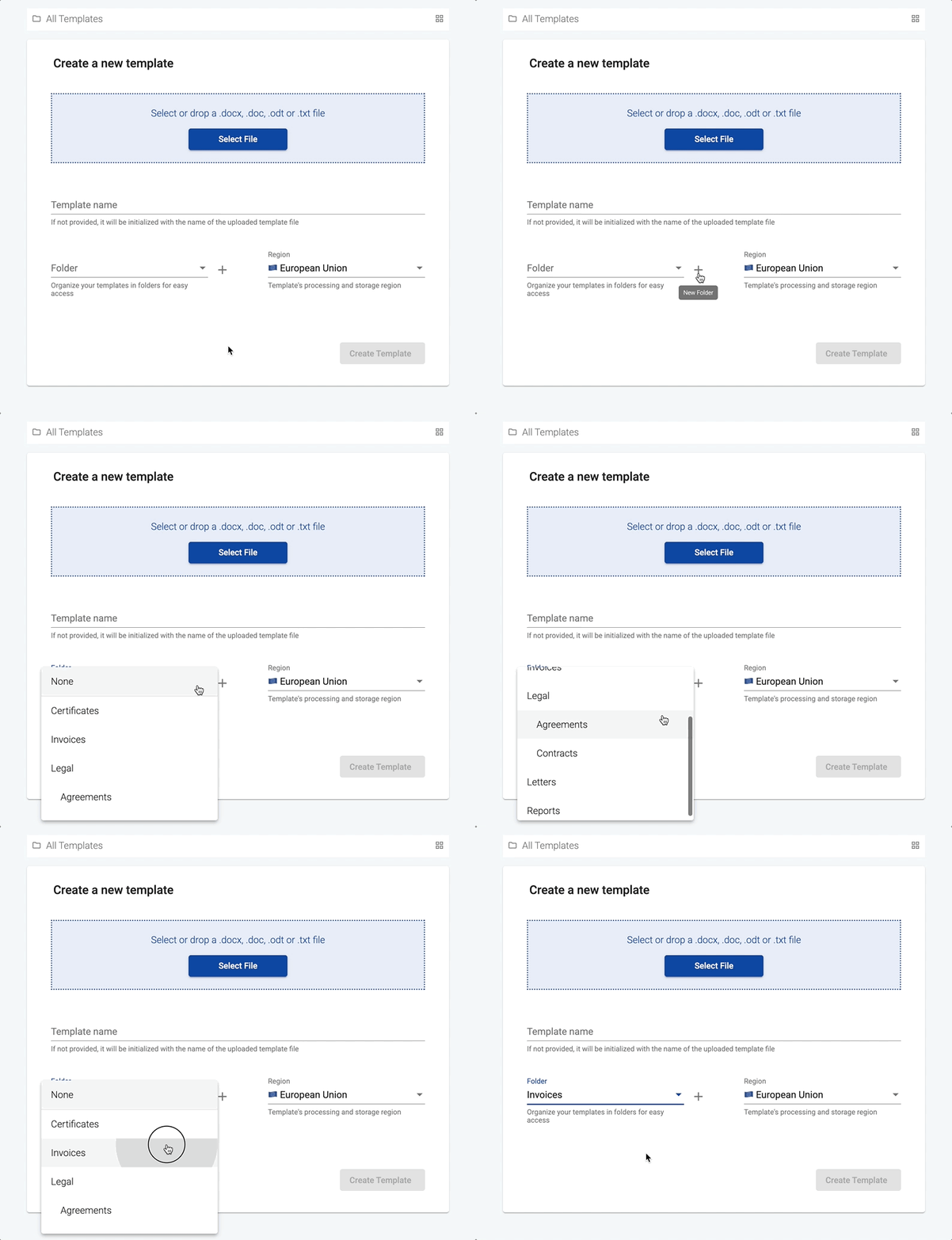
If the folder you need doesn’t exist yet, click the New Folder icon next to the dropdown to create a folder on the spot, without leaving the new template form.
Alternatively, for an existing template, open its detail page and locate the Folder dropdown in the Settings panel. Choose the folder you want to move the template to and click Save to apply the change.
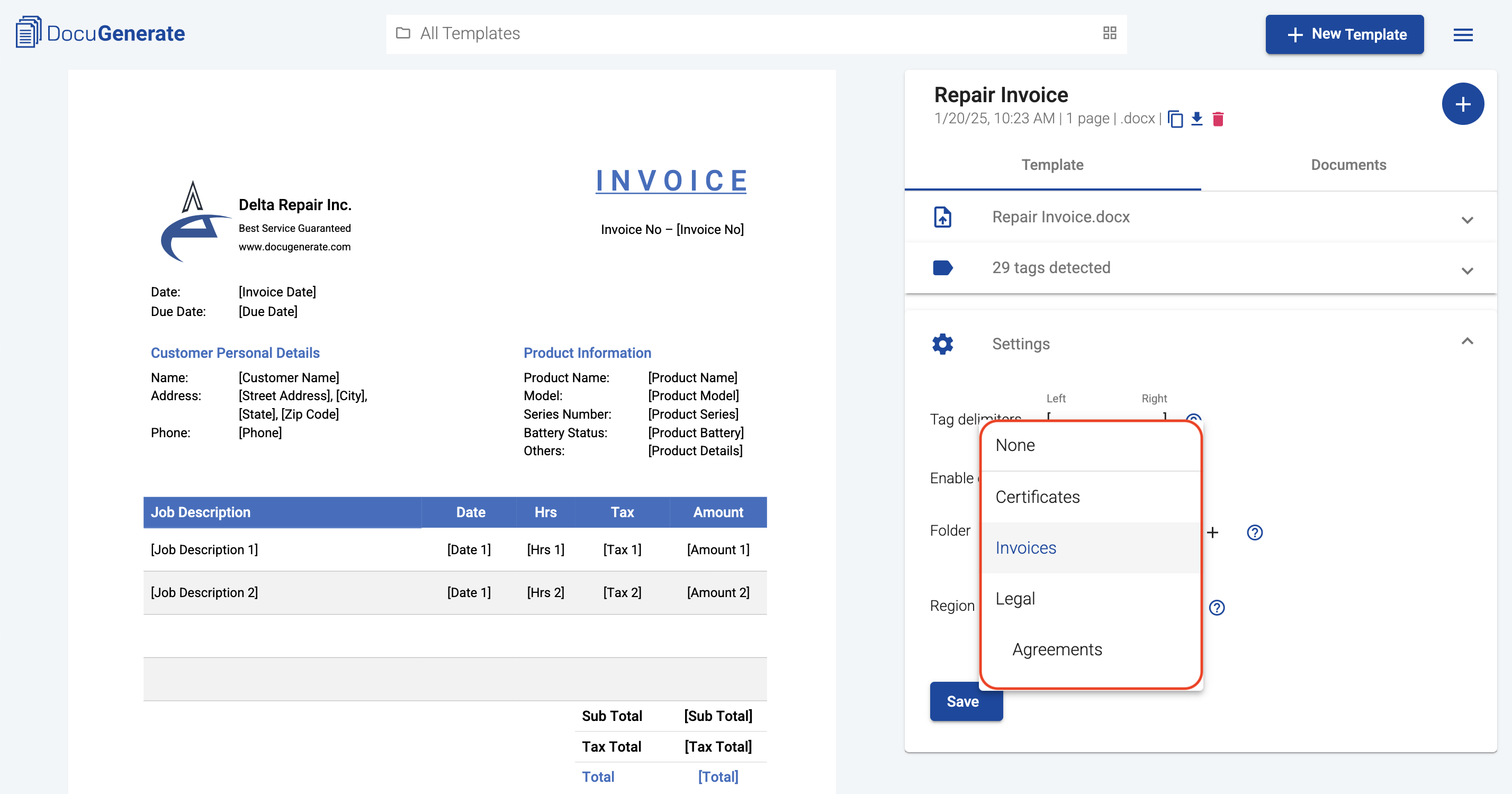
To remove a template from any folder and return it to the default view, select None in the dropdown and save.
Team collaboration
If a template is shared with you by a team owner and you have Write permission, you can move the template between any folders within the owner’s hierarchy. The Folder dropdown shows the owner’s folder tree rather than your personal folders. You cannot create new folders in the owner’s hierarchy, so you can only assign the template to folders that already exist. Team members with Read permission can only view a template’s folder but cannot change it.