In DocuGenerate, you can go beyond text and images by incorporating QR codes and barcodes into your templates. These elements enable you to enhance your documents with additional information or automate processes efficiently.
Adding QR Codes
To add a QR code to your template, use a tag starting with the % character, like for adding images, followed by the qrcode filter, as shown below. Also, please make sure you enable the enhanced syntax for your template.
[%url | qrcode]
[%url | qrcode:'width':'height']
The url parameter specifies the URL or text that you want to encode into the QR code. Optionally, you can define the width and height parameters to customize the dimensions of the QR code, similar to resizing images.
Here’s an example template that includes a QR code:
[%website | qrcode:200:'auto']
The JSON data used to generate the document should contain a website field, which points to the URL of the website. Ensure that the JSON key doesn’t include the % character, as it needs to be "website" and not "%website":
[{
  "website": "https://www.docugenerate.com"
}]
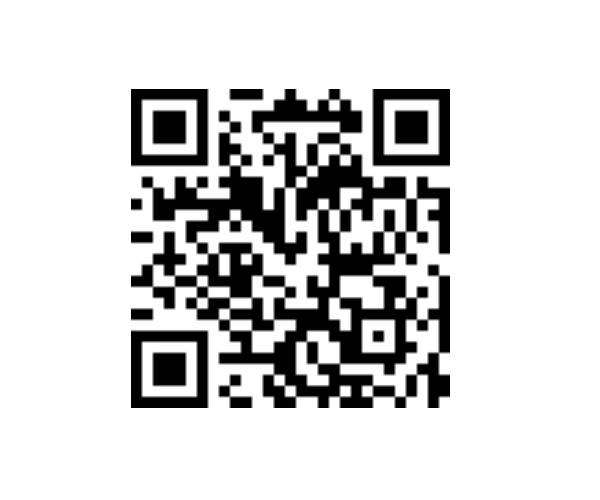
When the template is processed to generate the document using the provided data, the [%website | qrcode:200:'auto'] tag is replaced with a QR code containing the URL of your website. The result will look like this:
Adding Barcodes
Similarly, you can add barcodes to your templates using a tag starting with the % character, followed by the barcode filter, as shown below. Please make sure you have enabled the enhanced syntax for your template before generating any documents.
[%text | barcode]
[%text | barcode:'width':'height']
The text parameter specifies the value that you want to encode into the barcode. Optionally, you can define the width and height parameters to customize the dimensions of the barcode, similar to resizing images.
Here’s an example template that includes a barcode:
[%product_code | barcode:'auto':150]
The JSON data contains a product_code field, which is the value to be encoded in the barcode. Ensure that the JSON key doesn’t include the % character, as it needs to be "product_code" and not "%product_code":
[{
  "product_code": "1234567890"
}]
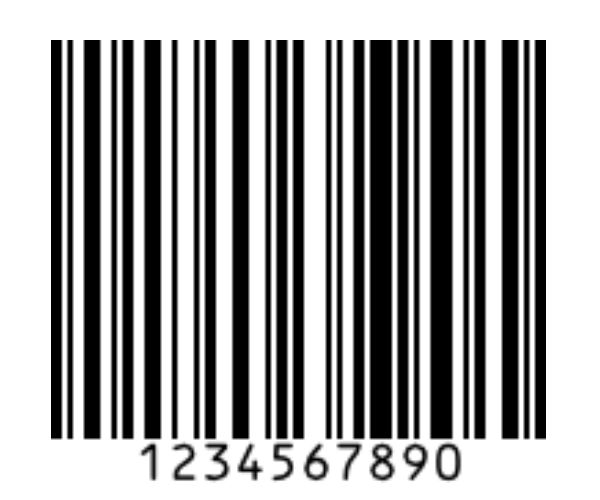
When the template is processed to generate the document using the provided data, the [%product_code | barcode:'auto':150] tag is replaced with a barcode containing the specified value. The result will look like this:
Rendering Options
Both QR codes and barcodes support additional rendering options that let you customize their appearance. Options are specified using the set:'property':'value' syntax and can be chained together to apply multiple settings at once.
[%url | qrcode | set:'property1':'value1' | set:'property2':'value2']
[%text | barcode | set:'property1':'value1' | set:'property2':'value2']
Set the bar color
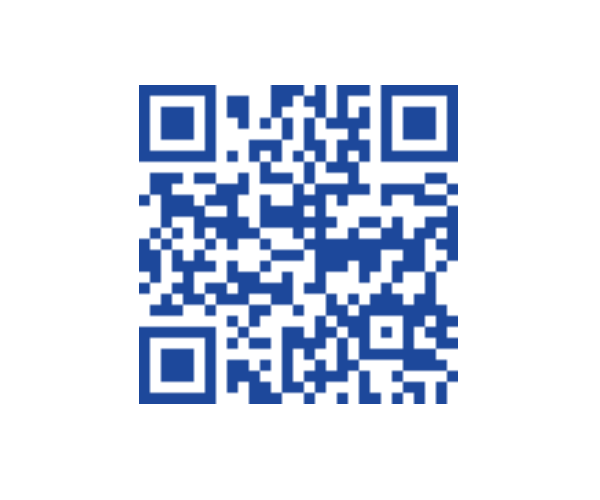
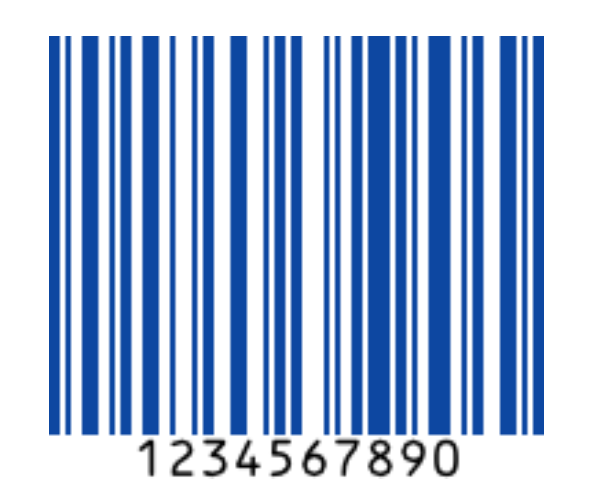
Use the barcolor option to change the color of the bars or modules. This is useful when you want the QR code or barcode to match your brand colors or blend into a custom-designed document.
| QR Code | Barcode |
|---|---|
qrcode | set:'barcolor':'#0d47a1' | barcode | set:'barcolor':'#0d47a1' |
 |  |
Set the background color
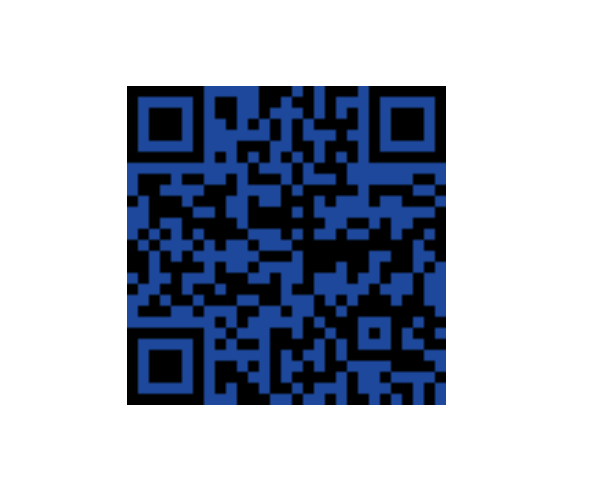
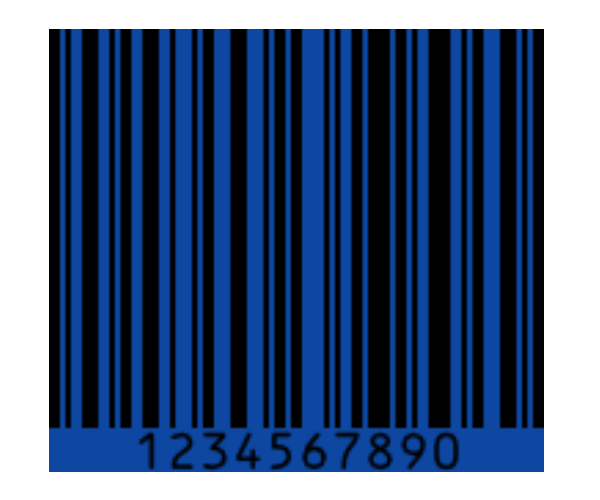
Use the backgroundcolor option to change the background color behind the QR code or barcode. This is useful when placing codes on colored sections of a document and you need the background to match.
| QR Code | Barcode |
|---|---|
qrcode | set:'backgroundcolor':'#0d47a1' | barcode | set:'backgroundcolor':'#0d47a1' |
 |  |
Set the text color
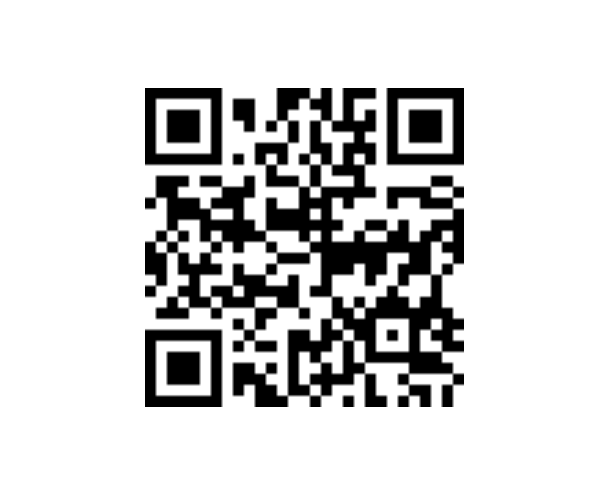
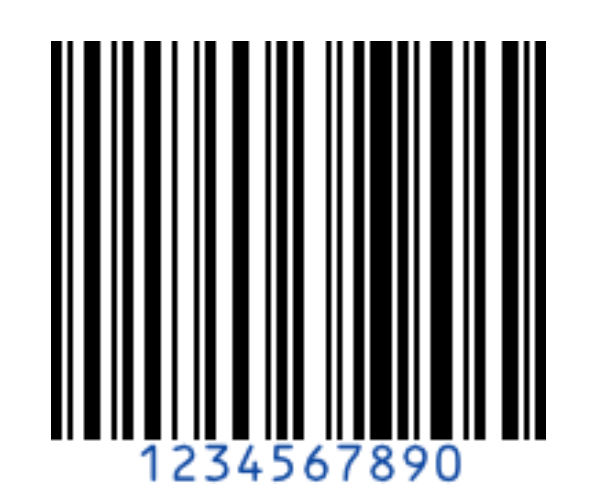
Use the textcolor option to change the color of the human-readable text displayed below the barcode. This is useful when you need the text to be legible against a custom background color.
| QR Code | Barcode |
|---|---|
qrcode | set:'textcolor':'#0d47a1' | barcode | set:'textcolor':'#0d47a1' |
 |  |
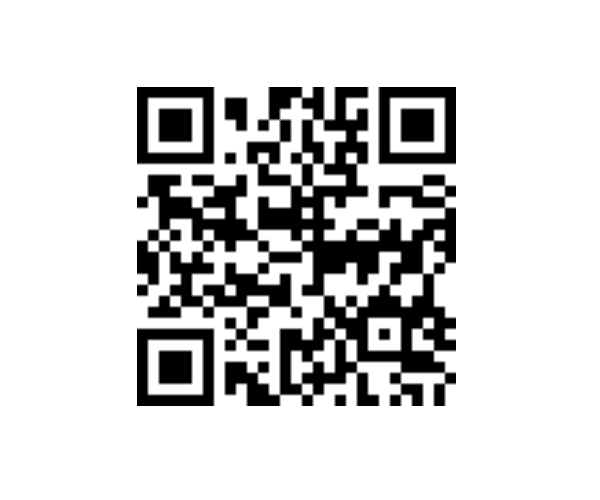
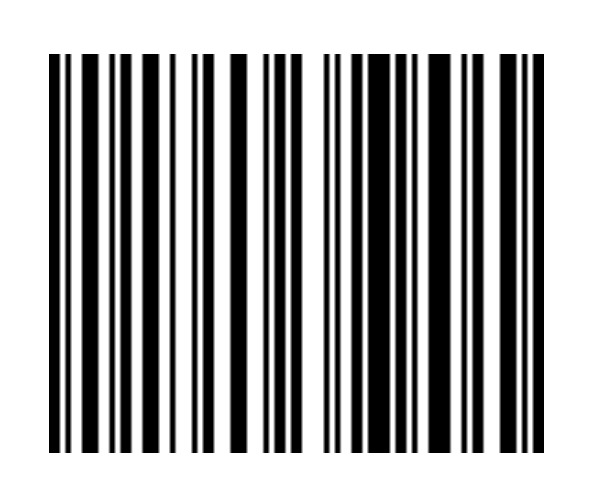
Hide the human-readable text
By default, barcodes display the encoded value as human-readable text below the bars. Use the includetext option set to false to hide this text, which is useful when the text would be redundant or when space is limited.
| QR Code | Barcode |
|---|---|
qrcode | set:'includetext':false | barcode | set:'includetext':false |
 |  |
Rotate clockwise
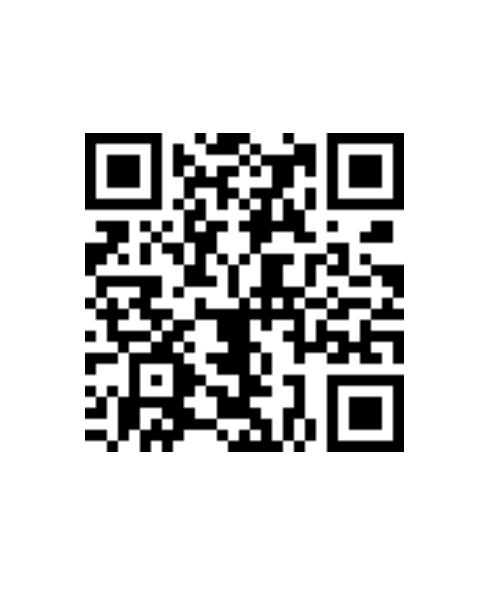
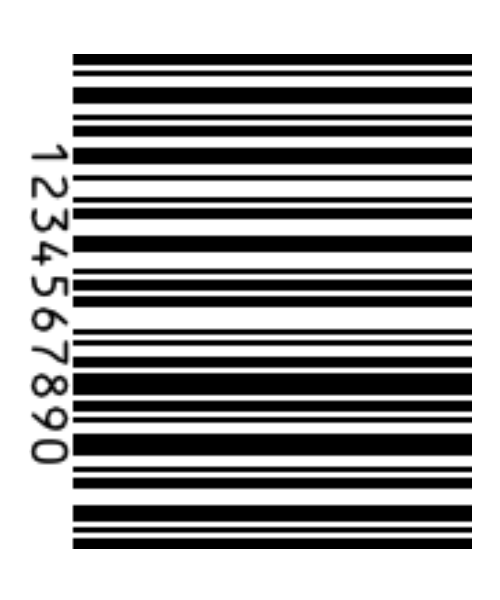
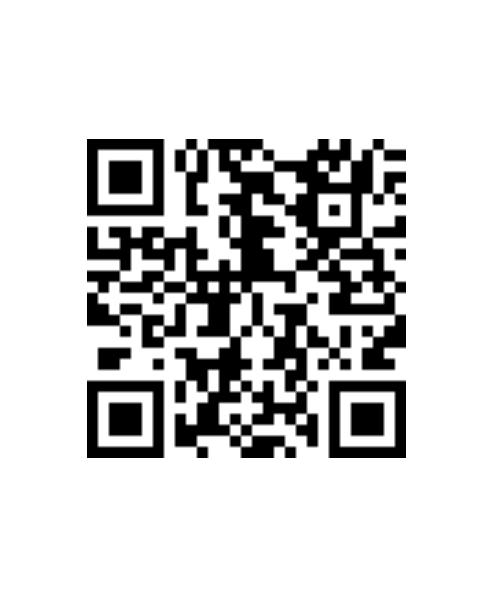
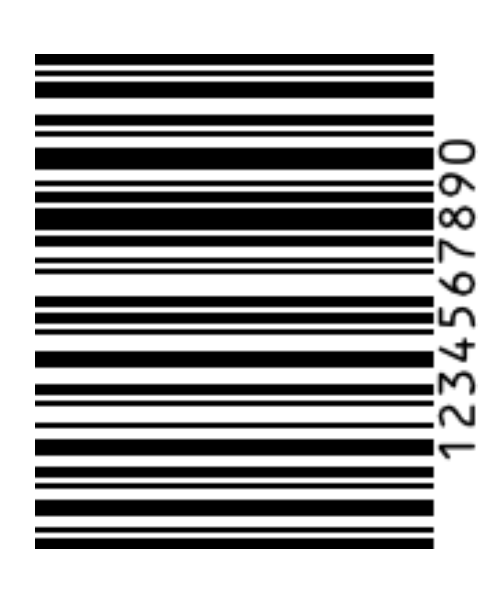
Use the rotate option with the value R to rotate the QR code or barcode 90 degrees clockwise. This is useful when you need to fit a barcode along the side of a document or label.
| QR Code | Barcode |
|---|---|
qrcode | set:'rotate':'R' | barcode | set:'rotate':'R' |
 |  |
Rotate counter-clockwise
Use the rotate option with the value L to rotate the QR code or barcode 90 degrees counter-clockwise. This is useful when you need to fit a barcode along the opposite side of a document or label.
| QR Code | Barcode |
|---|---|
qrcode | set:'rotate':'L' | barcode | set:'rotate':'L' |
 |  |
Set the scale
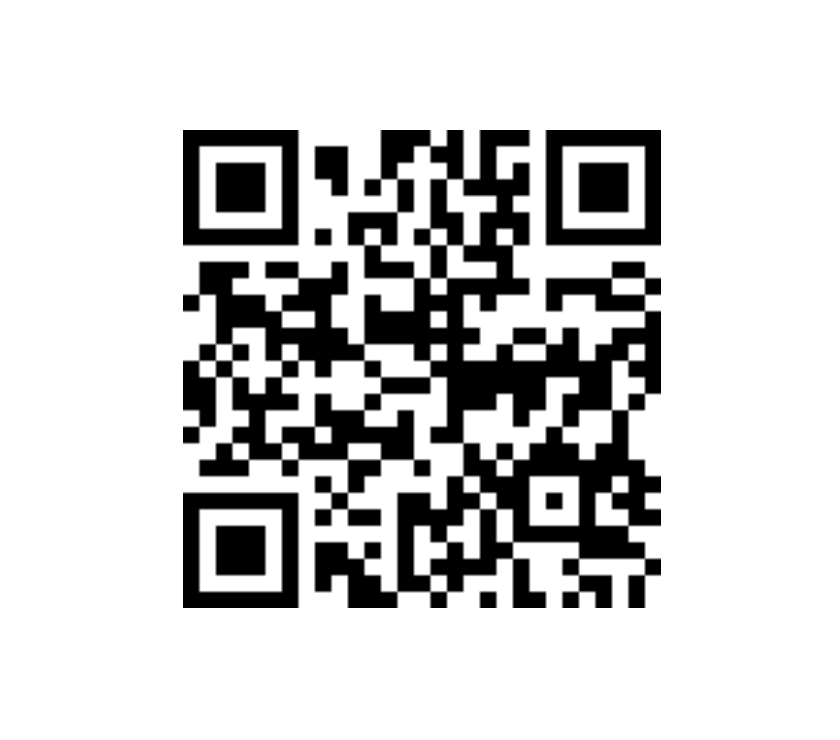
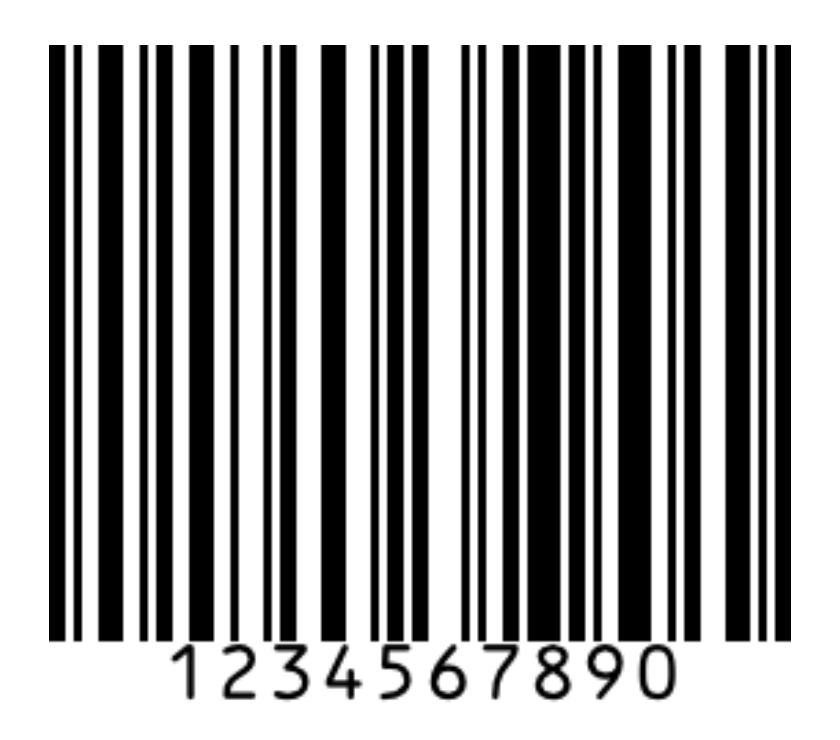
Use the scale option to increase the size of the QR code or barcode by a multiplier. The value must be a positive integer and defaults to 2. This is useful when you need a higher-resolution output, for example for print documents where sharpness is important.
| QR Code | Barcode |
|---|---|
qrcode | set:'scale':3 | barcode | set:'scale':3 |
 |  |