Introduction
Certificates are a common output in many business processes, from training completion records to achievement awards and event participation confirmations. Manually creating individual certificates for each recipient is tedious and error-prone, especially when dealing with dozens or hundreds of records. In this tutorial, we’ll build an automated workflow using FlowRunner and DocuGenerate that generates PDF certificates every time a new record is added to a database table.
FlowRunner is part of the Backendless platform and makes it easy to create intelligent workflows with just a few clicks. It orchestrates automated workflows that combine AI agents, human decision-making, and system integrations. Both technical and non-technical users can build workflows. Non-technical users work through the visual interface while technical users can leverage custom code and advanced integrations.
The workflow we’ll create listens for new records in a Backendless database table, generates a personalized PDF certificate using DocuGenerate, saves the generated file in the Backendless File Service, and updates the original database record with a link to the PDF file. By the end of this guide, you’ll have a fully functional certificate automation pipeline that you can adapt for any document type.
Setting Up the Certificate Template
Before building the FlowRunner workflow, we need to prepare the certificate template in DocuGenerate. To keep things simple, we’ll use the ready-made Certificate of Achievement from our Template Library. This is a standard certificate layout with merge tags for Company Name, Name, Course Name, Diploma Title, and Certificate Date. You can customize the template by modifying the design, adjusting the layout, or adding other merge tags to match your organization’s branding and requirements.
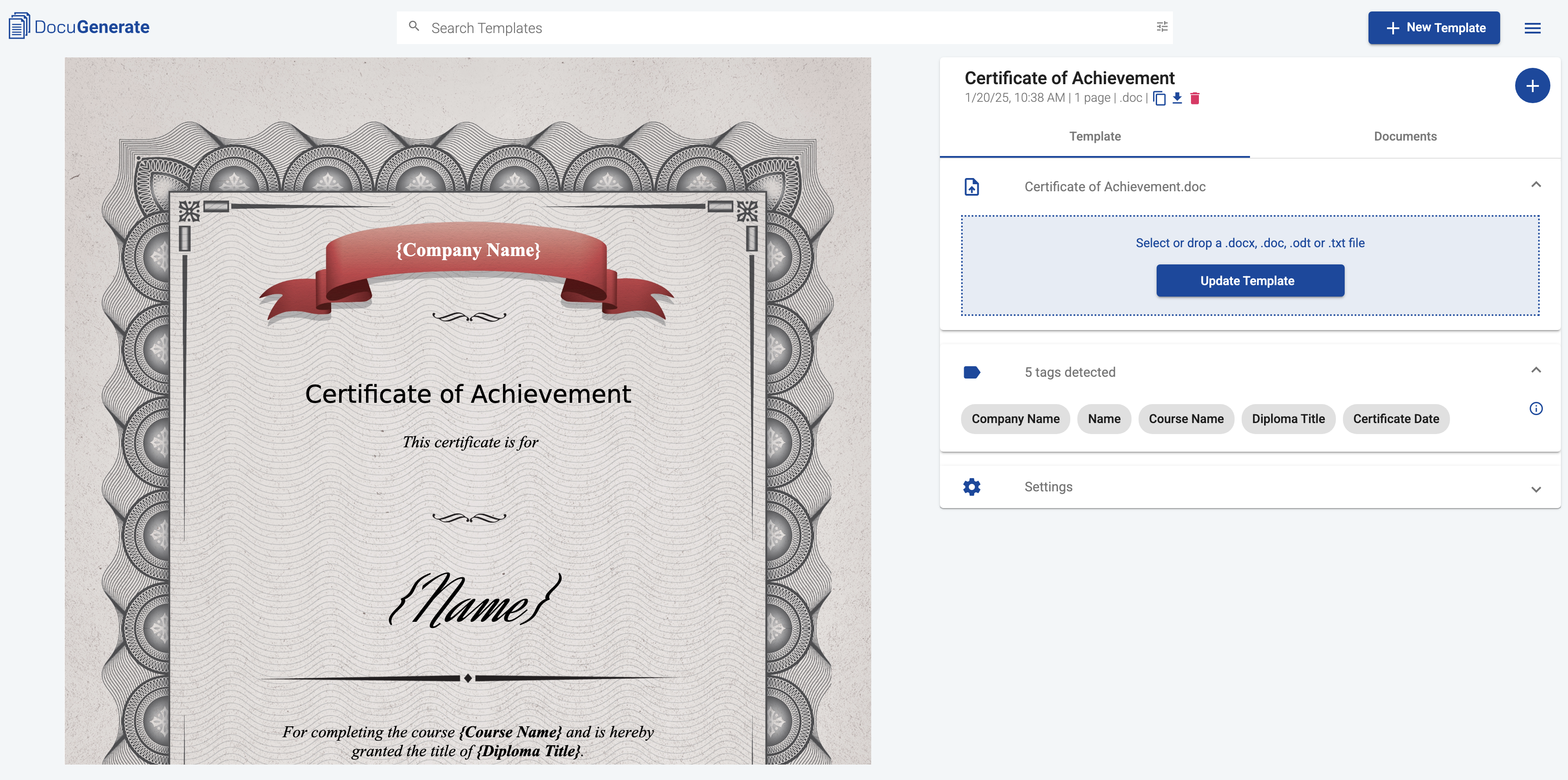
Once you’ve downloaded the template file, upload it to your DocuGenerate account. After the upload is complete, take note of the template ID displayed on the template page, as you’ll need it when configuring the document generation step in the workflow.
Creating the Participants Table
Next, we need a database table in Backendless to store the data used for generating certificates. Navigate to the Database section of your Backendless app and create a new table called Participants.
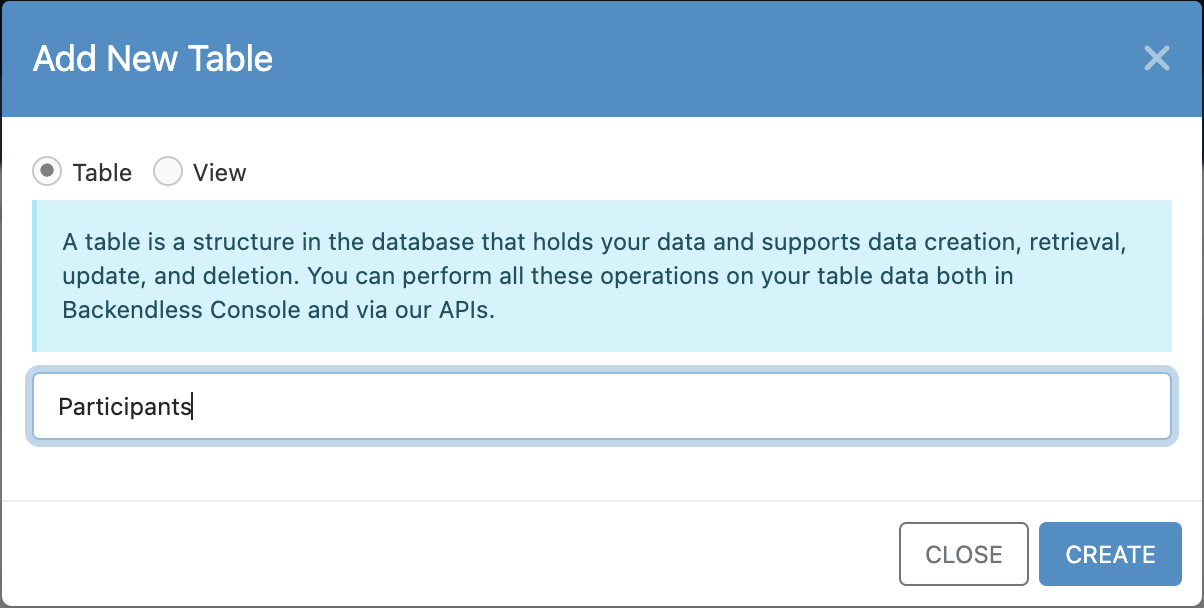
Add the following columns to the table:
Certificate Date (DATETIME): The date to be printed on the certificate.Certificate URL (STRING): Stores the URL of the generated certificate file. This column will be populated automatically by the workflow.Company Name (STRING): The name of the company or organization issuing the certificate.Course Name (STRING): The name of the course or program the participant completed.Diploma Title (STRING): The title of the diploma or achievement being awarded.Name (STRING): The participant’s full name.
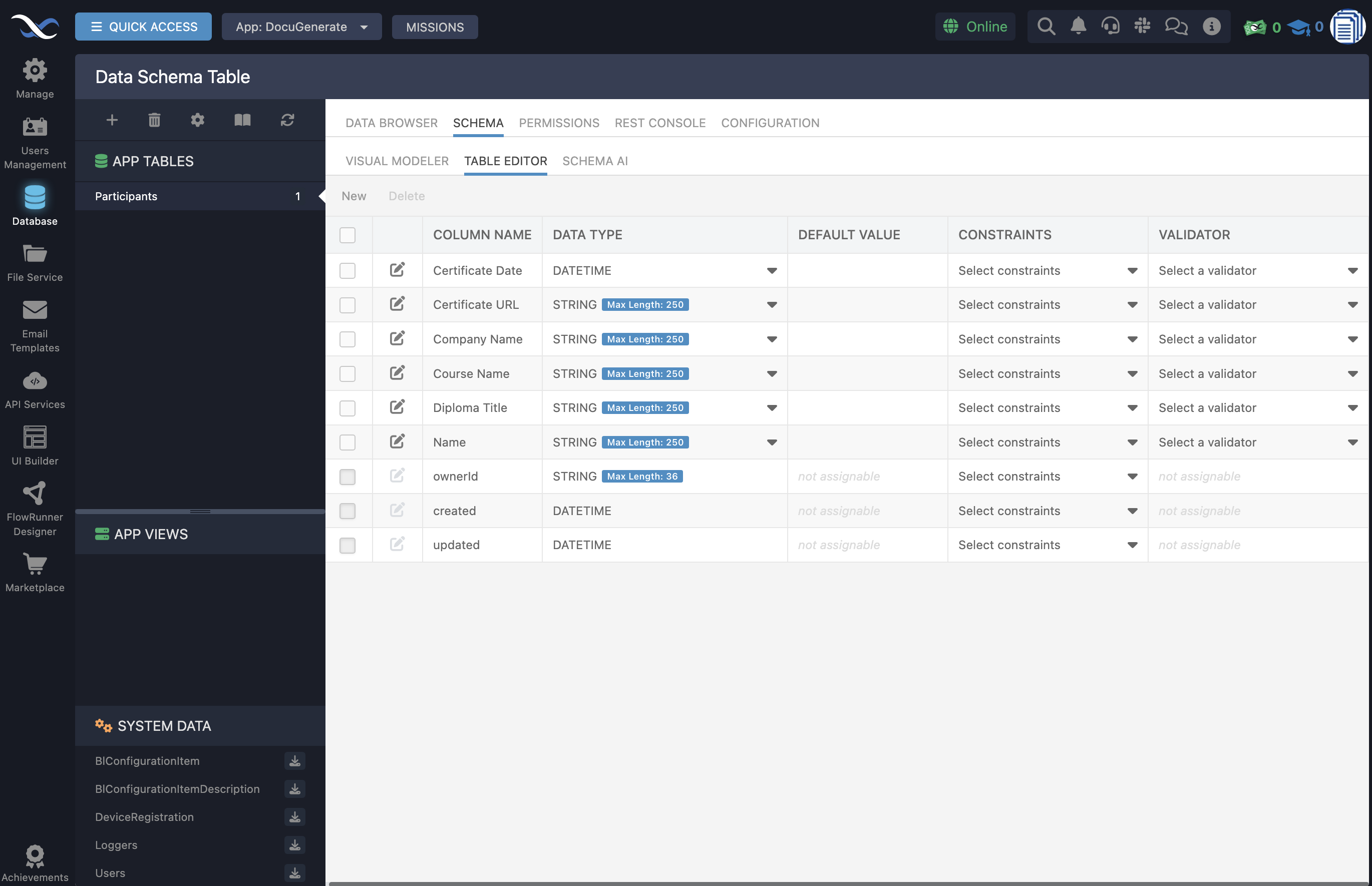
The Certificate URL column starts empty for each new record. The workflow will fill it in automatically with the URL of the generated PDF after the entire flow completes, providing a direct link back to the certificate from the database.
Configuring the Database Trigger
With the table in place, head over to the FlowRunner Designer page and create a new flow called “Certificate of Achievement Flow”. The first element we need is a trigger that starts the flow whenever a new participant record is created. In the Triggers panel, select the Record Created in Database trigger from the Data Service category.
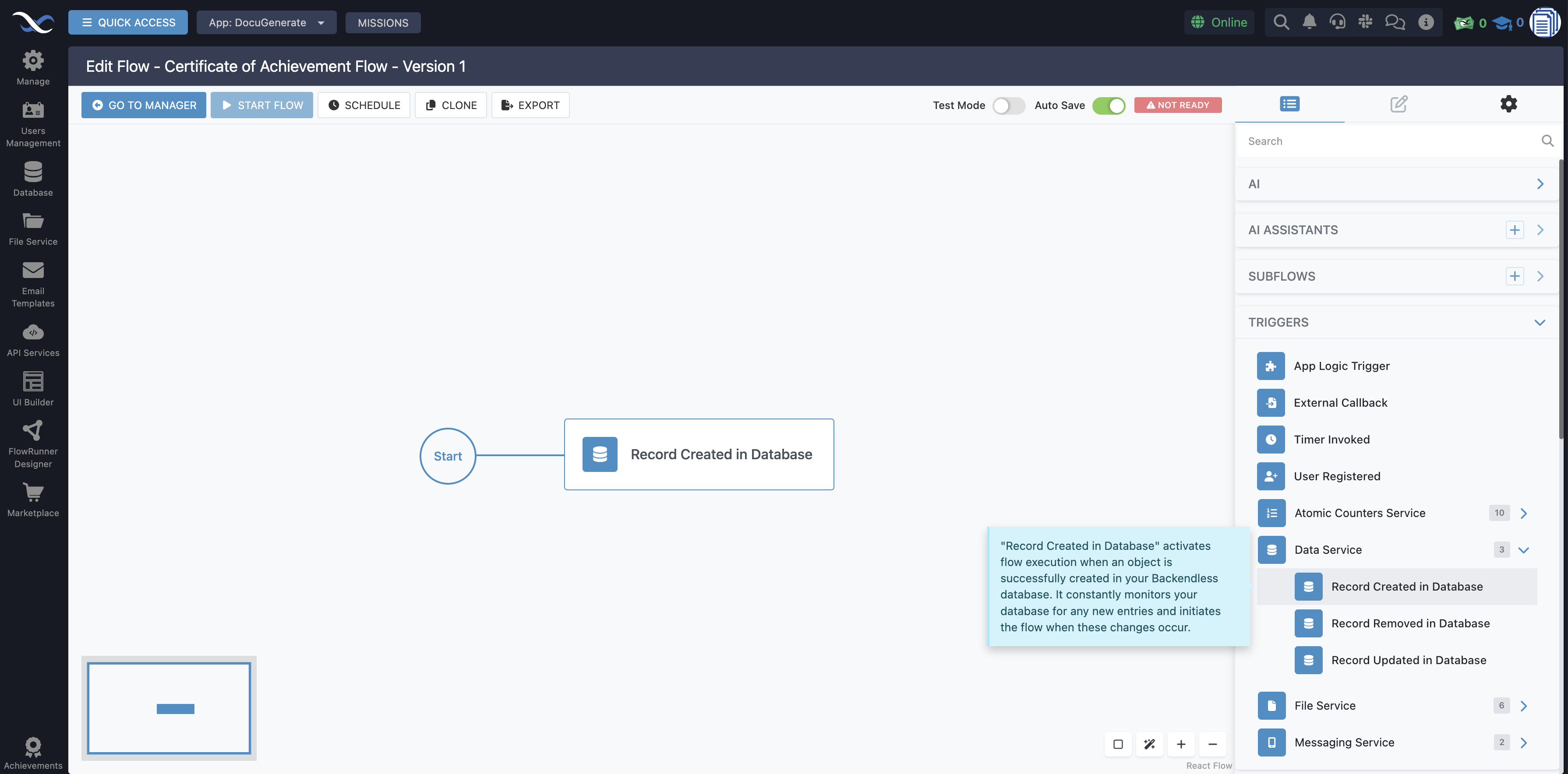
The trigger configuration is straightforward. Select the Participants table in the Table or View dropdown and set Reference Trigger Data As to Participant. You can leave all other fields at their default values.
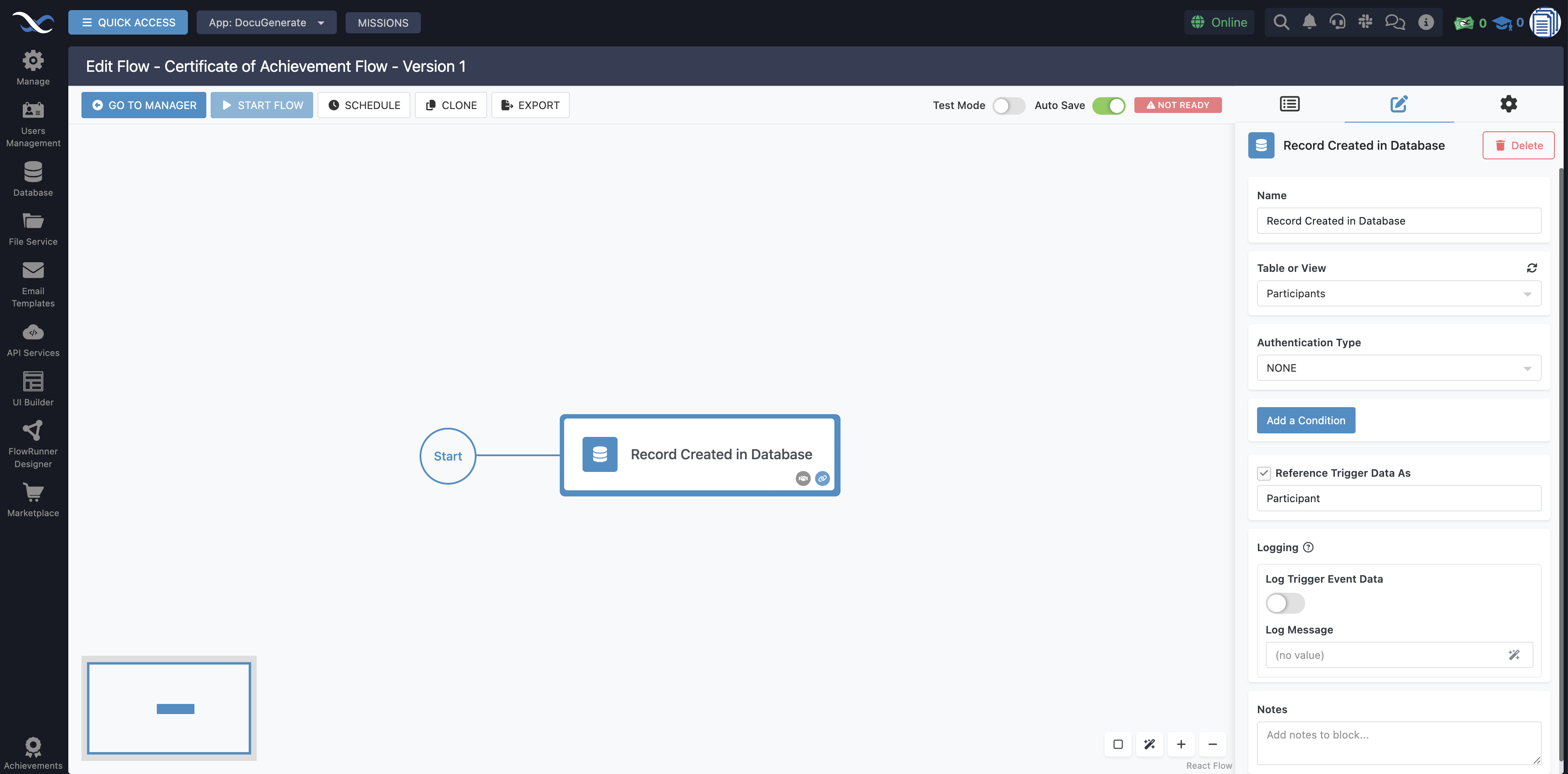
This means that every time a new row is inserted into the Participants table, the flow will execute and the record data will be accessible as the Participant object throughout the remaining steps.
Generating the Document
With the trigger in place, we can add the document generation step. Find the DocuGenerate extension and select the Generate Document action. This action will execute every time the trigger fires, generating a new certificate based on the participant’s data.
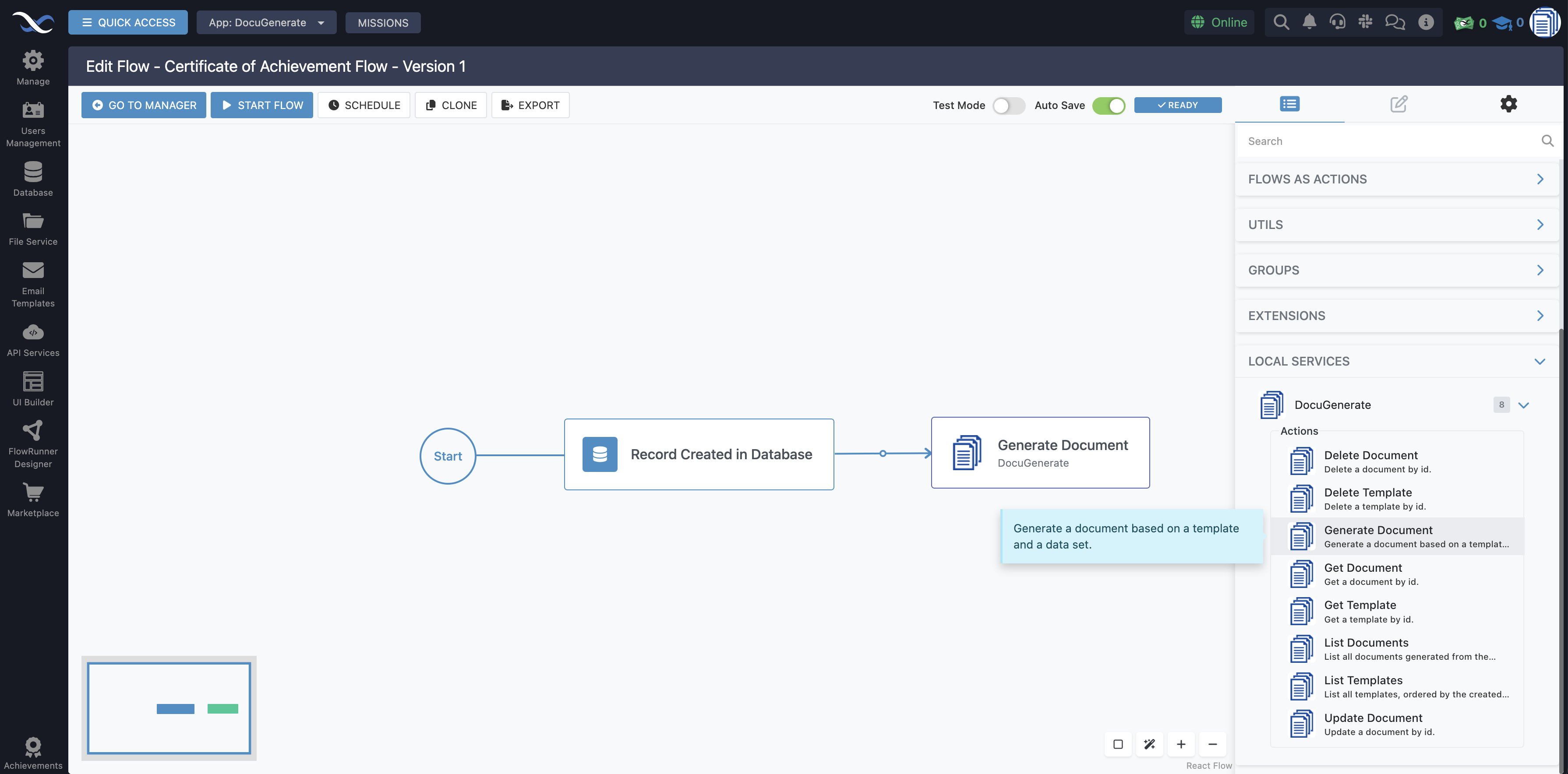
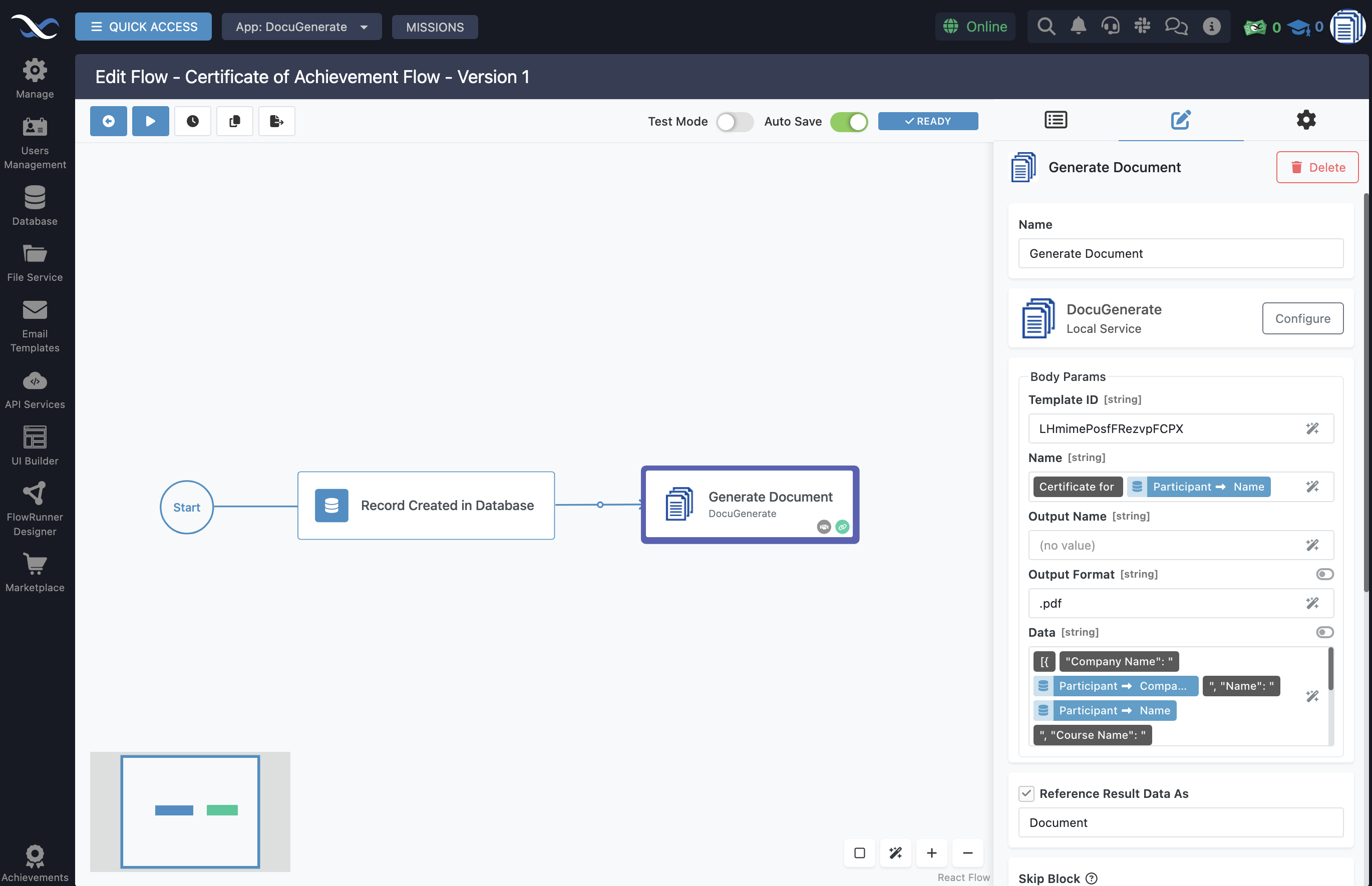
Configure the action with the following parameters:
- Template ID: The ID of the template you uploaded to DocuGenerate in the earlier step.
- Name: Use the Expression input to create a dynamic name by concatenating the text
Certificate for with the Participant -> Name value. - Output Name: Leave empty, the generated file will use the document name.
- Output Format: Set to
.pdf to produce a PDF file. - Data: Use the Expression input to construct the JSON data object (explained below).
Finally, set Reference Result Data As to Document and leave the remaining parameters unchanged.
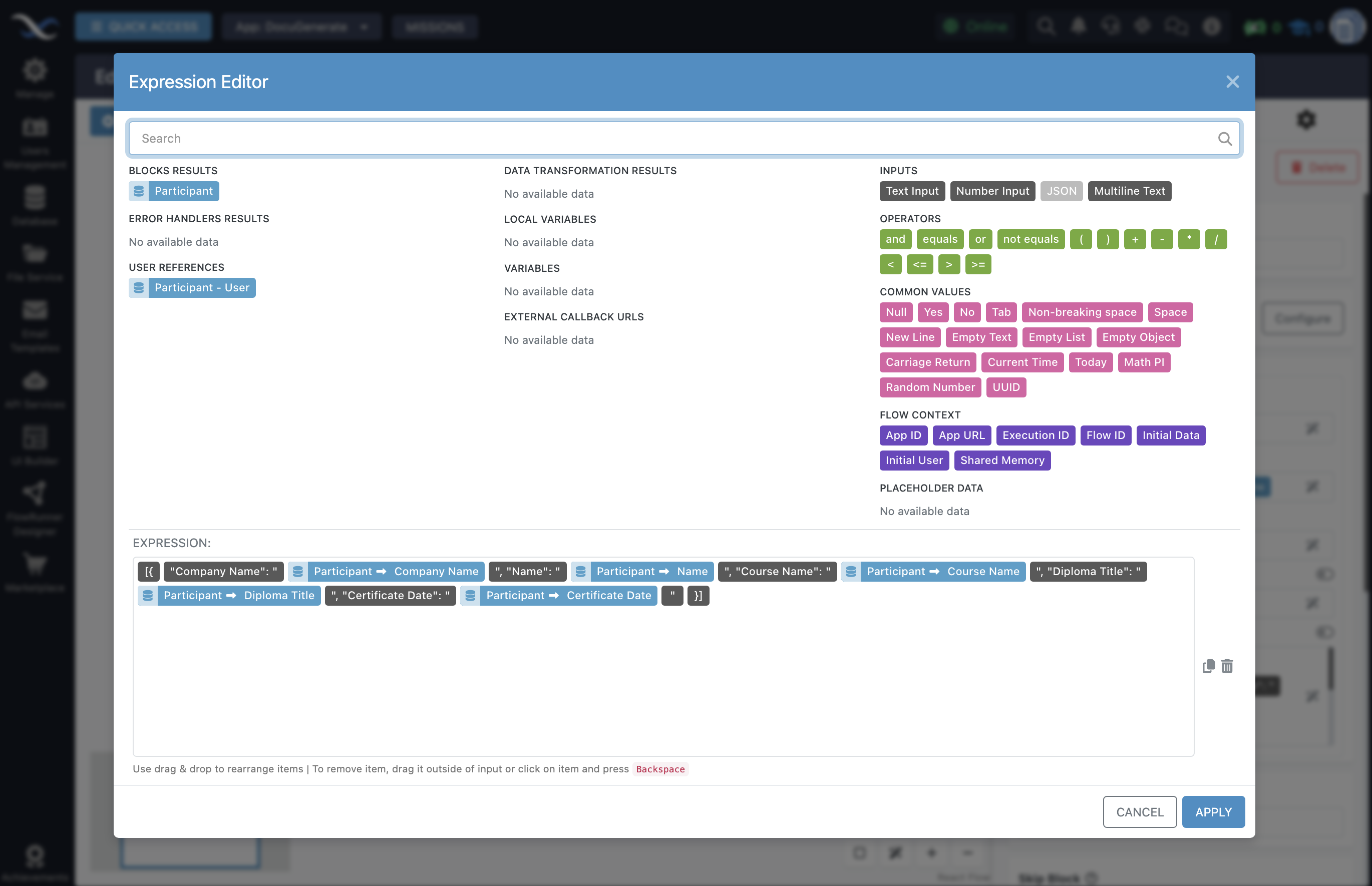
The Data parameter requires a JSON array that maps each merge tag in the template to the corresponding value from the Participant record. FlowRunner’s Expression input lets you combine static text with dynamic block results to construct this JSON at runtime. You alternate between Text Inputs (for the JSON structure and key names) and Block Results (to reference the Participant object’s properties). The resulting expression produces a value equivalent to:
[{
  "Company Name": "Participant -> Company Name",
  "Name": "Participant -> Name",
  "Course Name": "Participant -> Course Name",
  "Diploma Title": "Participant -> Diploma Title",
  "Certificate Date": "Participant -> Certificate Date"
}]
The screenshot below shows the Expression input with all the text and reference blocks assembled. Each key in the JSON object corresponds to a merge tag in the certificate template, and each value is dynamically pulled from the participant’s database record.
Saving the File to Backendless
Now that the document generation step is configured, we can continue building the workflow by saving the generated PDF certificate to the Backendless File Service. In the Extensions panel, go to Backendless File Services and select the Add To File action. This action appends content to an existing file, and can also create a new file from a remote URL using the Content From URL field.
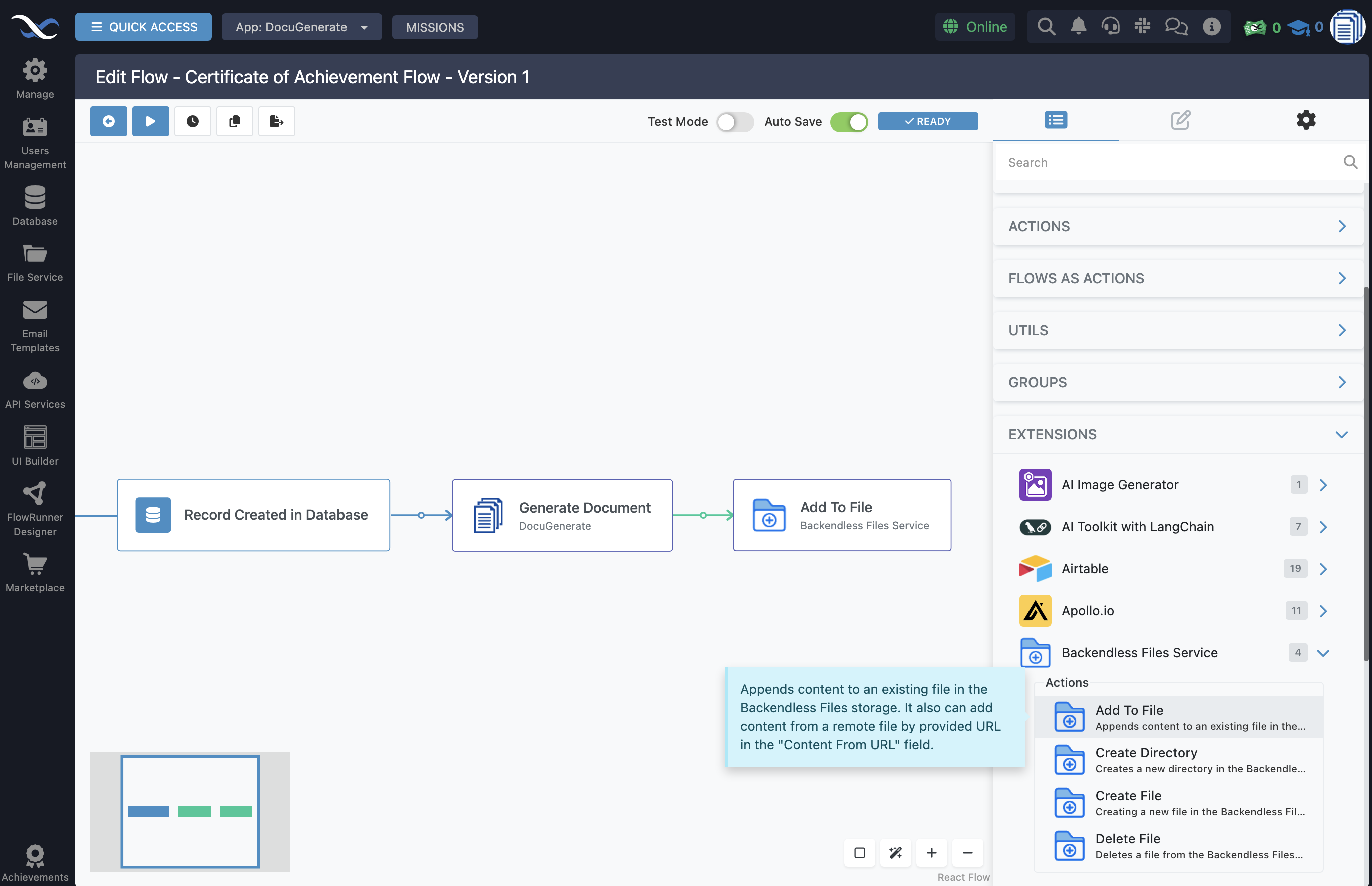
Configure the action with the following body parameters:
- Directory Path: Set to
certificates to save all generated files in a dedicated folder. - File Name: Use the expression
Document -> filename to name the file based on the document generated in the previous step. - Content From URL: Use
Document -> document_uri to download the generated PDF from DocuGenerate.
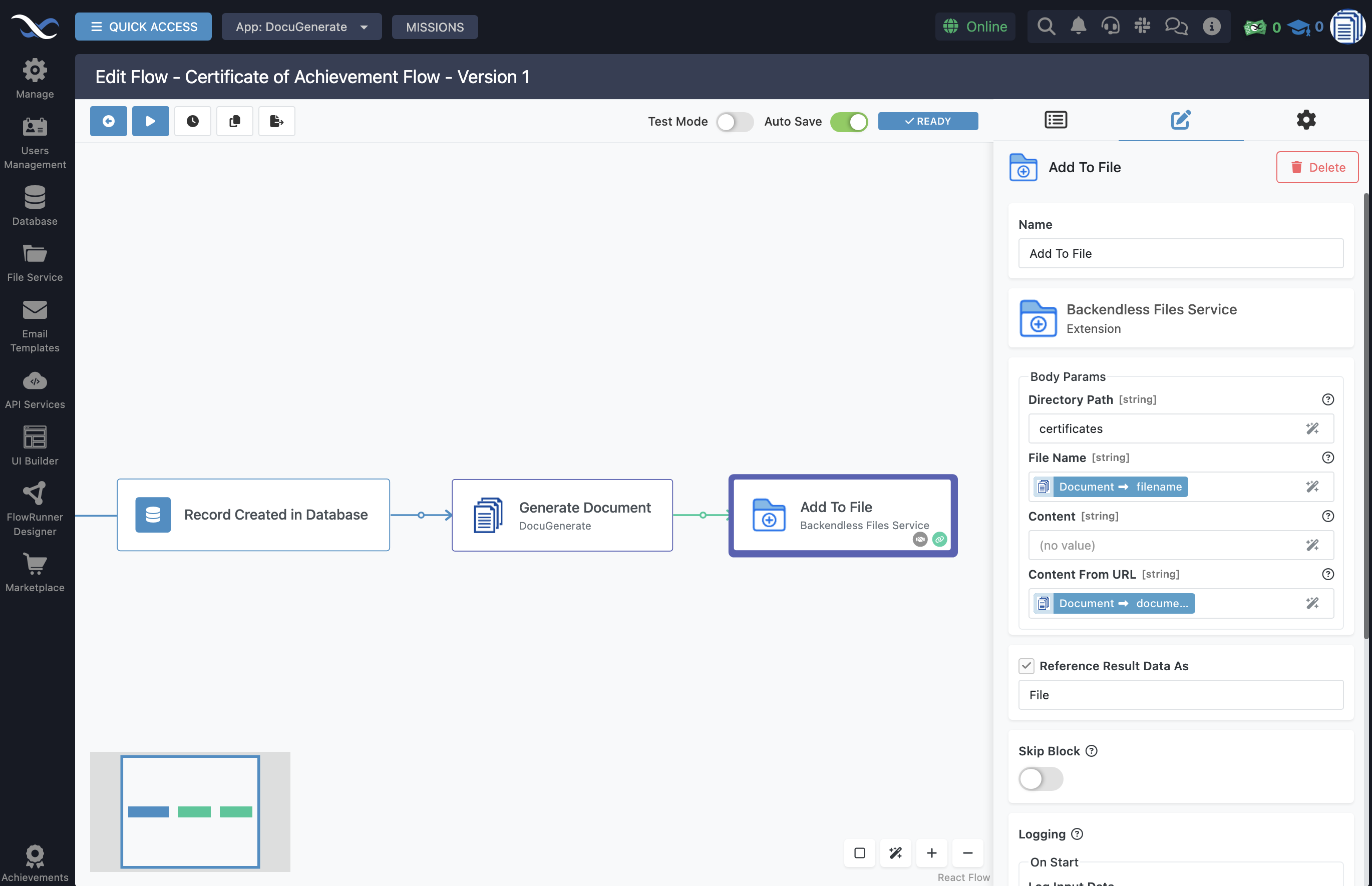
Don’t forget to set Reference Result Data As to File. The File object will contain a fileURL property that we’ll use in the next step to store the file’s location back in the database.
Updating the Database Record
For the final step of the workflow, we need to update the original Participants record with the URL of the saved certificate. This creates a direct link between each participant’s database entry and their generated certificate, making it easy to retrieve or display the file later, whether from a web application, a report, or directly from the database table.
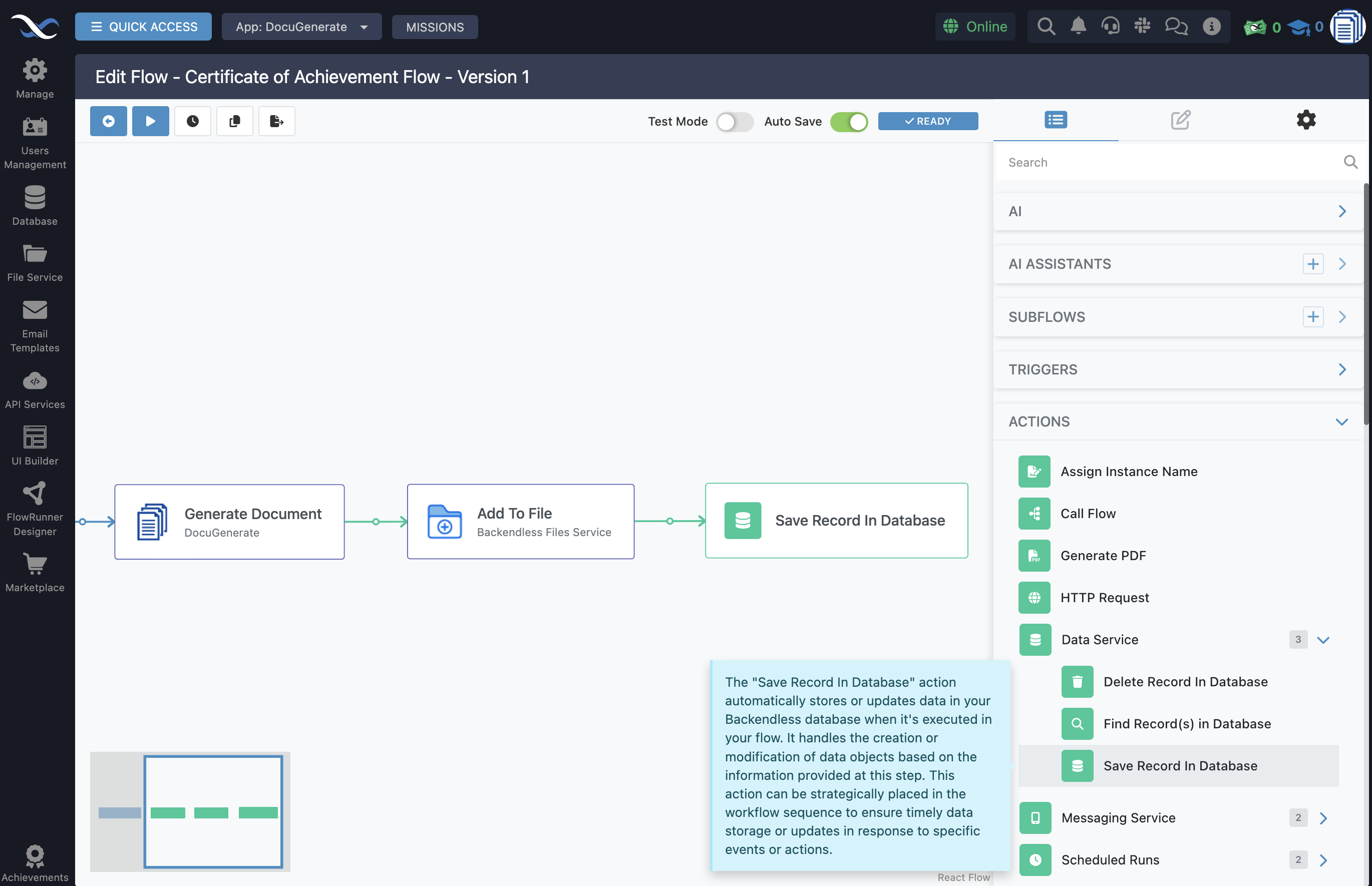
In the Actions panel, go to Data Service and select the Save Record In Database action. This action stores or updates data in your Backendless database when executed and can be placed at any point in the workflow to ensure timely data updates in response to specific events or actions.
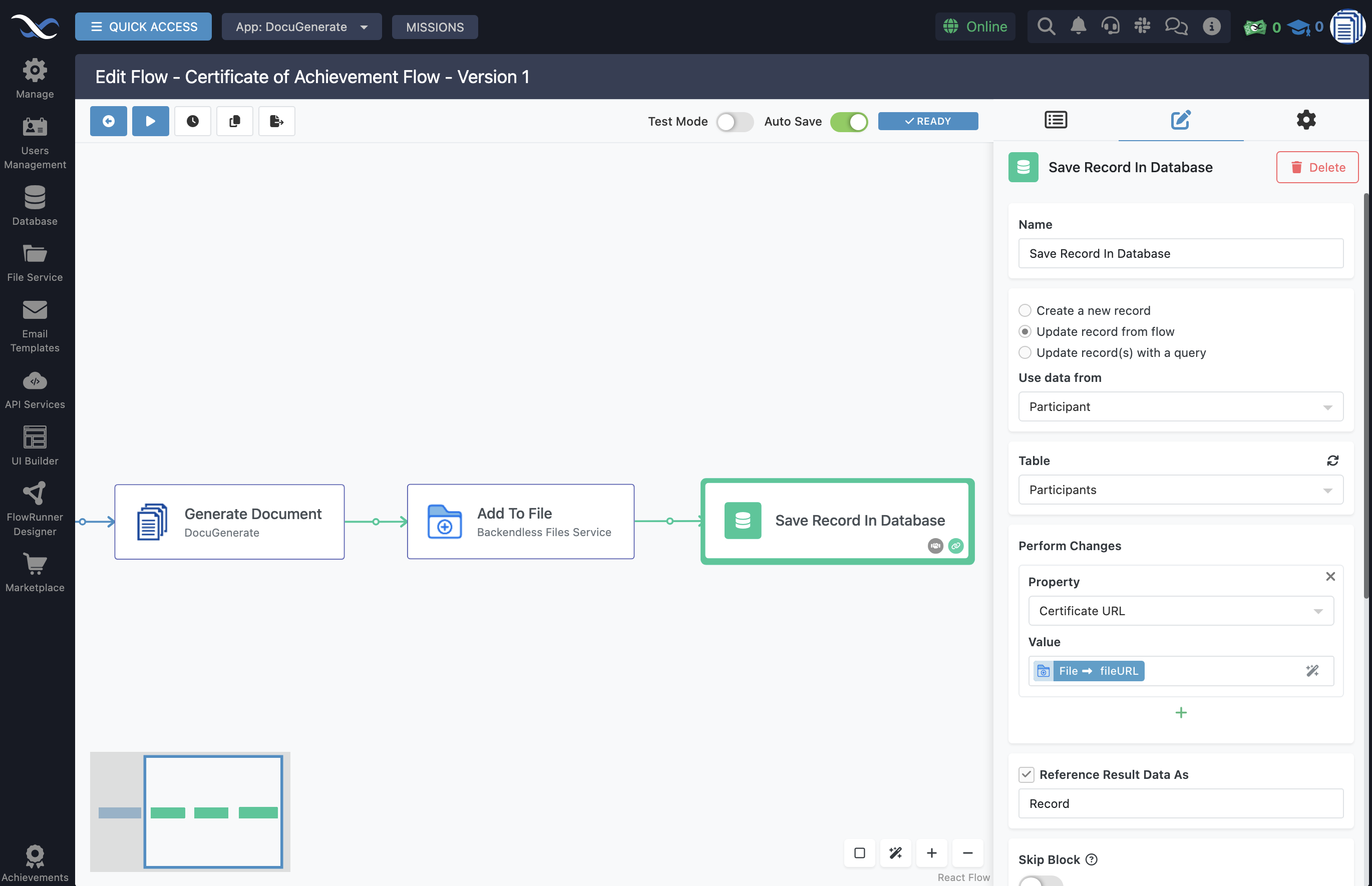
To configure the action, select the Update record from flow option and choose Use data from the Participant object. In the Perform Changes section, select the Certificate URL property and enter the File -> fileURL value. This writes the URL of the file we saved in the previous step back into the participant’s record. Optionally, you can set the Reference Result Data As to Record.
Testing the Workflow
With all four steps in place, the workflow is complete and ready for an end-to-end test. The flow follows a clear sequence: a new database record triggers document generation, the generated PDF is saved to Backendless file storage, and the record is updated with the file URL.
To start the flow, click the Play button in the FlowRunner Designer. Note that once a flow is running, you cannot make changes to it, but you can stop it at any time and update the configuration if needed.
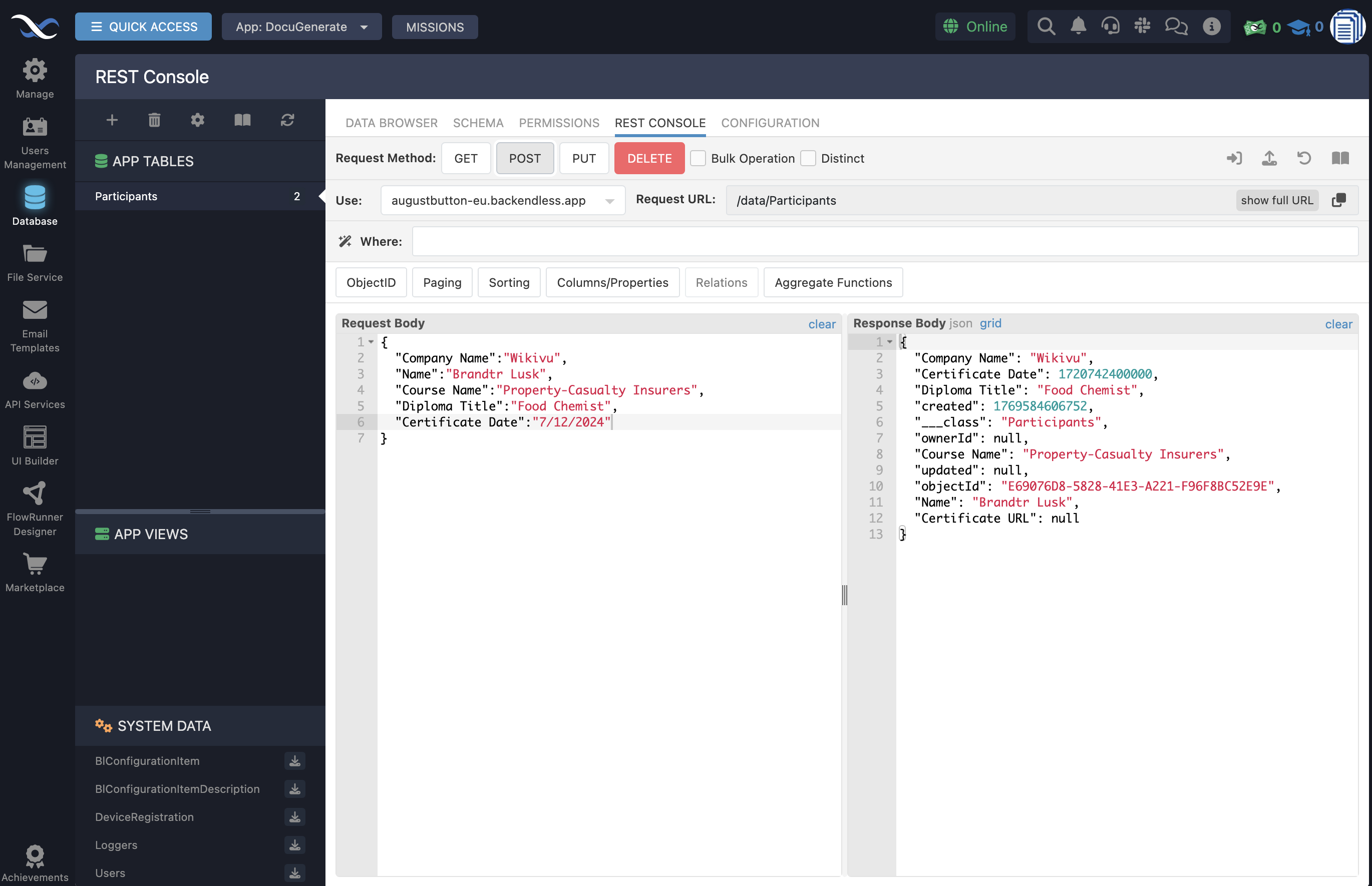
There are multiple ways to test the workflow, and one of the easiest ways is to use the REST Console in the Participants table. For example, we can run a POST request with the following request body:
{
  "Company Name": "Wikivu",
  "Name": "Brandtr Lusk",
  "Course Name": "Property-Casualty Insurers",
  "Diploma Title": "Food Chemist",
  "Certificate Date": "7/12/2024"
}
The response body confirms that a new record has been created in the database. Within moments, the workflow executes and generates the certificate.
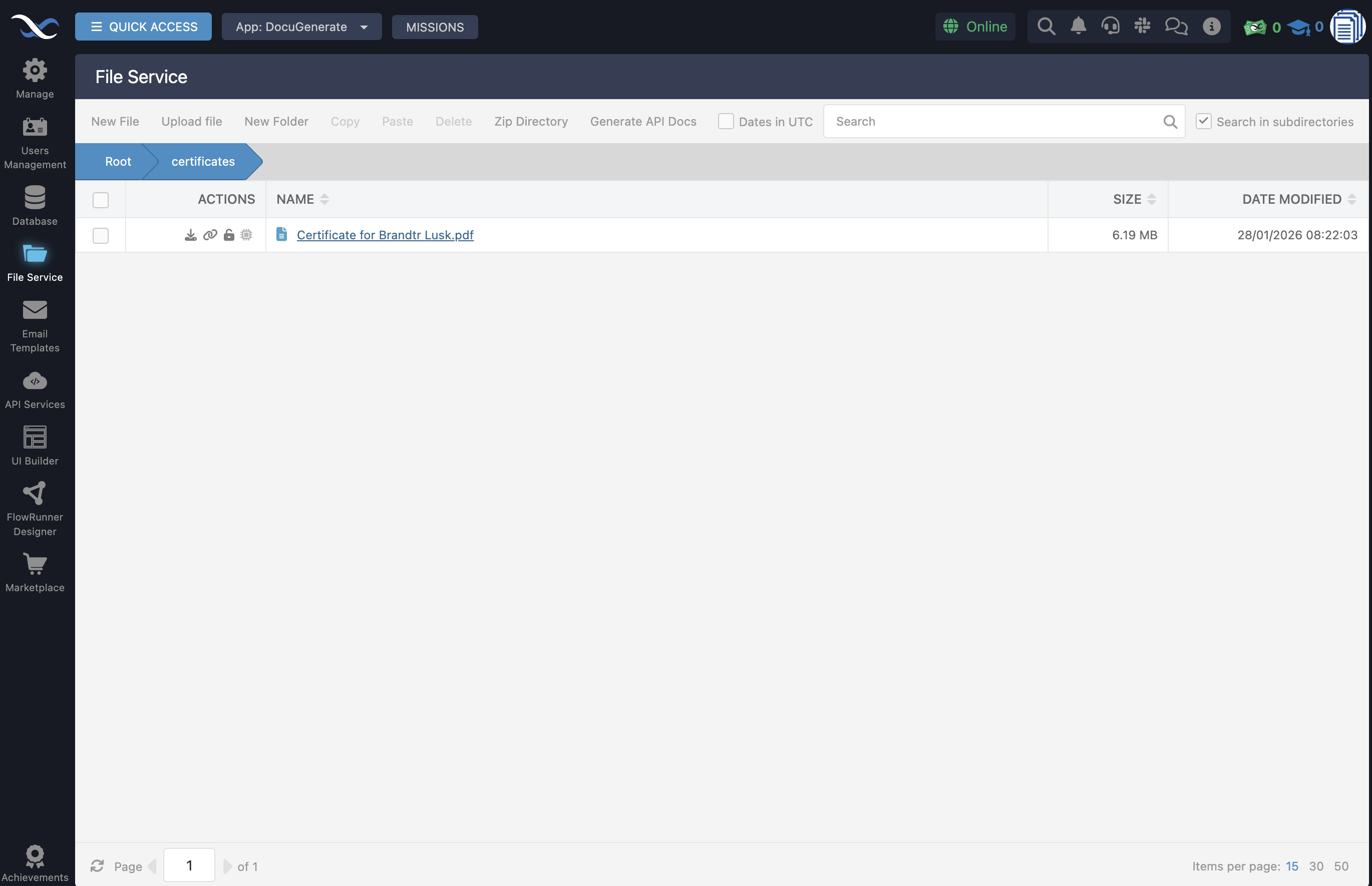
As expected, the generated PDF certificate appears in the certificates folder in the File Service. As a future improvement, you could also delete the document from DocuGenerate after saving it to Backendless, keeping your DocuGenerate account tidy.
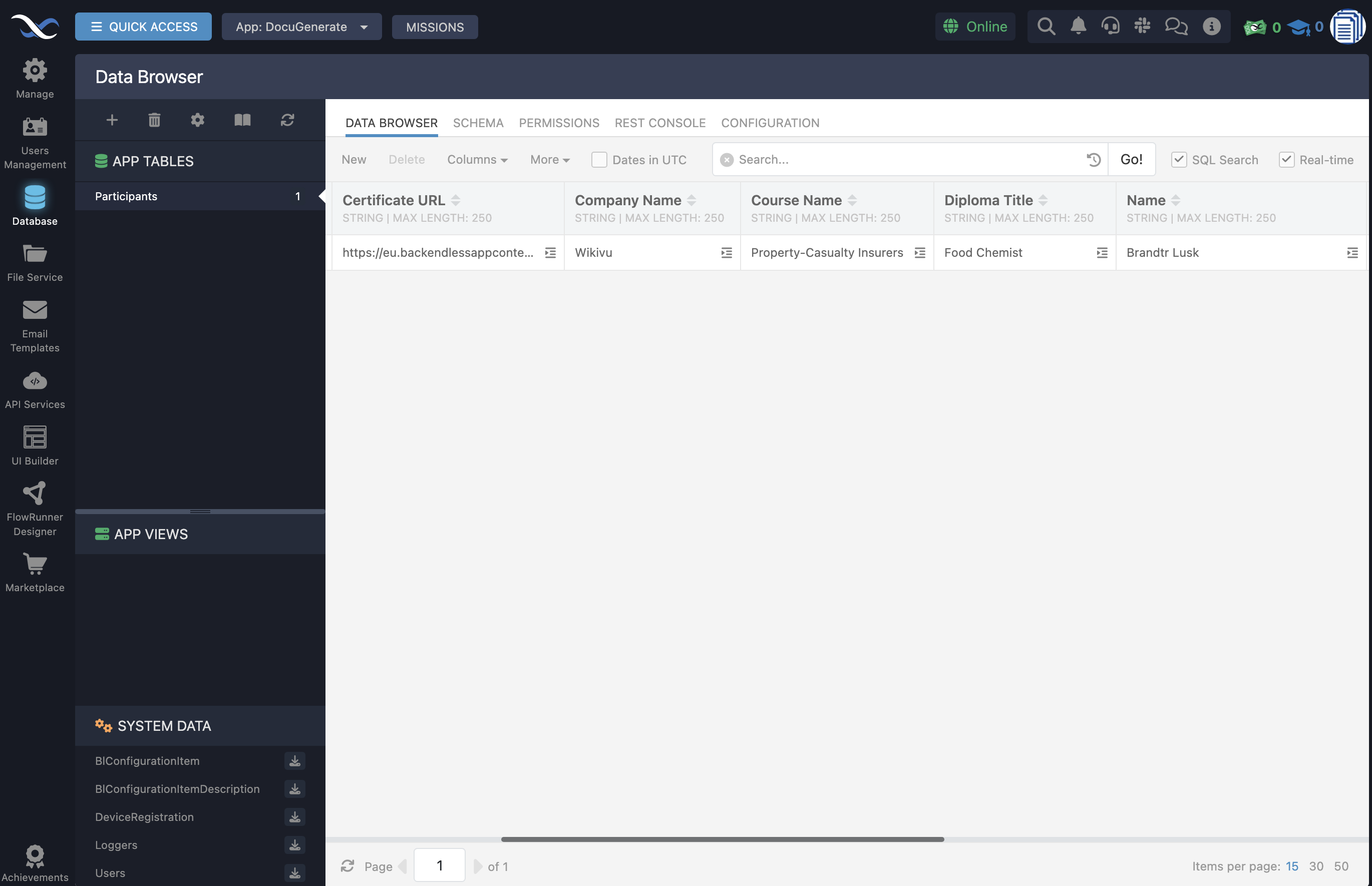
In the Participants table, the Certificate URL column now contains a link to the file stored in the Backendless file storage, confirming that the entire flow works correctly from trigger to completion.
If you’d like to try this workflow yourself, you can download the complete flow definition and import it into your FlowRunner instance. You’ll need to update the template ID and table references to match your own Backendless app configuration.
Conclusion
In this tutorial, we built a complete certificate automation workflow using FlowRunner and DocuGenerate. The flow listens for new records in a Backendless database, generates a personalized PDF certificate for each participant, saves the file to the Backendless File Service, and updates the database record with a link to the generated document. The entire process runs automatically without any manual intervention once the flow is started.
This workflow demonstrates one practical example of what you can build with FlowRunner and DocuGenerate. The same pattern applies to any scenario where you need to generate documents from database records, such as invoices, contracts, reports, or any other templated document. You could also extend this workflow by adding email notifications, conditional branching based on record data, or integrations with other services available in the Backendless ecosystem.
Resources