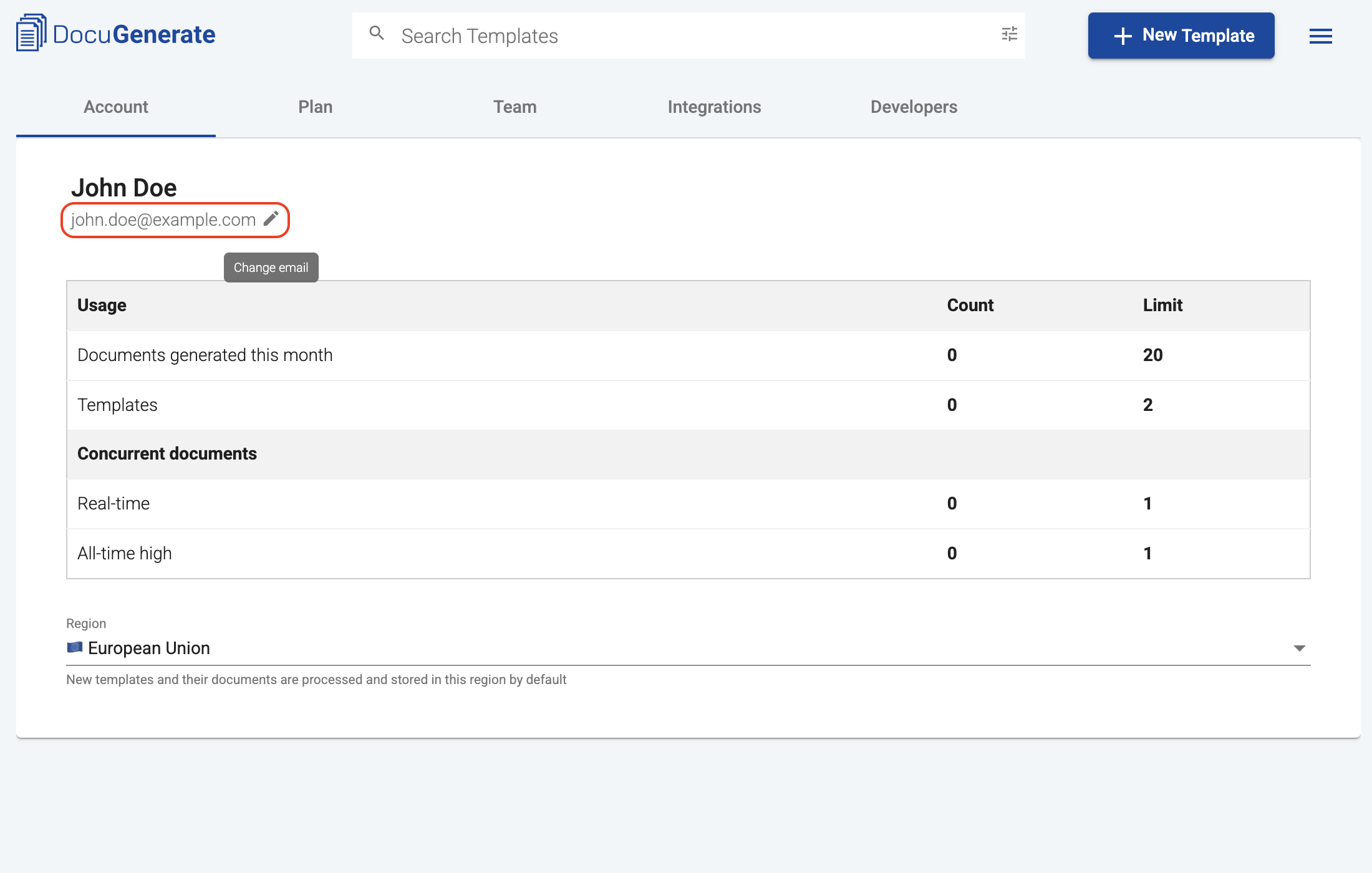
You can change the email address associated with your DocuGenerate account from the Account tab in the Settings page.
Hover over your current email address and click the edit icon to open the change email dialog.
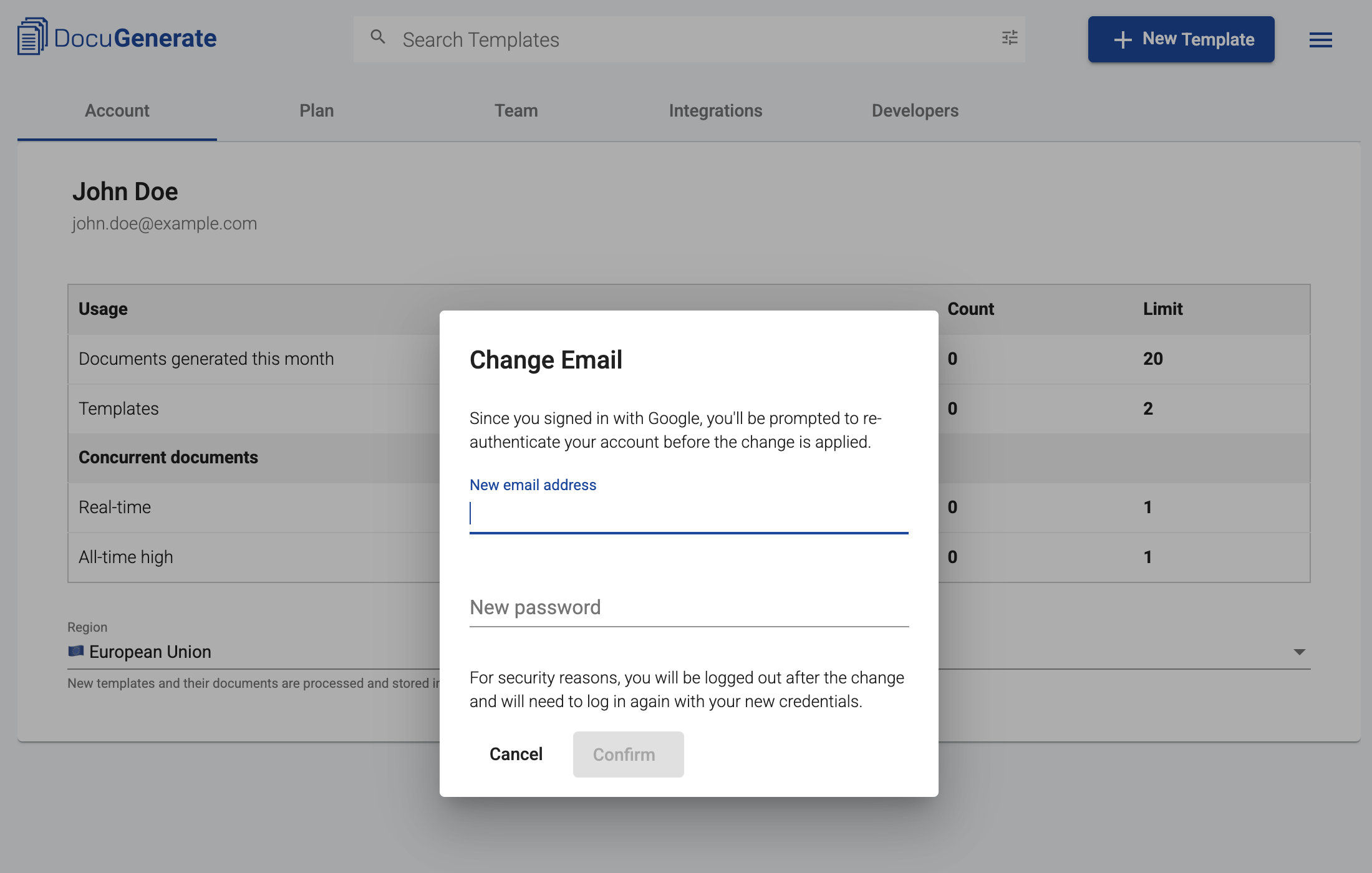
Enter your new email address and a new password, then click Confirm. For security reasons, you will be logged out and will need to log in again with your new credentials.
If you signed up with Google, you will be prompted to re-authenticate your Google account before the change is applied.
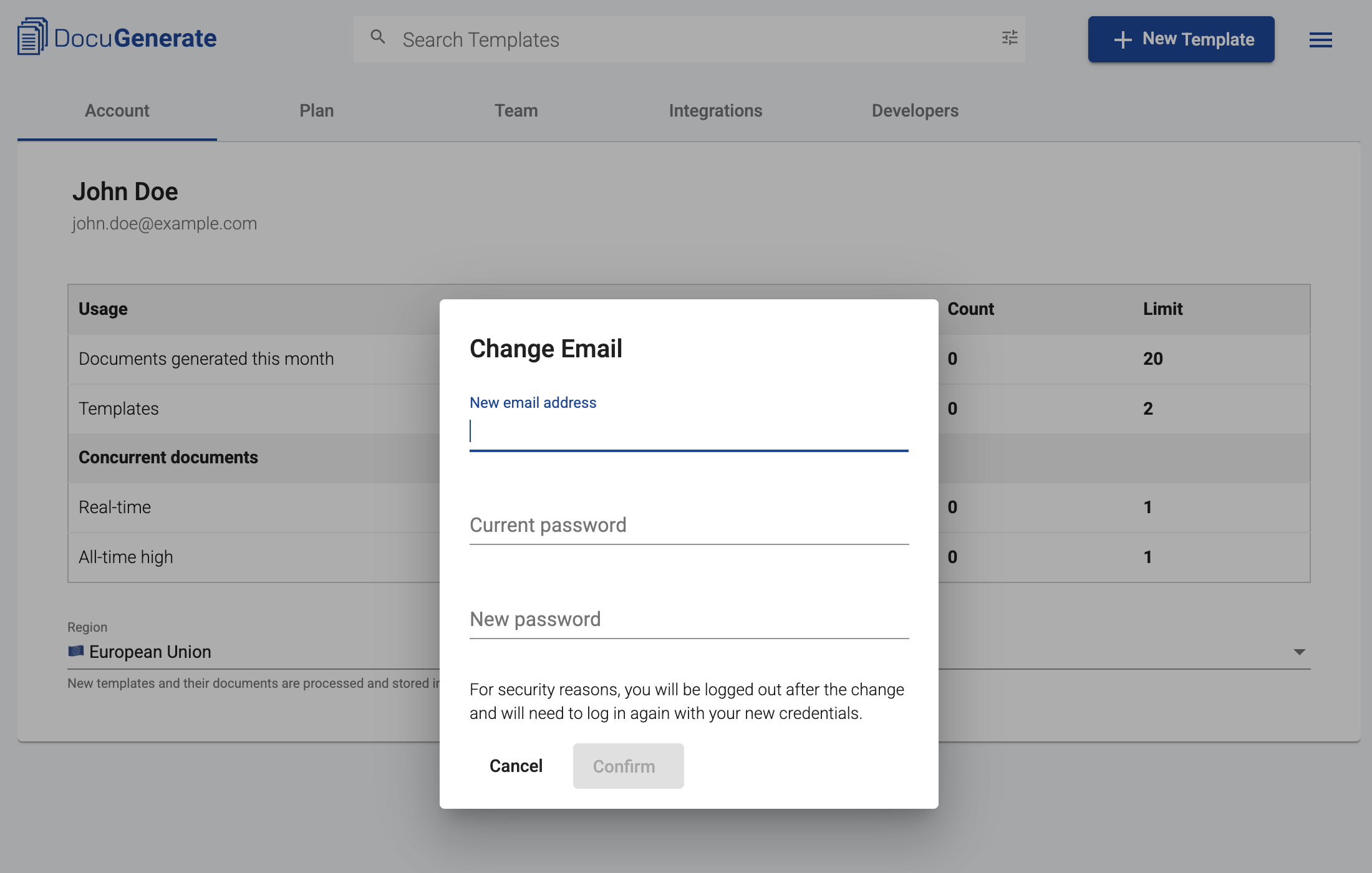
If you signed up with email, you will also need to enter your current password to confirm your identity before the change is applied.
For email addresses that support Google sign-in, you can also log in with Google using that account after the email change. In this case, both your new email address and password, as well as Google sign-in, will work.
Users with an active or previously cancelled subscription will have their email address automatically updated in Stripe as well. This ensures your billing and account information stays in sync.
If the email address you want to change to is already associated with an existing DocuGenerate account, please contact us for assistance.