Coda lets you integrate with DocuGenerate using a Pack that brings document generation directly into your docs. Access your templates with pre-built tables, generate documents with a button, and easily map your Coda data to DocuGenerate templates.
Summary
1. Add the DocuGenerate Pack
2. Templates (Table)
3. Documents (Table)
4. Generate Document (Button)
5. Data Structure (Formula)
1. Add the DocuGenerate Pack
To get started, add the DocuGenerate Pack to your Coda doc and connect your DocuGenerate account.
- Open a doc in Coda, go to Insert and select Packs.
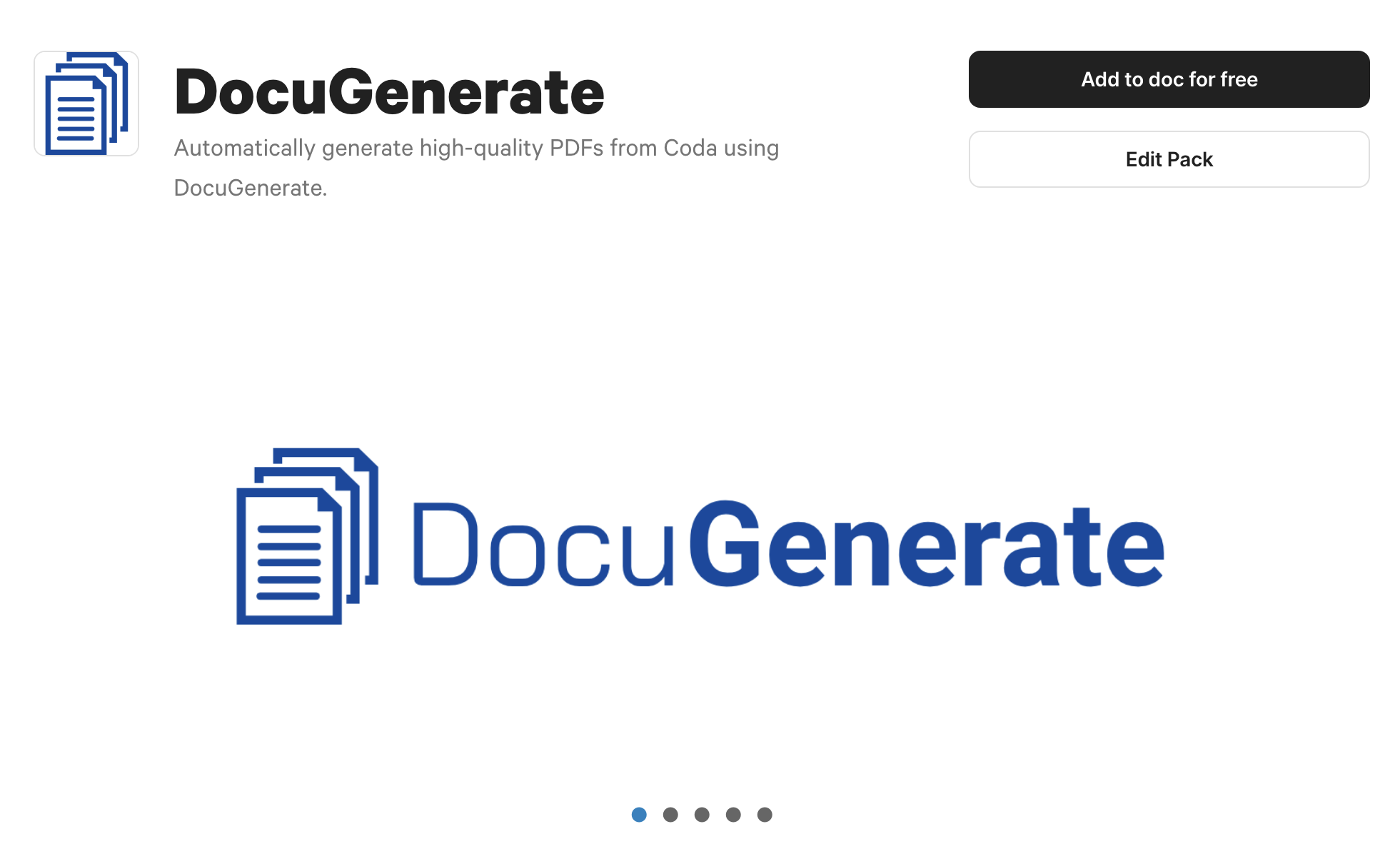
- Search for DocuGenerate, and click Add to doc for free.
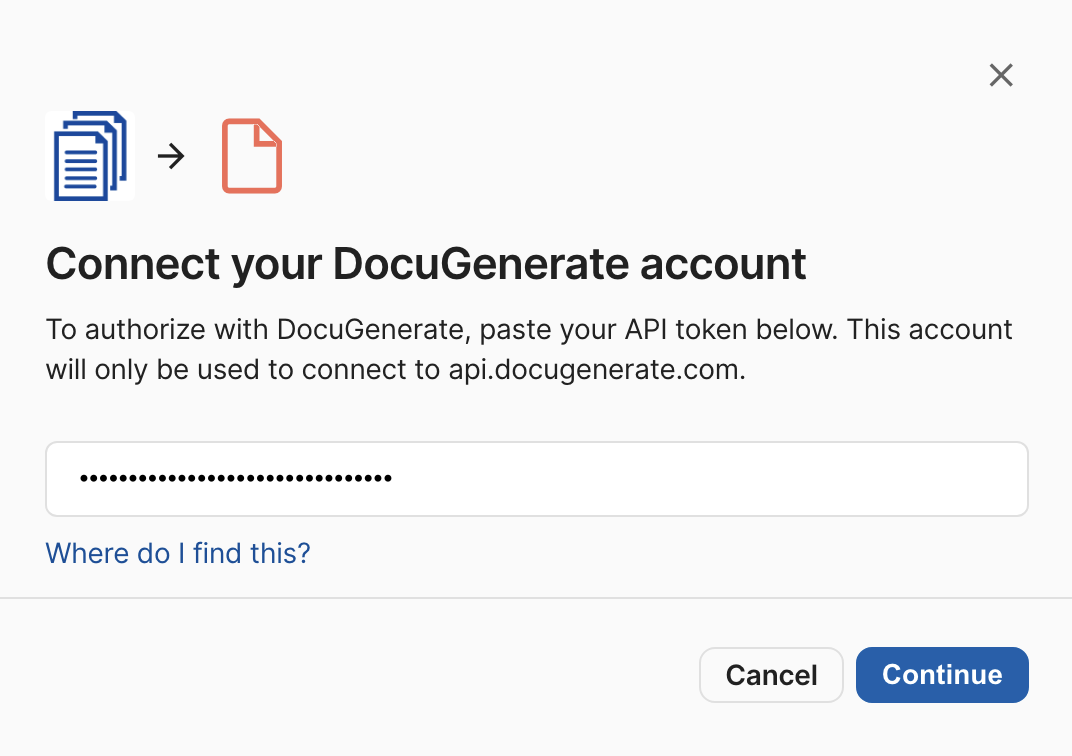
- Click Connect an account and then Add new account.
- Enter your API Key in the API token field and click Continue.
2. Templates (Table)
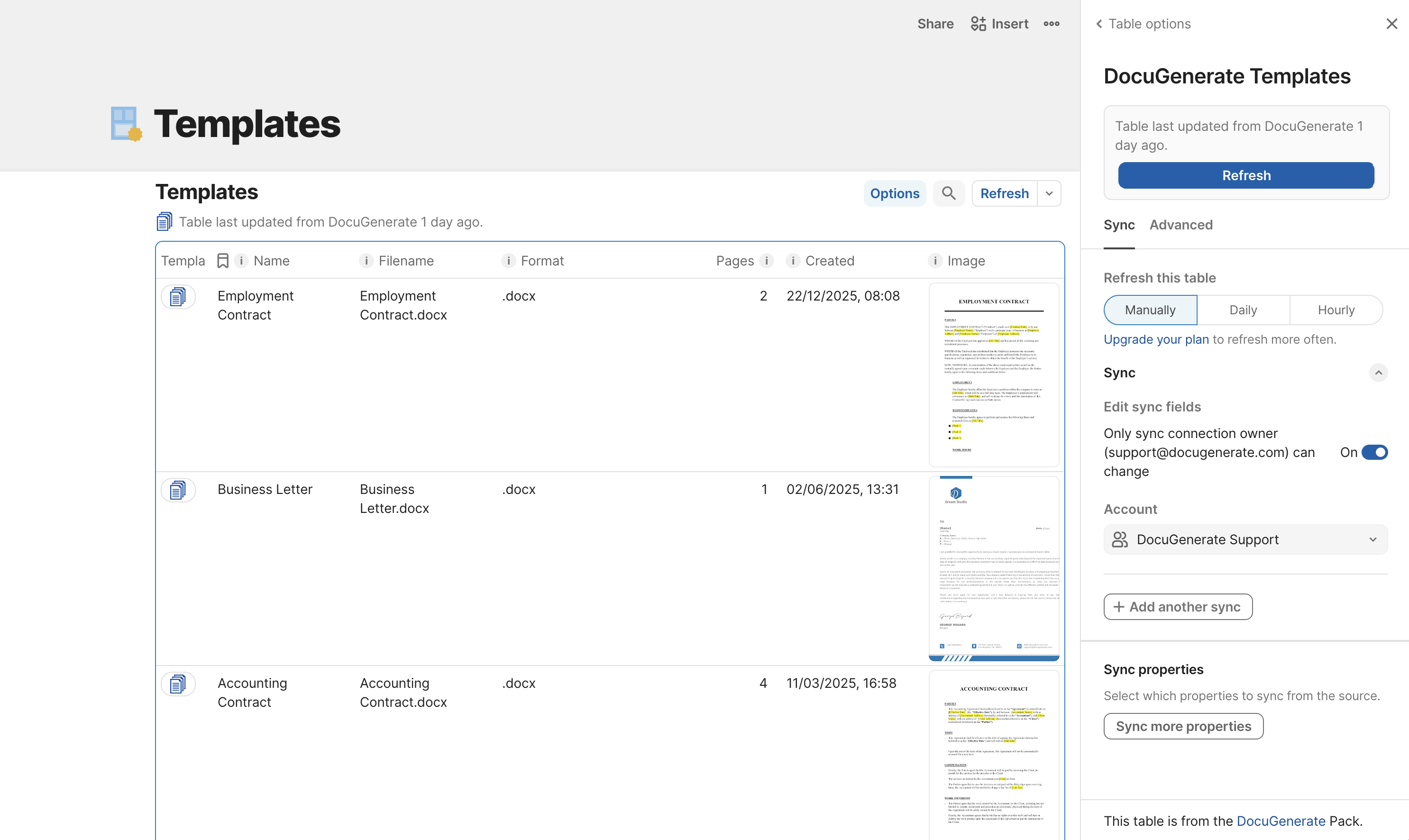
The Templates table displays all templates from your DocuGenerate account directly in Coda, including names, preview images, formats, and merge fields. This table doesn’t require any parameters and provides quick access to your template library. Some columns are hidden by default, so you can add them to the table display as needed.
3. Documents (Table)
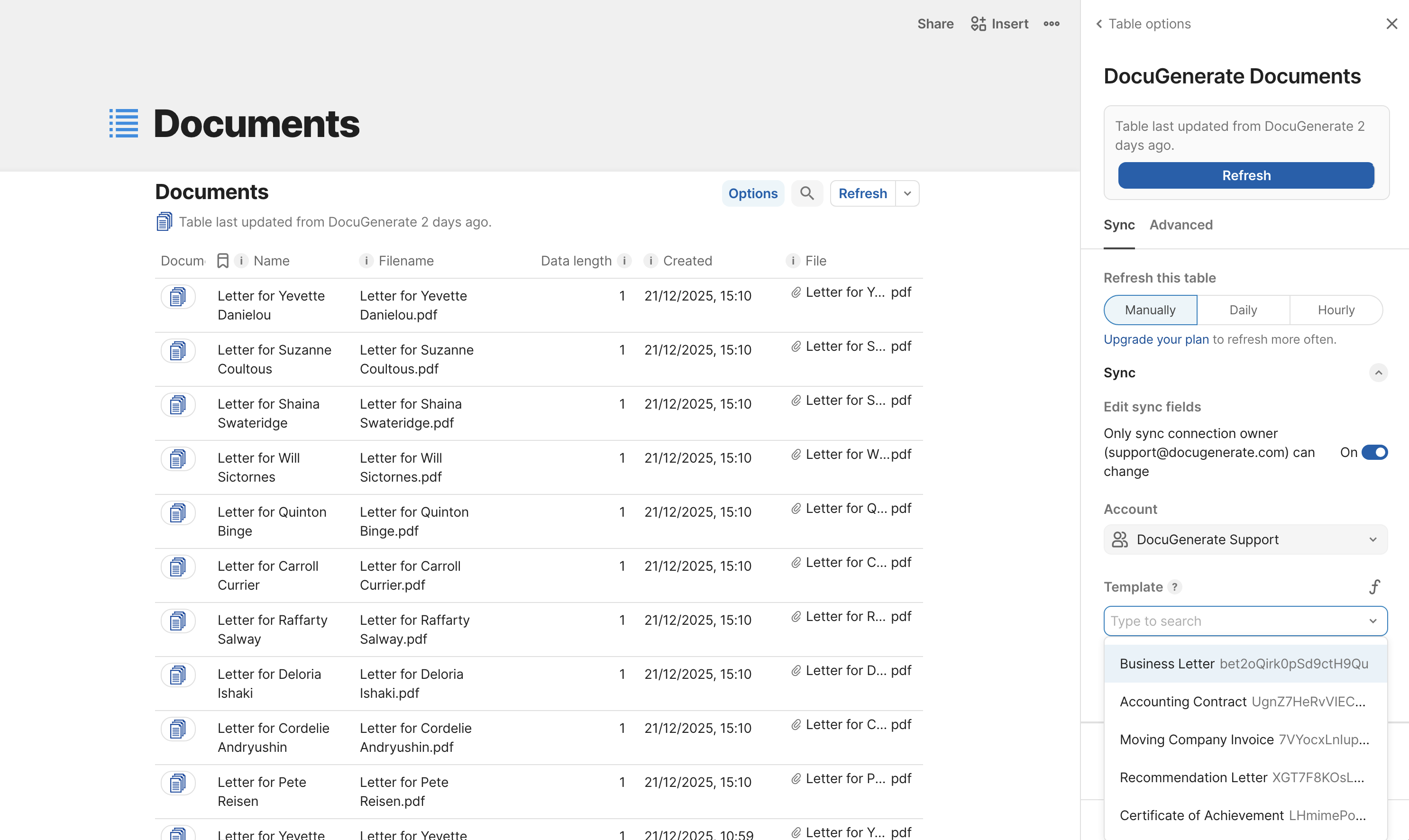
The Documents table lists all generated documents for a specific template, displaying creation dates, filenames, and download links. This table requires the Template parameter to specify which template’s documents to display. Some columns are hidden by default, so you can add them to the table display as needed.
4. Generate Document (Button)
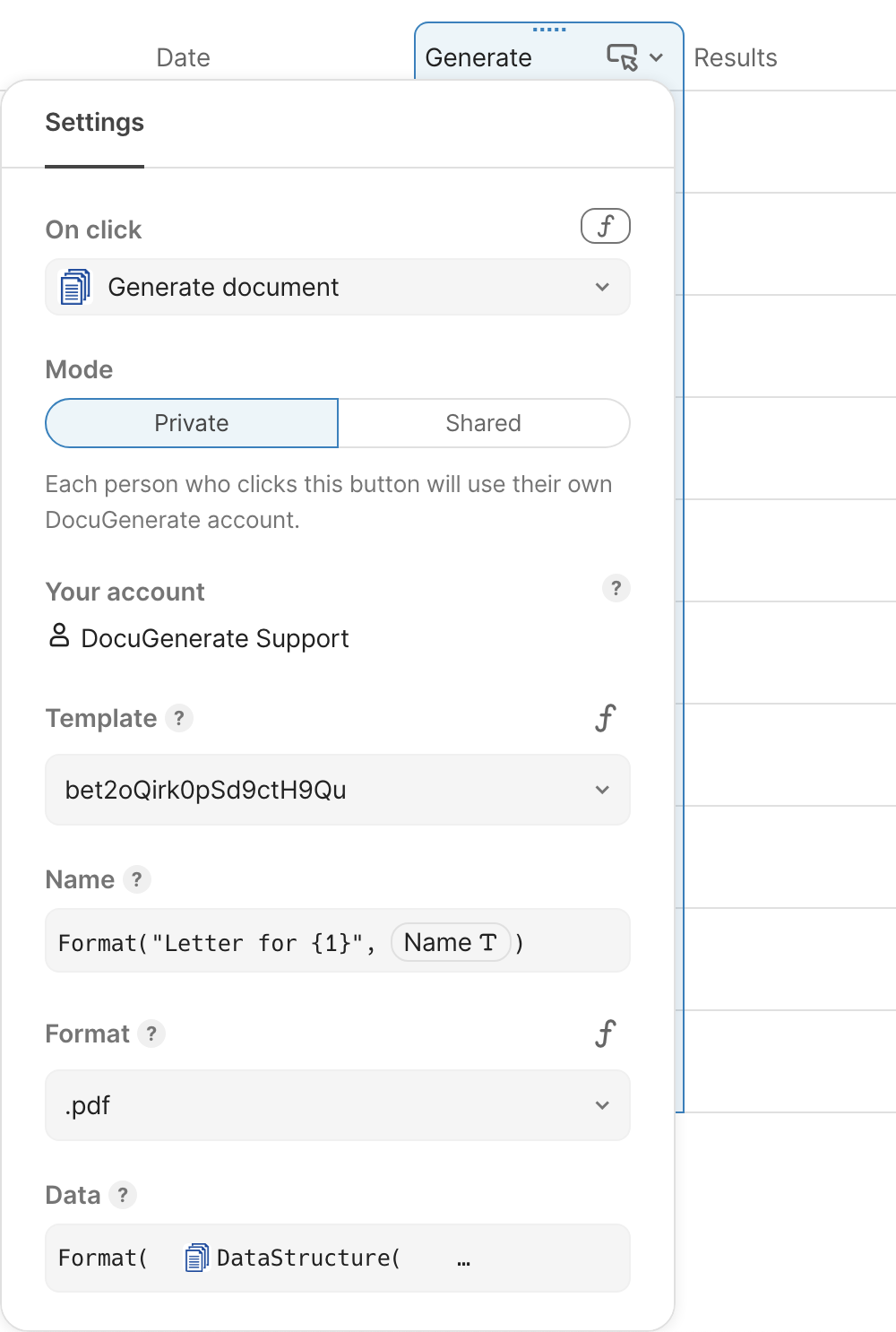
The Generate Document button creates documents from your templates using data from your Coda tables. You can add this button to any table column to generate documents for each row. The configuration requires the following fields:
- Template: Template used to generate the document. It can be selected from a dropdown list with the available templates in your DocuGenerate account.
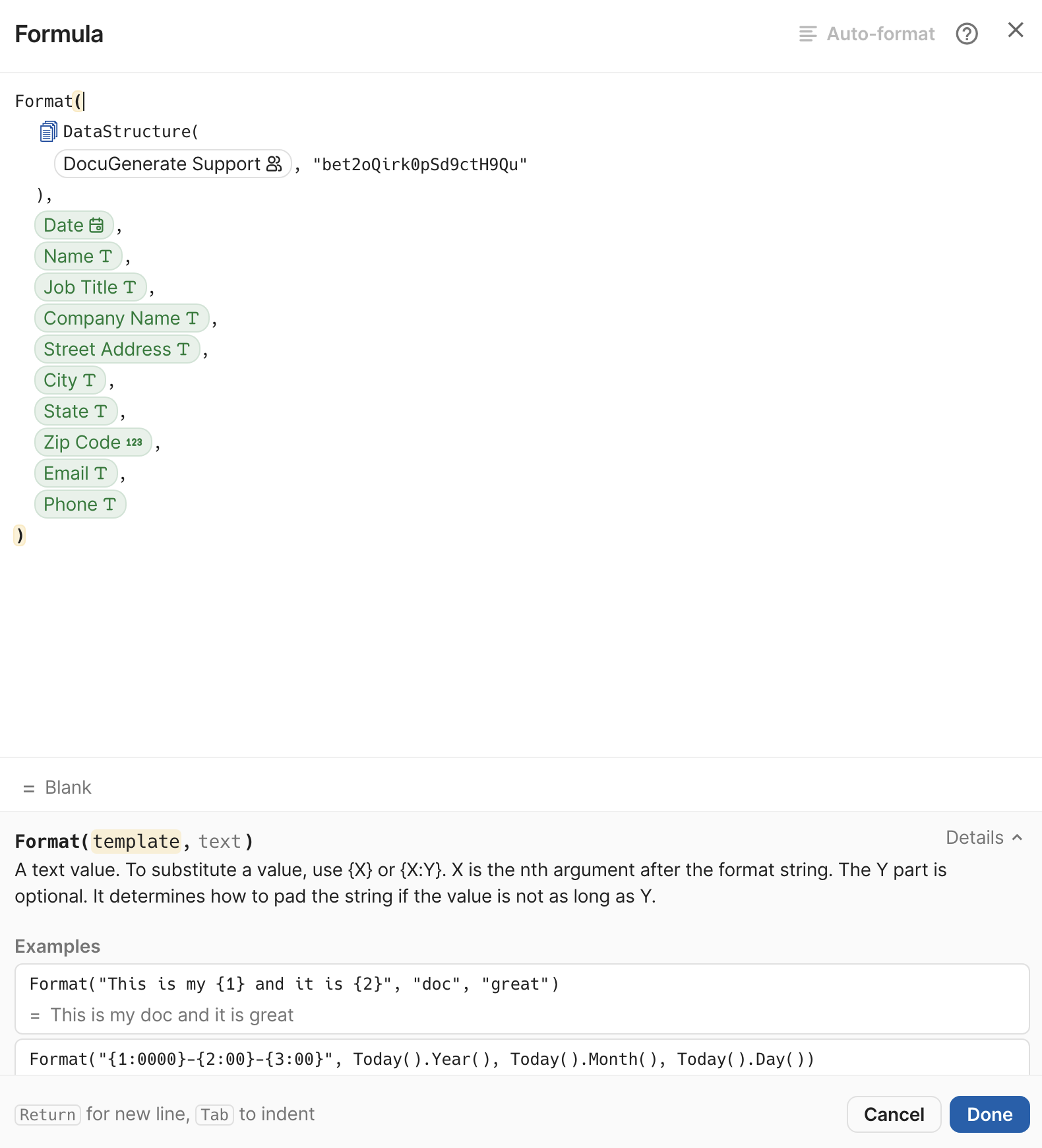
- Name: Name of the generated document. It can be customized with dynamic data from the table using the Format formula.
- Format: Output format of the generated document (e.g.,
.pdf,.docx,.doc,.odt,.txt,.html,.png). - Data: Data used to generate the document. Go to the Data Structure (Formula) section for more info on how to prepare the data.
You can also specify a Results column to store the generated document. The column type for this column should be File.
5. Data Structure (Formula)
The DataStructure formula is a helper tool that simplifies configuring the Data parameter for the Generate Document button. This formula generates the expected JSON structure for any template, making it easy to map your Coda data to merge tags in DocuGenerate.
Configure the formula by selecting a template to get the JSON data structure for.
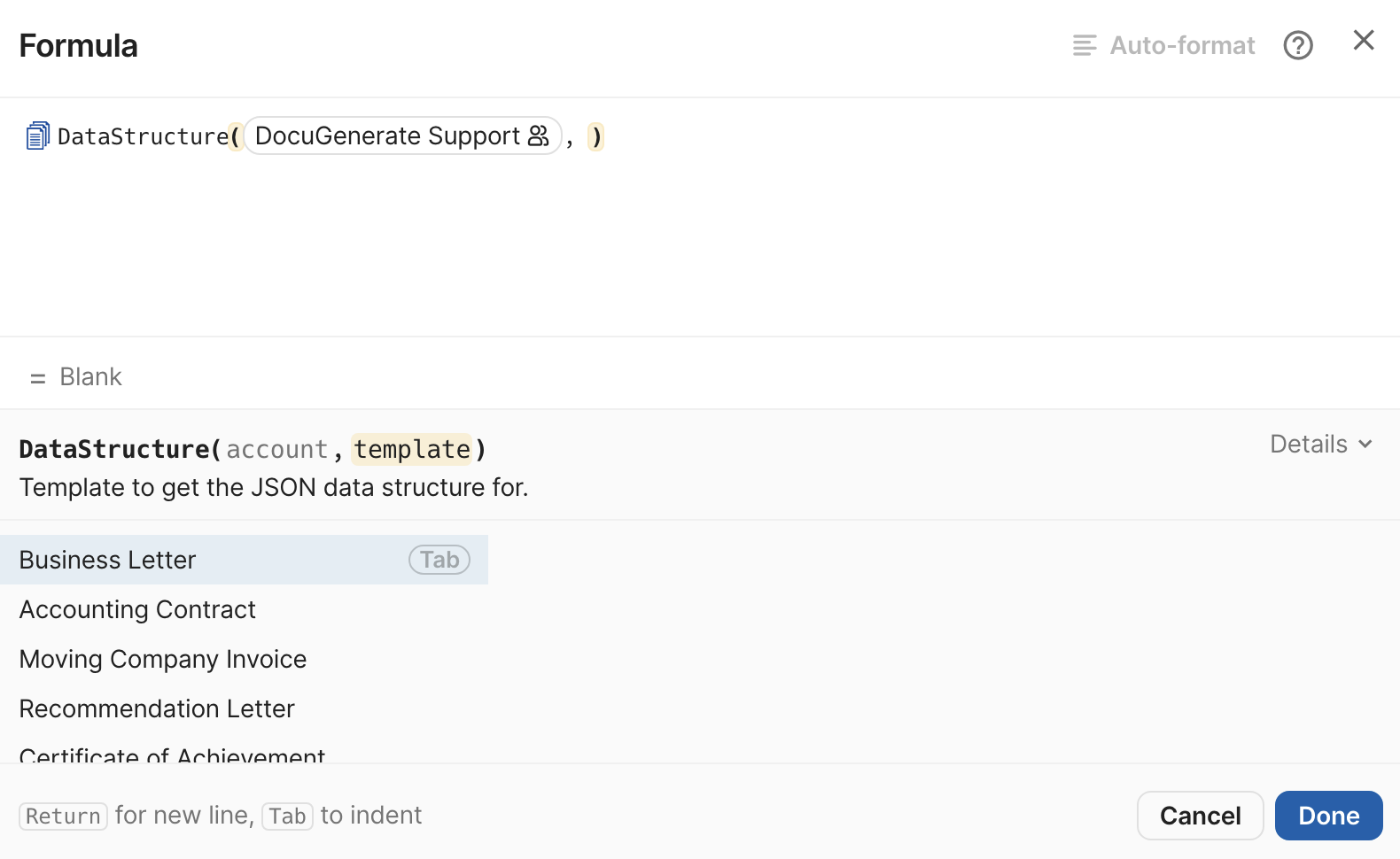
Once you select a template, the formula outputs the expected JSON payload for that template, with {X} placeholders that can be used directly with the Format formula to insert dynamic data.
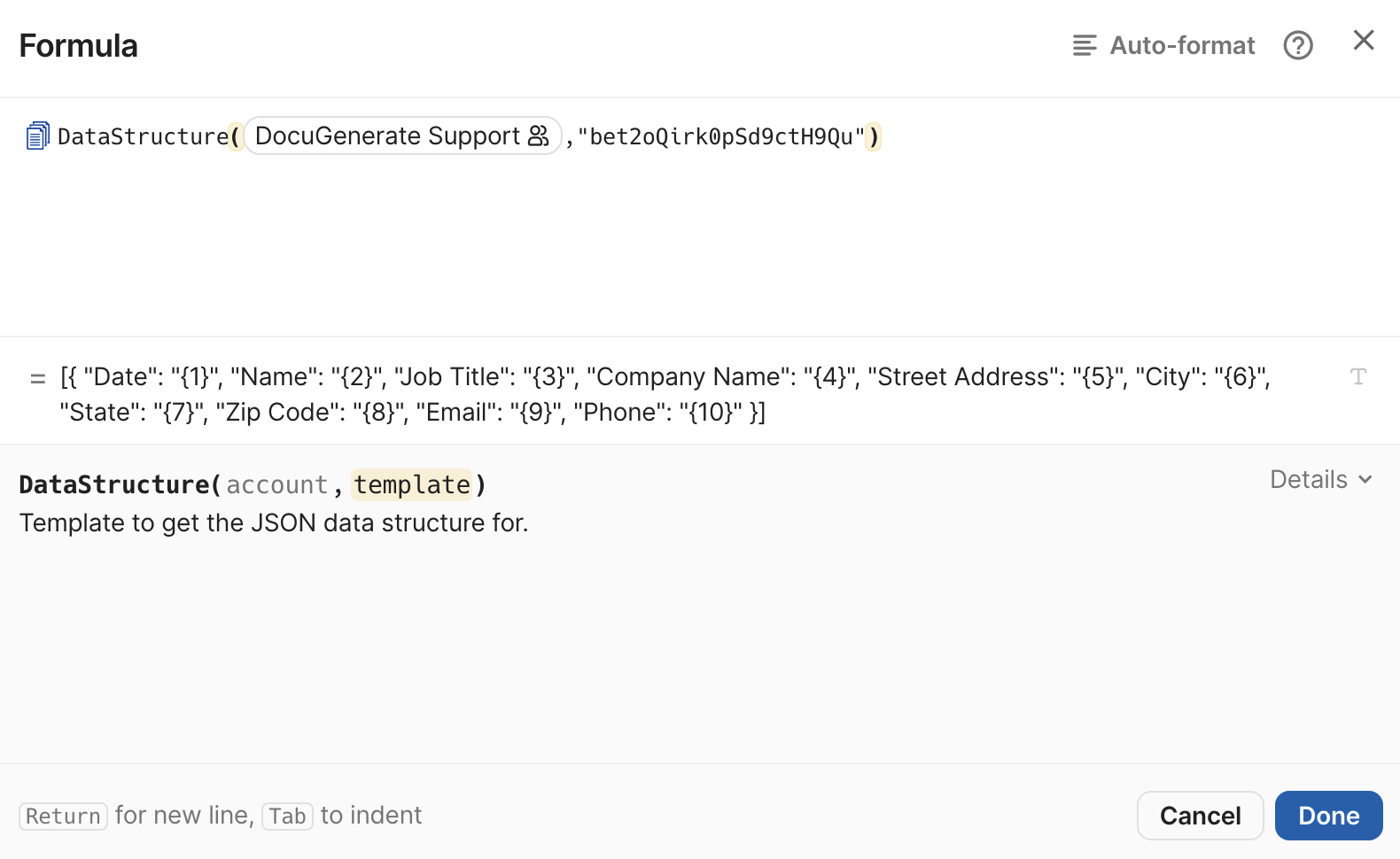
Here’s an example of expected data structure for the selected template:
[{
  "Date": "{1}",
  "Name": "{2}",
  "Job Title": "{3}",
  "Company Name": "{4}",
  "Street Address": "{5}",
  "City": "{6}",
  "State": "{7}",
  "Zip Code": "{8}",
  "Email": "{9}",
  "Phone": "{10}"
}]
You can copy the data structure to manually create the Data value for configuring the Generate Document button. For each placeholder in the data structure (e.g., {1}, {2}, etc.), map values from your table columns. This manual approach gives you flexibility to customize the data structure and populate only specific fields.
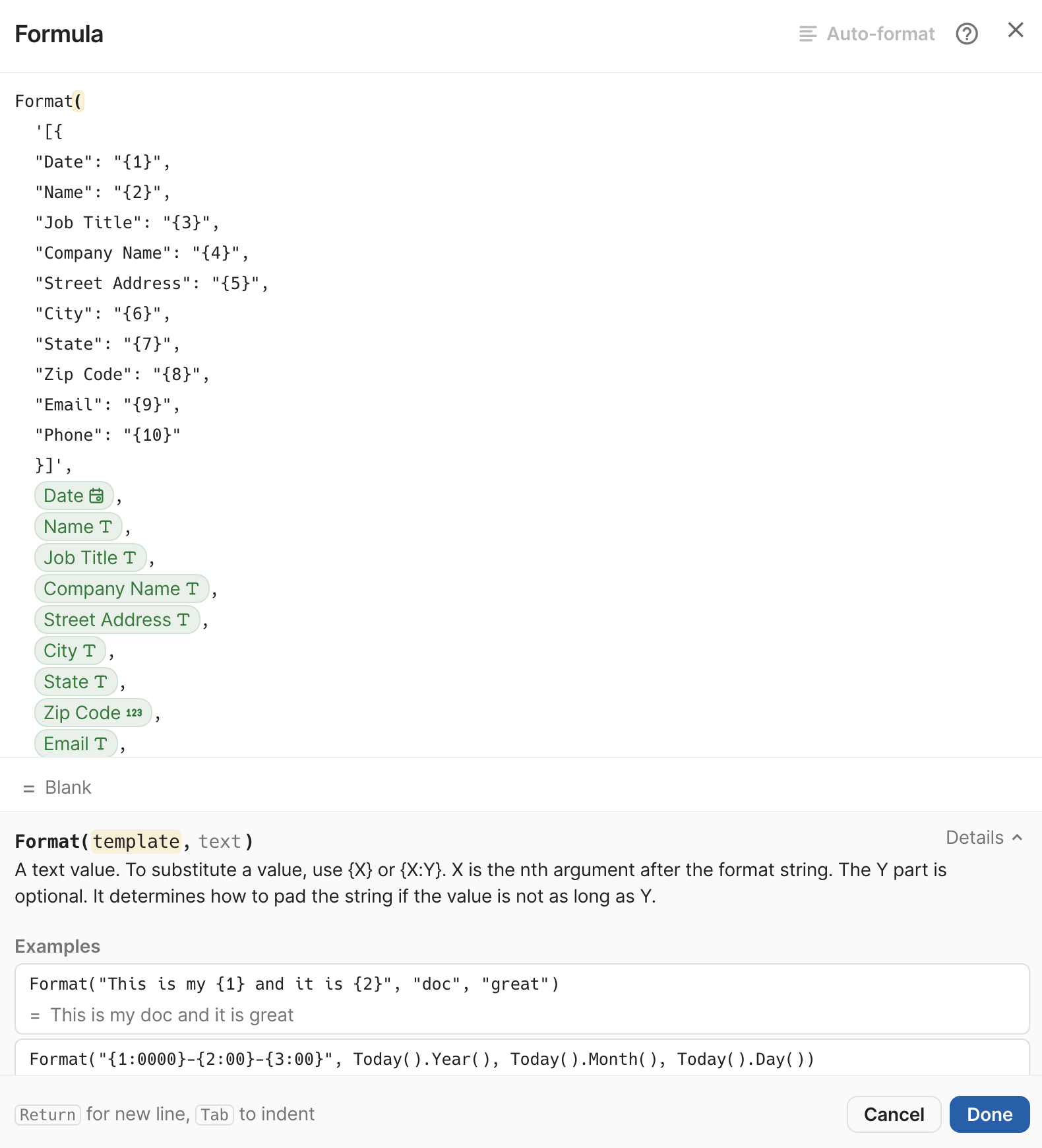
Alternatively, you can use the DataStructure formula directly in the Data field and map the corresponding values from your table. This approach is faster and more straightforward, but offers less flexibility for customizing the data structure.