Introduction
Dates appear in nearly every business document. Contracts specify effective dates, invoices carry due dates, certificates bear issuance dates, and recommendation letters are dated to establish their relevance. How those dates are presented matters, because date format conventions vary significantly by country and region. In the United States, the standard format is MM/DD/YYYY, while most of Europe and much of the rest of the world uses DD/MM/YYYY. Without control over date formatting, a date like December 4, 2026 could appear as 12/04/2026 to a US reader or 04/12/2026 to a European one, with each reading it correctly only for their own convention.
DocuGenerate gives you two distinct ways to control how dates appear in your generated documents, each suited to a different use case. The first is the date filter, which formats a date value supplied by your data set and renders it in whatever output format you specify. The second is inserting the current date directly into the document template using Word or LibreOffice, so the field is populated with today’s date automatically at generation time.
This article walks through both approaches using the Recommendation Letter.docx template from our Template Library. For each approach, we’ll show how to produce both US and European date formats, so you have a concrete reference regardless of which convention your documents follow.
Formatting Dates from Your Data Set
When your data set contains date values, DocuGenerate’s date filter gives you full control over how those dates appear in the generated document. This is the right approach when the date is a meaningful piece of data tied to a specific event, such as the signing date of a contract or the date a letter is formally addressed.
The filter is part of the enhanced syntax feature set, so you need to enable it in the template’s Settings panel before it takes effect. To do that, open the template, go to Settings, check the Enable enhanced syntax checkbox, and click Save.
Preparing the Data
The date filter expects the input value to be in ISO 8601 format, specifically yyyy-MM-dd. This is an internationally recognized standard for representing dates that avoids the ambiguity of regional conventions. If your data currently stores dates in another format, you will need to convert them to the ISO format before passing them to DocuGenerate. The filter is ignored for non-ISO formatted dates, and the input value will be displayed as-is in the generated document.
Updating the Template
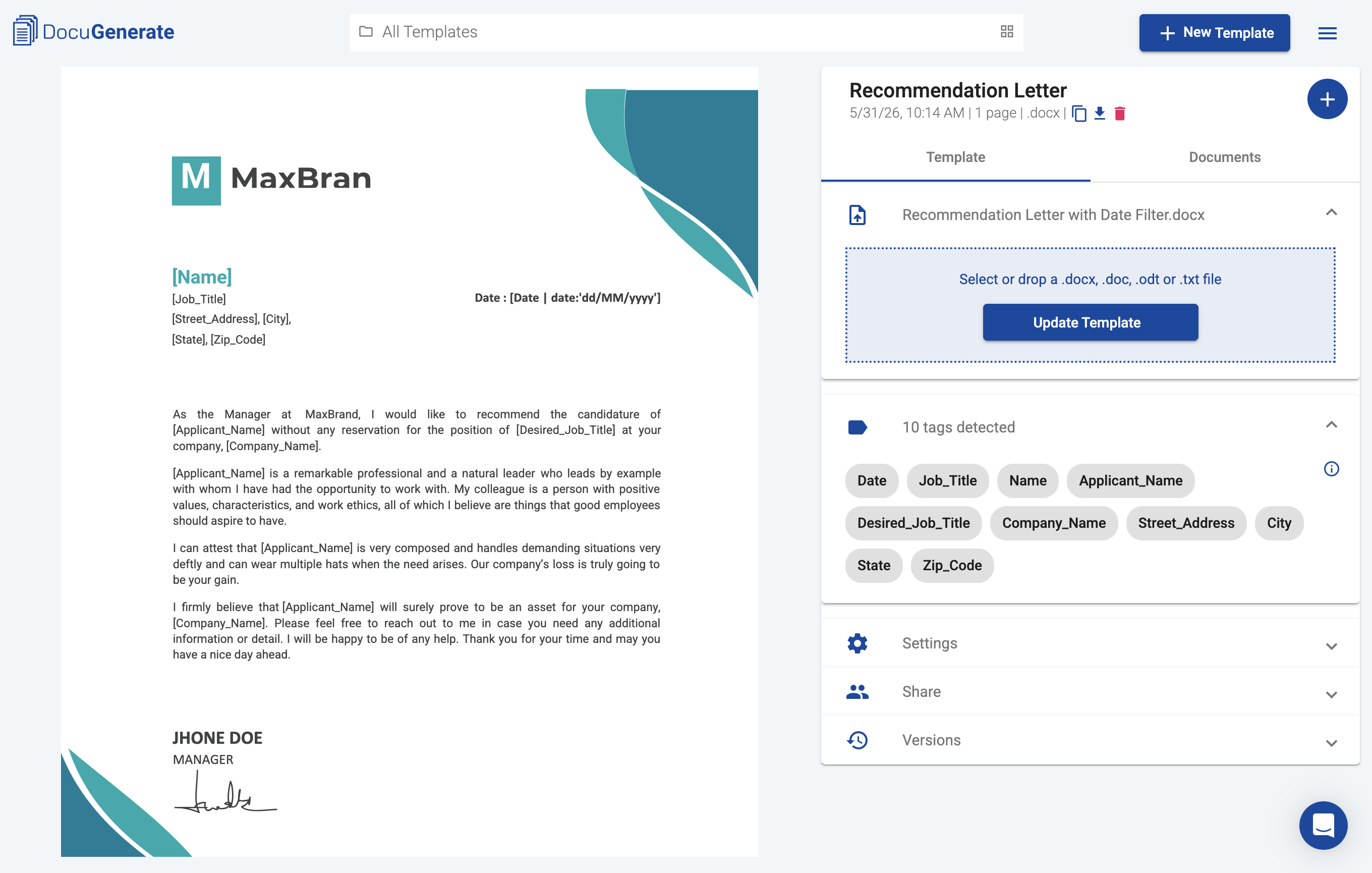
The original template uses the default DocuGenerate syntax with square bracket delimiters. When enhanced syntax is enabled, the tag parser is stricter and does not tolerate extra whitespace inside merge tags, so tags like [Job Title] need to become [Job_Title]. The updated template has already been updated with whitespace-free tags and is ready for use with enhanced syntax.
Applying the Date Filter
With enhanced syntax enabled, you can format the date directly inside the merge tag using the following syntax:
[Date | date:'date_format']
The date_format string uses symbols from the Unicode Technical Standard for date and time patterns. The two most commonly needed formats for US and European conventions are:
| Merge Tag | Result | Convention |
[Date | date:'MM/dd/yyyy'] | 12/04/2026 | US (Month/Day/Year) |
[Date | date:'dd/MM/yyyy'] | 04/12/2026 | European (Day/Month/Year) |
[Date | date:'MMMM d, yyyy'] | December 4, 2026 | Written month name |
[Date | date:'dd-MM-yyyy'] | 04-12-2026 | European with dashes |
The filter also supports more expressive formats if you need to show the full month name, include the day of the week, or add time components. For a complete list of formatting options and examples, see the How to format data with filters article from our Help Center.
Inserting Today’s Date in the Template
For documents where the date should always reflect the current date at generation time, passing a date through the data set is unnecessary. A recommendation letter, a daily status report, or an ad-hoc certificate typically just needs today’s date, and it would be redundant to include it in every API request or spreadsheet row. For these cases, you can insert a date field directly into the Word template. When DocuGenerate processes the document, the field evaluates and outputs the current date automatically, without any date value in the data at all.
Adding Today’s Date in Microsoft Word
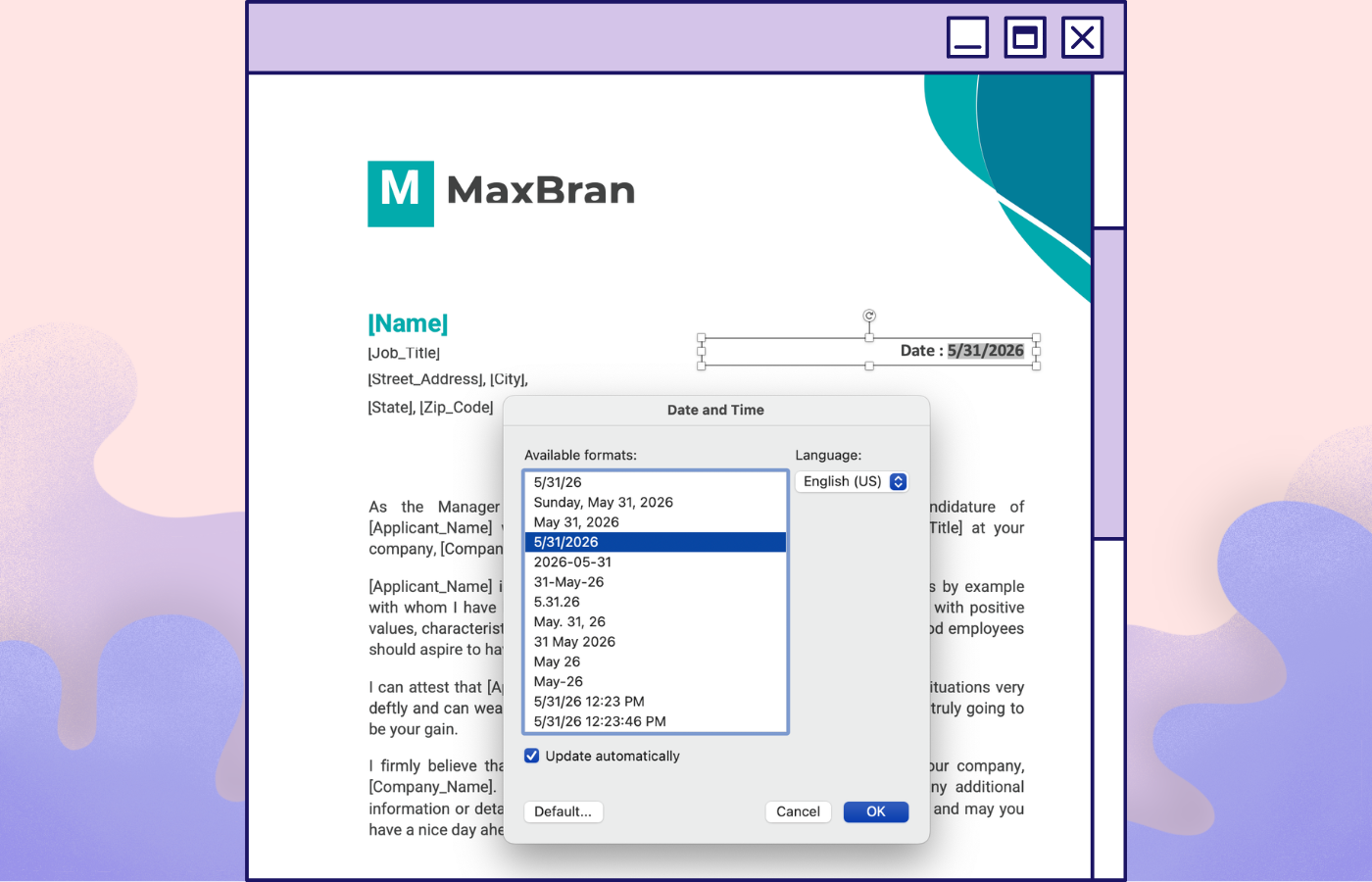
Microsoft Word lets you insert the current date through the Date & Time field. This opens a dialog with a list of date and time formats and a checkbox labeled Update automatically. Selecting this option converts the static date into a live field that updates whenever the document is opened or processed.
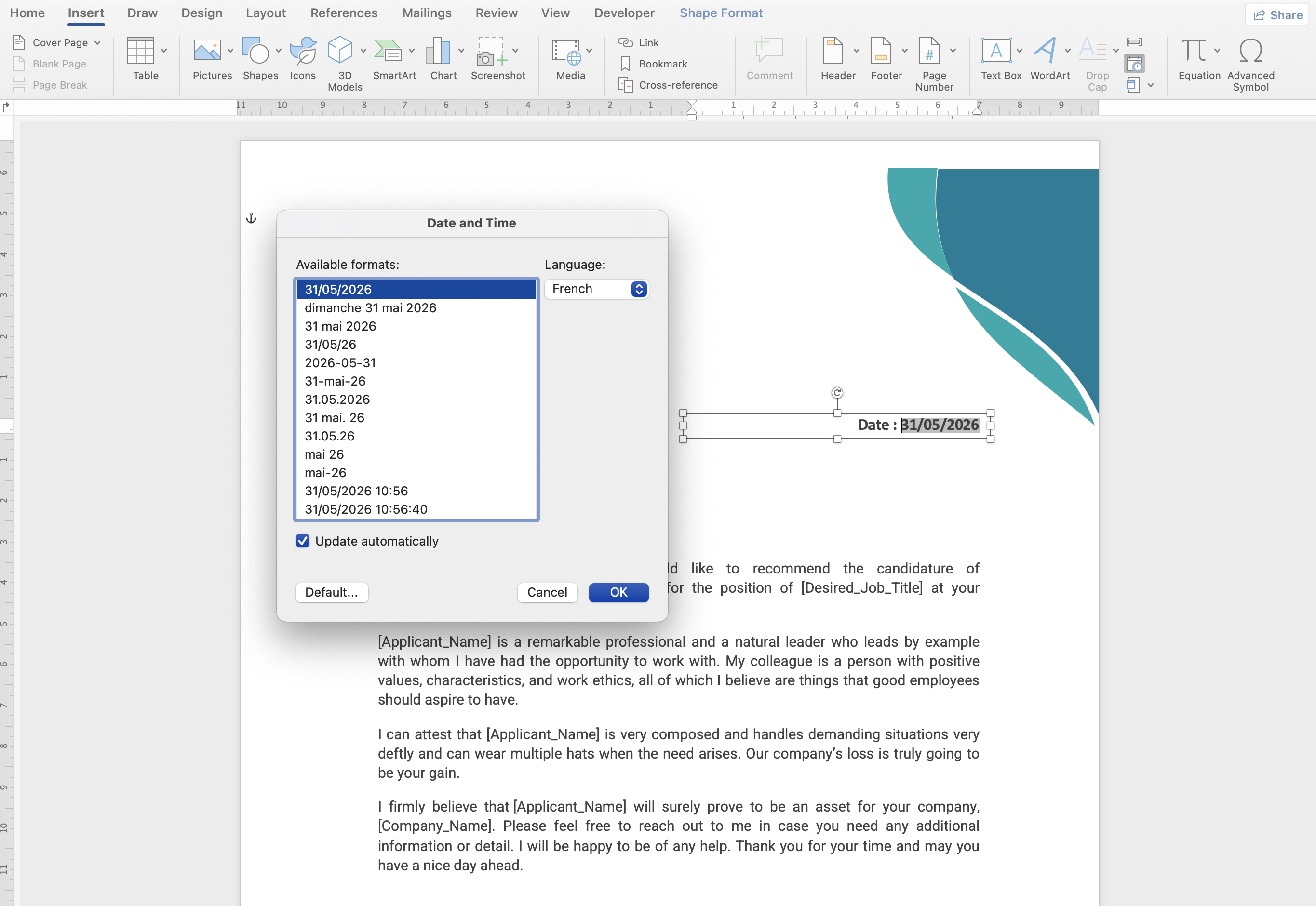
The available formats in Word are predetermined and tied to the system’s regional settings. You can change the language from the drop-down menu and the available formats list is updated to match the selected language.
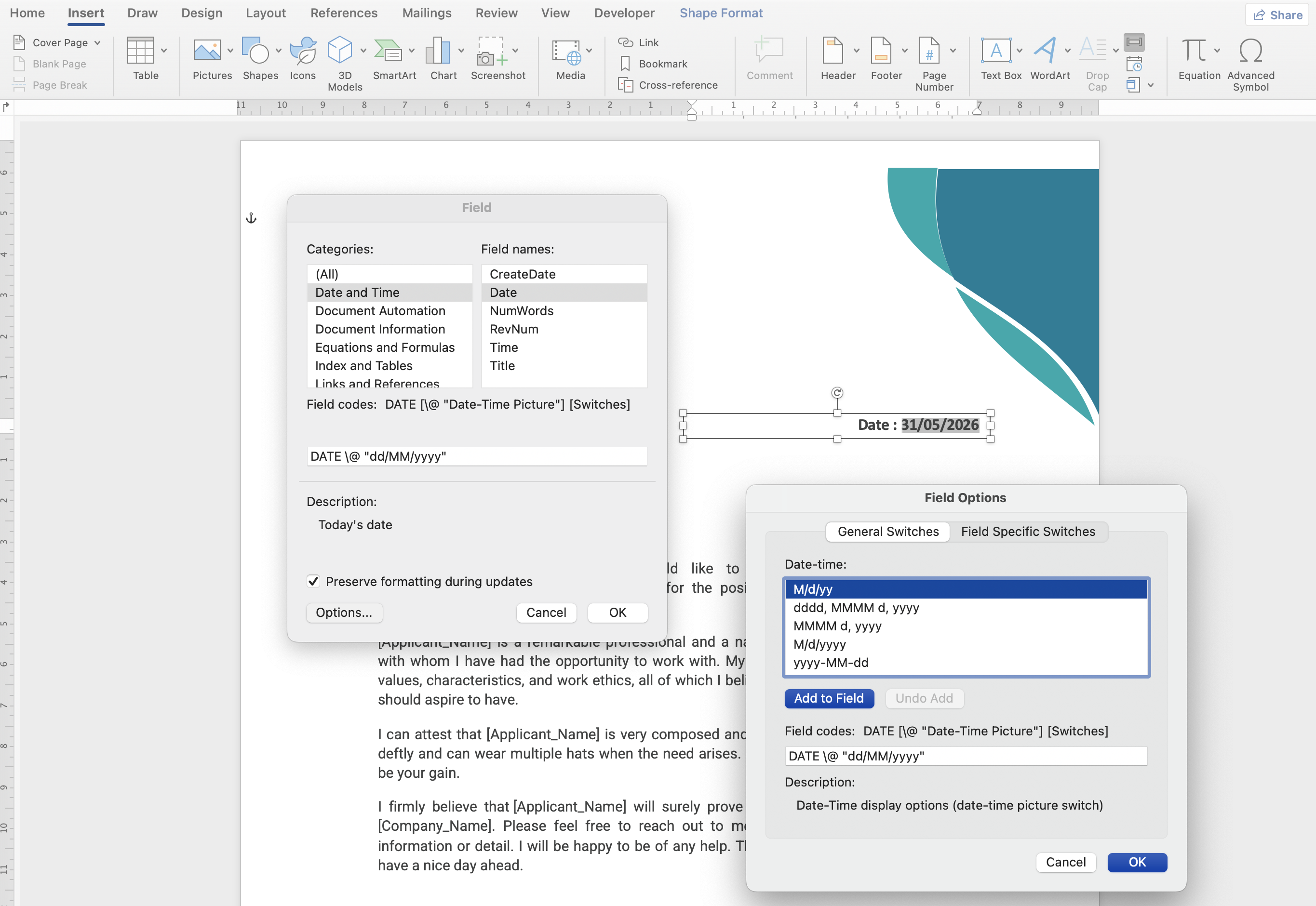
If you want more control over the date format, you can choose to Insert a Field instead, and select the Date and Time category and the Date field name. Click on Options to select from a list of pre-defined date formats, or enter the desired format in the Field code text input. To obtain the same result as with the more straightforward Date & Time field, you’ll need to use the DATE \@ "dd/MM/yyyy" value for the field code. But this requires familiarity with Word’s field syntax and is not practical for most users.
For a template built using this approach, see the Word-specific template, where the [Date] merge tag has been replaced with Word’s automatic date field set to the US format.
Adding Today’s Date in LibreOffice
LibreOffice Writer provides a more flexible way to insert today’s date, with locale-aware formatting that covers a wide range of regional date conventions. To insert a date field, go to Insert > Field > Date (variable), which adds a date field to your document using a default format. Right-click on the newly inserted date and select Edit Fields, which opens the Fields dialog.
In this dialog, the Format column on the right displays a list of predefined formats for the default system language. These defaults cover common patterns, but to access formats for different locales, click the Additional Formats option.
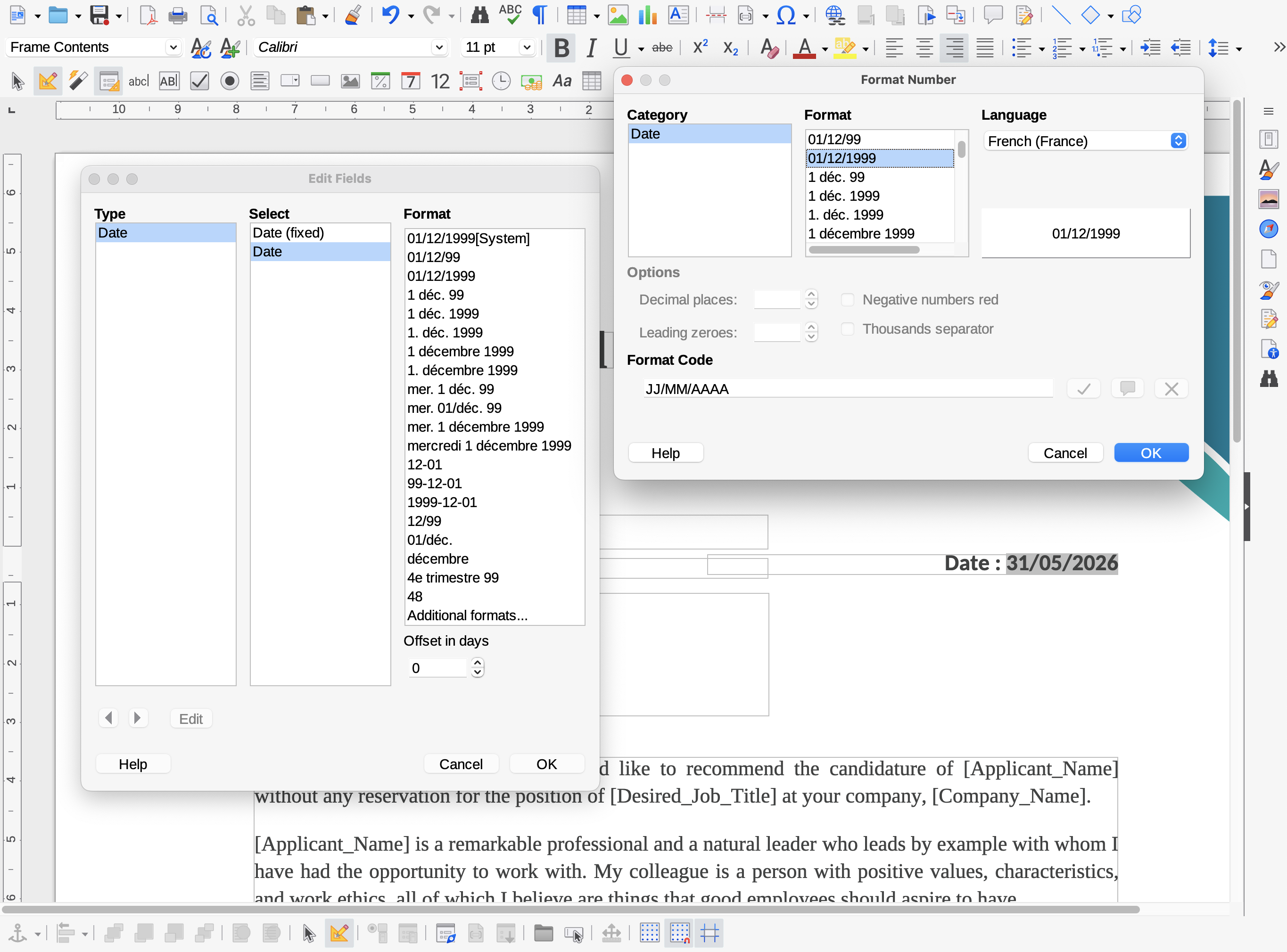
This opens a new dialog where LibreOffice’s date formatting capability becomes particularly useful. A Language dropdown on the right side of the dialog lets you select from hundreds of language and locale combinations. Once you pick a language, the format list updates to show date patterns that are natural to that locale.
For example, selecting French (France) makes patterns like JJ/MM/AAAA available, which is the French notation for DD/MM/YYYY. You can also type a custom format code directly into the Format Code field if none of the listed options matches what you need.
For a template built this way, see the LibreOffice-specific template. This approach is particularly practical when you maintain multiple variants of the same template for different regions. Each version uses the same content but has the date field configured for the target locale, ensuring the output matches local expectations without modifying the data or the generation workflow.
Choosing the Right Approach
The two approaches address different scenarios and can both apply within the same organization depending on the document type. The date filter is the right choice when the date is a meaningful data field tied to a specific event. A contract’s signing date, an invoice’s due date, or a letter’s reference date all belong in the data, and the filter lets you render them in whatever regional convention the recipient expects. Since it takes a single ISO 8601 input and formats it on output, you can serve US and European audiences with the same data by simply changing the format string in the template.
Inserting today’s date directly in the template is the right choice when no date value exists in the data and the document simply needs to be stamped with the current date. This keeps the data set clean and the generation request simple. Teams that generate documents for multiple regions often maintain a set of locale-specific templates, each with the date field pre-configured for its target audience, and point each regional workflow at the appropriate template.
Conclusion
Getting dates to display correctly in generated documents comes down to identifying where the date value comes from. If it comes from your data set, use DocuGenerate’s filter with a format string that matches your target convention. If the document should always reflect today’s date, insert a date field into the template using Word or LibreOffice, for more advanced locale control. Both approaches work with the same template format and fit naturally into DocuGenerate’s generation workflow without requiring any changes to how documents are generated or delivered.
Resources