Introduction
Real estate agencies and property management companies regularly produce listing documents for new properties, whether for print, email campaigns, or client portals. Assembling these documents manually, from gathering agent details and writing descriptions to sourcing photos and formatting everything consistently, takes time that could be spent elsewhere. In this tutorial, we’ll build an automated workflow using n8n, Claude, and DocuGenerate that produces a polished, ready-to-share property listing PDF in a matter of seconds.
The workflow uses the Anthropic node in n8n, which calls Claude to generate realistic listing data on demand, and merges it into a professionally designed Word template via DocuGenerate. The finished PDF is then downloaded and saved directly to a Dropbox folder. While this tutorial uses Claude to simulate data input, the same workflow can be connected to any real data source: a web form, a CRM, a property database, or a spreadsheet. The document generation and delivery steps remain identical regardless of where the data comes from, making this a solid foundation for real-world automation. By the end of this guide, you’ll have a fully functional n8n workflow that you can import and adapt to your own use case.
Setting Up the Property Listing Template
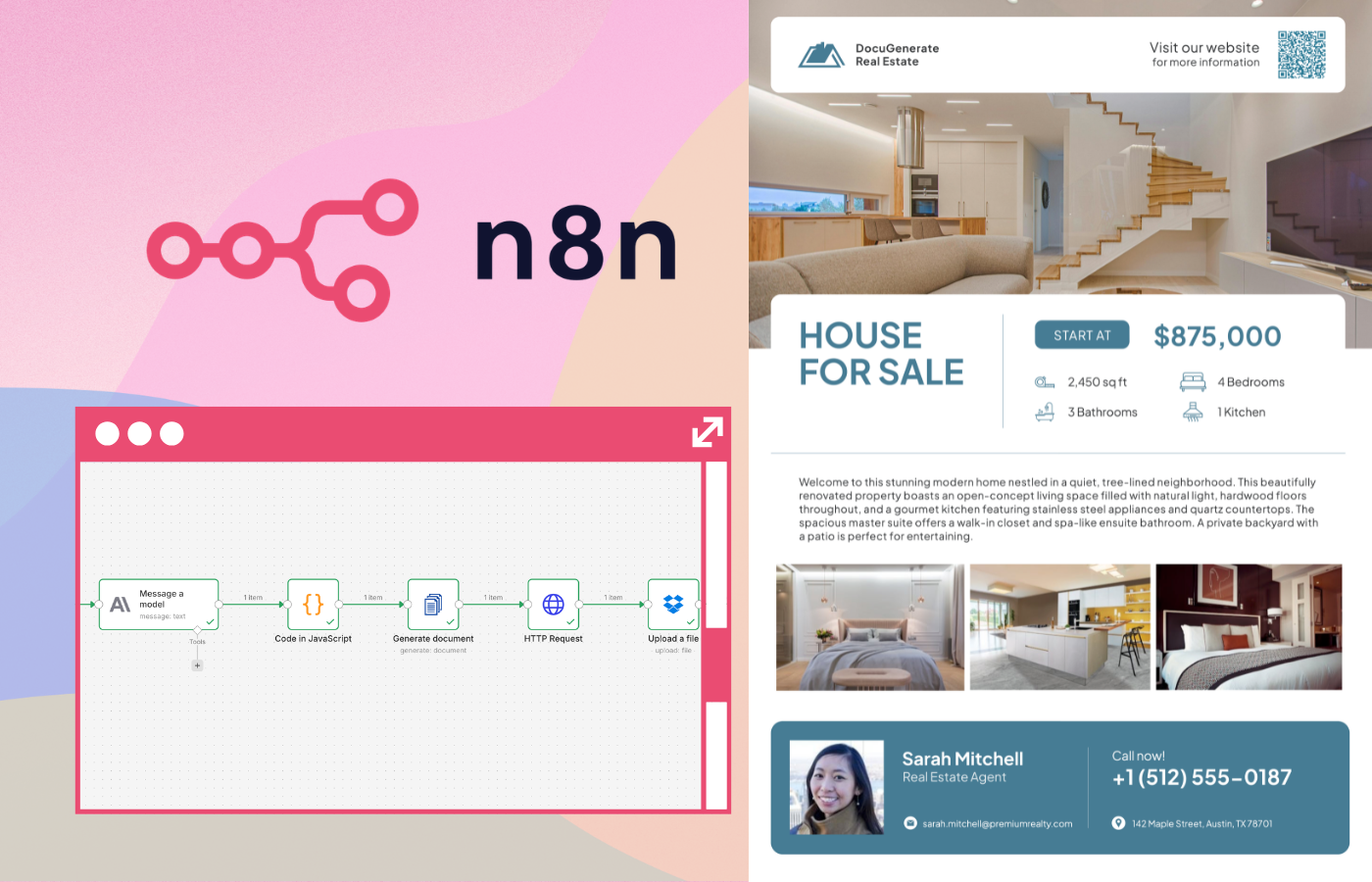
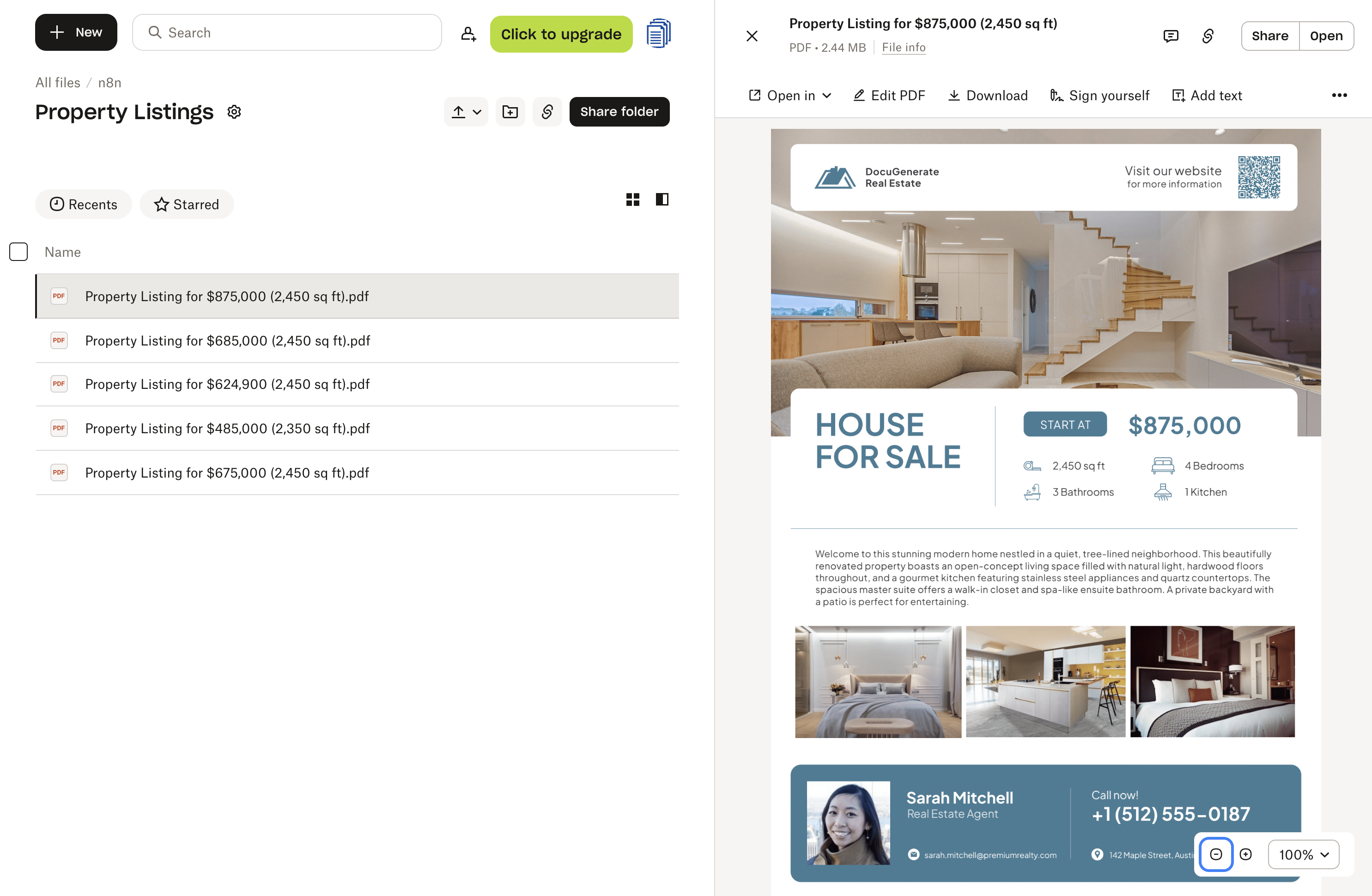
Before building the n8n workflow, we need a document template in DocuGenerate. For this tutorial, we’ll use the Property Listing Word template, which features a clean real estate layout with a large hero image at the top, a row of three interior photos, key property details, a QR code linking to the listing page, and an agent card at the bottom.
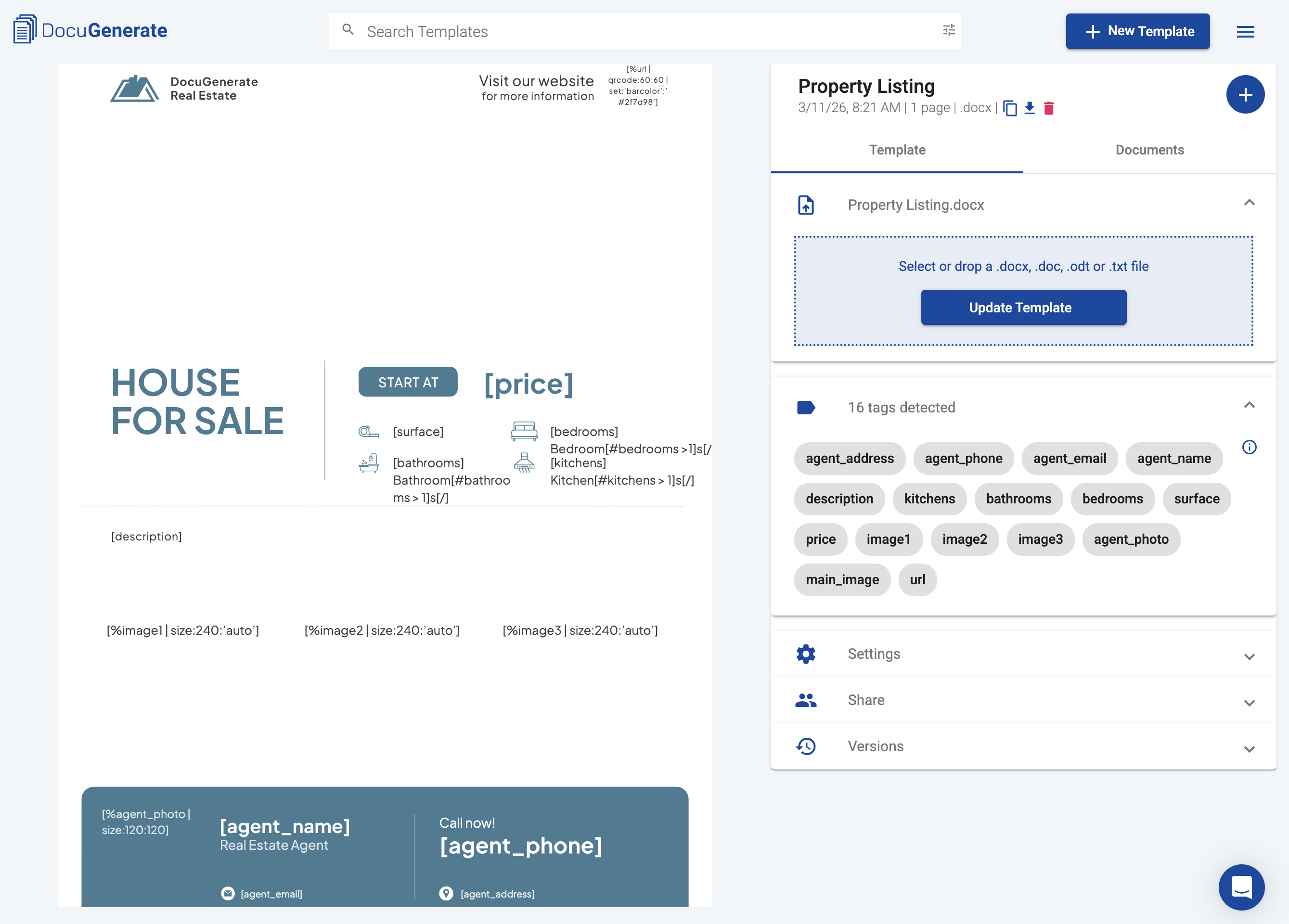
The template uses the following merge tags:
agent_photo, agent_name, agent_email, agent_phone, agent_address: Agent contact details displayed in the footer card.price: Displayed prominently next to the heading.surface, bedrooms, bathrooms, kitchens: Key property stats shown in the details row.description: A short paragraph describing the property, displayed below the headline section.main_image, image1, image2, image3: Property photos embedded in the layout.url: Converted into a QR code displayed in the top-right corner of the document.
Several features of this template are worth highlighting in more detail:
-
Image sizing. The hero image uses the [%main_image | size:'auto':600] size syntax to constrain its height to 600 pixels while preserving the aspect ratio. The three interior photos use [%image1 | size:240:'auto'] to fix their width at 240 pixels, keeping all three images the same size and aligned in a row. Images can be passed as either a public URL or a base64-encoded data URI.
-
QR code. The url field is not displayed as plain text. Instead, the template uses the [%url | qrcode:60:60 | set:'barcolor':'#2f7498'] syntax to render the value as a QR code with custom dimensions and a brand color matching the document theme. Scanning the code in the generated PDF takes the reader directly to the property listing page online.
-
Pluralization. The stats row uses conditional syntax to handle pluralization automatically. For example, the bedroom count is written as [bedrooms] Bedroom[#bedrooms > 1]s[/] in the template, which outputs “1 Bedroom” or “3 Bedrooms” depending on the value of the bedrooms field. The same pattern applies to bathrooms and kitchens.
All three of these features rely on DocuGenerate’s enhanced syntax, which must be enabled for the template before generating documents. You can turn it on in the template settings in the web app.
The n8n Workflow Overview
In this tutorial, we use Claude to generate dummy listing data so the workflow can be demonstrated end-to-end without requiring a live database or external system. In a real deployment, the manual trigger and Message a model node would be replaced by a trigger and data source that reflects your actual process.
The complete workflow consists of six nodes connected in a linear sequence:
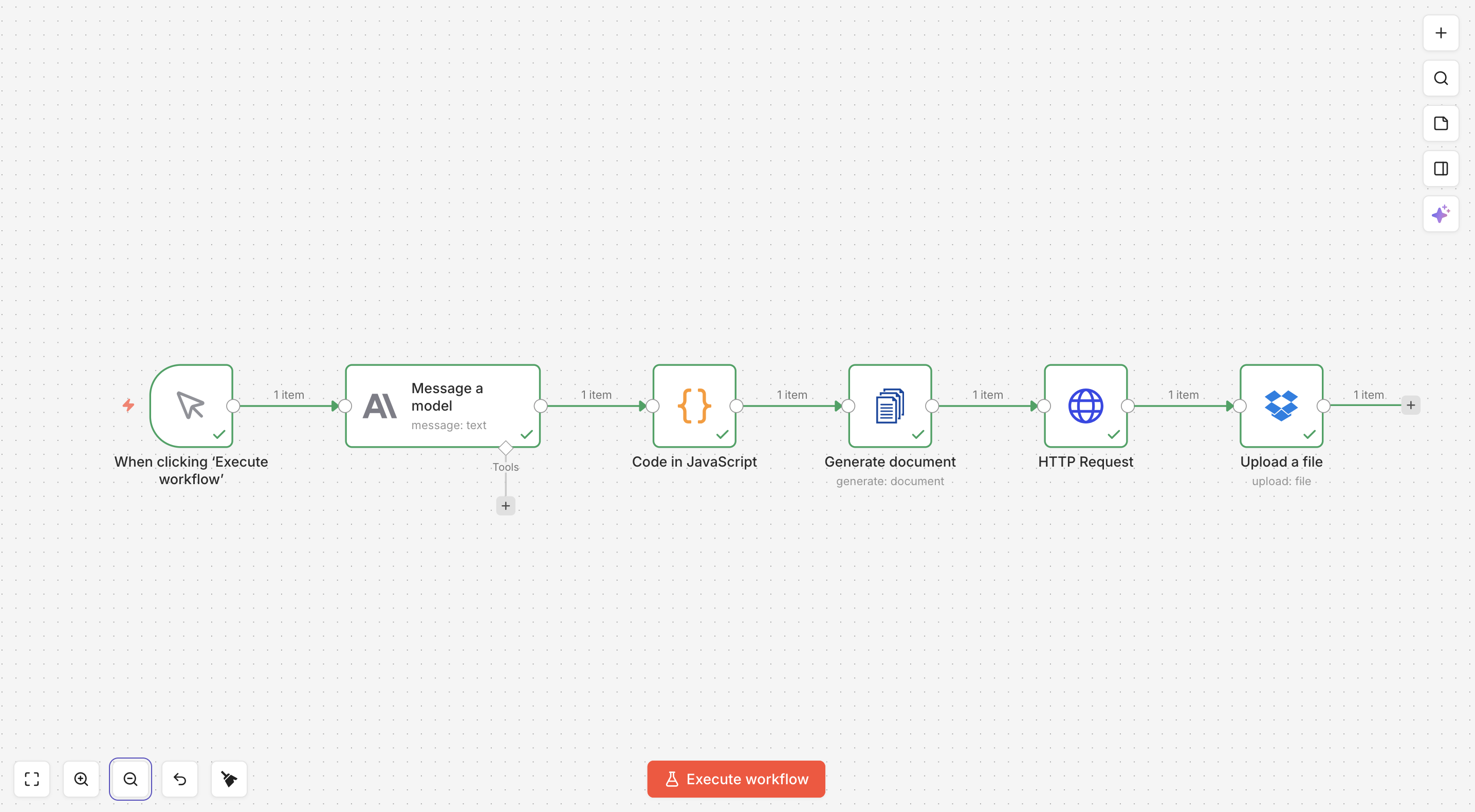
You can download the workflow JSON file and import it directly into your n8n instance. You’ll need to update the DocuGenerate template ID, your API credentials, and the Dropbox destination path to match your own setup. Let’s go through each node in detail.
Generating Listing Data with Claude
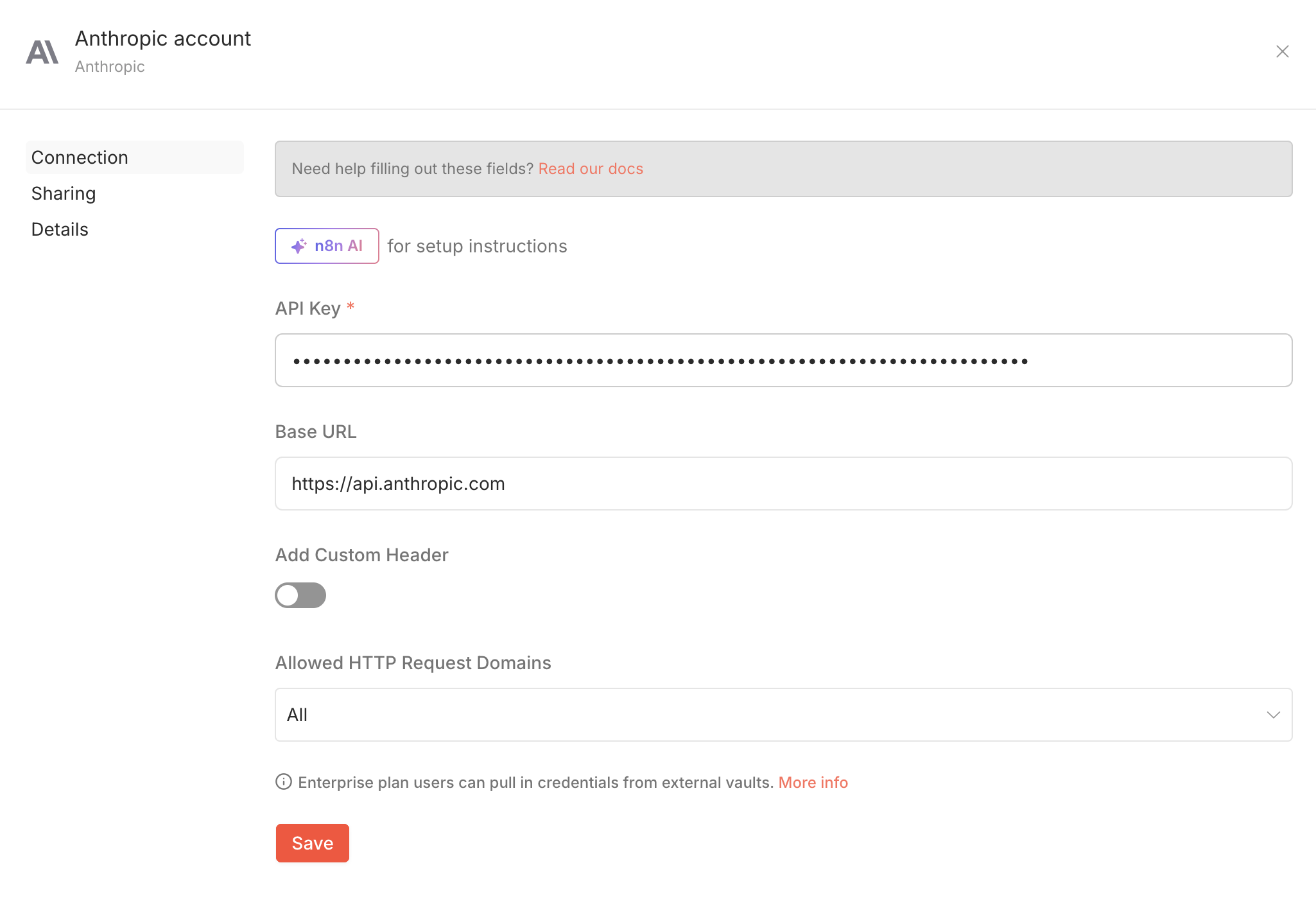
The first functional node is the Message a model node from the Anthropic integration, configured to use the claude-sonnet-4-6 model. Its role in this workflow is to produce a realistic set of property listing values that can be passed to DocuGenerate. To use this node, you’ll need an Anthropic account and an API Key generated from the Anthropic Console, which you add as a credential in n8n when setting up the node for the first time.
The prompt includes the full JSON structure that the template expects, with most fields left empty for Claude to fill in. The agent_photo field is pre-filled with a URL pattern from randomuser.me, a free service that returns a realistic portrait photo for a given numeric ID. Claude is instructed to replace <AGENT_ID> with a random integer between 1 and 50, producing a different agent photo on each run.
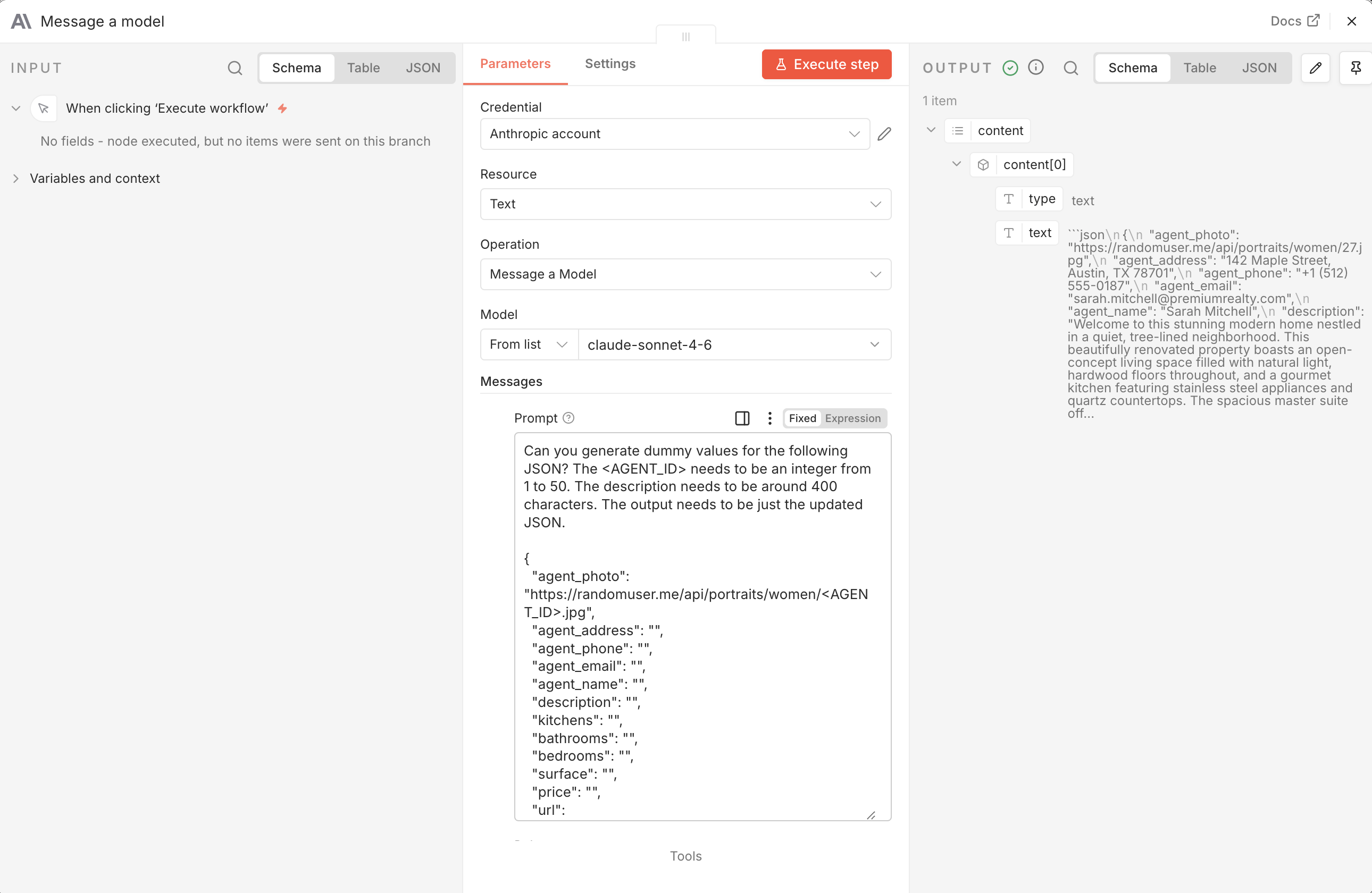
Here is the full prompt used in the node:
Can you generate dummy values for the following JSON? The <AGENT_ID> needs to be an integer from 1 to 50.
The description needs to be around 400 characters. The output needs to be just the updated JSON.

{
  "agent_photo": "https://randomuser.me/api/portraits/women/<AGENT_ID>.jpg",
  "agent_address": "",
  "agent_phone": "",
  "agent_email": "",
  "agent_name": "",
  "description": "",
  "kitchens": "",
  "bathrooms": "",
  "bedrooms": "",
  "surface": "",
  "price": "",
  "url": "https://www.docugenerate.com/blog/generate-property-listings-with-n8n-and-docugenerate/",
  "main_image": "https://images.pexels.com/photos/1571459/pexels-photo-1571459.jpeg",
  "image1": "https://images.pexels.com/photos/2062431/pexels-photo-2062431.jpeg?w=400",
  "image2": "https://images.pexels.com/photos/2089698/pexels-photo-2089698.jpeg?w=400",
  "image3": "https://images.pexels.com/photos/164595/pexels-photo-164595.jpeg?w=400"
}
The four image fields are left as static Pexels URLs for simplicity. In a real-world scenario, these would be actual photos of the property fetched from a media library, a CRM attachment, or a cloud storage bucket. The url field points to this blog post and will be rendered as a QR code in the final document.
Claude returns the completed JSON wrapped in a markdown code block. The response from the Message a model node has the following structure:
[
  {
    "content": [
      {
        "type": "text",
        "text": "```json\n{\n  \"agent_name\": \"Sarah Mitchell\",\n  \"price\": \"$485,000\",\n  ...\n}\n```"
      }
    ]
  }
]
The actual listing data is nested inside content[0].text and wrapped in markdown fences, which means it cannot be used directly by the next node. That is what the Code node in the following step handles.
Parsing the Claude Response
The Code in JavaScript node extracts the JSON object from Claude’s response and exposes it as clean, structured data for the rest of the workflow. This step is necessary for two reasons: the Message a model node returns the full API response object rather than just the text content, and Claude tends to wrap its JSON output in markdown code fences even when instructed not to. Rather than relying on prompt engineering to fix this inconsistency, the Code node handles it reliably every time.
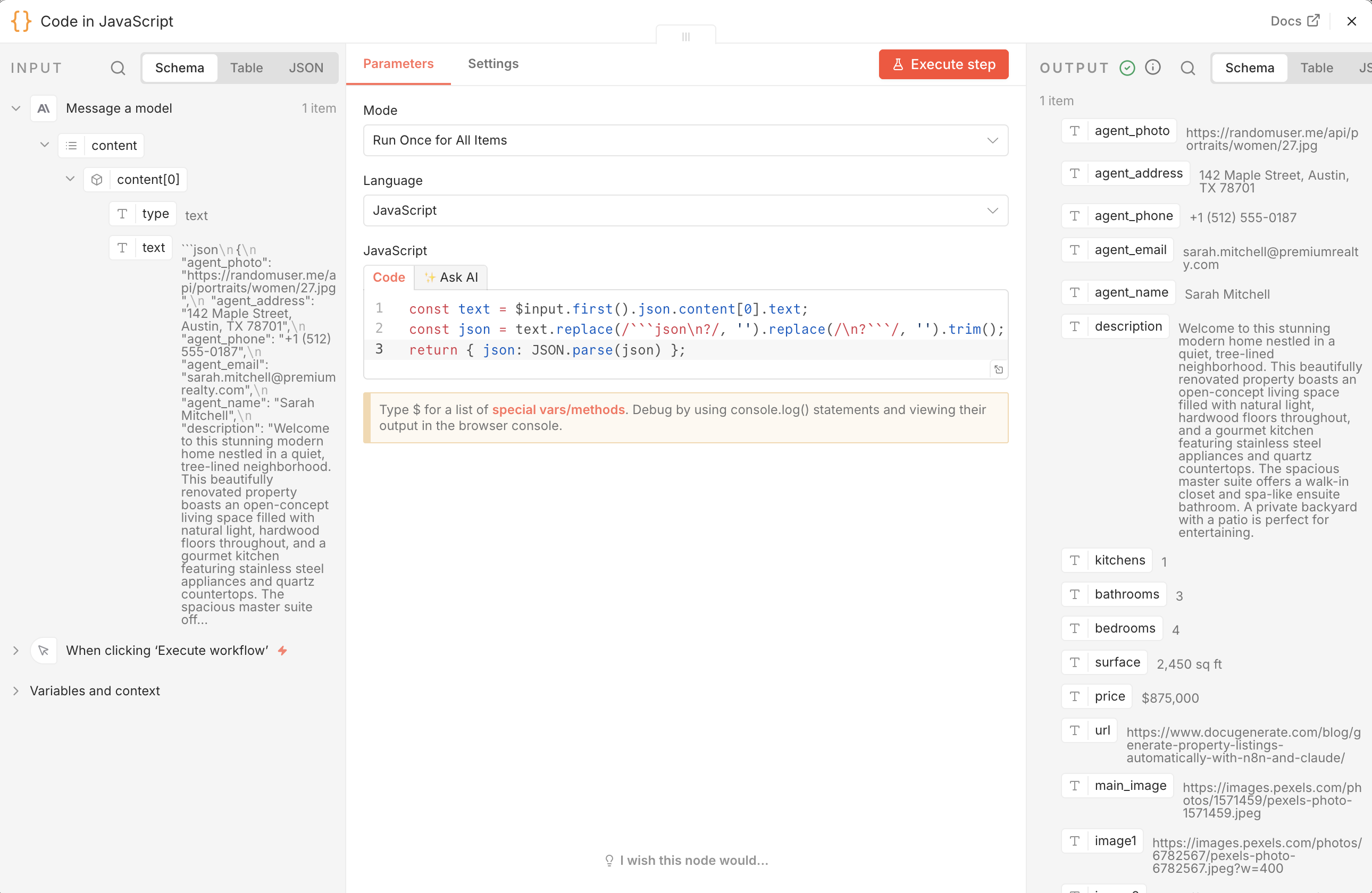
const text = $input.first().json.content[0].text;
const json = text.replace(/```json\n?/, '').replace(/\n?```/, '').trim();
return { json: JSON.parse(json) };
The first line reads the text value from Claude’s response. The second line strips the markdown code fences using two regular expressions. The third line parses the cleaned string into a JavaScript object and returns it as the node output. After this step, all the listing fields (agent_name, price, bedrooms, etc.) are available as top-level keys in the item’s JSON, ready to be passed directly to DocuGenerate.
Generating the Document
The Generate document node uses the DocuGenerate integration for n8n to merge the listing data with the Word template and produce a PDF. To use this node, install DocuGenerate in your n8n instance and configure it with your API Key.
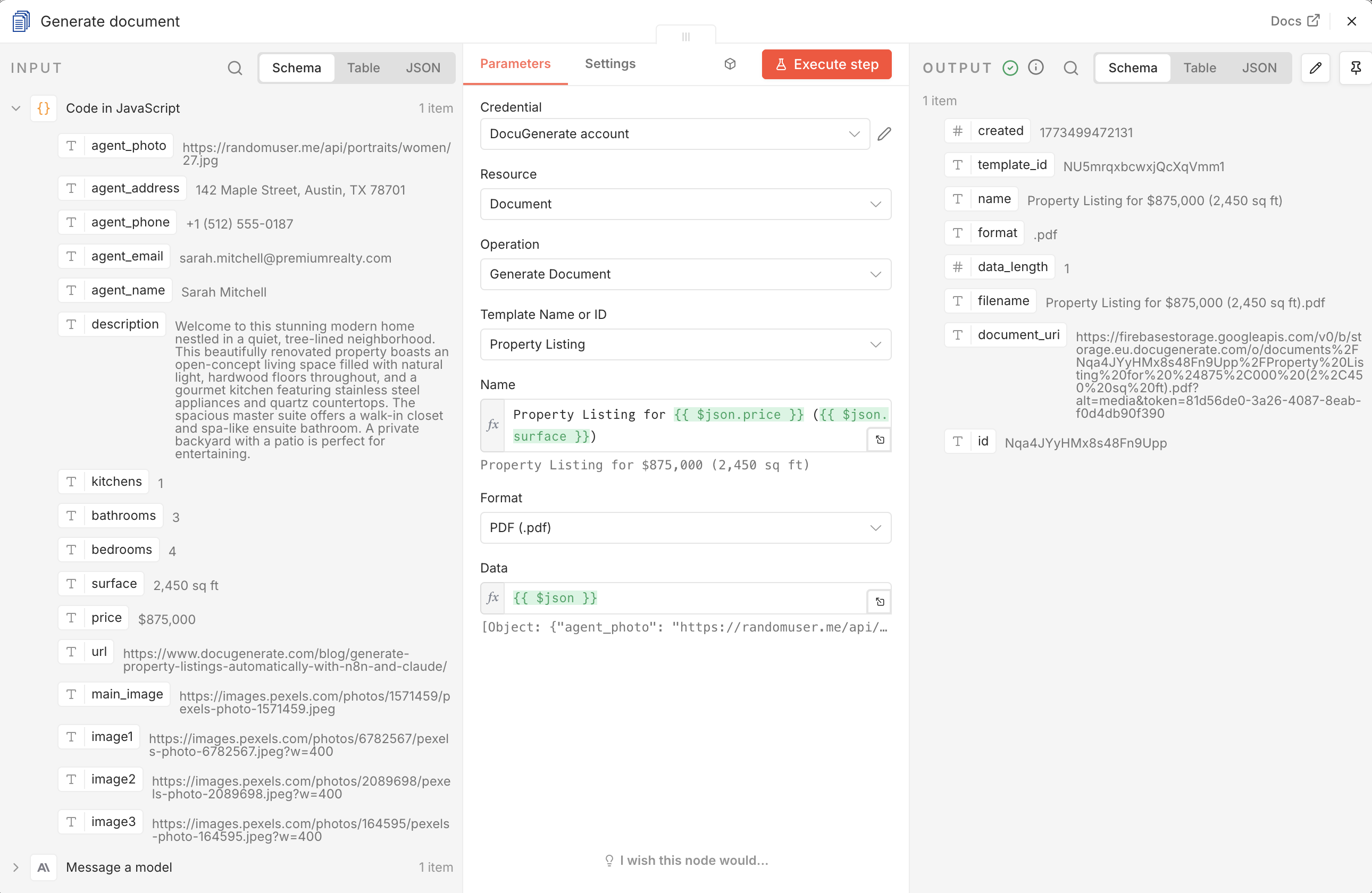
The node is configured with the following parameters:
- Template Name or ID: The ID of the Property Listing template uploaded in the template setup step.
- Name: An n8n expression that generates a dynamic document name:
Property Listing for {{ $json.price }} ({{ $json.surface }}). This produces a filename like Property Listing for $485,000 (1,850 sq ft) that makes each document easy to identify. - Format: Set to
PDF (.pdf). - Data: Set to
{{ $json }}, which passes the entire output of the Code node as the data payload. Since the Code node already produces a flat JSON object with all the template fields at the top level, no additional mapping is needed.
When the node runs successfully, the response contains a document_uri field with a URL pointing to the generated PDF, and a filename field with the document’s filename.
Downloading the Generated PDF
DocuGenerate returns a URL to the generated document rather than the binary file content directly. To upload the PDF to Dropbox in the next step, we first need to fetch the file from that URL. The HTTP Request node handles this by making a GET request to the document_uri returned by the Generate document node.
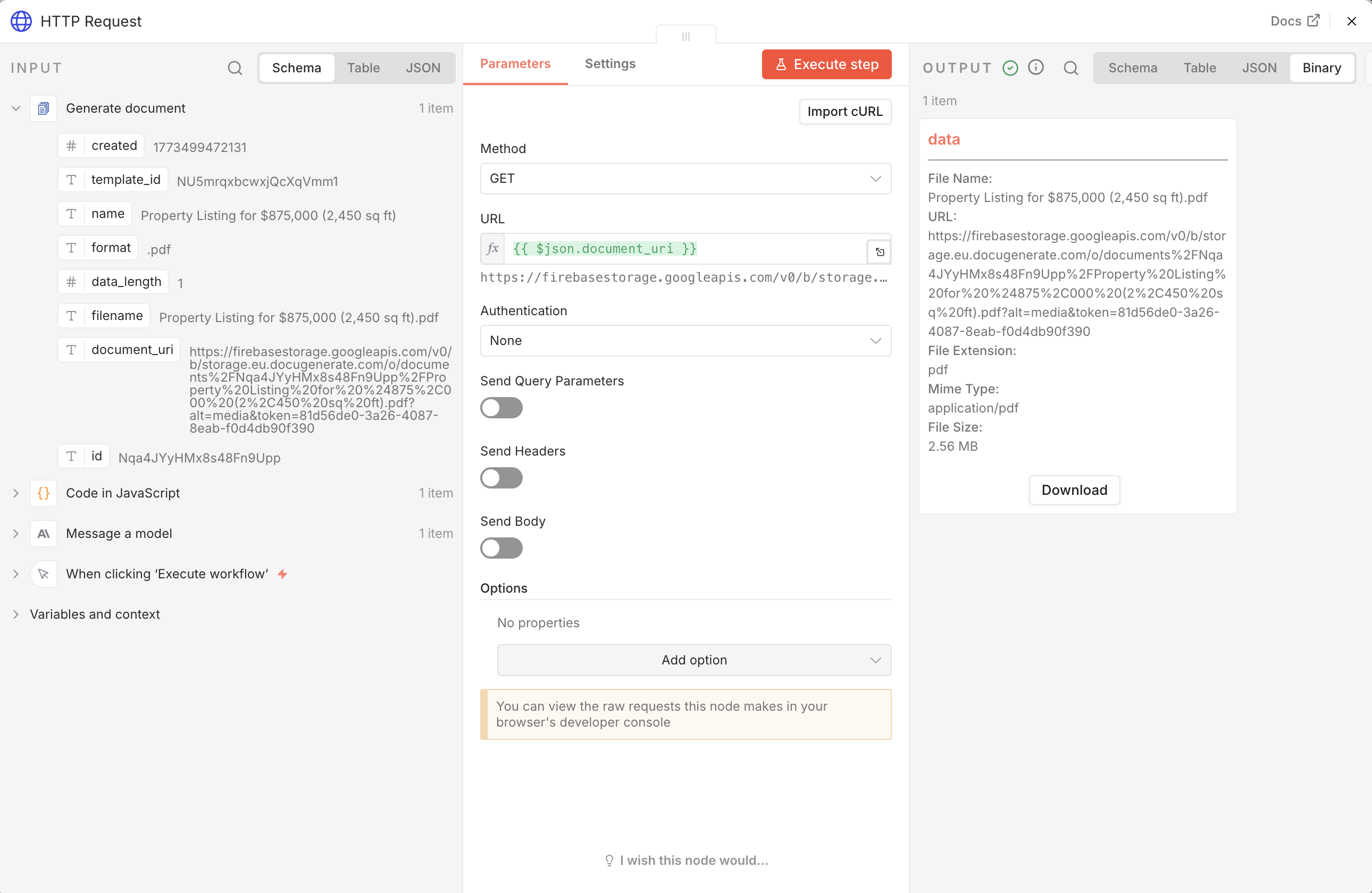
The URL parameter is set to {{ $json.document_uri }}, referencing the document URL from the previous step. The binary file data is then available to the Dropbox node for upload.
Saving the PDF to Dropbox
The final node uploads the generated PDF to a designated Dropbox folder using the Dropbox node in n8n, giving the team immediate access to the new listing document.
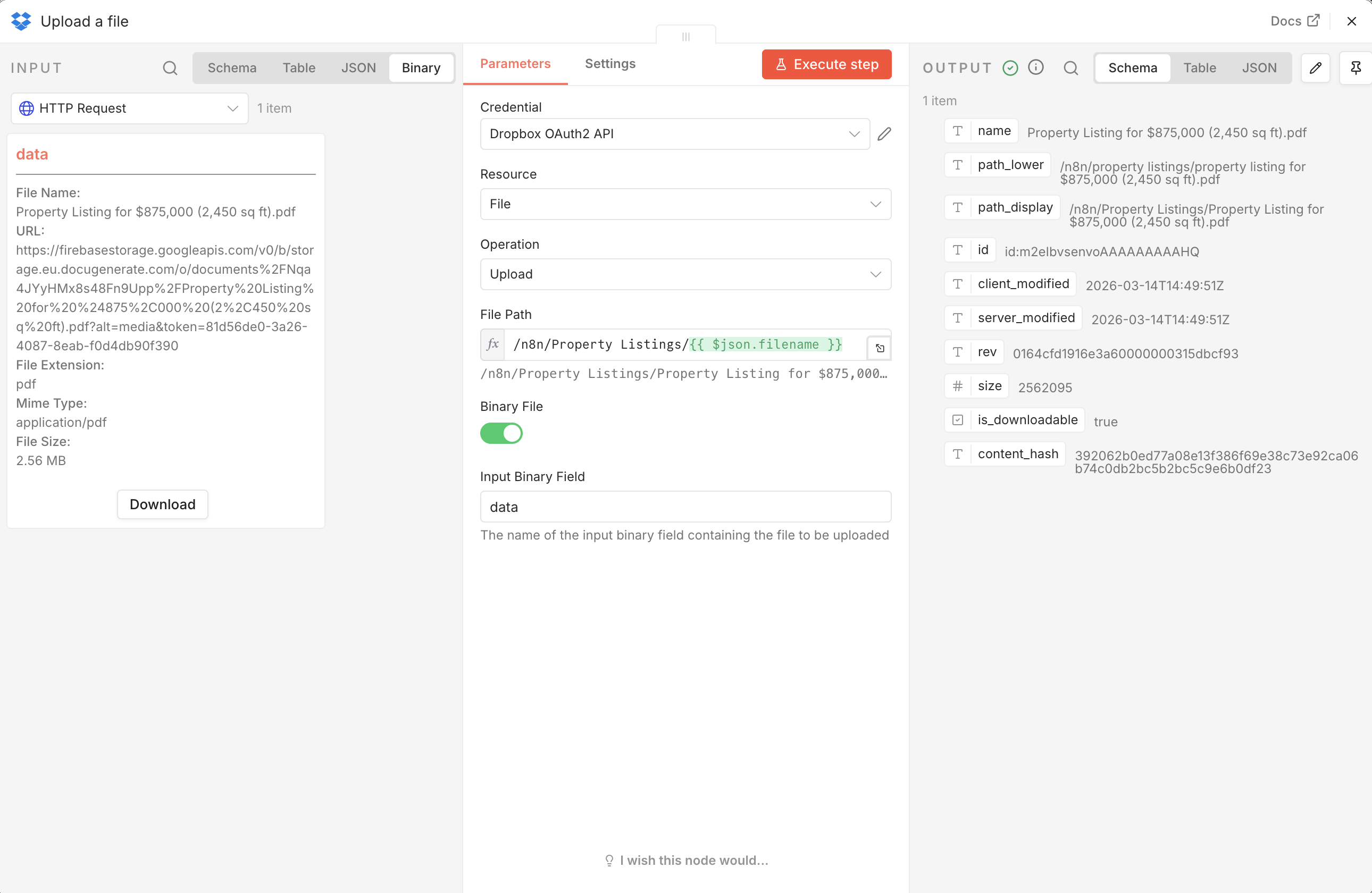
The node uses OAuth2 authentication connected to your Dropbox account. The File Path parameter is set to /n8n/Property Listings/{{ $json.filename }}, saving each document in the /n8n/Property Listings/ folder using the filename returned by DocuGenerate. The Binary File option is enabled so the node reads the file content from the HTTP Request node’s output rather than a static path.
Once the workflow completes, the generated PDF is available in Dropbox and looks like this. You can also download a sample PDF to see the final result.
Real-World Data Sources
The workflow built in this tutorial uses Claude as a convenient stand-in for a real data source, but in practice, property listing data rarely comes from an AI model. It typically lives in a form submission, a CRM record, a database row, or a spreadsheet maintained by the agency. Since the document generation and delivery steps stay the same regardless of where the data originates, swapping out the Anthropic node for a different trigger and data source is all it takes to turn this tutorial workflow into a production-ready automation. Below are some common scenarios this workflow is well-suited for.
Many agencies use online forms to collect property details from listing agents before preparing marketing materials. A form tool like Jotform, Typeform, or Tally can capture fields such as address, price, number of rooms, surface area, and a description directly from the agent. When a new submission arrives, the form platform can trigger the n8n workflow via a webhook, passing all collected data straight into the document generation step. This makes property listing creation a natural follow-up to the intake process, with no manual data transfer required.
CRM Systems
Real estate businesses that manage their inventory in a CRM such as Salesforce, HubSpot, or Pipedrive can trigger document generation whenever a property record reaches a certain pipeline stage, for example when it is marked as “Ready to publish” or “New listing”. The workflow would pull the relevant fields from the CRM record, merge them into the template, and either save the PDF back to the record or deliver it to the assigned agent by email. This keeps the listing document in sync with the CRM data and eliminates duplicate data entry.
Databases and Spreadsheets
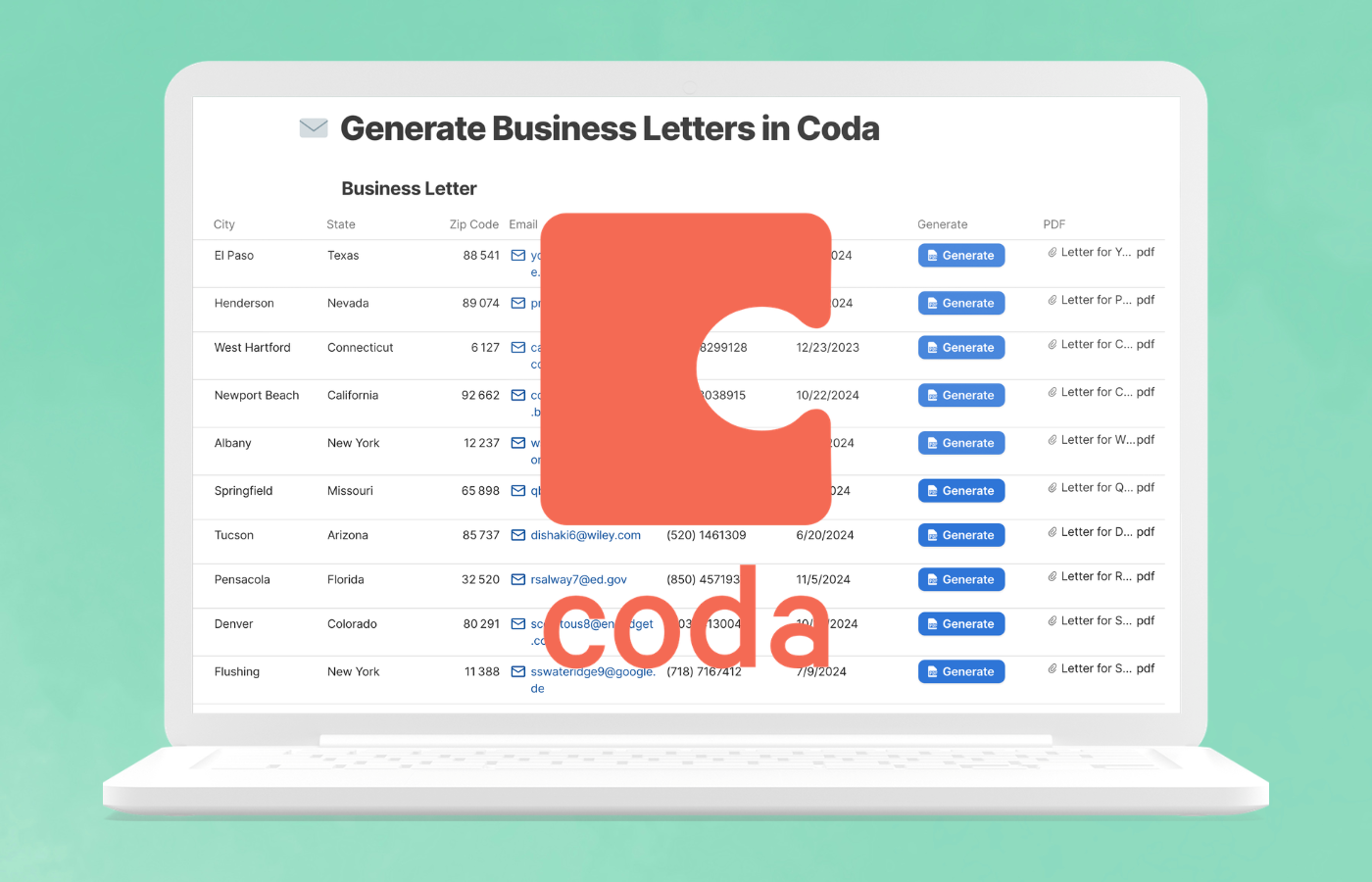
Teams that manage their property inventory in a database such as PostgreSQL, Airtable, or Notion, or in a spreadsheet like Google Sheets or Excel, can query new or updated records on a schedule or in response to a row being added. n8n has native nodes for all of these platforms, making it straightforward to read a row, map the columns to the template fields, and generate a PDF for each property. This approach works particularly well for agencies that add multiple listings at once and want to generate all documents in a single automated run.
Conclusion
In this tutorial, we built a n8n workflow that generates a property listing PDF automatically. The workflow uses Claude to simulate a realistic data input, parses the response into structured JSON, merges the data with a professionally designed Word template, and saves the resulting PDF to Dropbox. The template demonstrates several advanced DocuGenerate features including image sizing with filters, QR code generation, and automatic pluralization via conditional syntax.
In a real deployment, the Anthropic node would be replaced by a connection to your actual data source, whether that is a web form, a CRM, a database, or a spreadsheet. The document generation and delivery steps remain the same, making this workflow straightforward to adapt to almost any property management setup.
Resources